
To watch the video, click here: https://loom.com/share/3038d945b91249a8b361c6b23a905136
Step-by-Step Instructions
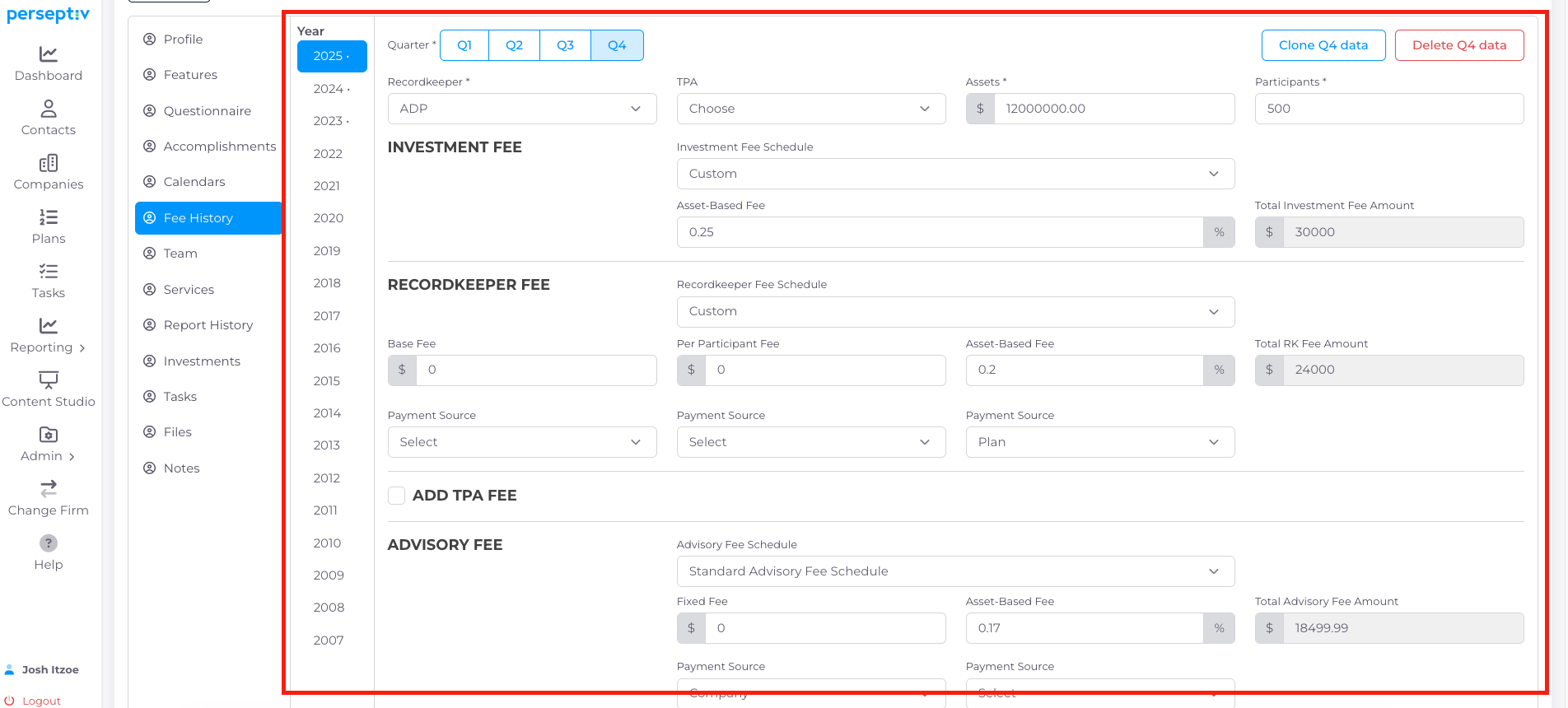
1. Update Fees and Fee History 0:00
-
Ensure that the fees and fee history for the plan are updated.
-
Navigate to the 'Plans' section and select 'Fee History' to verify the updates.
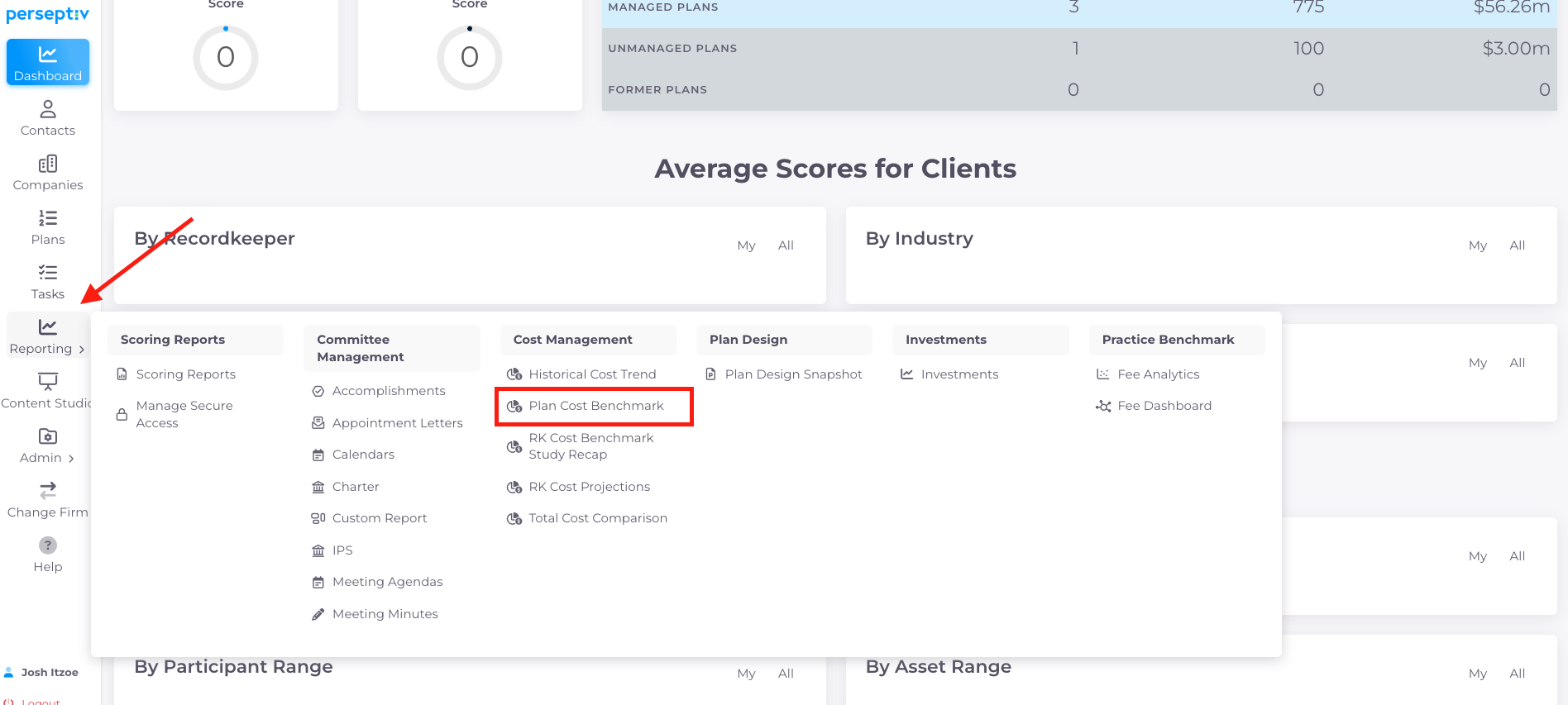
2. Access Reporting Tools 0:10
-
Go to the 'Reporting' section.
-
Select 'Cost Management' and then 'Plan Cost Benchmarking'.
3. Create the Report 0:20
-
Click on 'Create Report'.
-
Choose the relevant plan and select the quarter for the report.
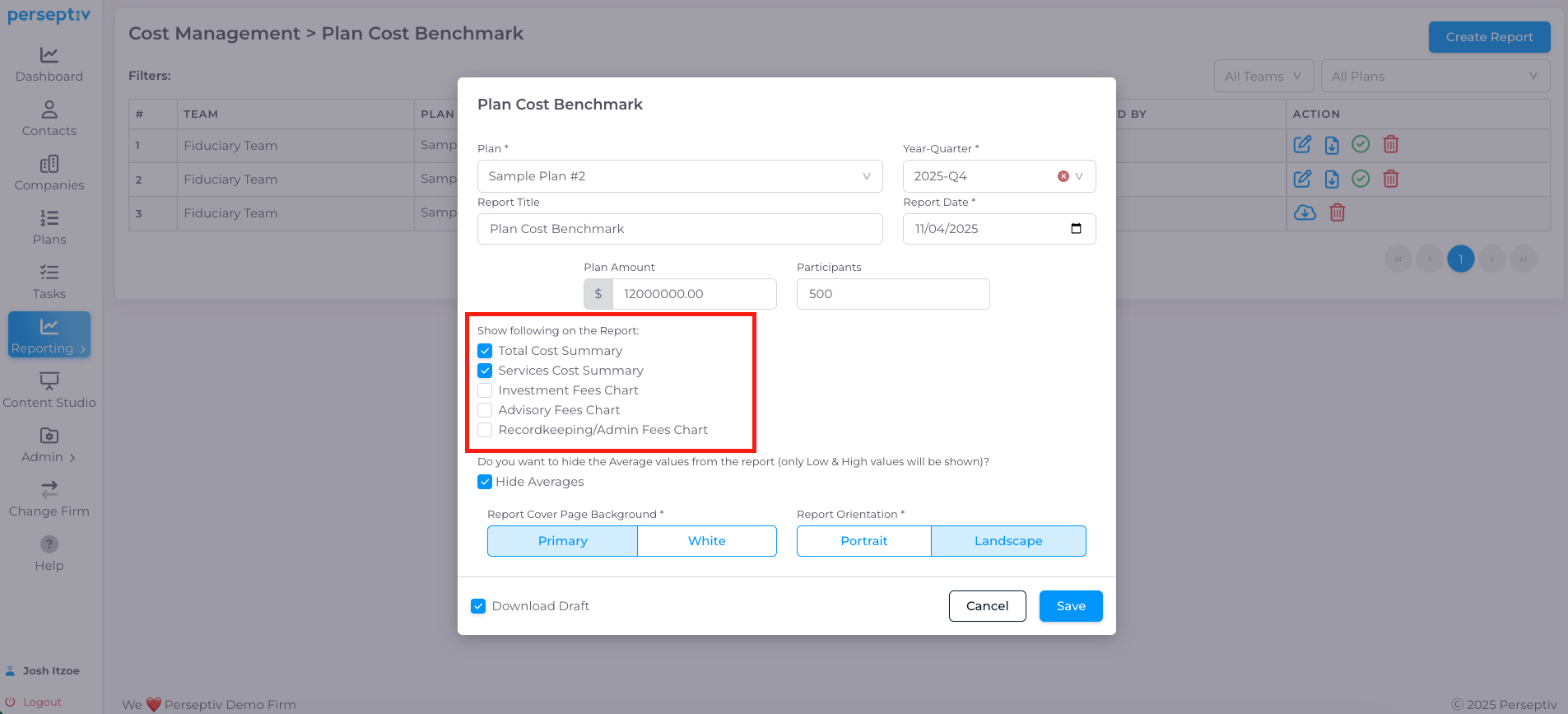
4. Select Report Types 0:32
-
There are five different report formats available.
-
It is recommended to select the top two reports for simplicity.
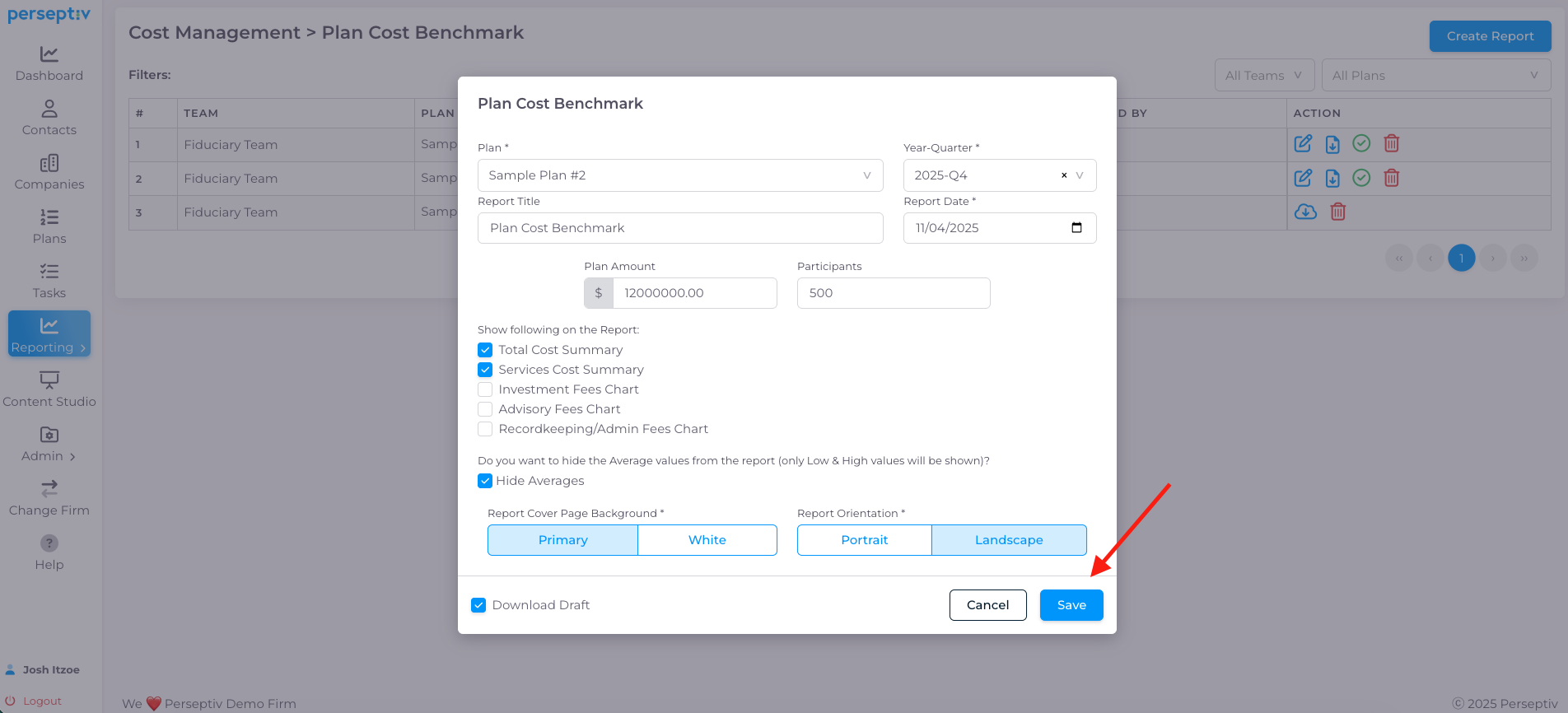
5. Generate the Report 0:44
-
Click 'Save' to generate the fee benchmarking report.
6. Review the Report Overview 1:00
-
The report will include:
-
Average balance
-
Plan assets
-
Total profit
-
Participant count
-
-
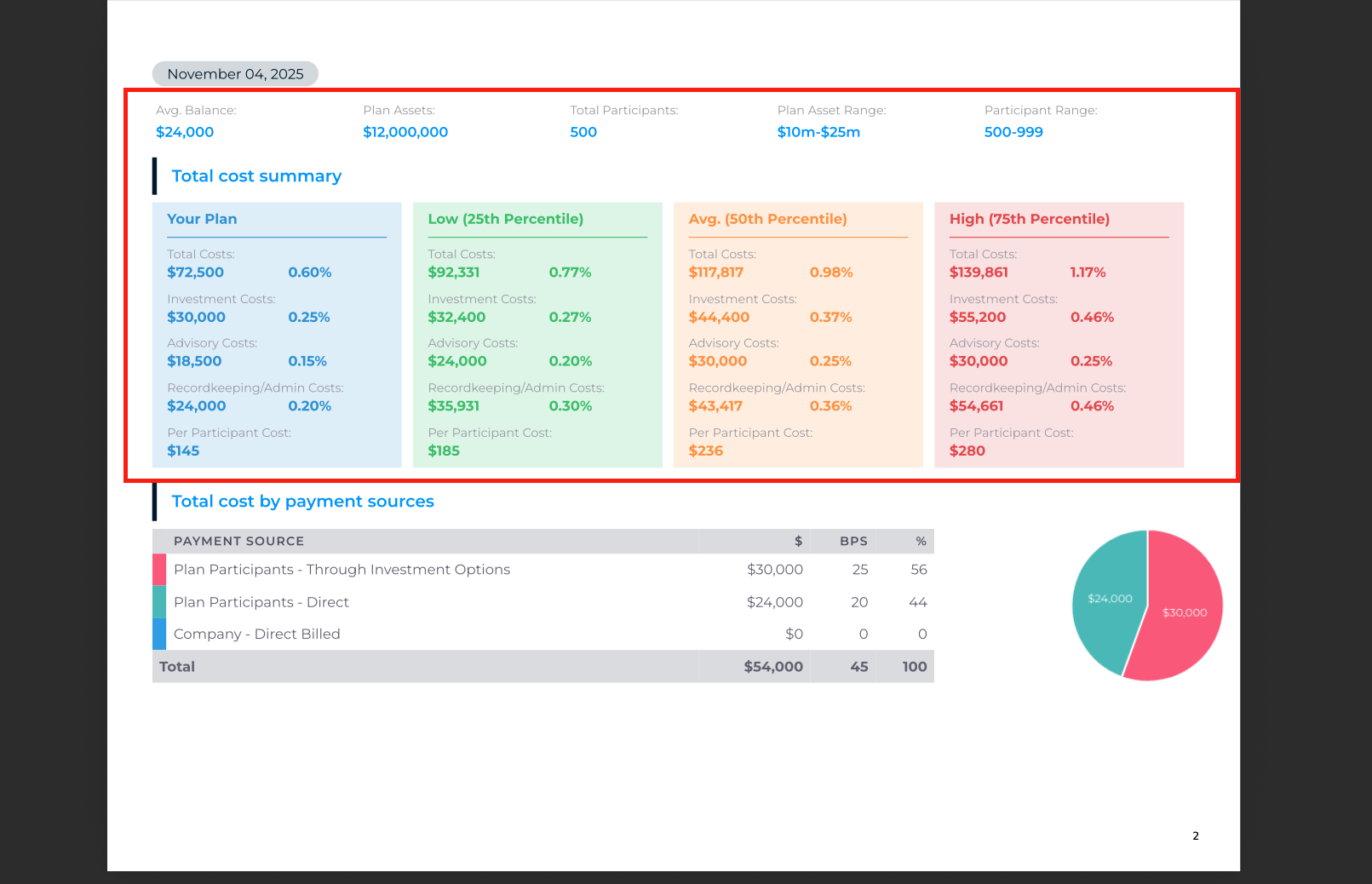
The top section provides a total cost summary with a breakdown of fees.
7. Analyze Fee Ranges 1:22
-
The report shows low, average, and high fee data.
-
The 'Your Plan' box indicates where the plan's fees fall within these ranges.
8. Breakdown of Fees by Source 2:05
-
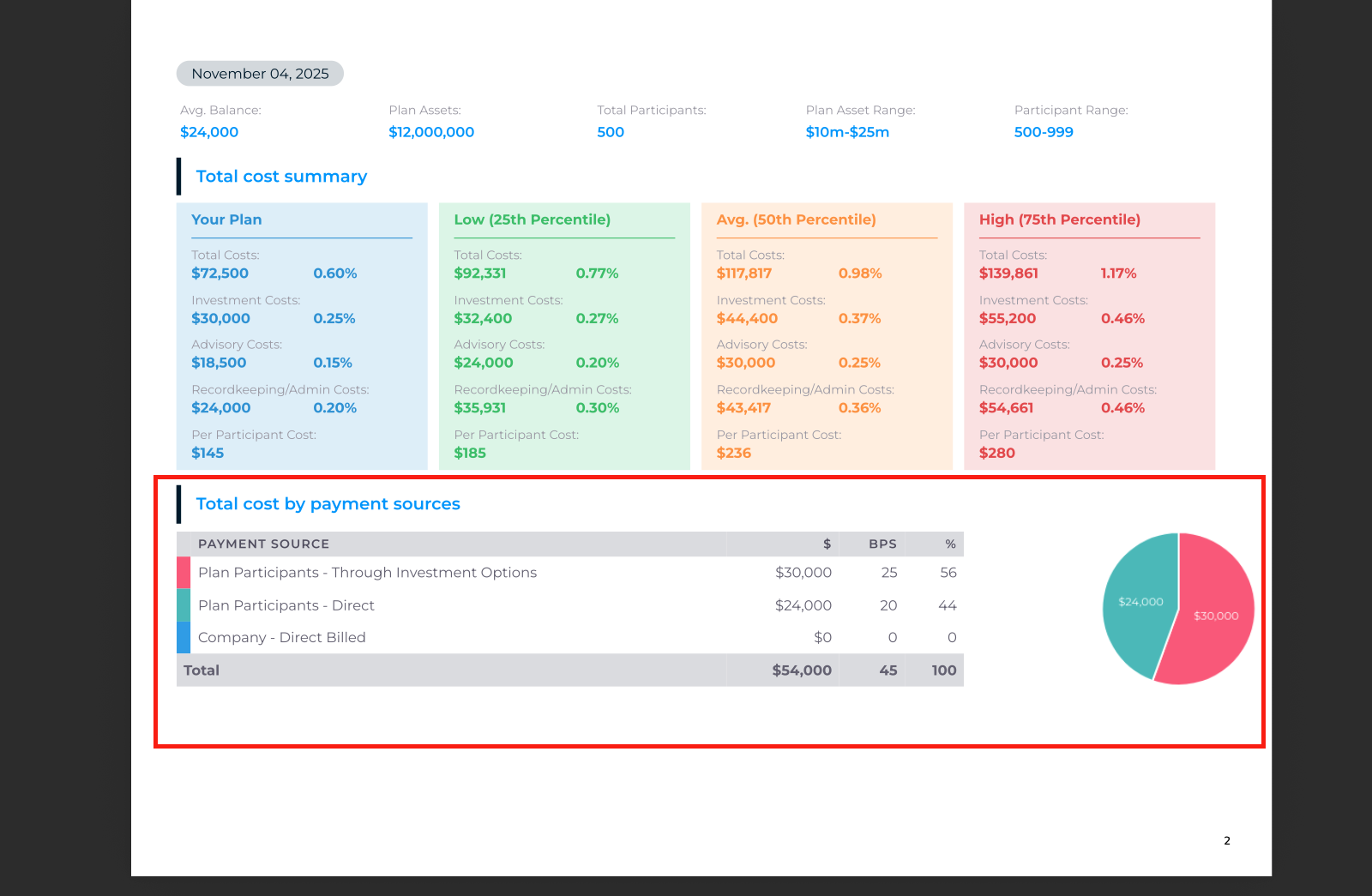
If fee sources are set up, the report will show:
-
Fees paid by plan participants through investment options.
-
Any costs covered by the company.
-
9. Visualize Fee Components 2:53
-
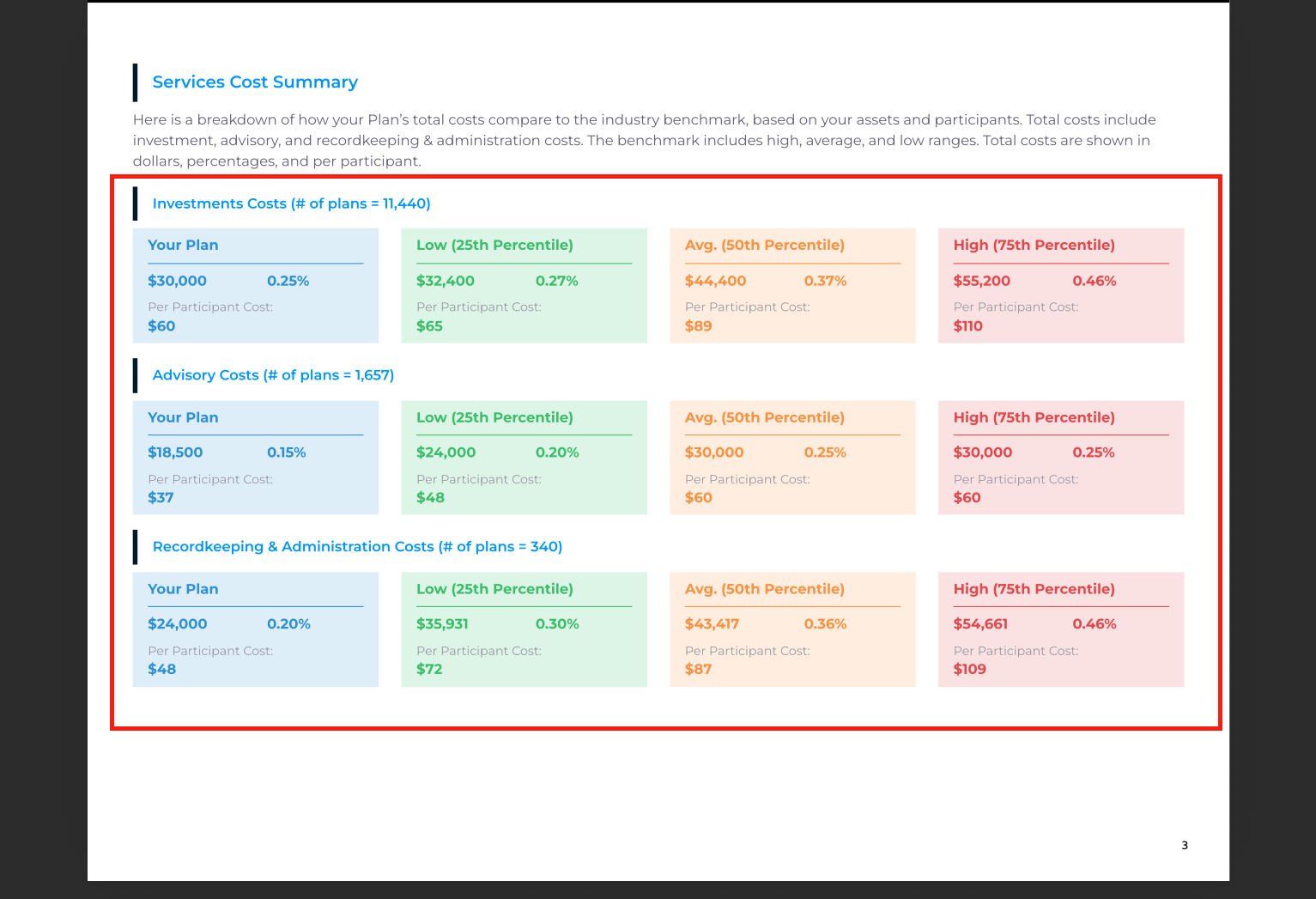
The second page of the report provides a breakdown by fee components.
-
Visual aids like bar charts help in understanding the fee structure.
10. Hiding the Average to Manage Optics 3:45
-
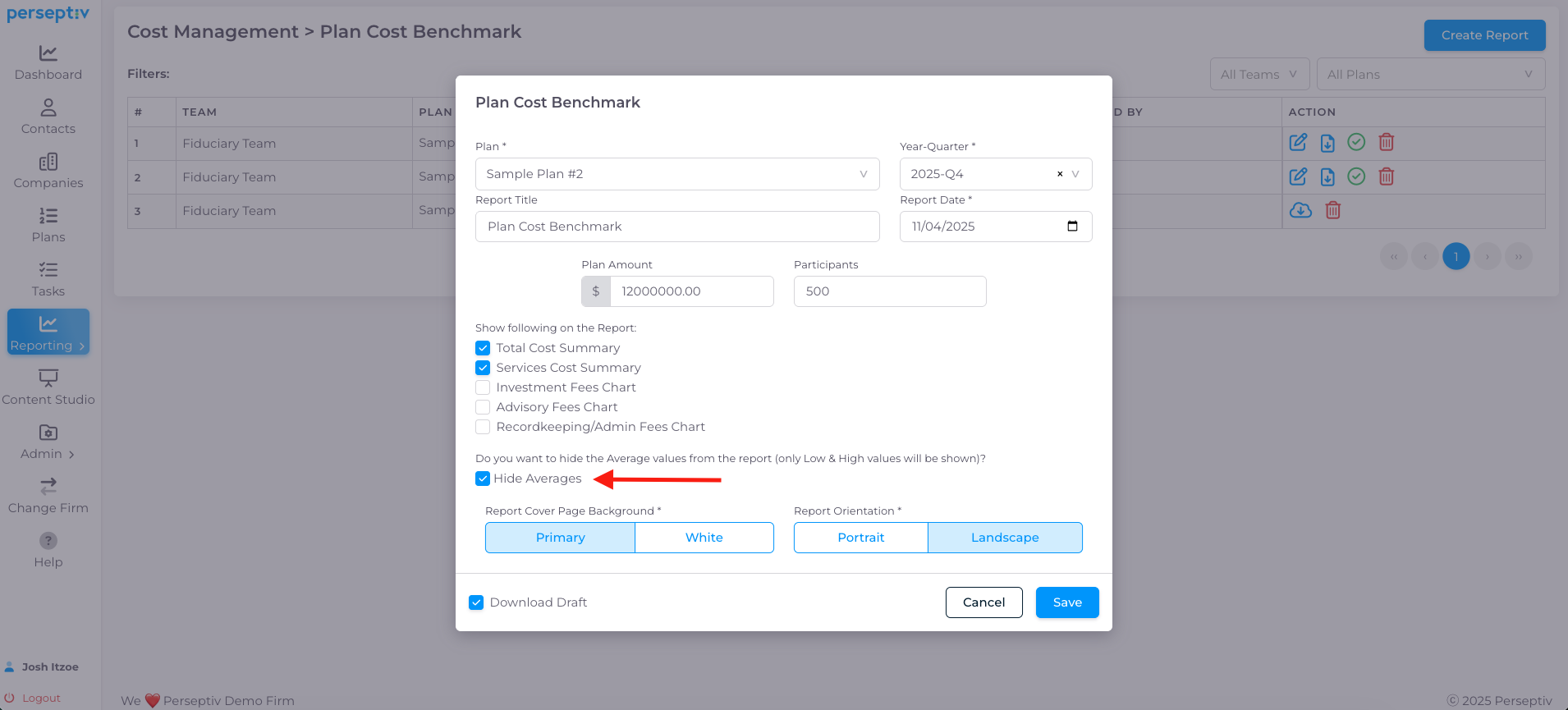
If fees are higher than average, you can choose to hide the average data.
-
Options include showing:
-
25th and 50th percentiles
-
50th and 75th percentiles.
-
11. Finalize Report Presentation 4:18
-
Adjust the report to show relevant percentiles based on the plan's fee structure.
-
Ensure the report presents the data in a way that is favorable for client discussions.