
To watch the video, click here: https://loom.com/share/83b351c9c3e0451a9024068cd7c590e3
Step-by-Step Instructions
1. Purpose of Tracking Notes 0:01
-
Track notes or conversations with clients, prospects, or partners.
-
Provides a 360 view of interactions among team members.
-
Useful for coverage during client calls.
2. Accessing Notes in the System 0:28
-
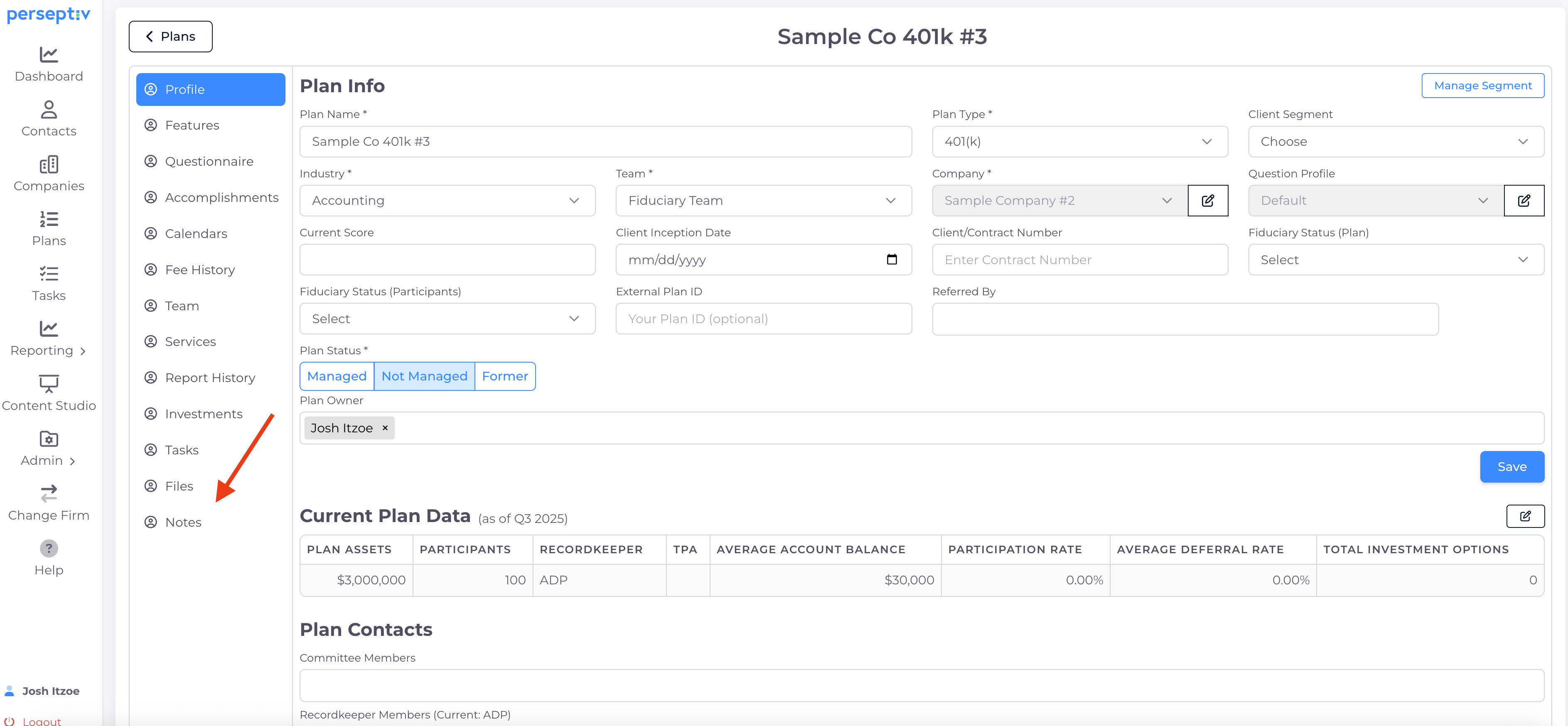
Navigate to the 'Plans' section.
-
For a specific plan, click on:
-
'Notes' after clicking the arrow button under 'Actions', or
-
'Profile' and then select 'Notes' from the menu.
-
3. Adding a Note 0:46
-
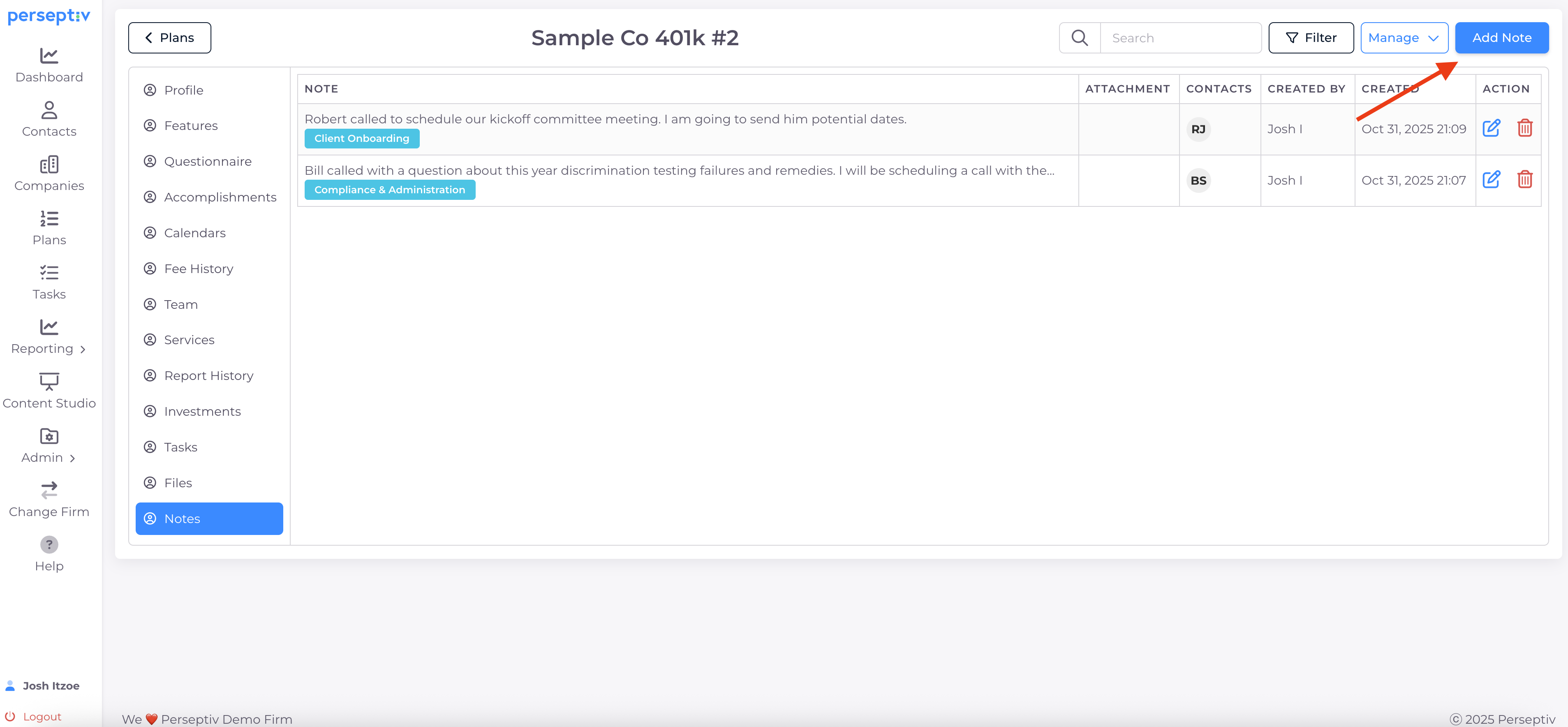
Click 'Add a Note'.
-
Choose a category for the note (e.g., compliance administration).
-
Enter details about the interaction (e.g., client name, questions discussed).
4. Saving the Note 1:57
-
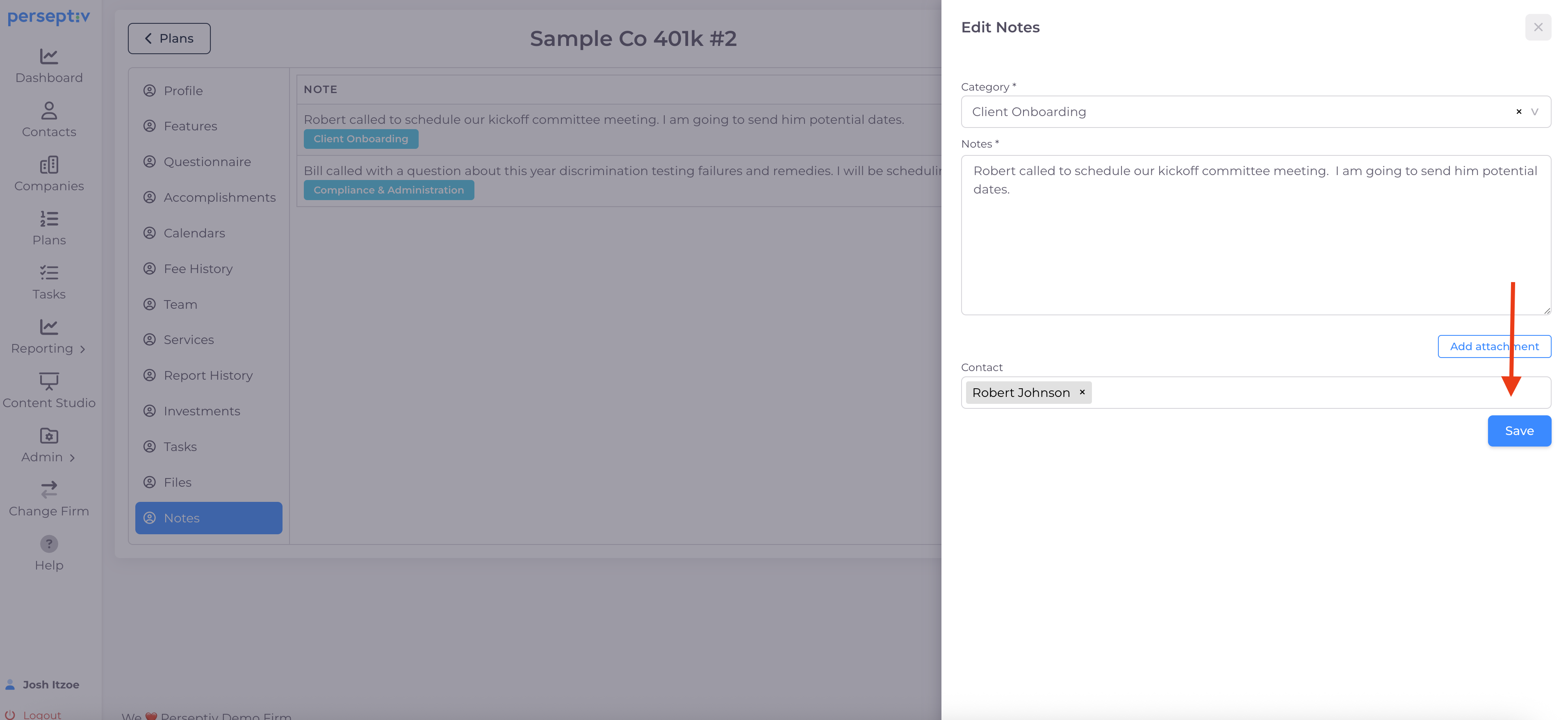
After entering the note details, click 'Save'.
-
The note will be tracked in the system.
5. Attaching Additional Information 2:53
-
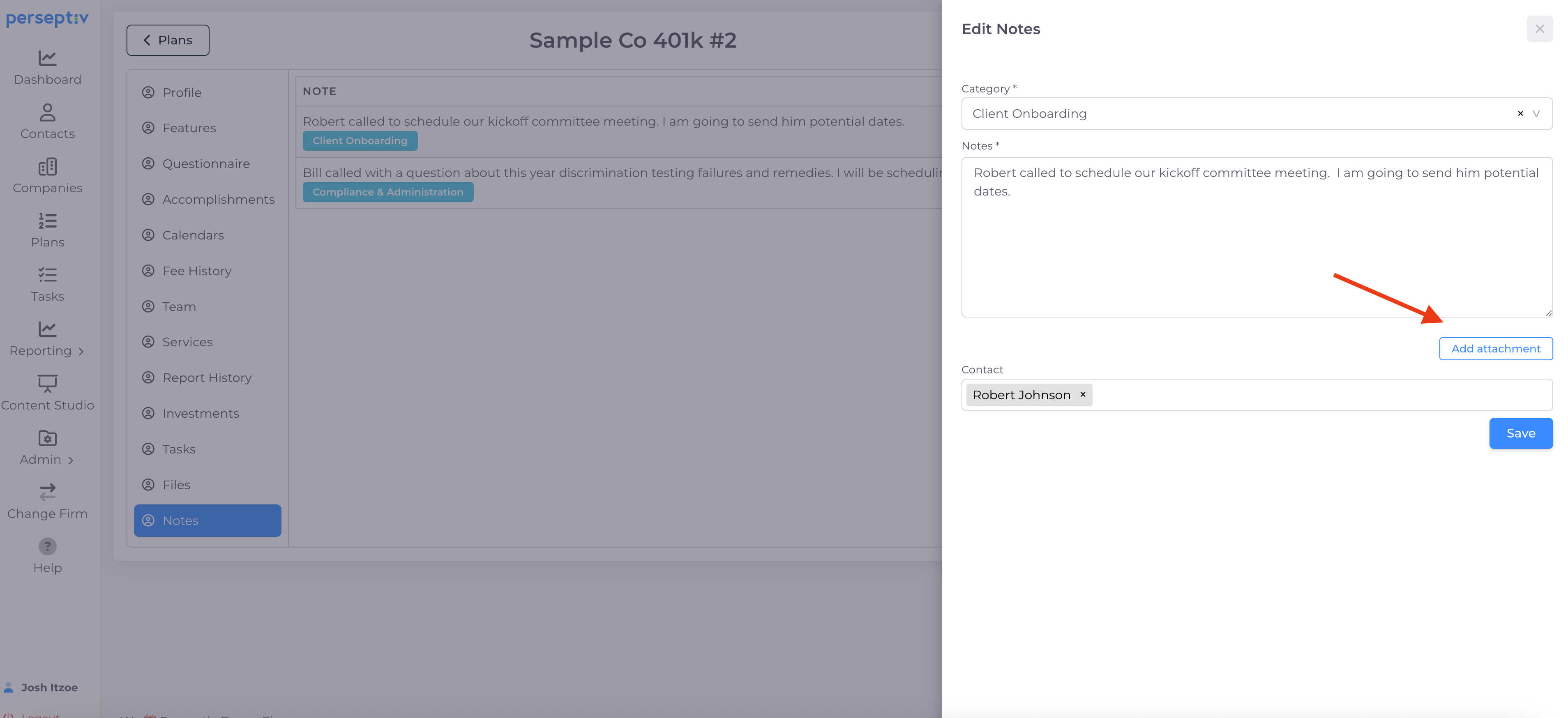
Attach relevant documents or information to the note if necessary.
-
Make to to click 'Save' after adding attachments.
7. Reviewing and Searching Notes 3:10
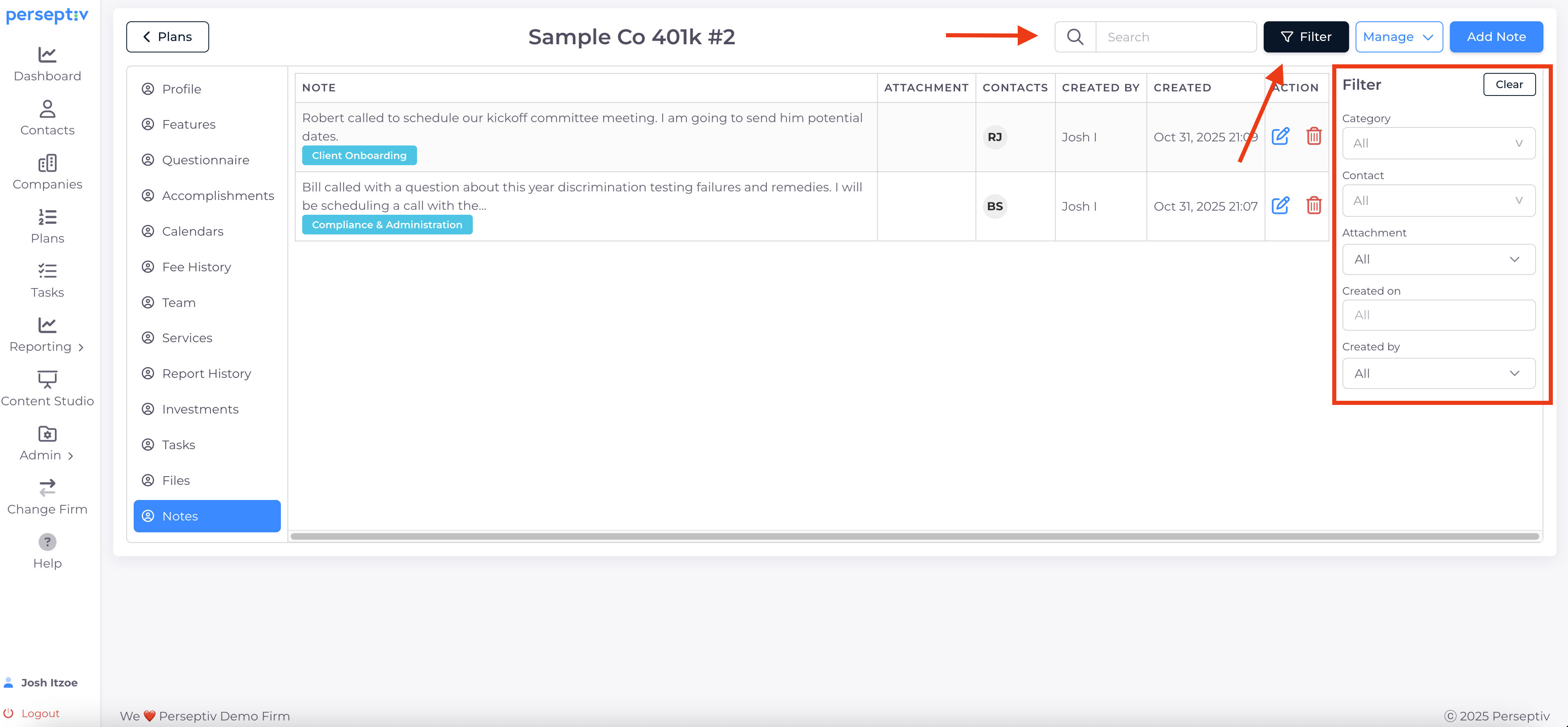
-
View all notes related to a specific contact.
-
Use search and filter options to find specific interactions.
8. Benefits of using Notes 3:37
-
Acts as a lightweight CRM for team communication.
-
Keeps everyone informed and in the loop regarding client interactions.