
To watch the video click here: https://loom.com/share/c8c9a87871e04b8c8479d20f6f29c57f
Step-by-Step Instructions
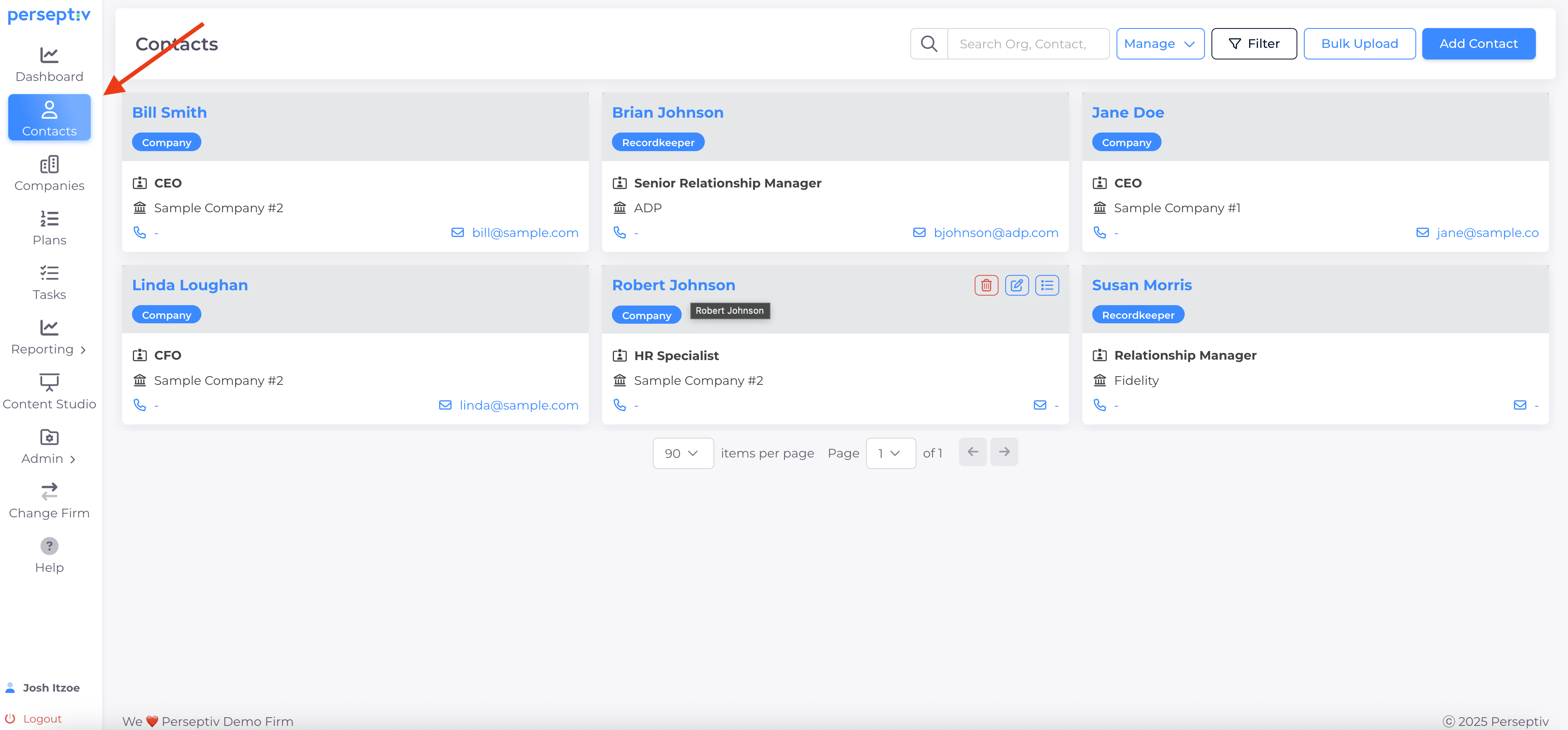
1. Introduction to Contact Management 0:00
-
The system now allows for enhanced contact management.
-
Previously limited to specific types of contacts (e.g., committee members, record keeper team members).
-
New feature allows for more customization and addition of various contact types.
2. Types of Contacts 0:37
-
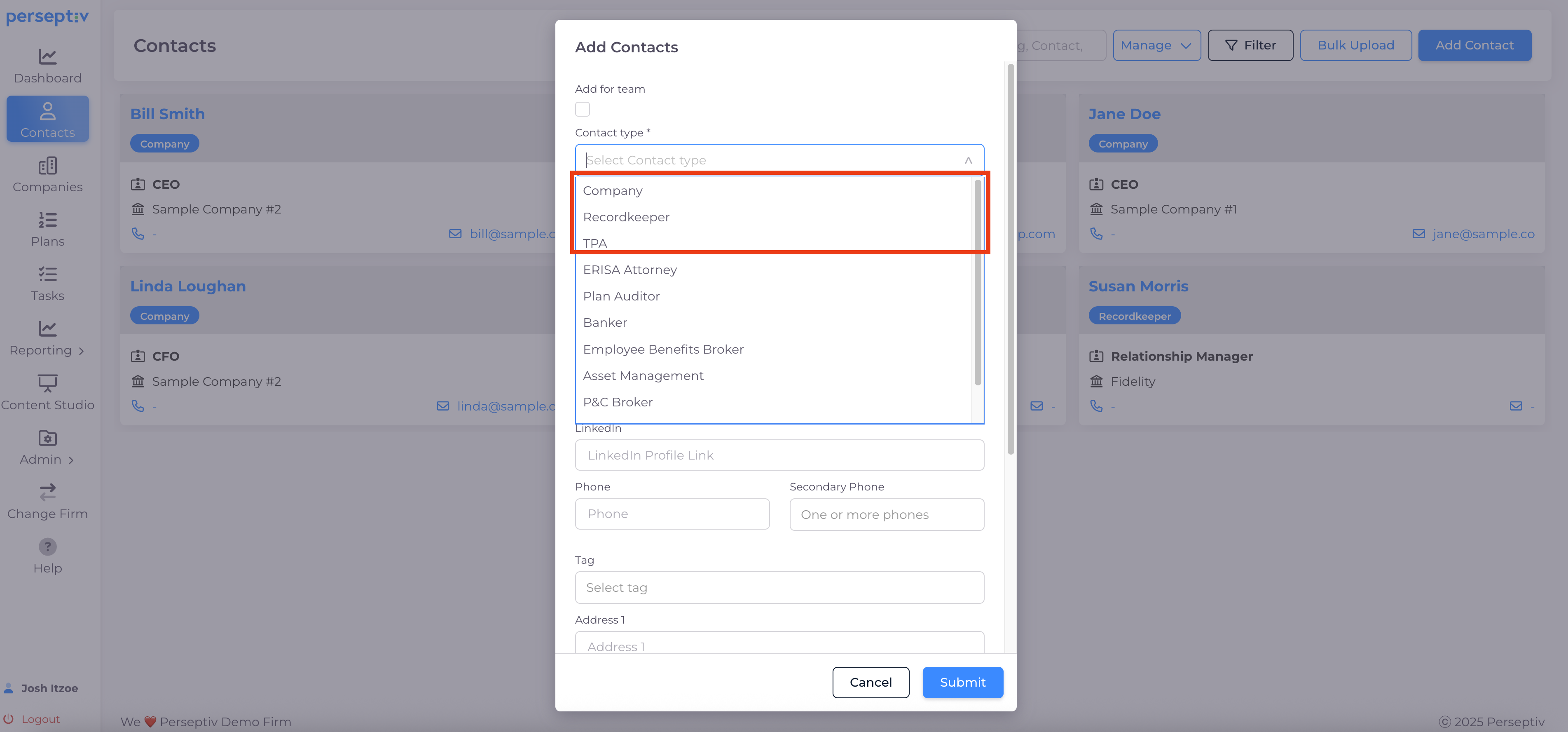
System-managed contacts include:
-
Company
-
Recordkeeper
-
TPA
-
-
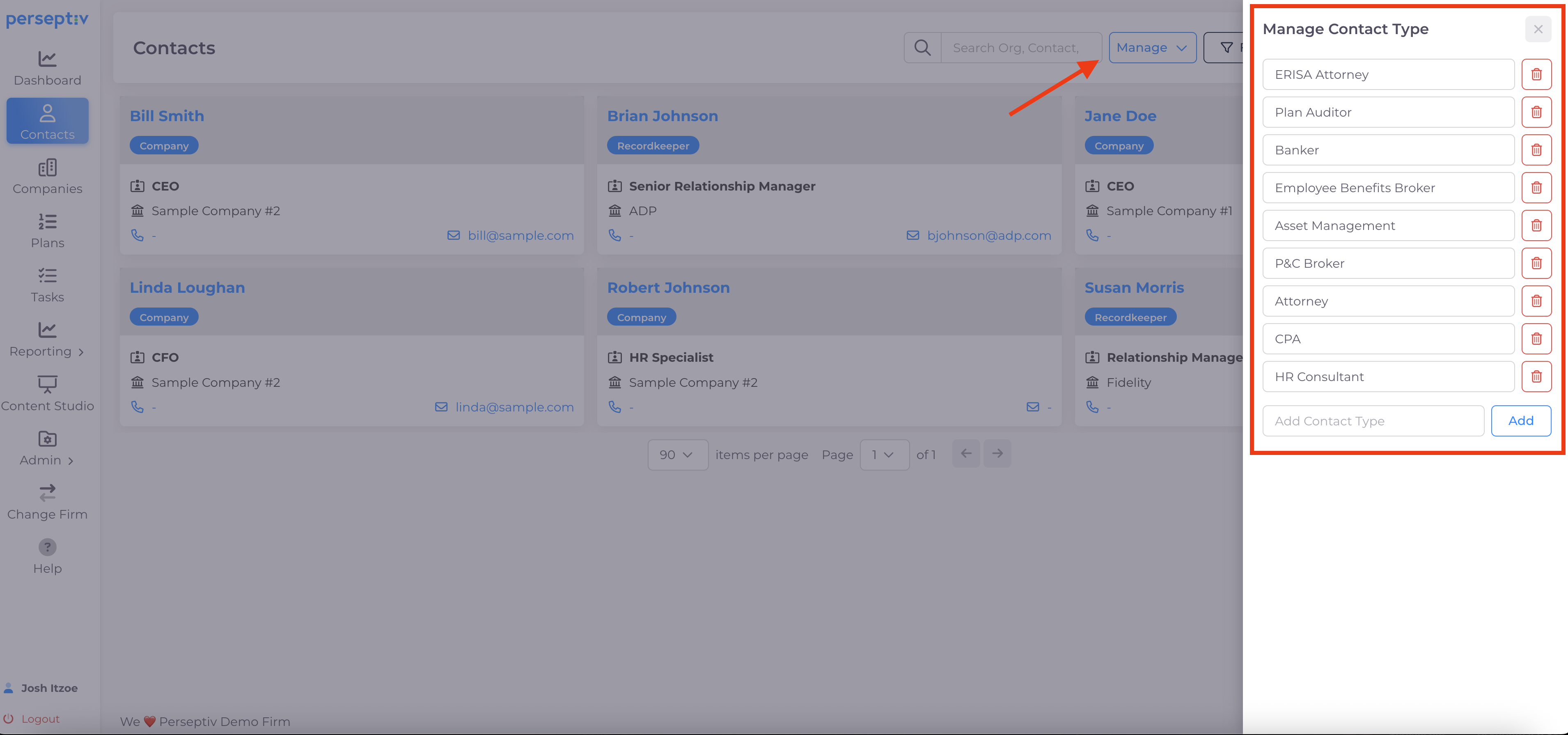
User-managed contacts
-
Users can also add other types of contacts with customizable options.
-
3. Adding a Contact 1:25
-
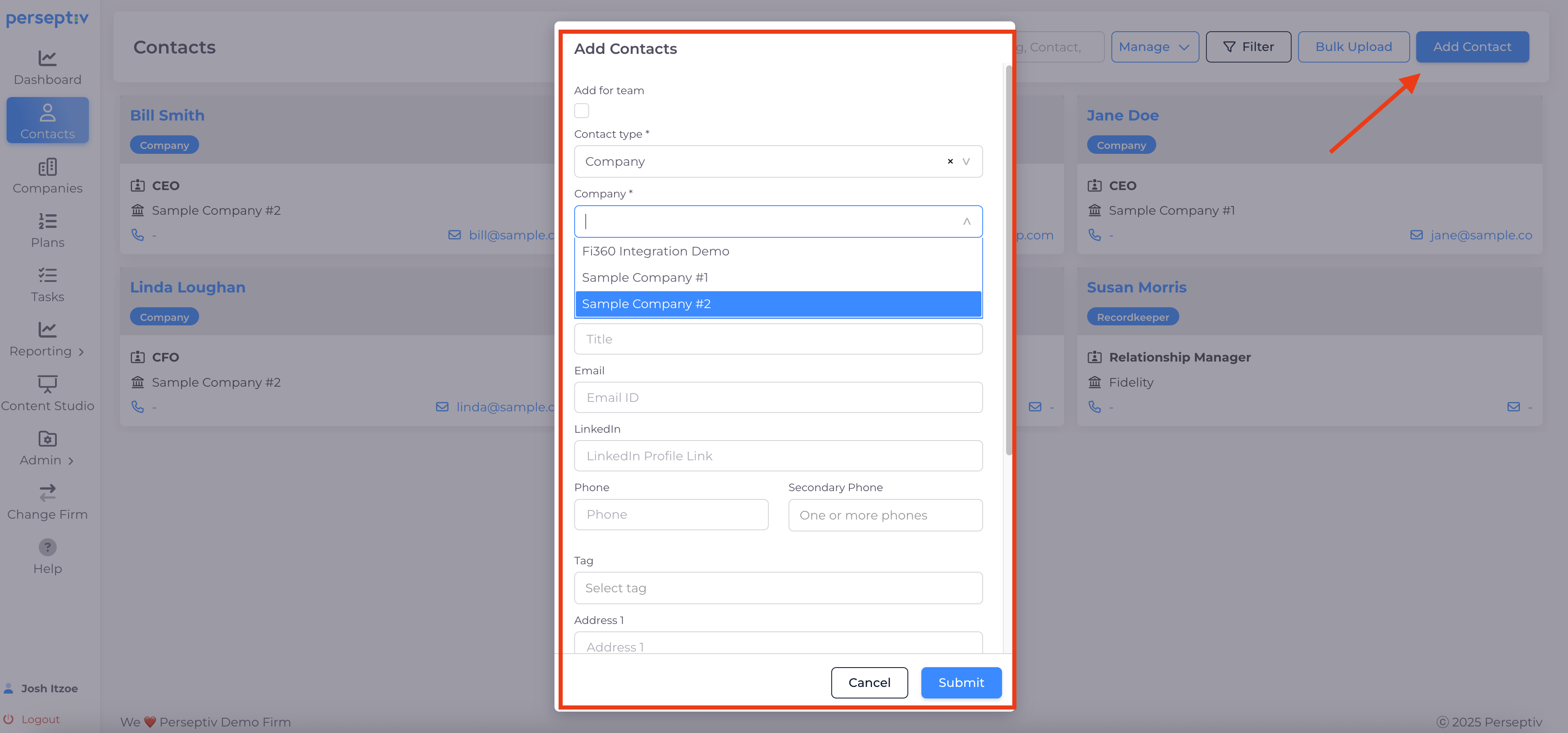
Steps to add a contact:
-
Select the type of contact (e.g., company contact).
-
Choose the associated company from the system. For Company contacts, make sure you've already added the company to Perseptiv (i.e. client/prospect) so the contact can be associated to the record.
-
Enter contact details:
-
Name
-
Title
-
Email address
-
LinkedIn URL (optional)
-
Phone numbers (primary and secondary)
-
-
Click 'submit' to save the contact.
-
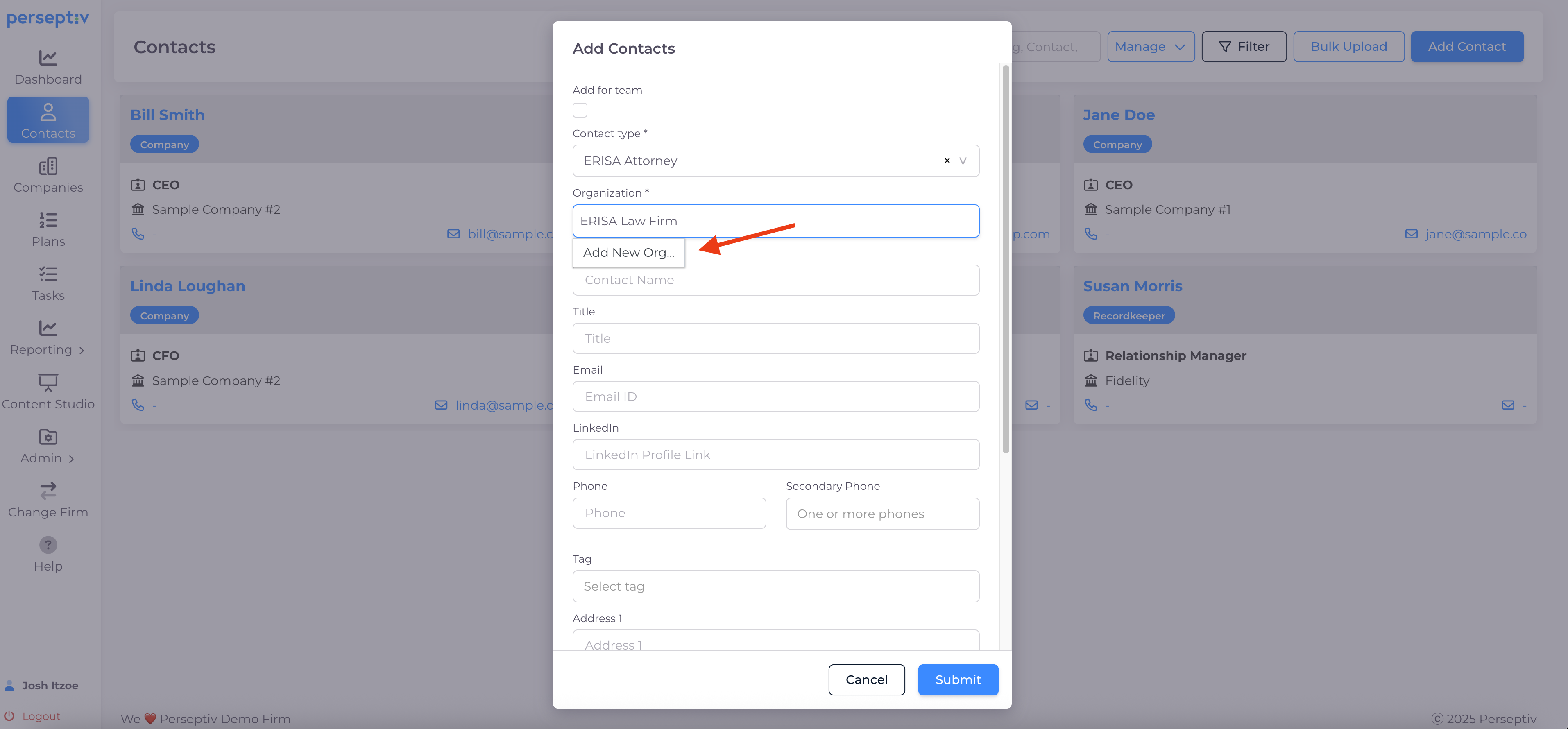
4. Adding a New Organization (not a Company, RK or TPA contact) 2:55
-
If the organization is not in the system:
-
Select 'add a new org'.
-
Enter the organization details and contact information.
-
Submit to create the new organization.
-
5. Managing Contacts 3:25
-
After adding a contact, they will appear in the system.
-
Contacts can be linked to specific plans or teams.
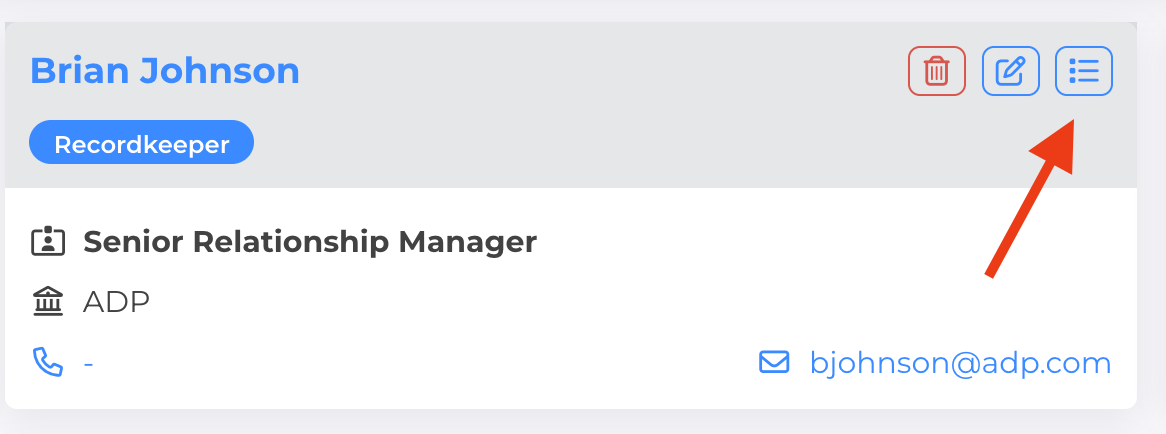
- You can see a list of plans each contact is associated with by clicking the 3 dots icon in the header of each contact. This is especially helpful to see which plans vendor contacts (e.g. RK, TPA, Auditor, ERISA Attorney) are associated with.
6. Benefits of the Contacts Feature 4:15
-
Consolidates various types of contacts in one place:
-
Partnerships
-
Prospects
-
Clients
-
Committee members
-
Vendor partners
- COIs
-