
To watch the video, click here: https://loom.com/share/c0df8de248dc40dd994f810b81757dac
Step-by-Step Instructions
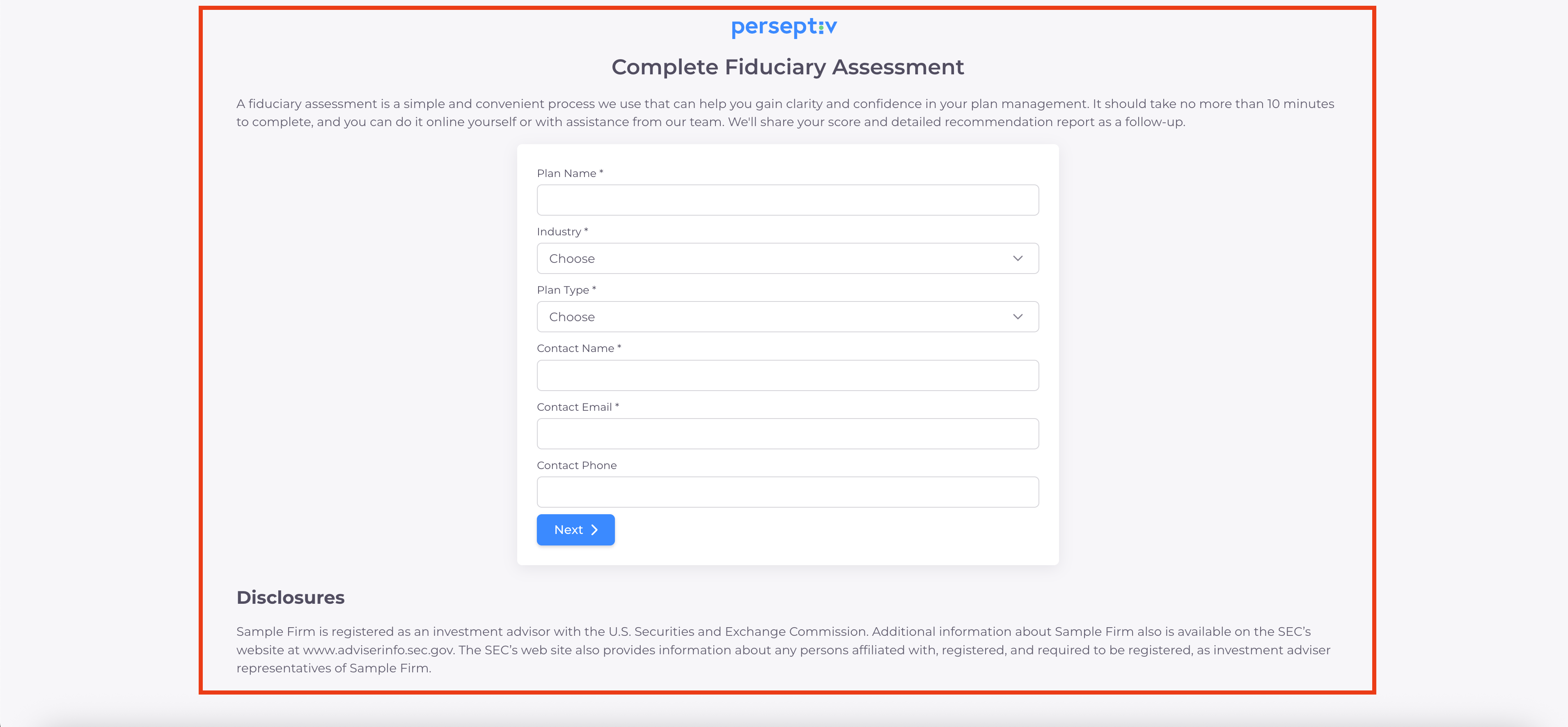
1. Accessing the Questionnaire 0:00
-
Begin by clicking the link provided.
-
Enter your name in the designated field.
2. Filling Out Initial Information 0:16
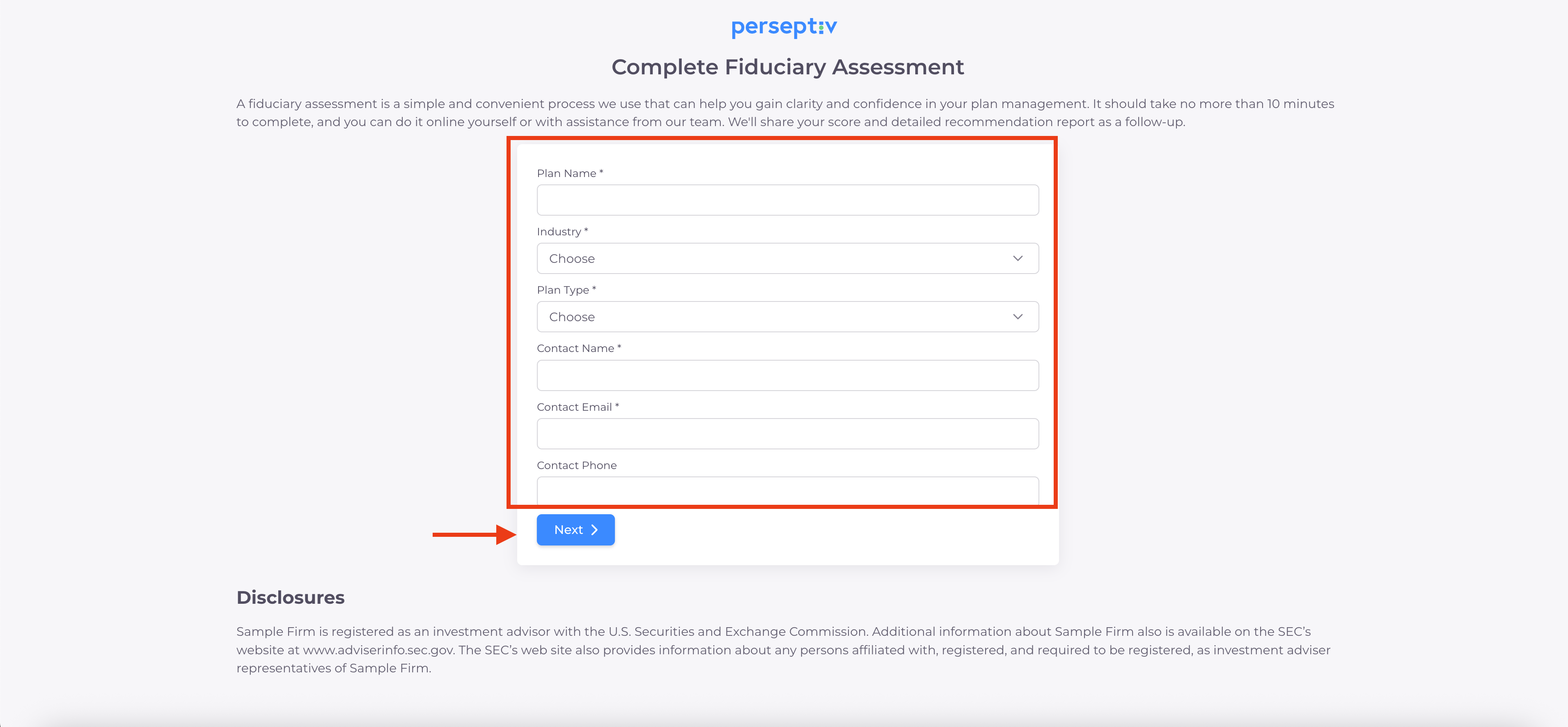
-
Input the plan name.
-
Select your industry from the dropdown menu.
-
Choose the plan type.
-
Provide a contact name and email address.
-
Click 'Next' to proceed.
- After submitting the initial information, a unique URL will be generated for your plan.
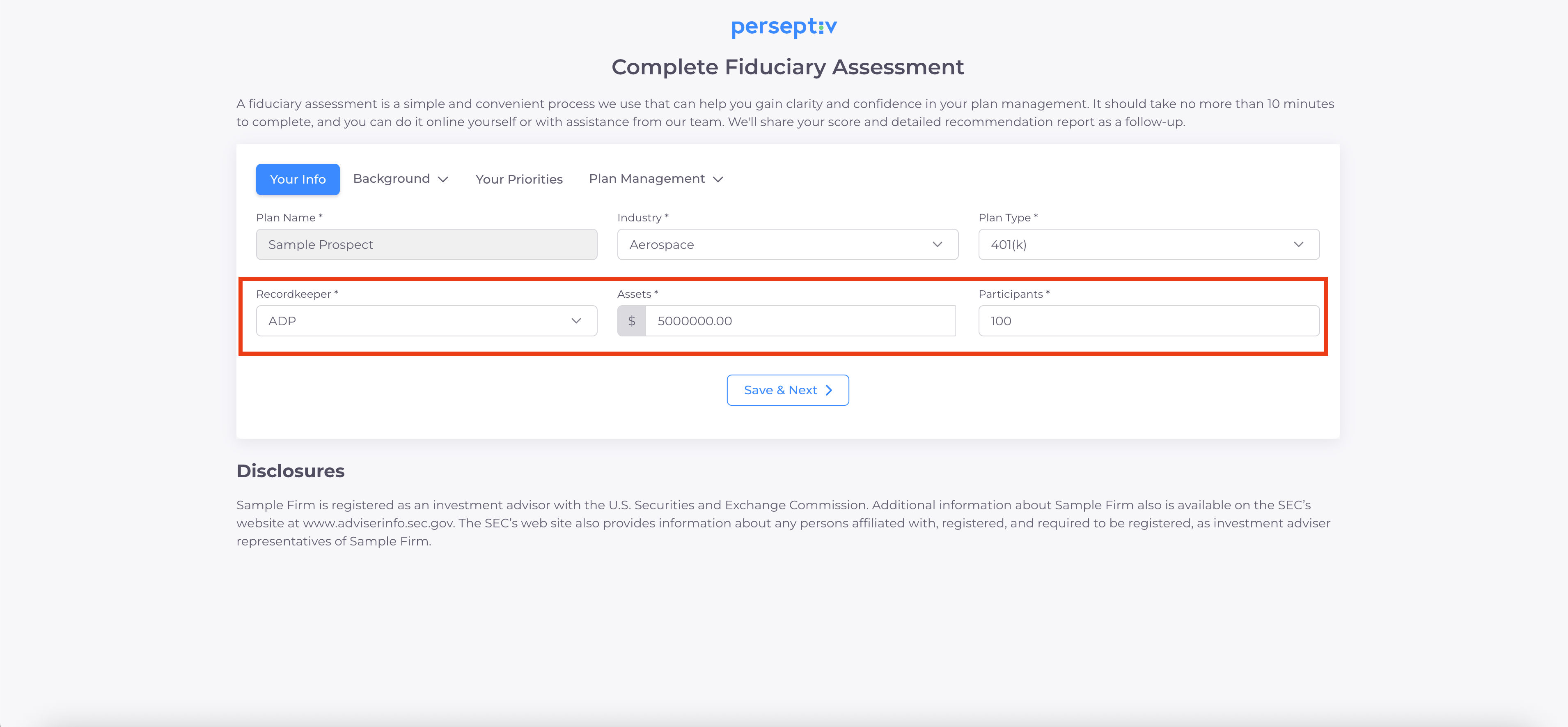
3. Add Recordkeeper, Assets, and Participants 1:24
-
Review the information filled out so far.
-
Select your recordkeeper, assets, and participants.
-
Click 'Save and Next' to continue.
3. Completing Non-Scoring Questions 1:24
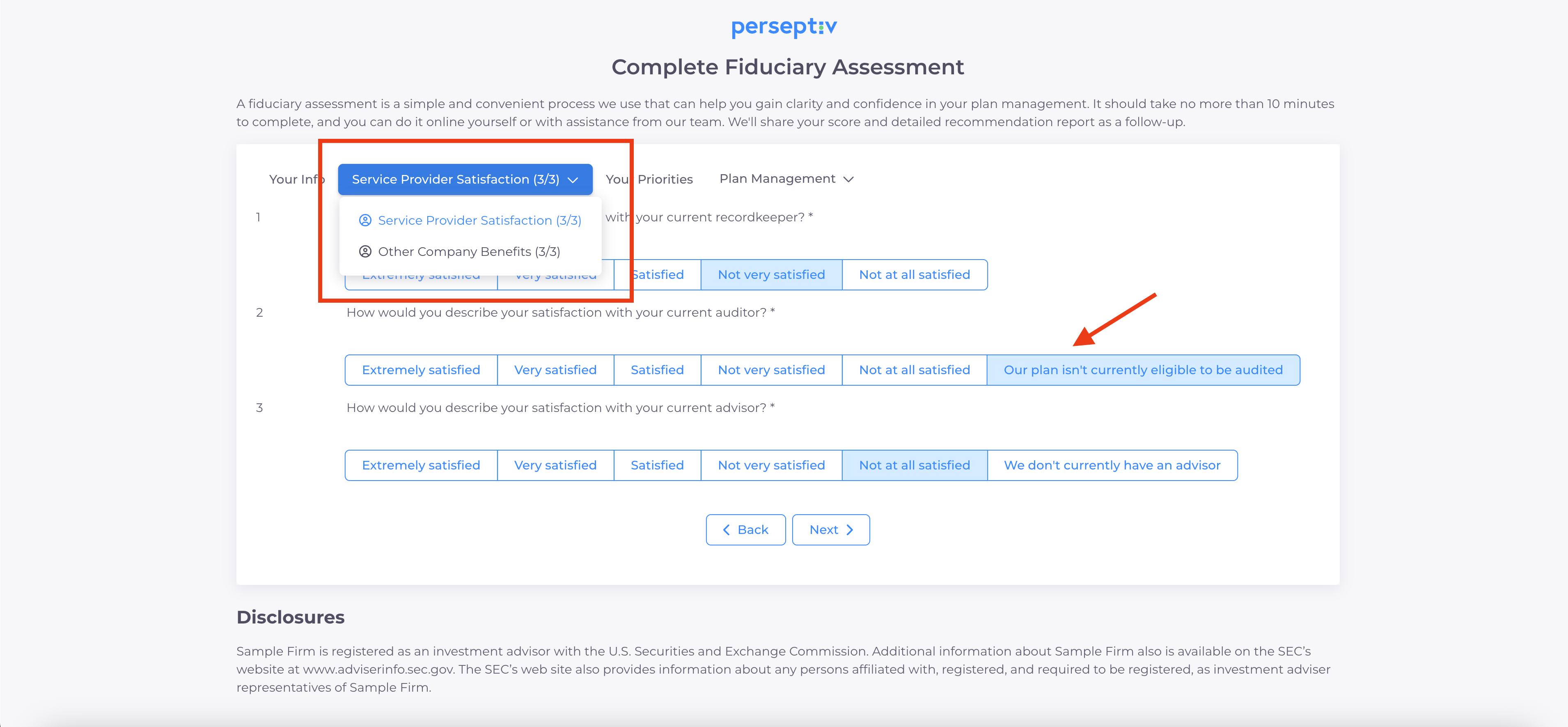
- Answer any questions related to non-scoring dimensions (e.g. Service Provider Satisfaction).
- The questions remaining will update as you complete each question.
- Click 'Save and Next' to continue.
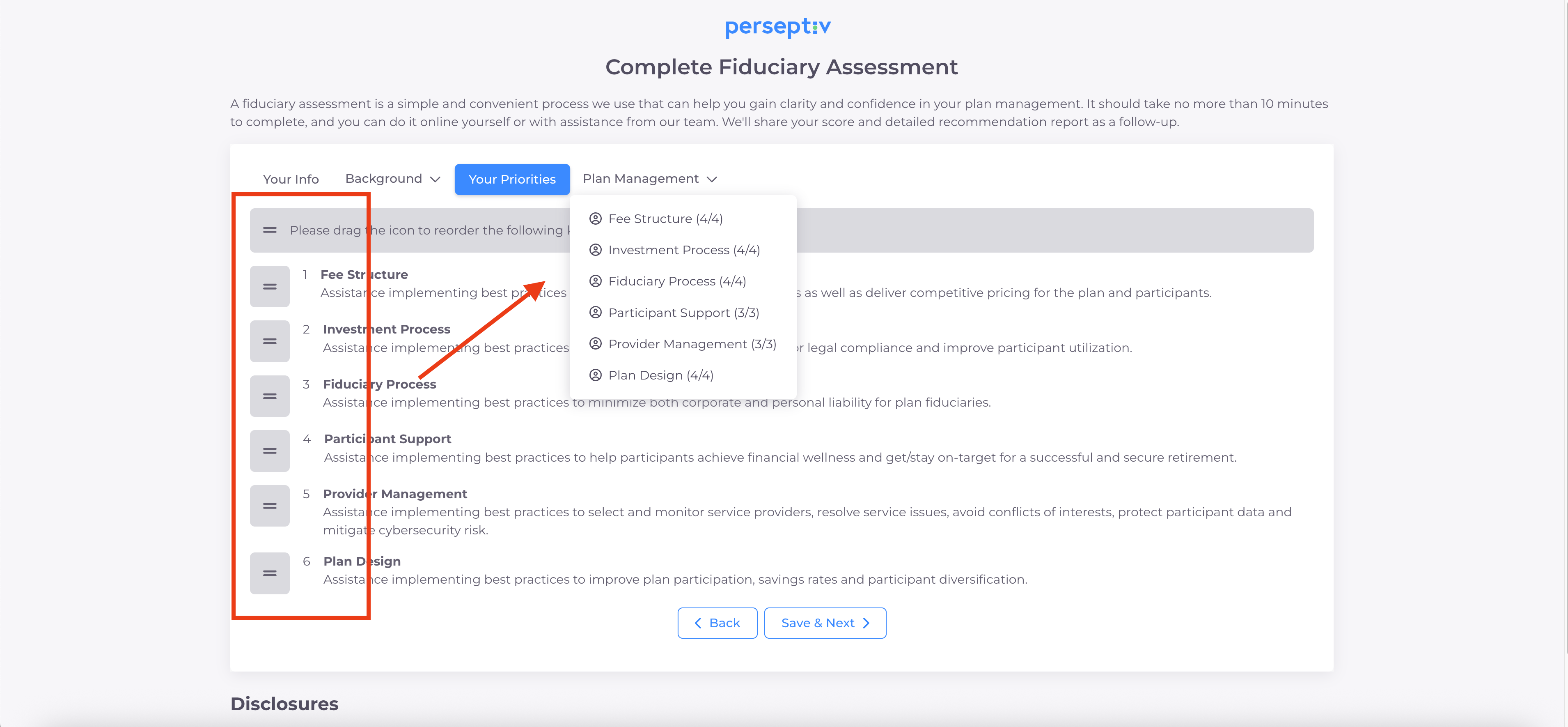
5. Prioritizing Dimensions 2:21
-
Stack rank the dimensions based on importance to you by dragging the dimensions.
-
Review the names and descriptions of each dimension.
-
This helps identify areas of concern and priority.
- The remainder of the questionnaire will change to match the order of priority.
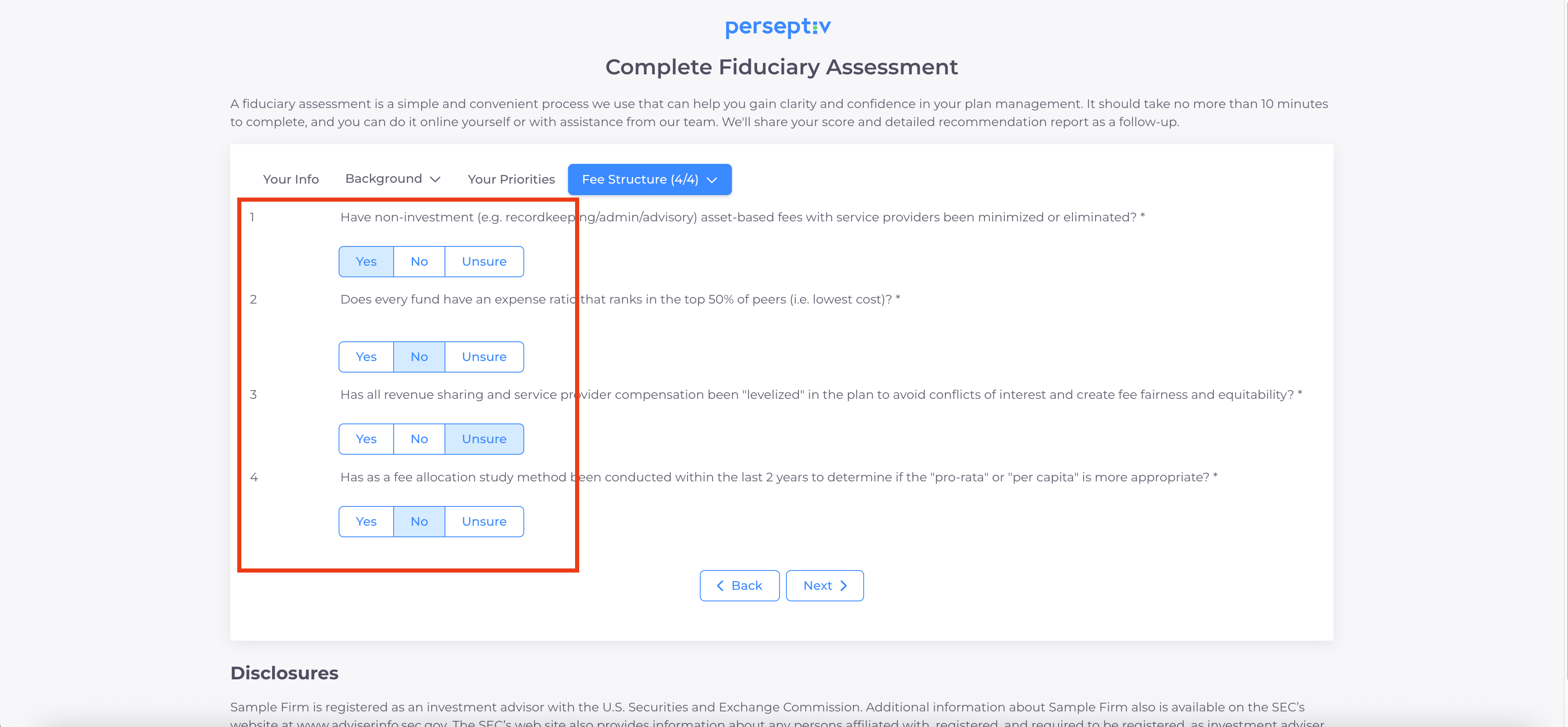
6. Answering Scoring Questions 3:41
-
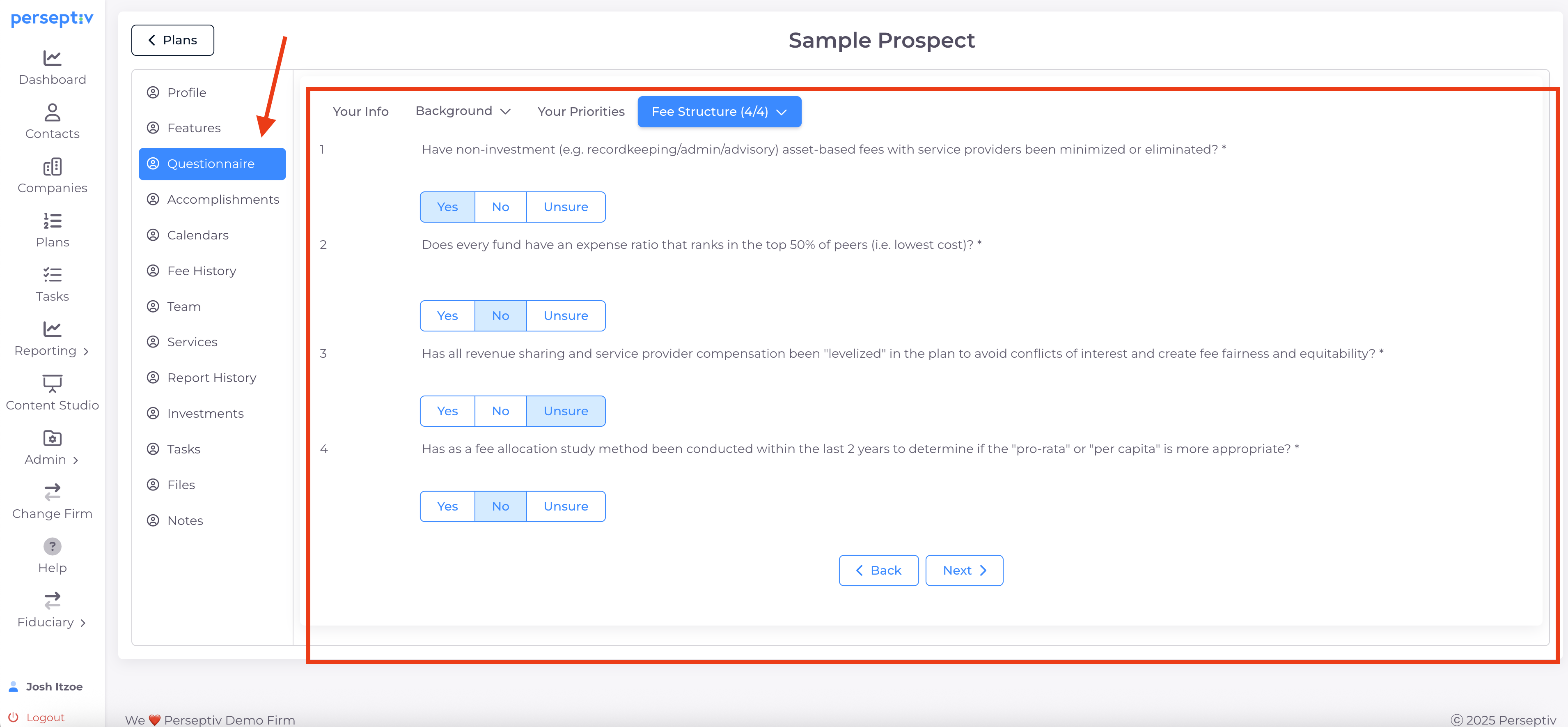
Respond to the scoring questions presented based on your selected dimensions.
-
Options typically include 'Yes', 'No', or 'Unsure'.
-
This questionnaire should take about 5-7 minutes to complete.
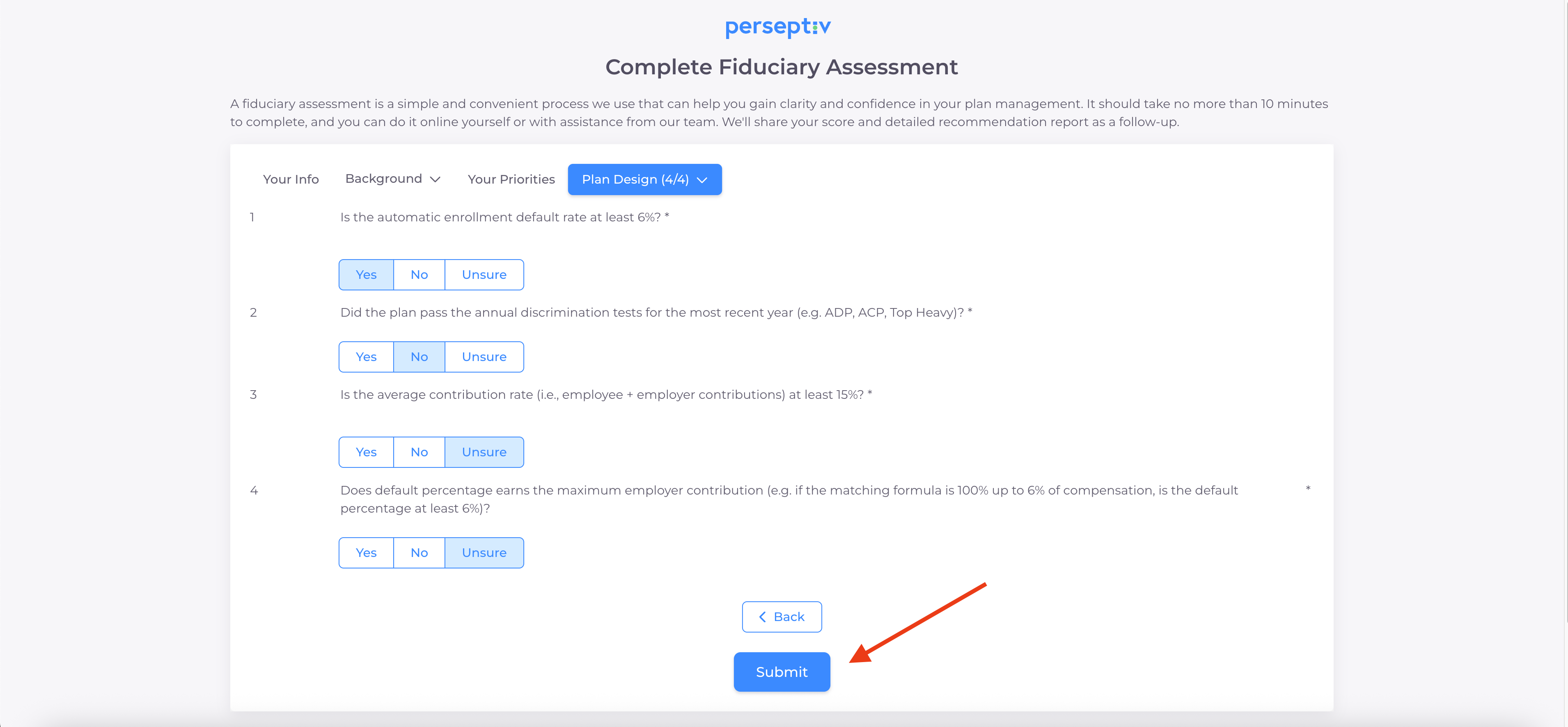
7. Submitting the Questionnaire 5:00
-
After answering all questions, click 'Submit'.
-
If a redirect link is provided, you will be sent to that link.
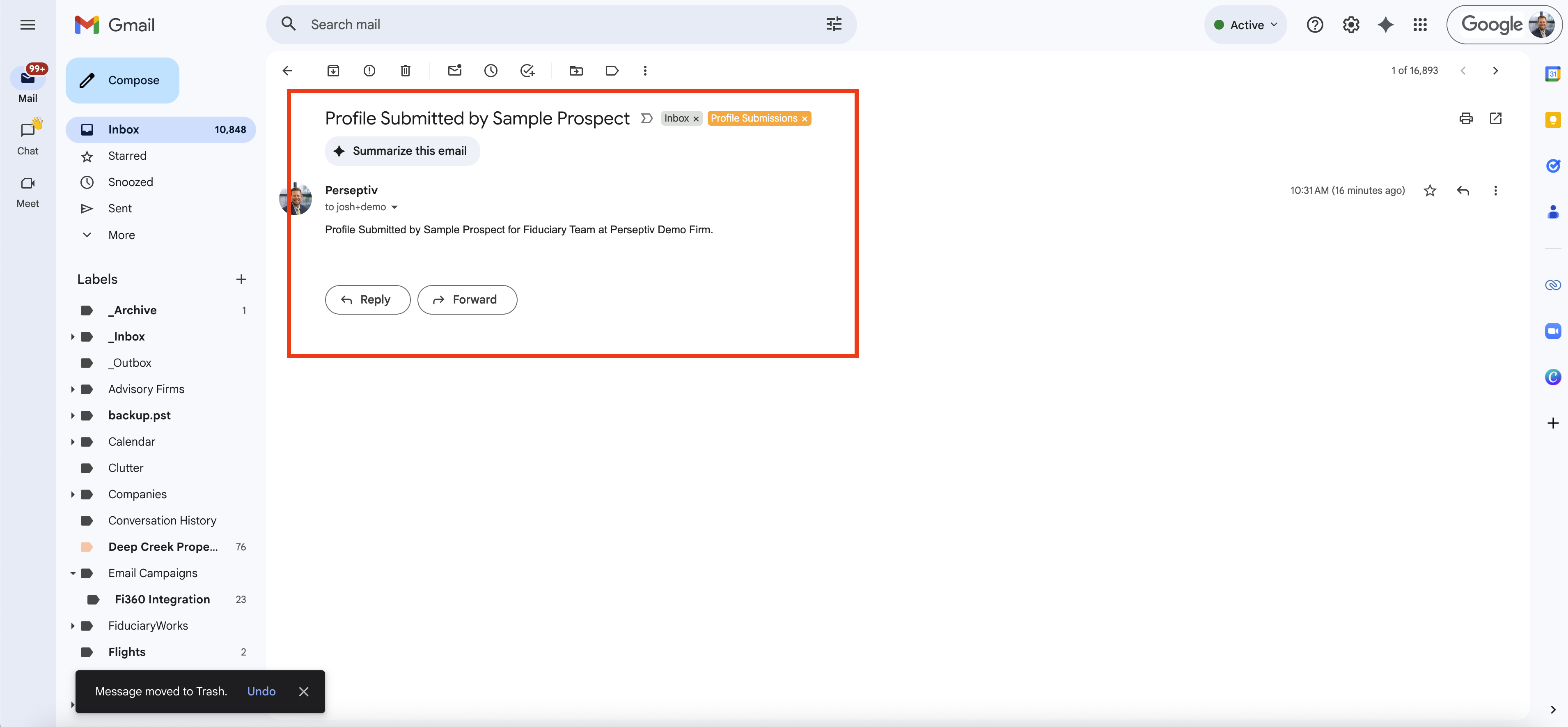
8. Receiving Confirmation 5:09
-
An email notification will be sent to the advisor indicating that the questionnaire has been completed.
9. Reviewing Responses 6:01
-
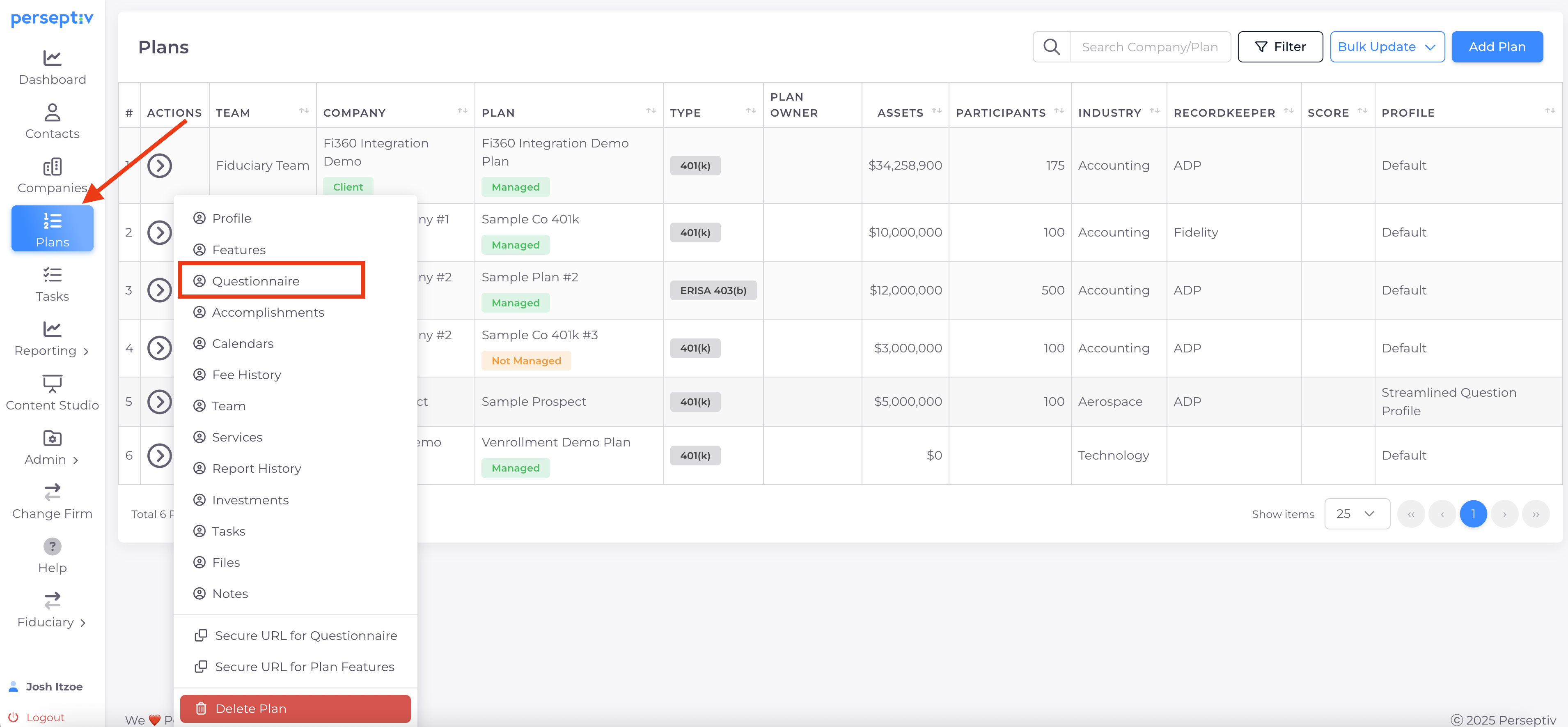
The system will automatically create a company and plan based on your responses.
-
You can view how the questionnaire was filled out and analyze the answers.
10. Next Steps 6:37
-
In the next video, learn how to create the deliverable based on the questionnaire responses.