
To watch the video, click here: https://loom.com/share/d99bb0ec0b374fc48921b49e4525e54c
Step-by-Step Instructions
Step 1: Create a Question Profile 0:00
-
Ensure you have created a question profile before proceeding.
-
This profile will be used to generate a link for prospects.
Step 2: Navigate to Create Secure Access Link 0:08
-
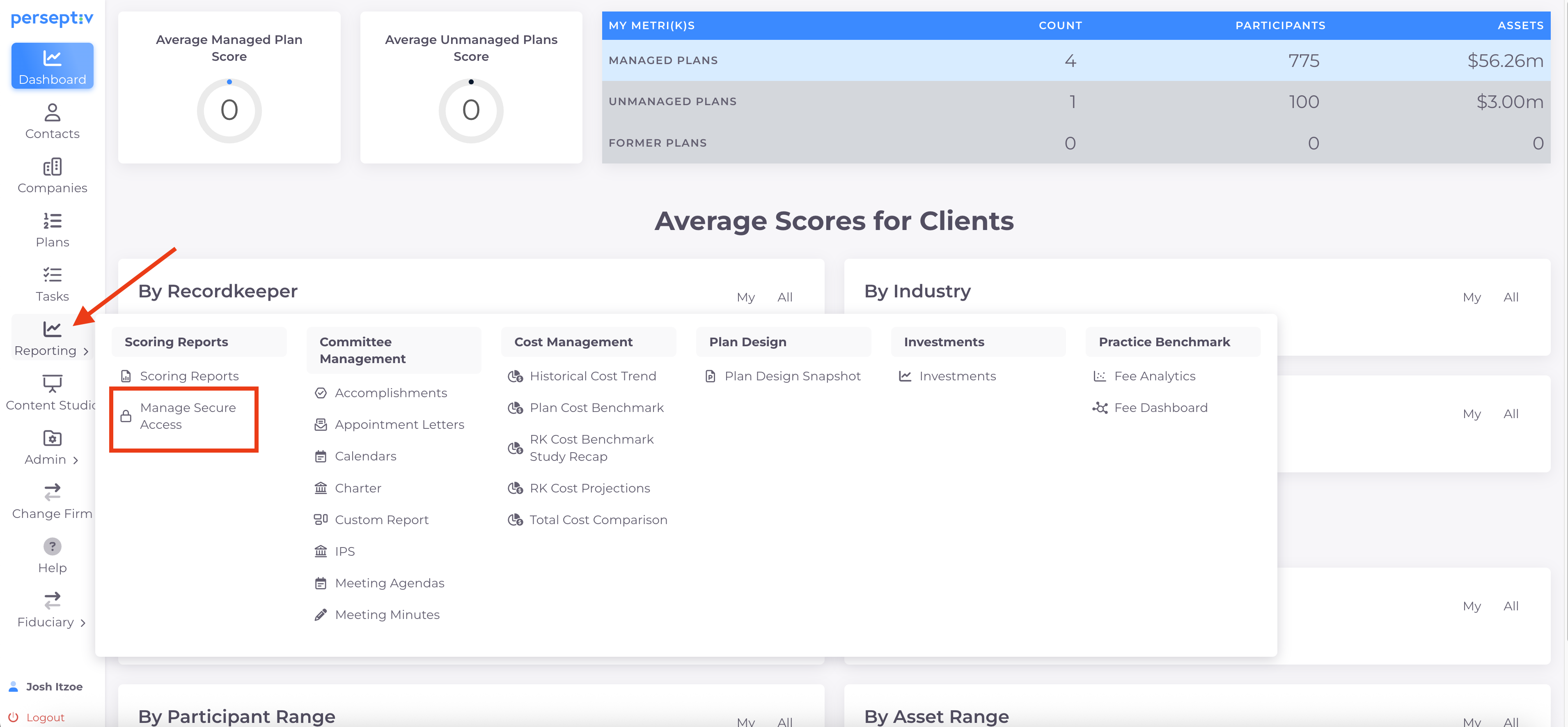
Go to the reporting section.
-
Click on 'Manage Secure Access'.
-
Select 'Create Secure Access Link'.
Step 3: Name Your Link and Select Team 0:27
-
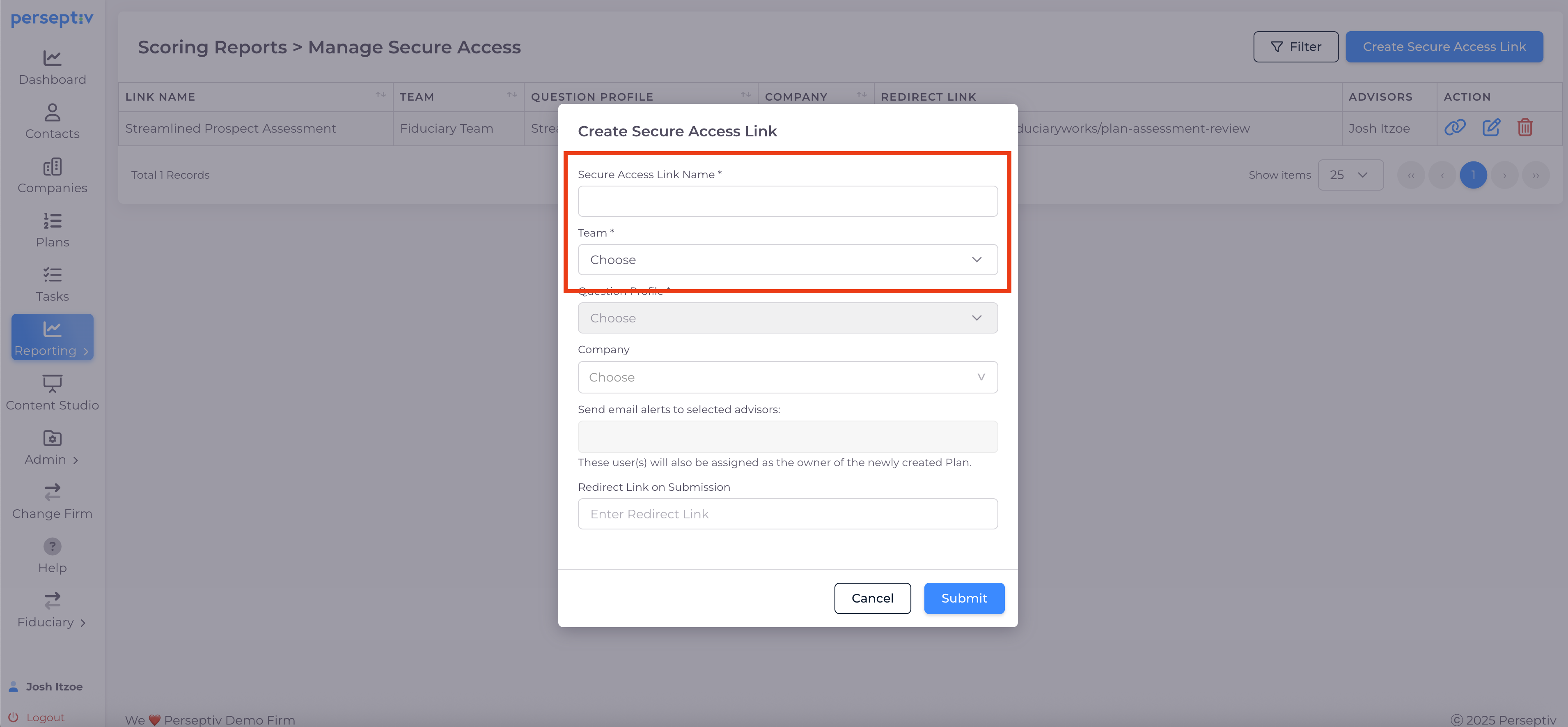
Give your link a descriptive name (e.g., 'Streamlined Prospect Assessment').
-
Choose the appropriate team associated with this link.
Step 4: Tie Link to Question Profile 0:40
-
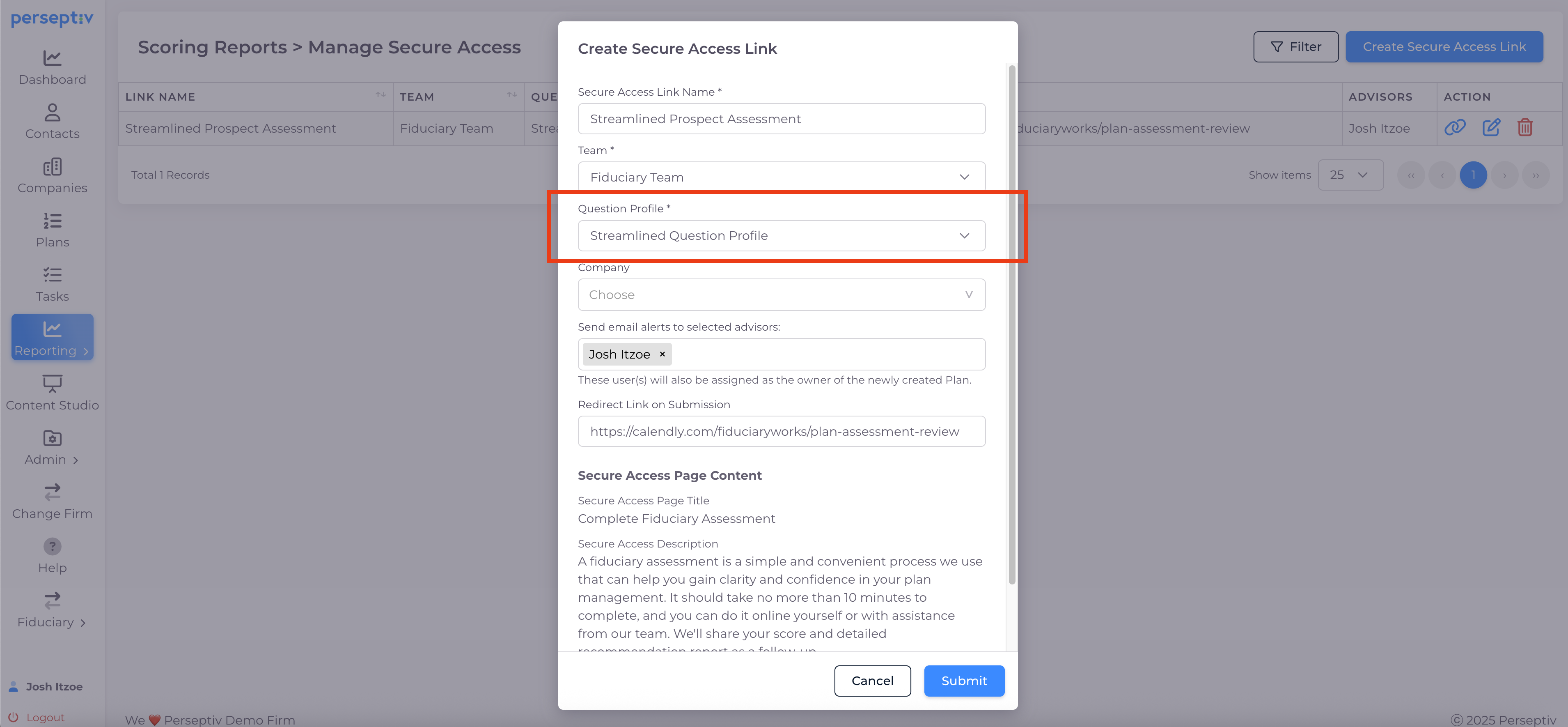
Select the question profile you created earlier (e.g., 'Streamline Question Profile').
-
Optionally, you can tie it to a specific company, but leaving it blank allows for broader use.
-
Leaving the company field blank allows multiple prospects from different companies to use the link.
-
This makes the link reusable.
Step 5: Set Up Notifications for Advisors 2:01
-
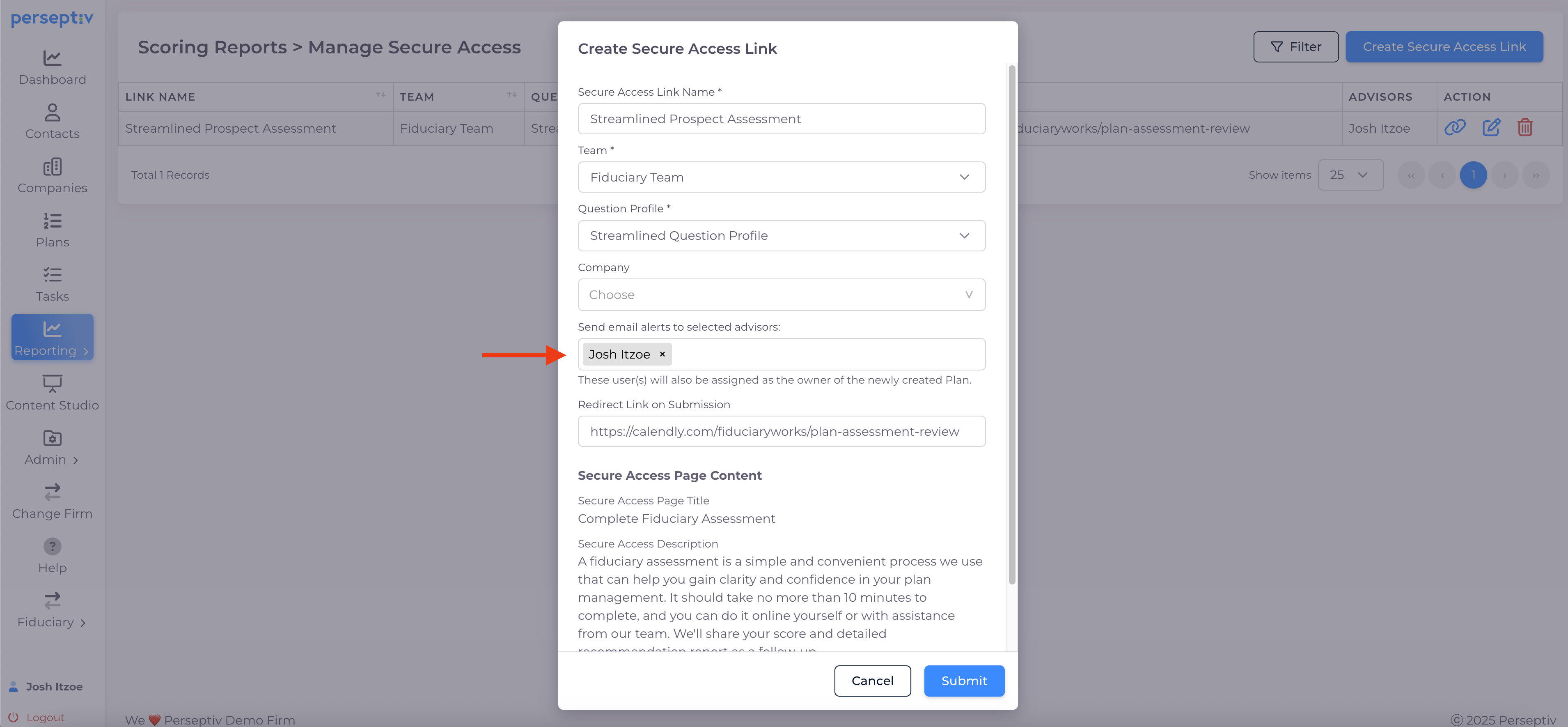
Configure the link to notify specific advisors via email when a prospect completes the assessment.
Step 6: Add a Redirect Link on Submission 2:30
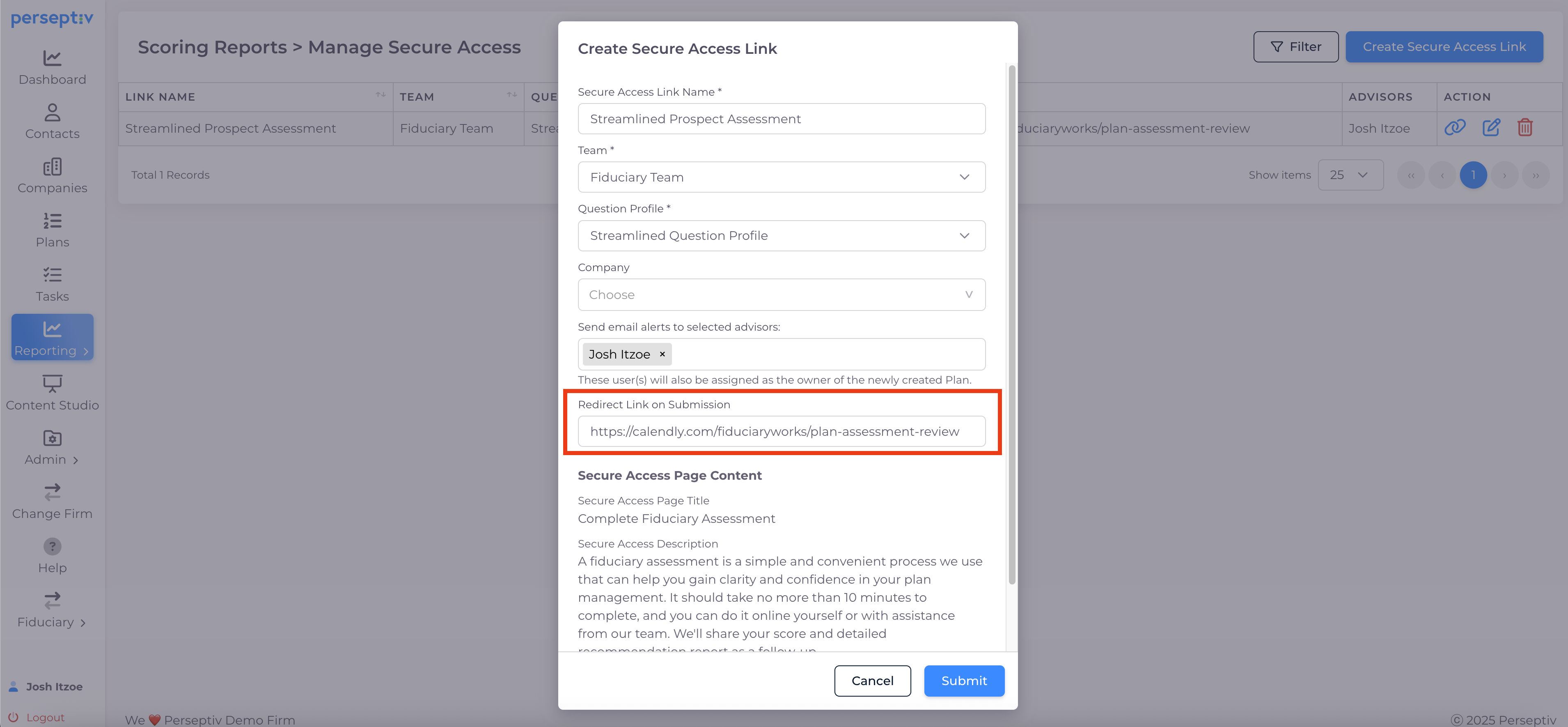
-
Optionally, include a redirect link (e.g., to a Calendly page) that prospects will be taken to after submitting the assessment.
Step 7: Customize the Assessment Page 2:49
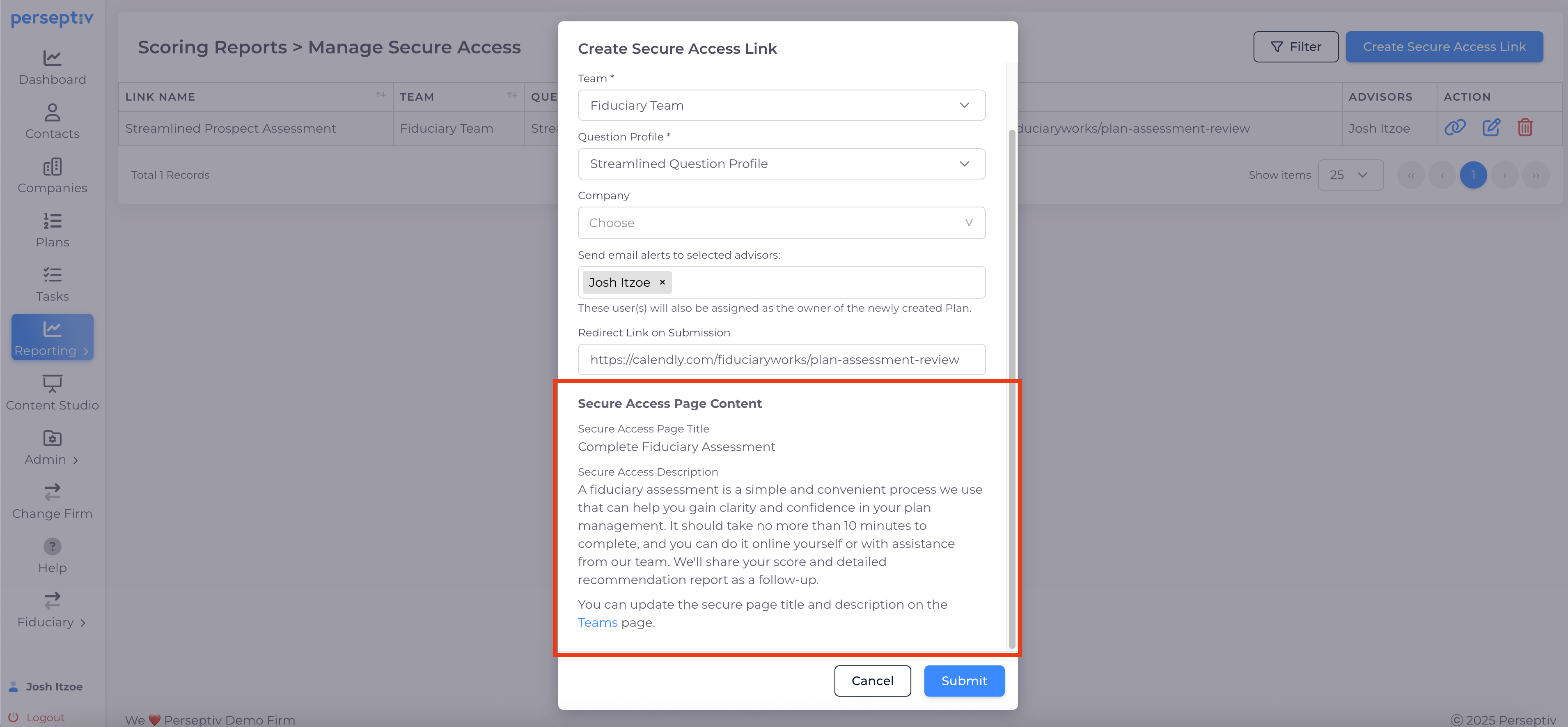
-
Customize the text on the assessment page in the team settings.
-
Your logo and any necessary disclosures you've saved in the system will be automatically displayed.
Step 8: Test the Link 3:08
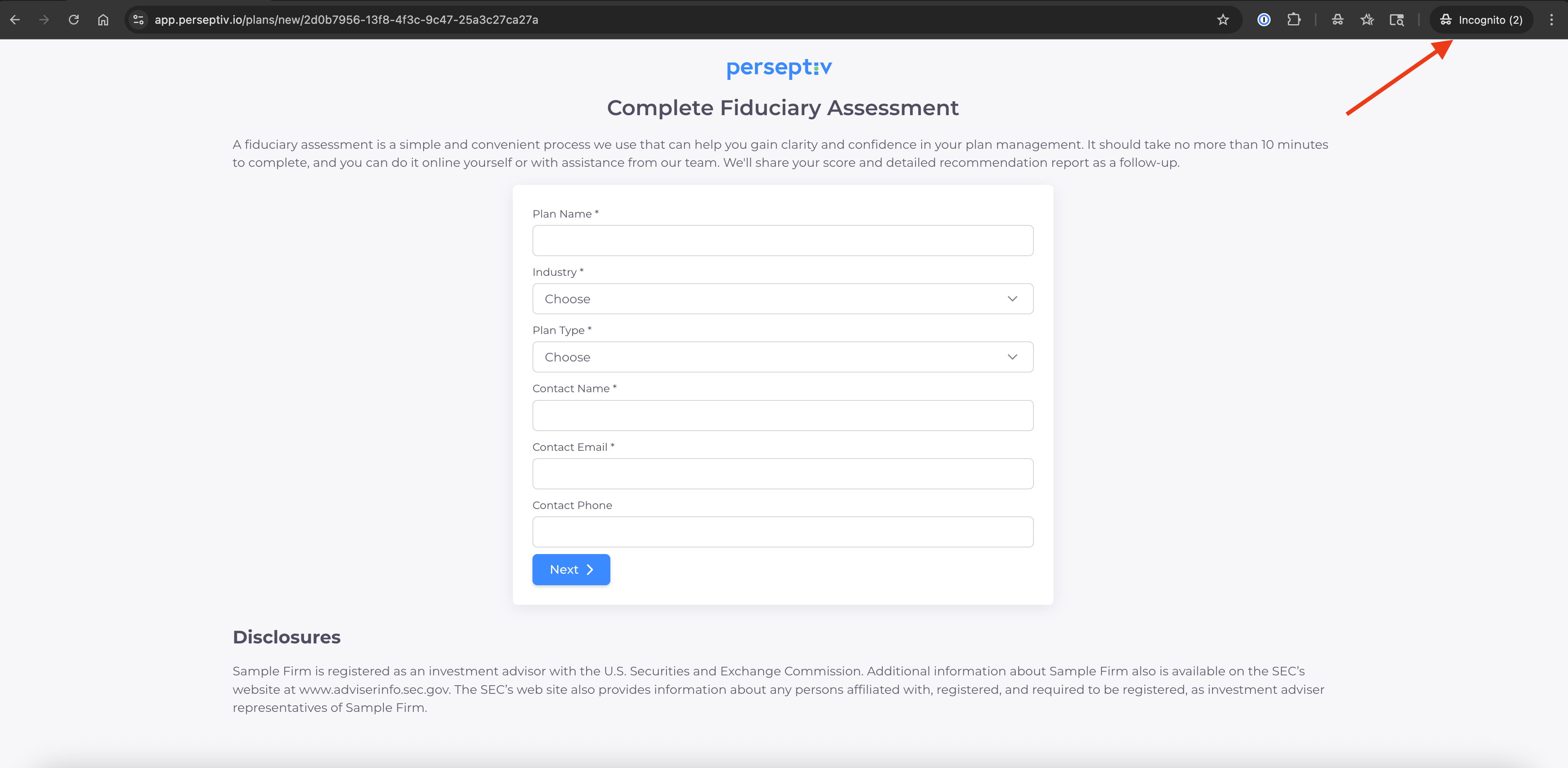
-
Test the link by copying it and opening it in an incognito or private browsing window to avoid access issues.
Step 9: Distribute the Link 1:29
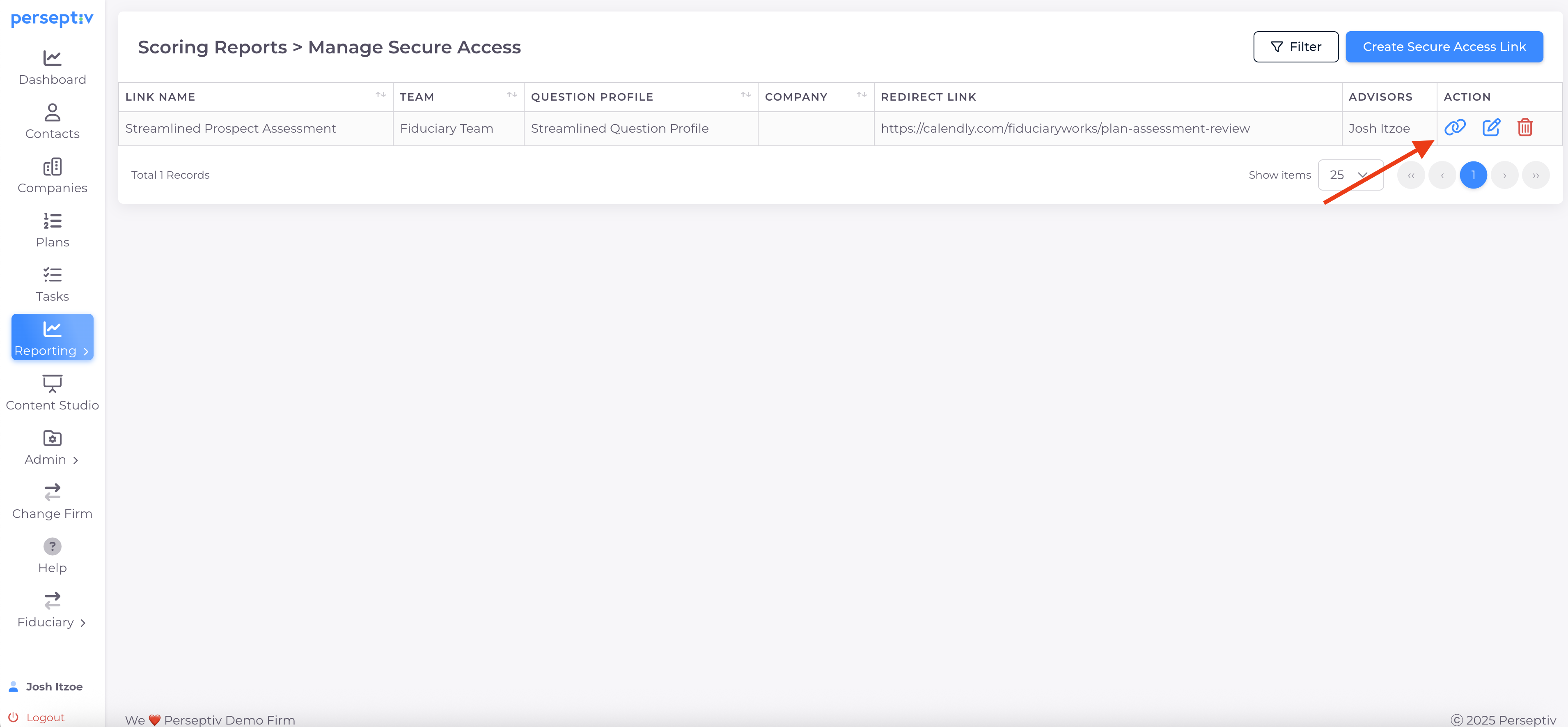
-
Share the link via email, embed it in your email signature, or place it on your website.
-
Consider creating a dedicated page on your website for the assessment process.