
To watch the video, click here: https://loom.com/share/202e51e0765c426d8831db2f9ab08336
Step-by-Step Instructions
1. Decide on Slide Approval 0:02
-
Determine whether you want to enforce slide approval for content creation.
-
If enabled, users must get approval for their slides and presentations.
2. Understanding Approval Process 0:10
-
When slide approval is turned on:
-
Users will need to submit their content for approval.
-
An email notification will be sent to an admin or designated approver.
-
-
If turned off:
-
Users can create content freely without needing approval.
-
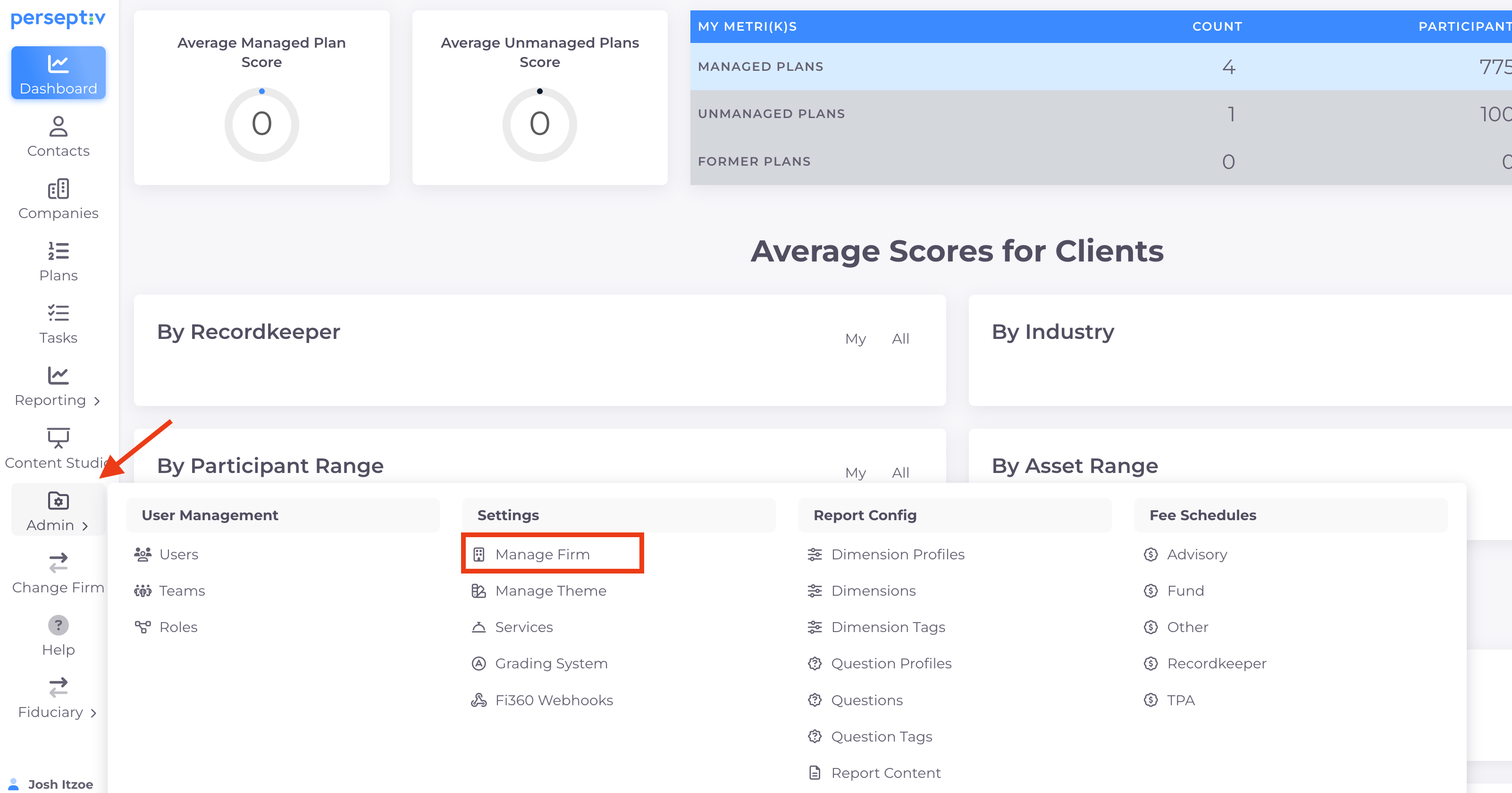
3. Accessing Admin Settings 0:29
-
Navigate to the Admin.
-
Go to the 'Manage Firm' option.
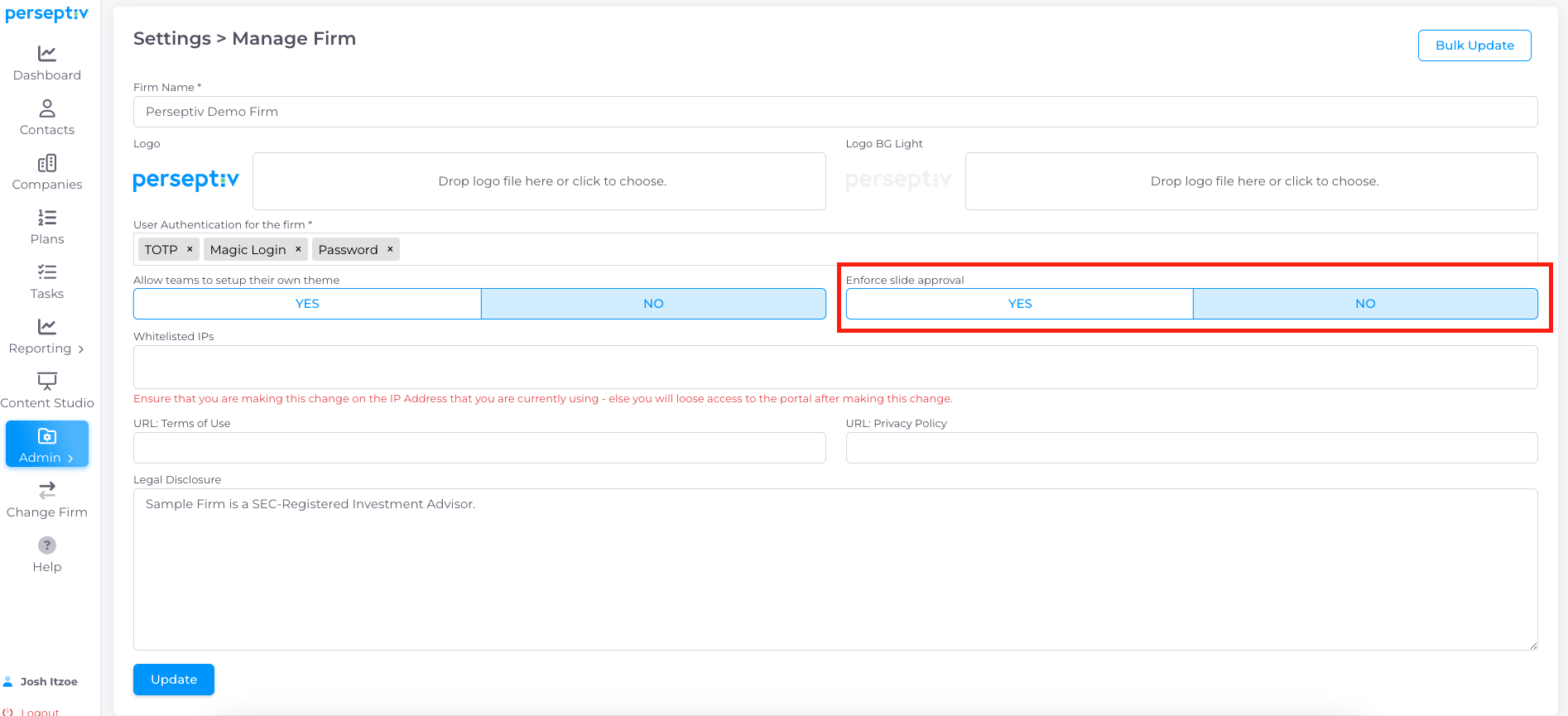
4. Configuring Slide Approval Settings 0:48
-
Locate the 'Slide Approval' setting.
-
By default, slide approval is set to 'No'.
-
Change the setting to 'Yes' if you want to enforce approval for certain users.
5. Assigning Approval Rights 0:48
-
Ensure that specific users are granted approval rights through the roles feature.