
To watch the video, click here: https://loom.com/share/c59d96cec0064a828816a86846d3d46f
Step-by-Step Instructions
1. Introduction to Content Studio 0:00
-
The Content Studio in Perceptive allows users to create branded content.
-
It features a growing library of pre-built content for users to leverage.
2. Accessing the Content Library 0:20
-
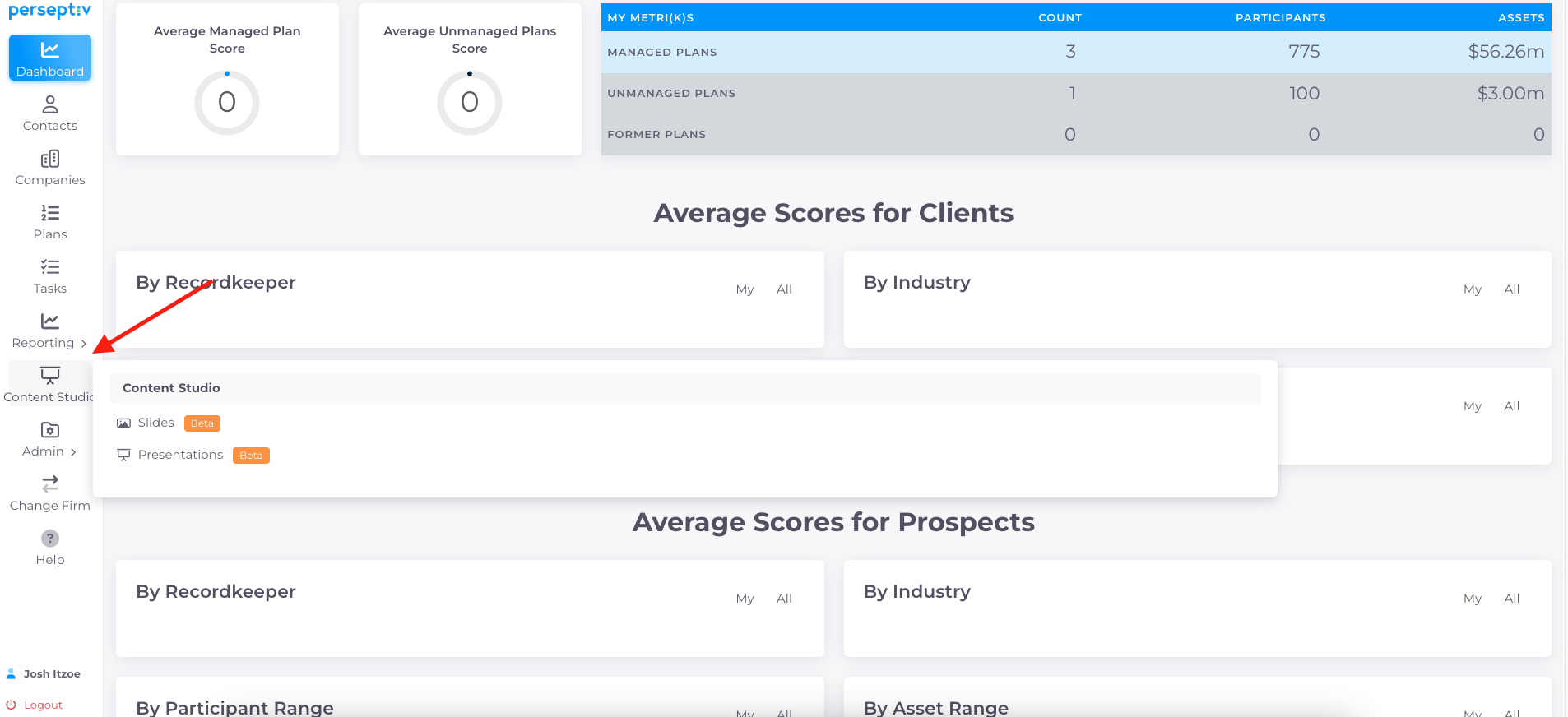
Navigate to the Content Studio.
-
Click on 'Slides' and then 'System' to view available content.
3. Identifying New vs. Previously Cloned Content 0:32
-
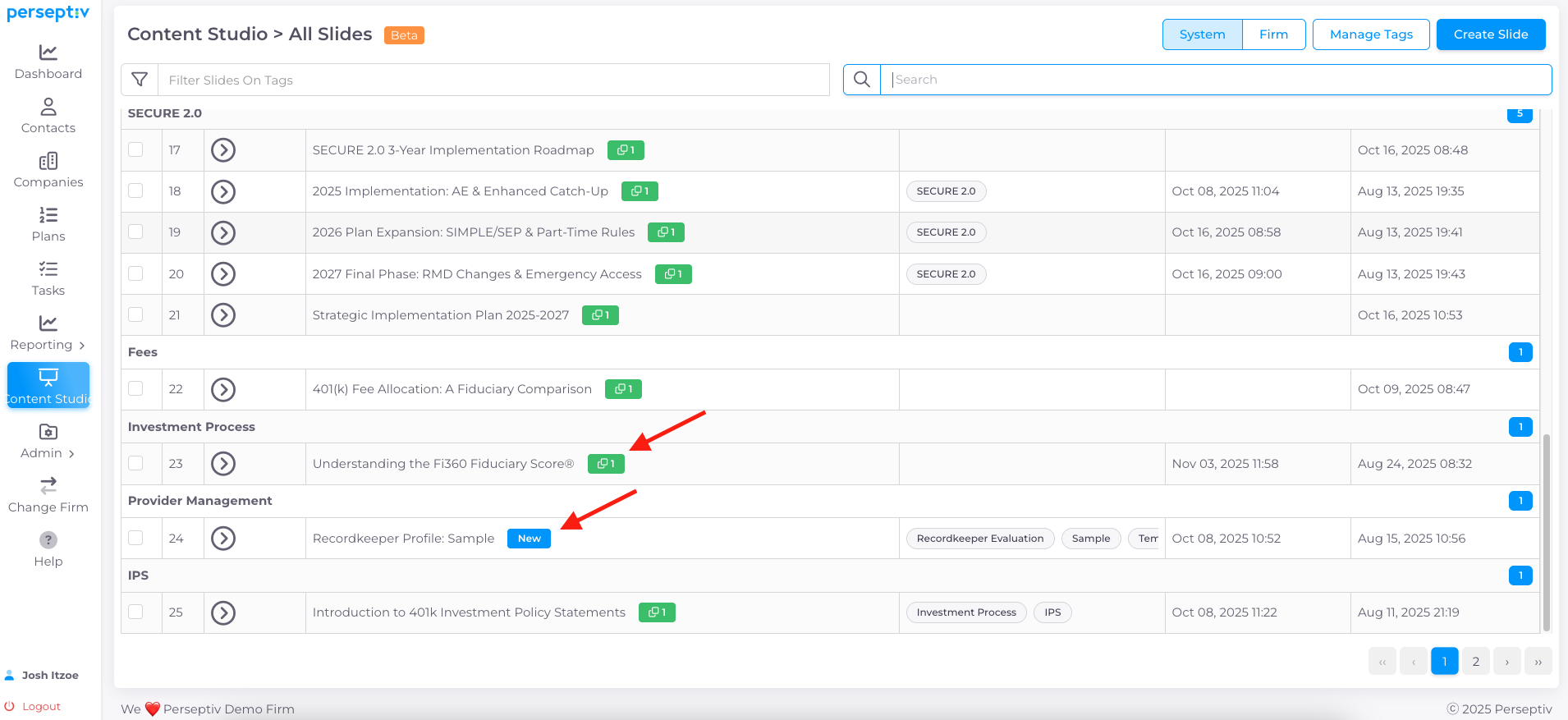
Looked for a 'New' tag to identify content that has not been cloned yet and is not currently available in the 'Firm' tab
-
Look for a 'Cloned' tag to identify content that has been cloned and is now available in your 'Firm' tab to be used and/or modified for your brand.
4. Searching for Specific Content 1:03
-
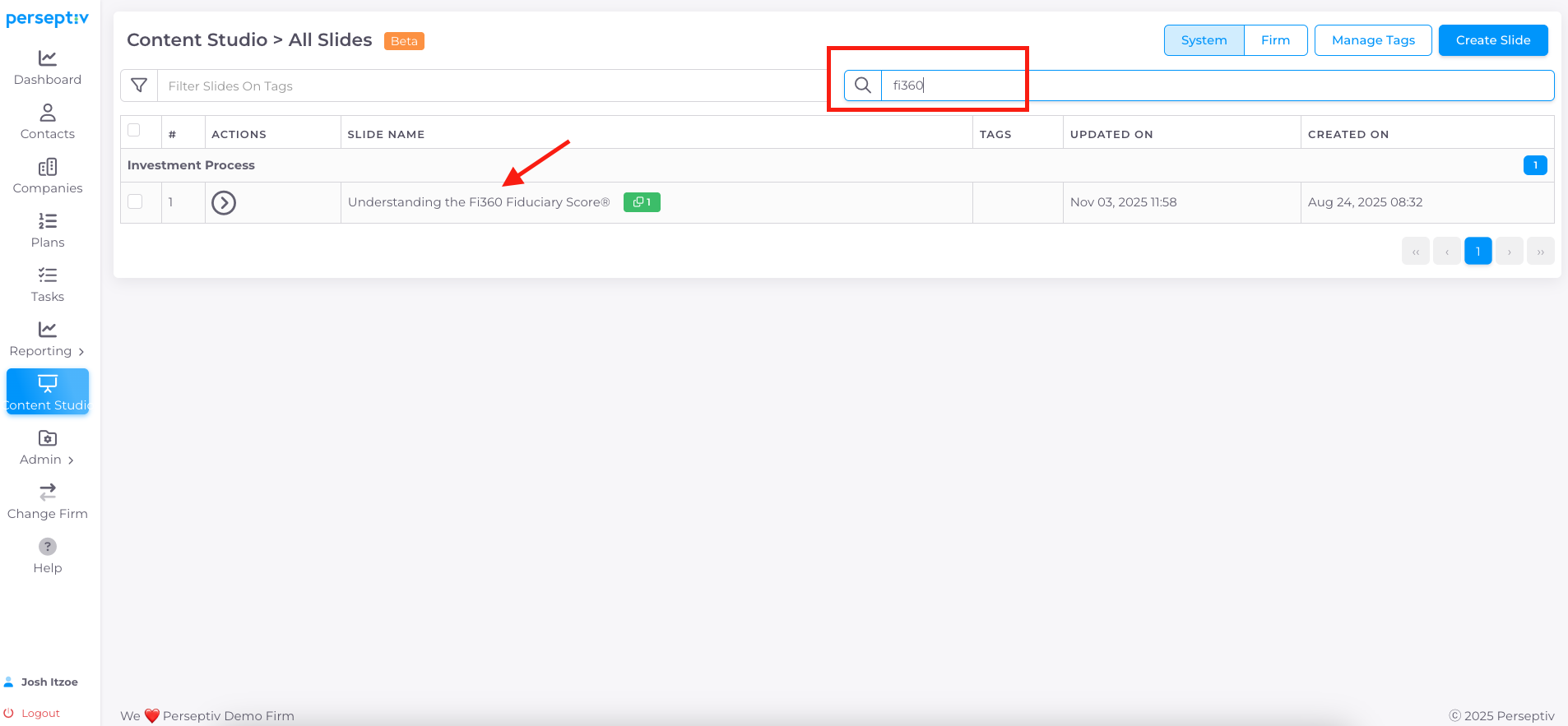
Use the search function to find specific content, such as 'FI 360 fiduciary score.'
-
If not found, you can clone it from the system.
5. Previewing Content 1:36
-
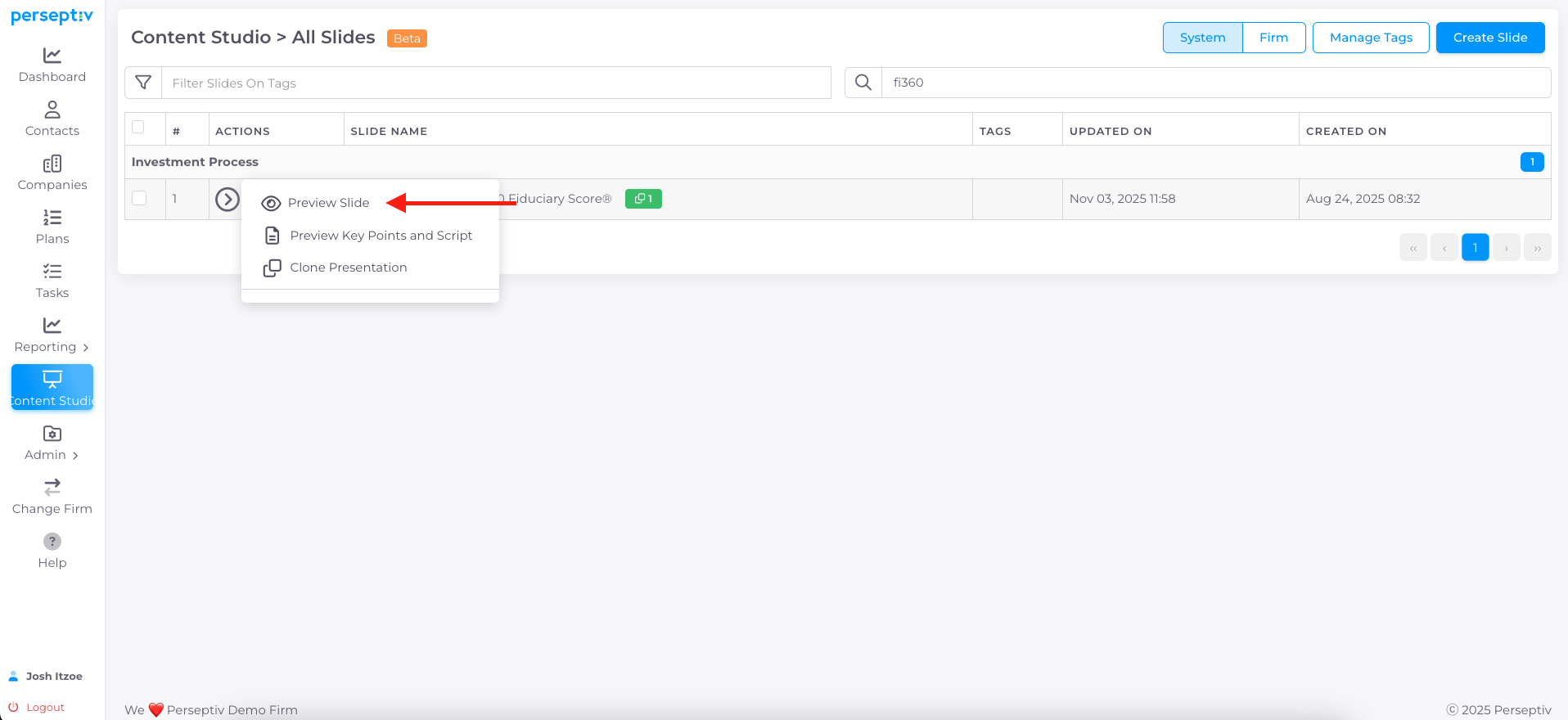
Preview the slide to see its appearance and key talking points.
-
Review the script associated with the slide.
6. Cloning Content 1:58
-
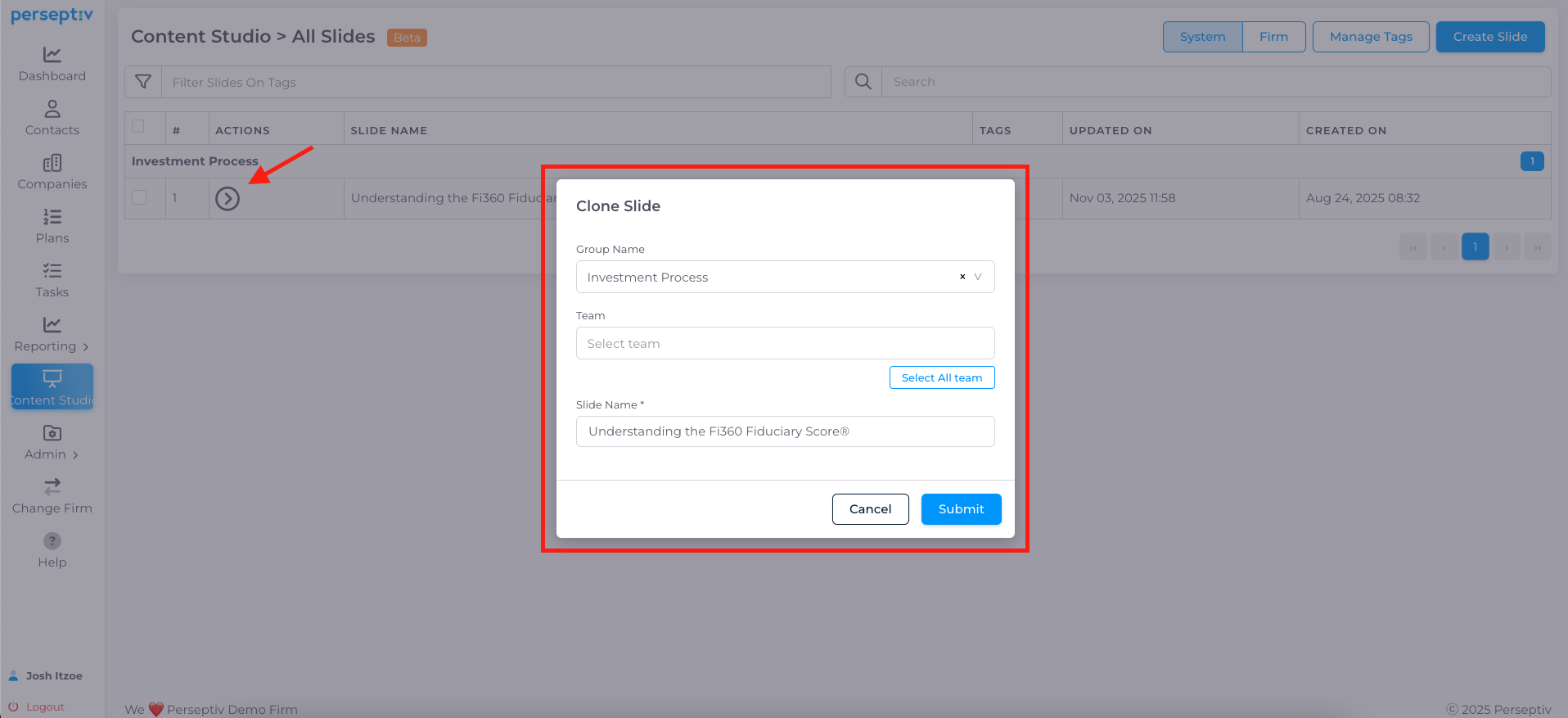
Click 'Clone' to copy the slide.
-
Choose to apply it to all teams or specific teams.
-
Optionally, change the name before submitting.
7. Managing Cloned Content 2:35
-
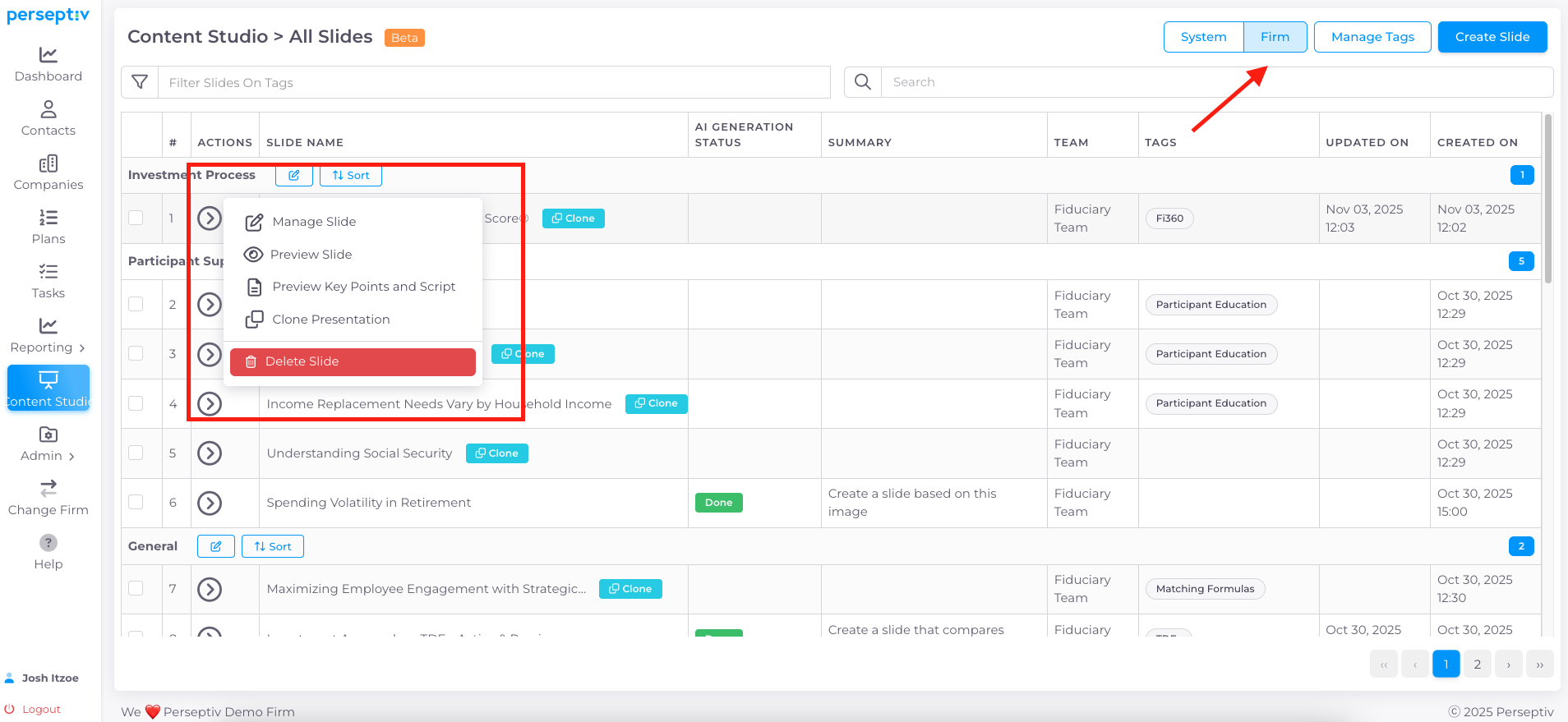
After cloning, the content is now available in your firm.
-
You can manage the slide by tagging, changing backgrounds, or modifying key points and scripts.
8. Updating Content 3:22
-
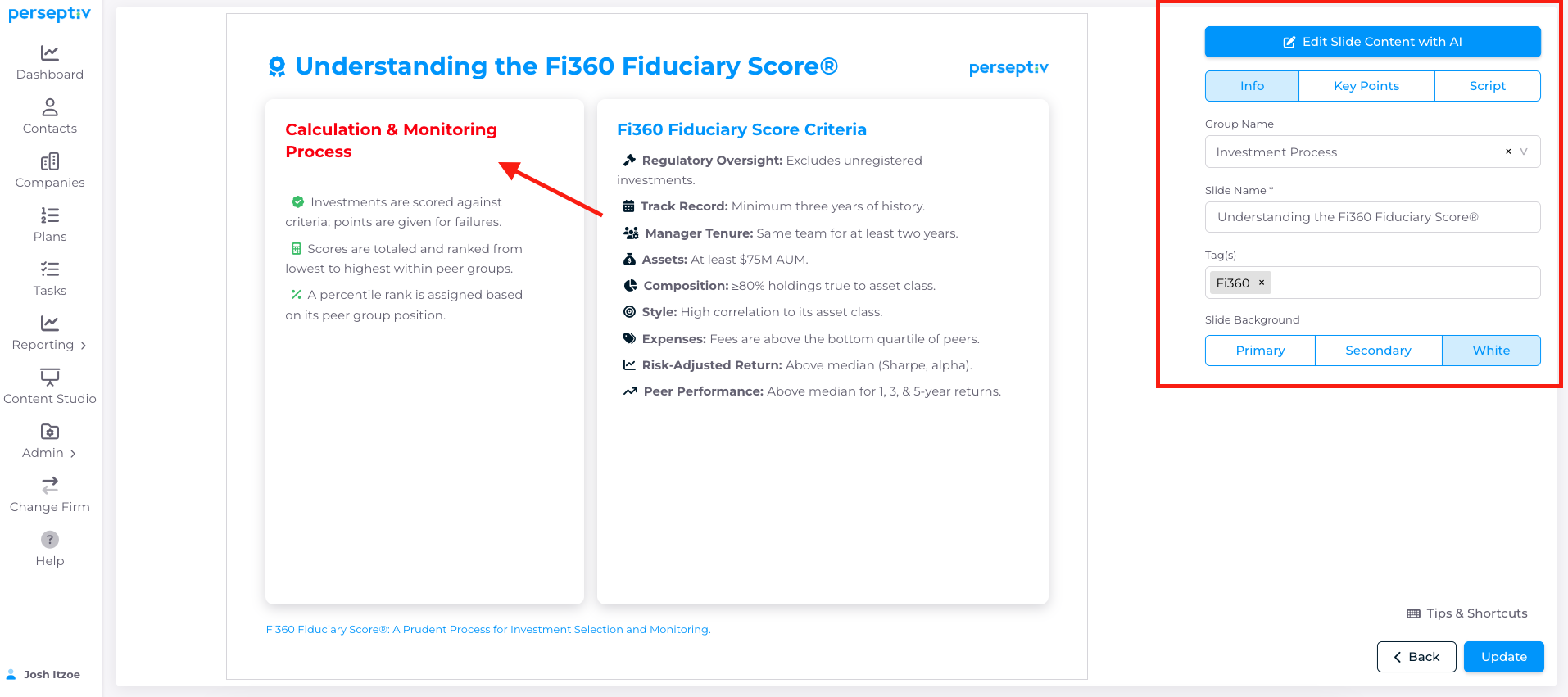
Make changes to the slide, such as color adjustments or adding icons/text.
-
Hit 'Update' to save changes.
9. Cloning Presentations 4:08
-
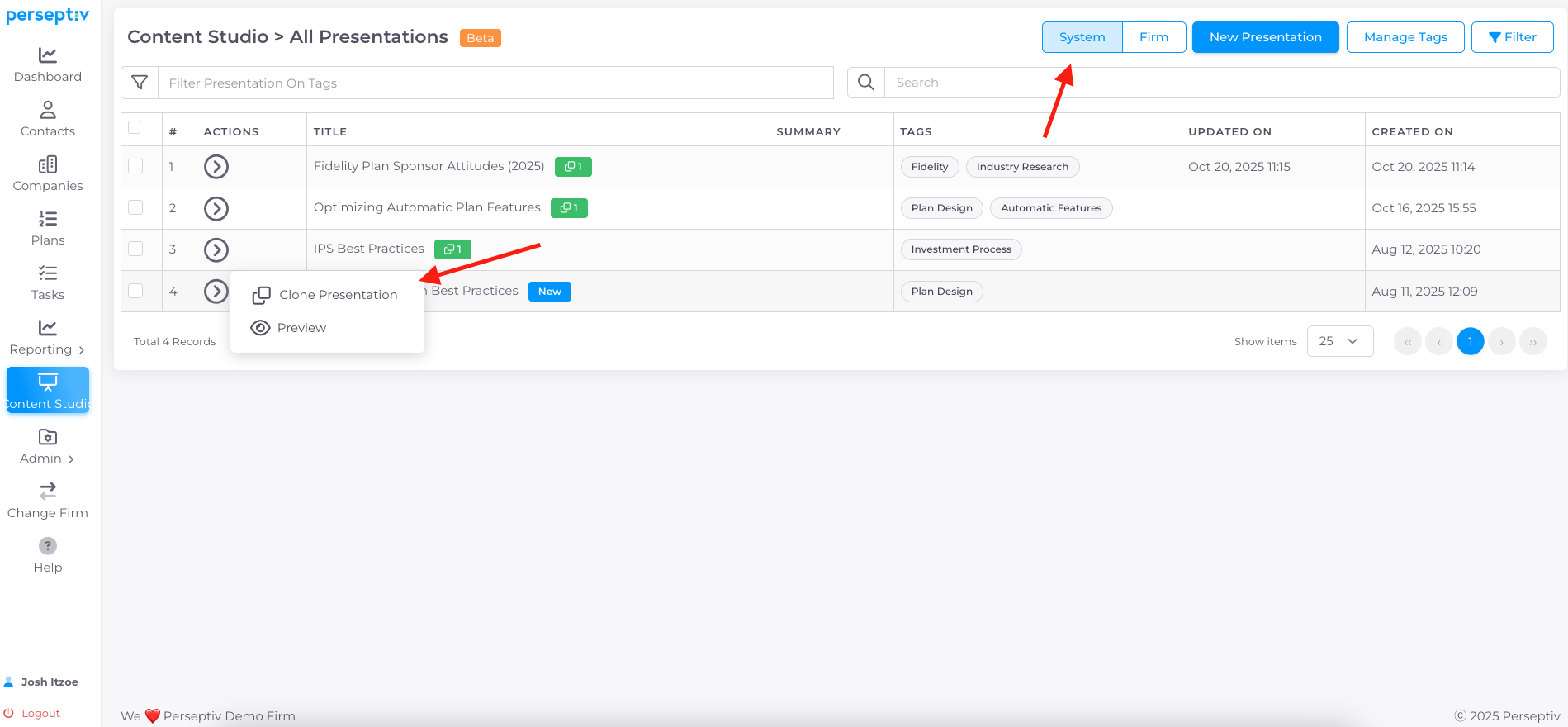
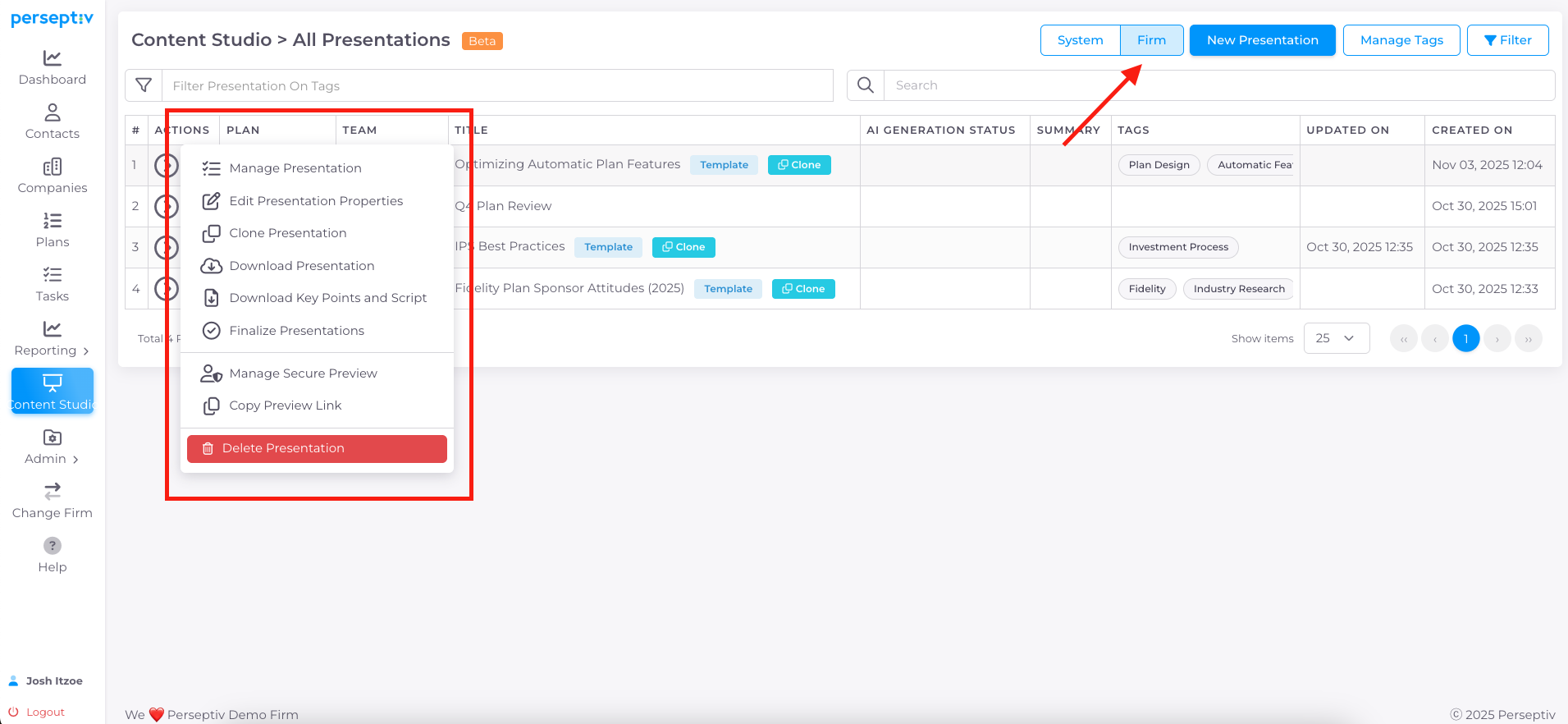
Similar process applies to presentations.
-
View and clone presentations from the system to your firm.
10. Final Adjustments 4:35
-
After cloning a presentation, make necessary changes as needed.