
To watch the video, click here: https://loom.com/share/8469afd0669f425fa915ee91f0a9127e
Step-by-Step Instructions
1. Understand Dimension Profiles 0:00
-
Dimensions are the individual components (like Lego blocks).
-
Dimension Profiles are collections of these dimensions used in scoring assessments and questionnaires.
-
They will appear in the scoring report.
2. Access Dimension Profiles 0:32
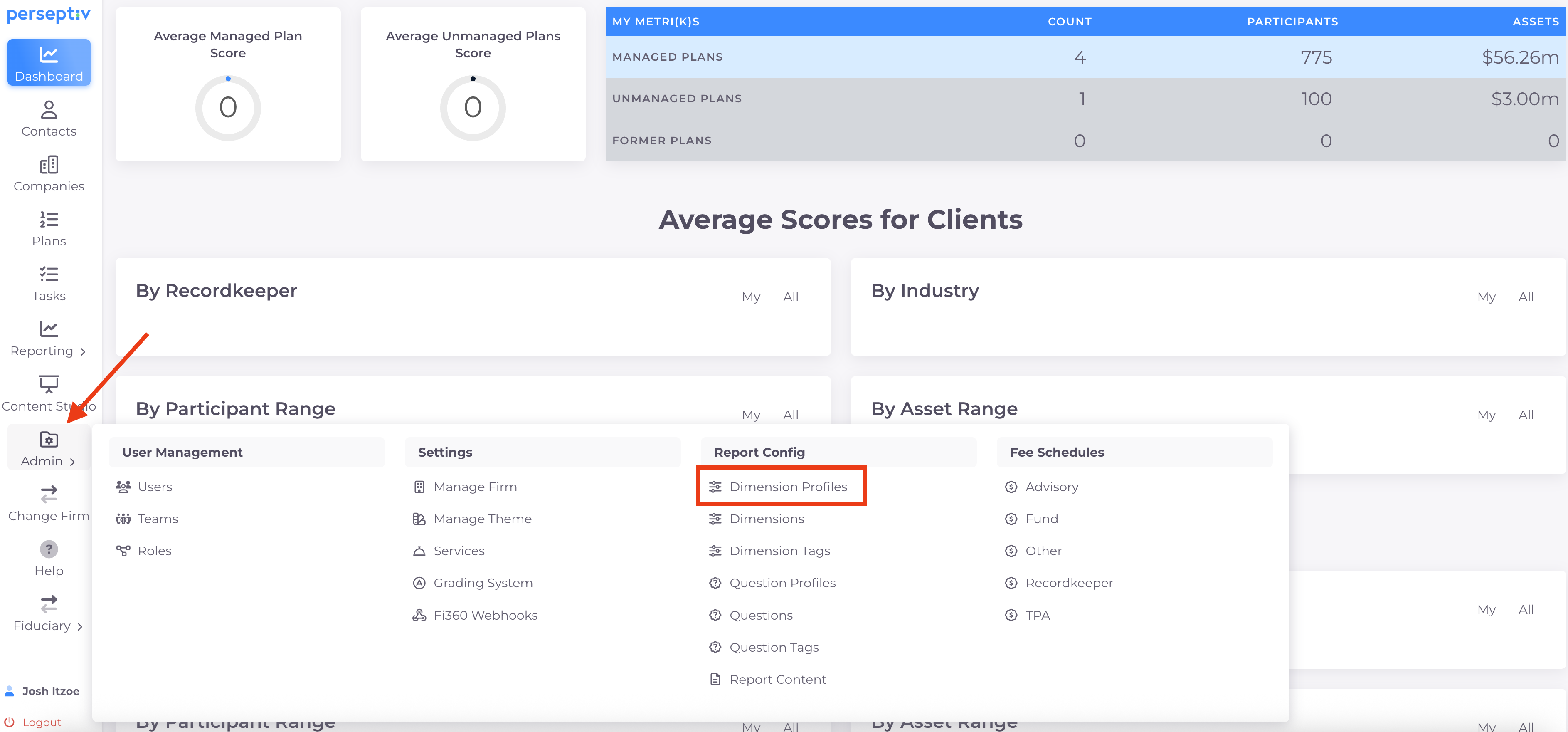
-
Navigate to Admin.
-
Go to Report Config.
-
Select Dimension Profiles.
3. Create a New Dimension Profile 0:44
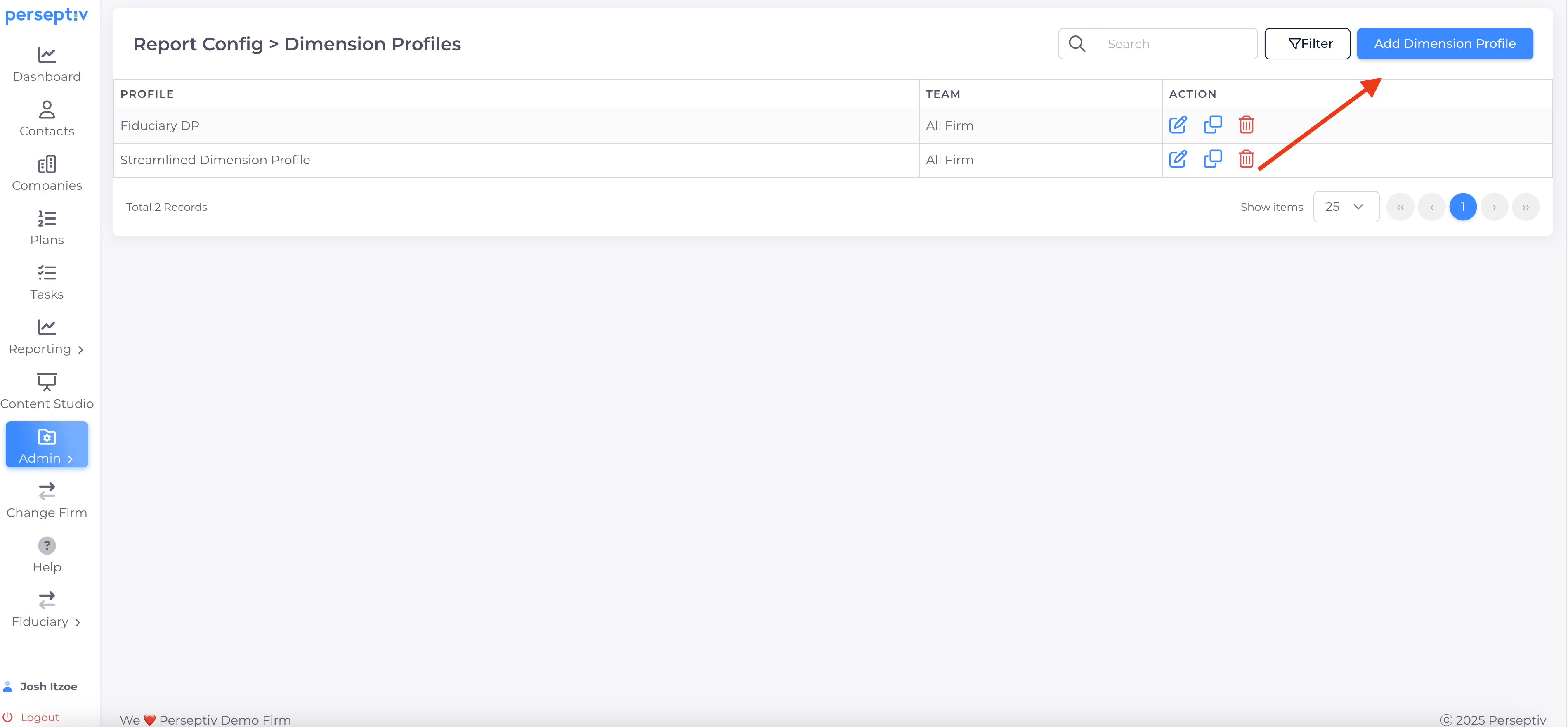
-
Click on 'Add Dimension Profile'.
-
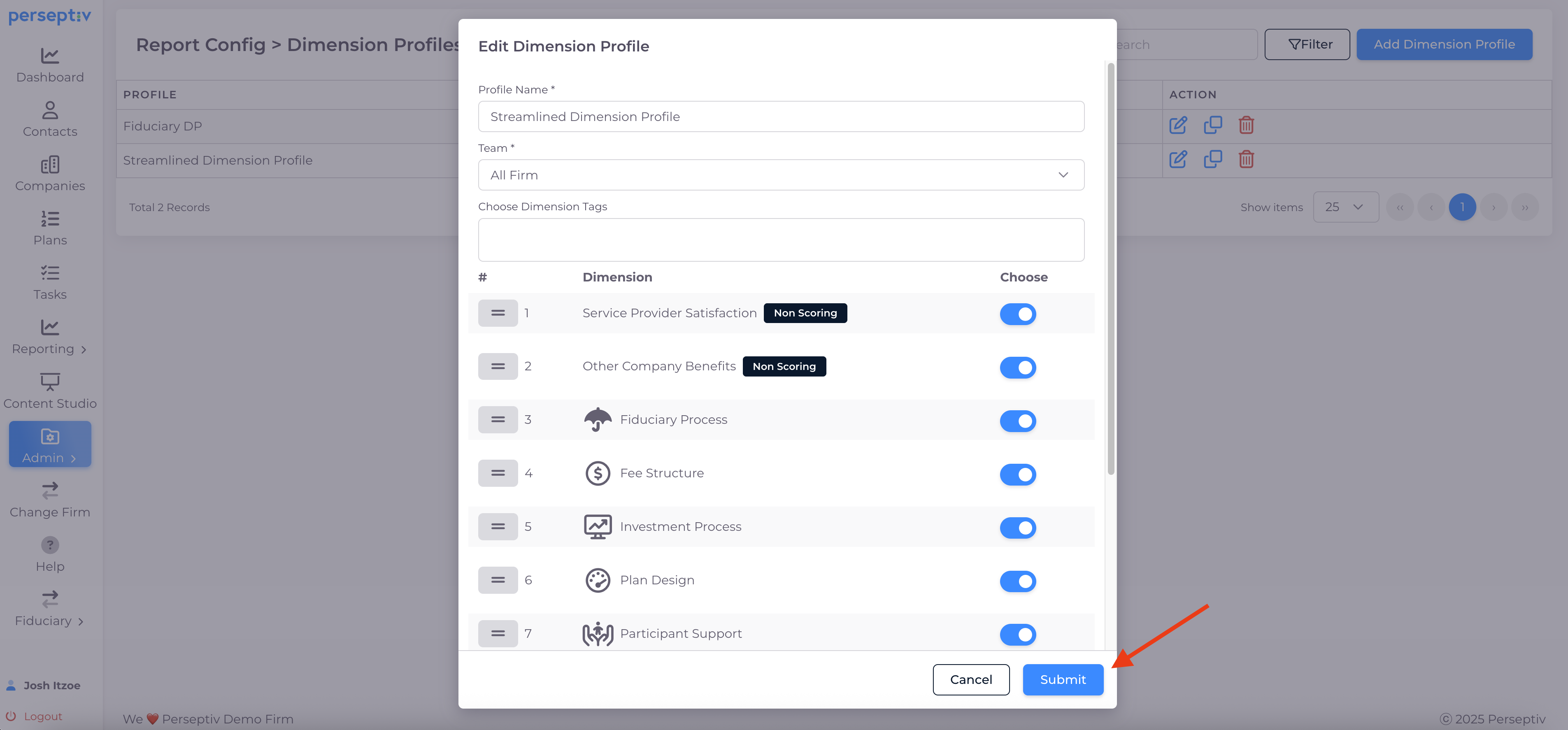
Give your profile a name (e.g., 'Streamline Dimension Profile').
4. Configure Dimensions 1:06
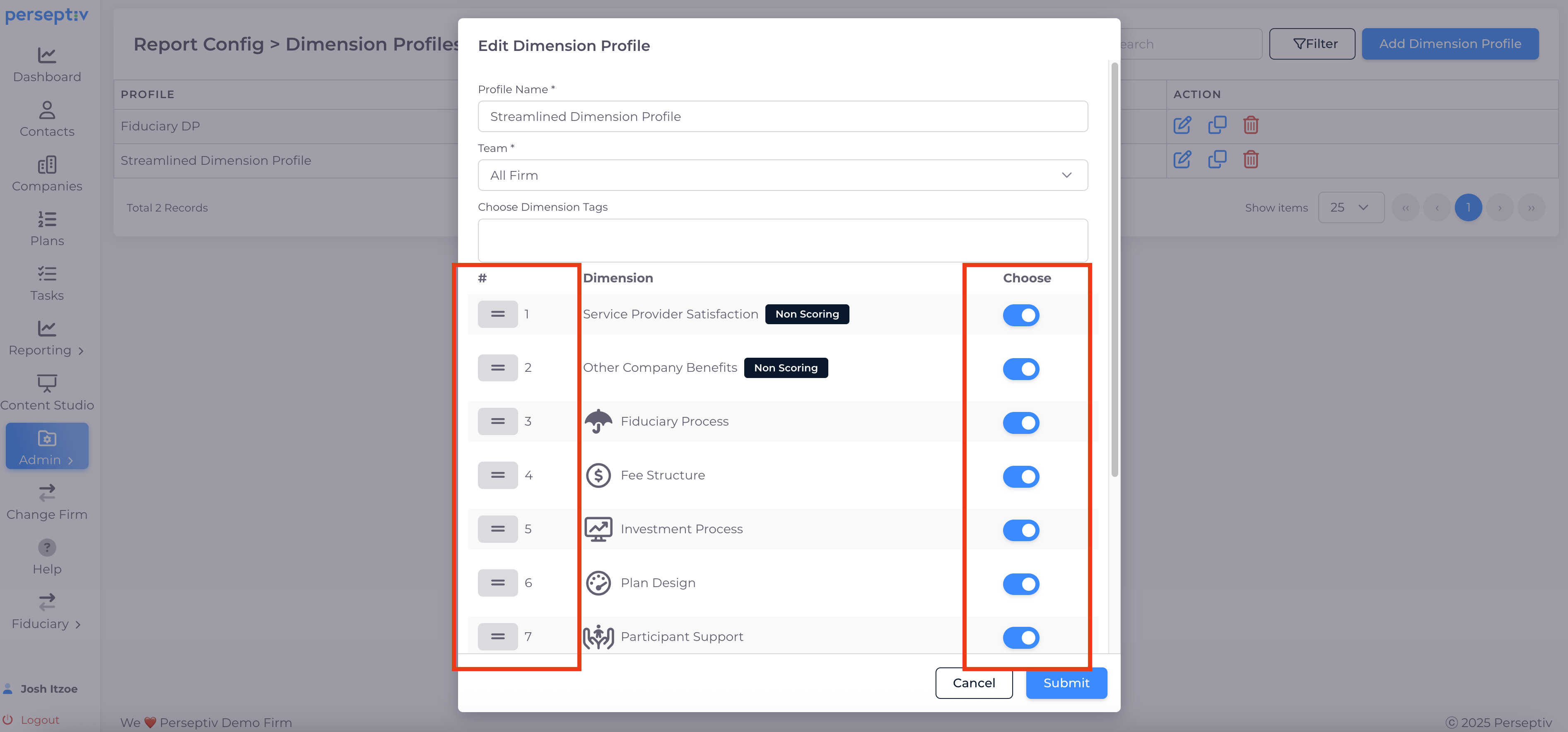
-
View all available dimensions.
-
Turn dimensions on or off as needed.
-
Rearrange dimensions in the desired order.
5. Set the Order of Dimensions 1:29
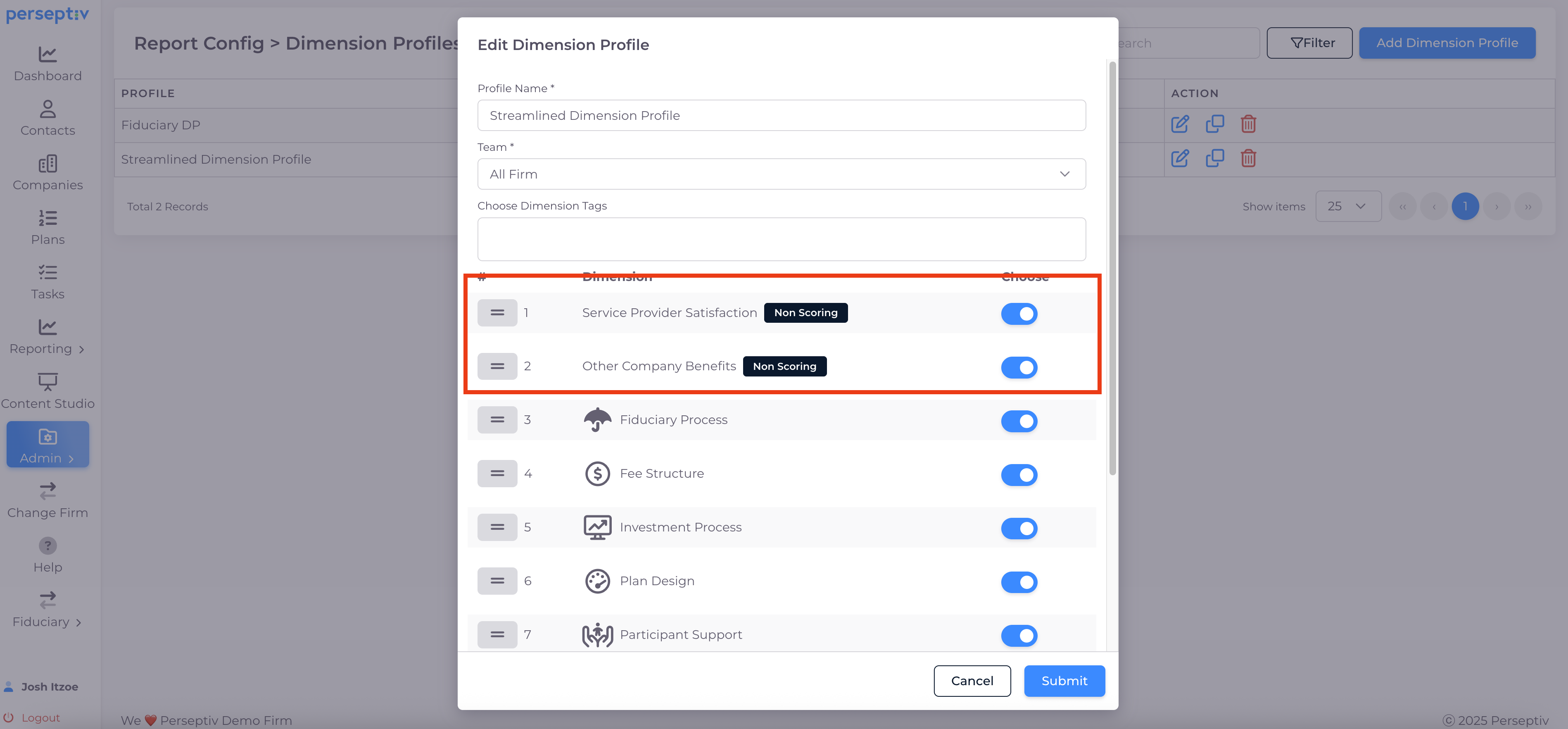
-
Ensure scoring categories are listed first.
-
Example order:
-
Non-scoring category: Service Provider Satisfaction
-
Other company benefits
-
Scoring categories:
-
Fiduciary Process
-
Fee Structure
-
Participant Support
-
Plan Design
-
Provider Management
-
-
-
Turn off any dimensions you do not want to include (e.g., Payroll Process).
6. Submit the Dimension Profile 2:00
-
After configuring, hit 'Submit' to save your Dimension Profile.
-
You can create multiple profiles for different purposes (e.g., streamlined for prospecting).