
To watch the video, click here: https://loom.com/share/687e488ce9ff41eda70d8eaa0b46b308
Step-by-Step Instructions
1. Introduction to Scoring Reports 0:00
-
Scoring reports allow for customized questions tied to various dimensions.
-
Over 65 pre-built questions available on the fiduciary side and more than 80 on the wealth side.
- Unlimited ability to customize and create your own questions.
2. Accessing the Question Library 0:12
-
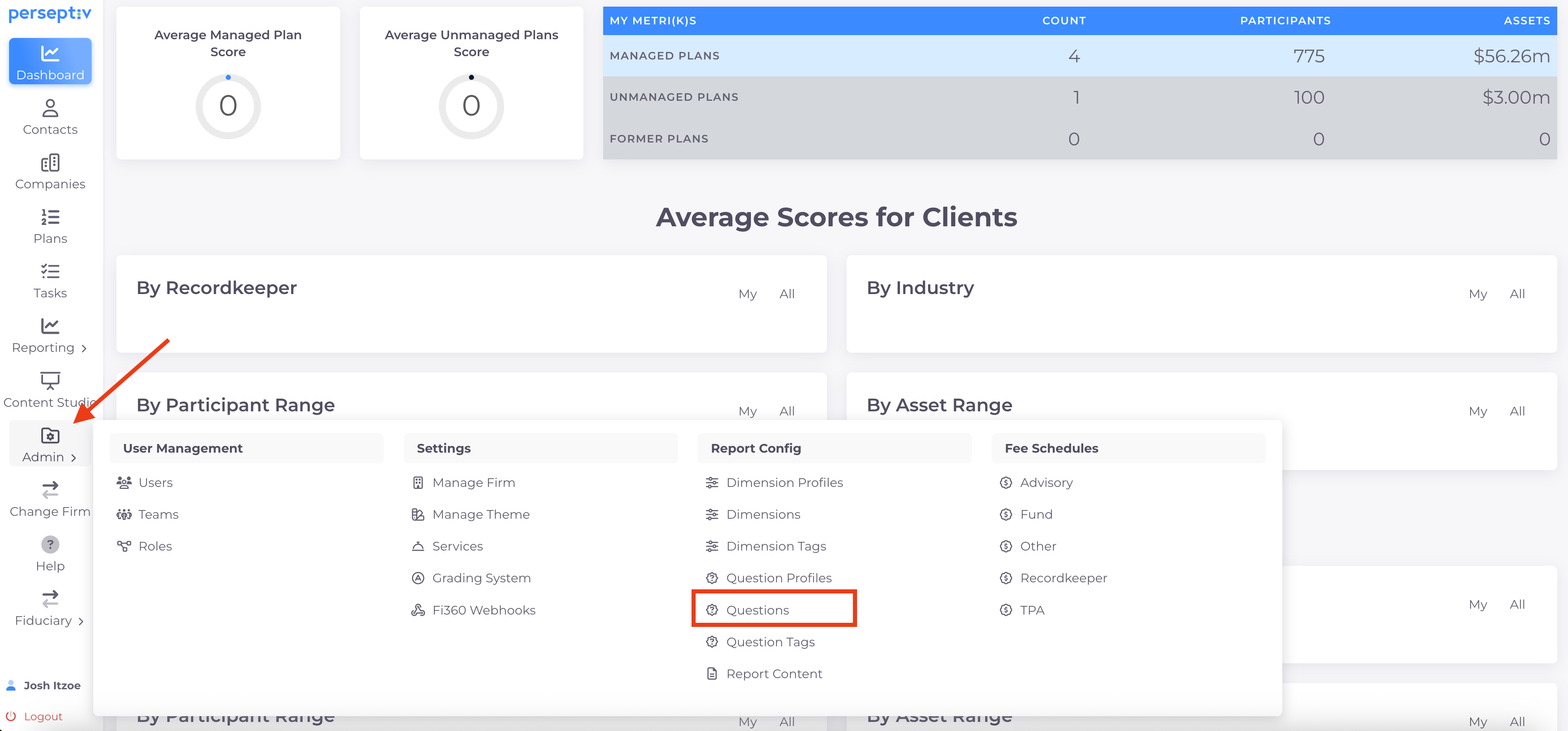
Navigate to the 'Admin' section.
-
Click on 'Questions' to view existing questions categorized by dimensions.
3. Understanding Question Structure 0:48
-
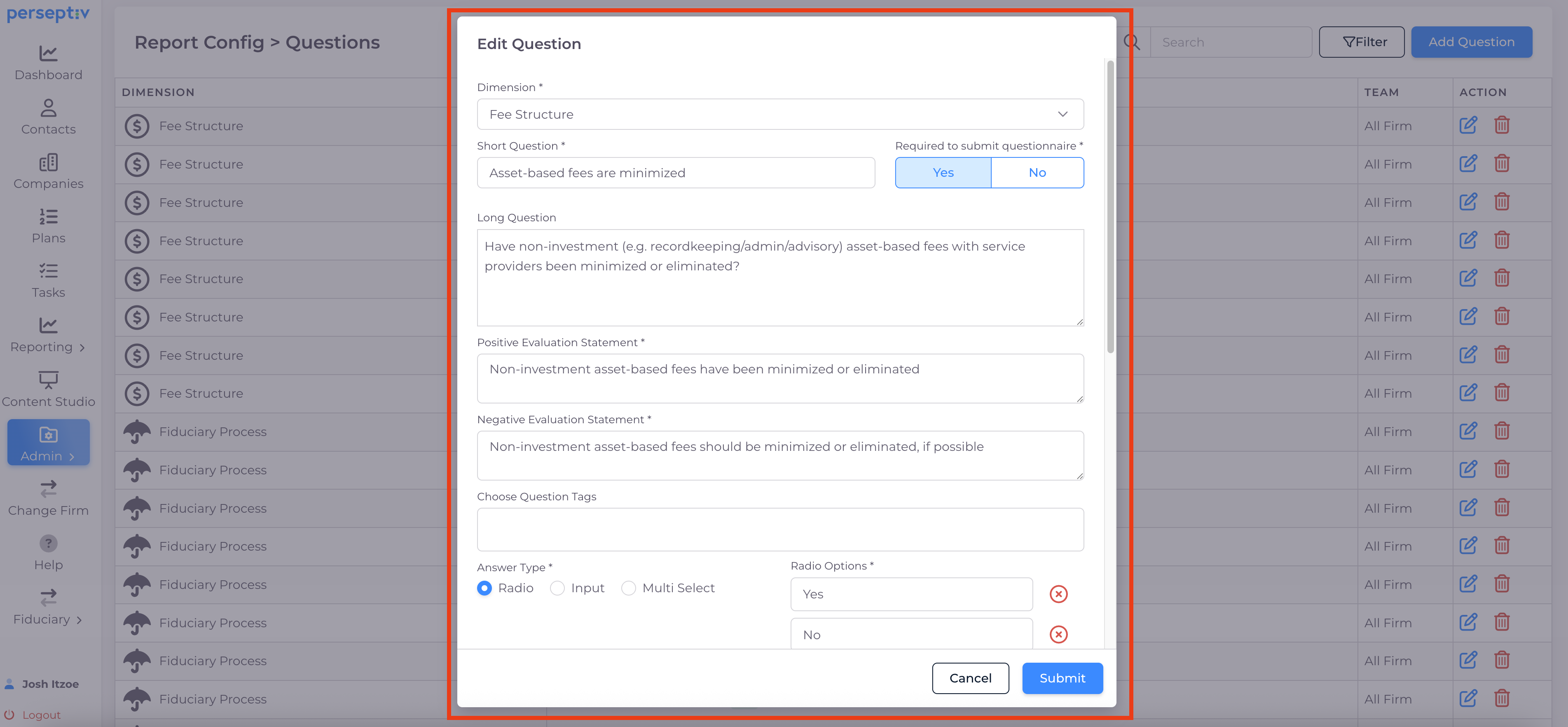
Each question has:
-
A dimension it is tied to.
-
A short internal description.
-
A long question visible to users.
-
Positive and negative evaluation statements.
-
4. Creating Scoring Questions 2:40
-
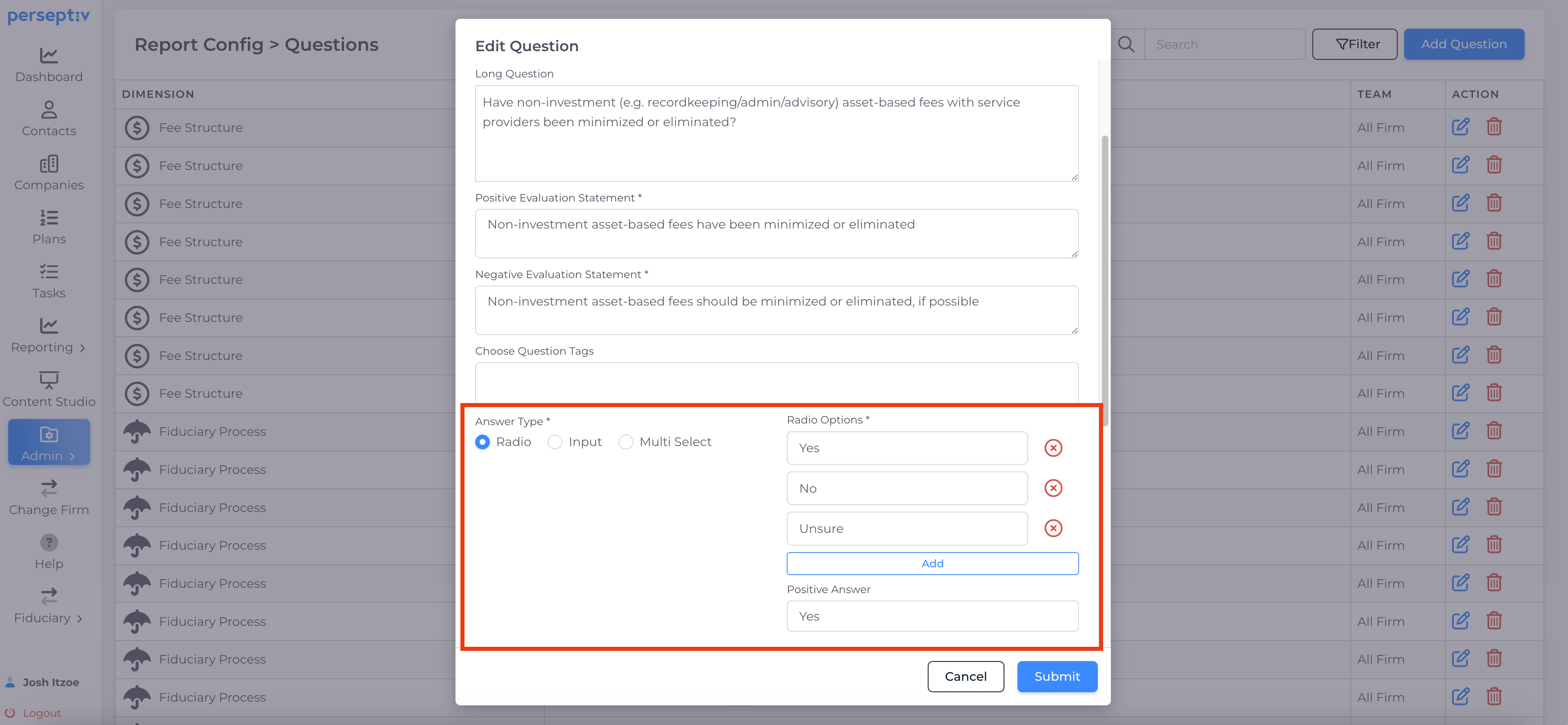
Recommended to use radio buttons for scoring questions.
-
Options typically include 'Yes', 'No', and 'Unsure'.
-
'Unsure' is valuable for identifying areas of confusion.
5. Evaluation Statements and Recommendations 3:40
-
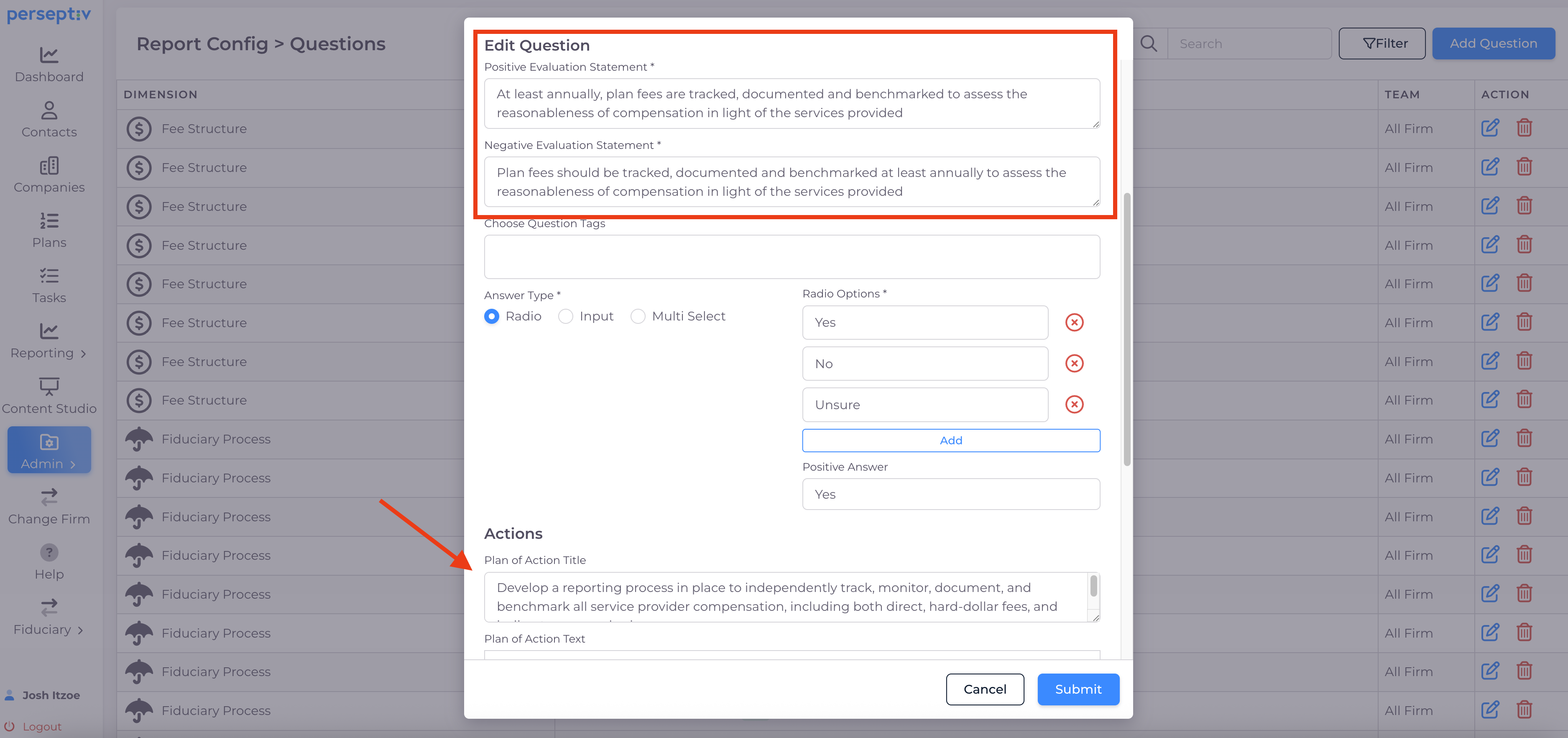
Positive evaluation statements are shown if the answer is 'Yes'.
-
Negative evaluation statements provide recommendations if the answer is 'No'.
-
Include a plan of action based on observations.
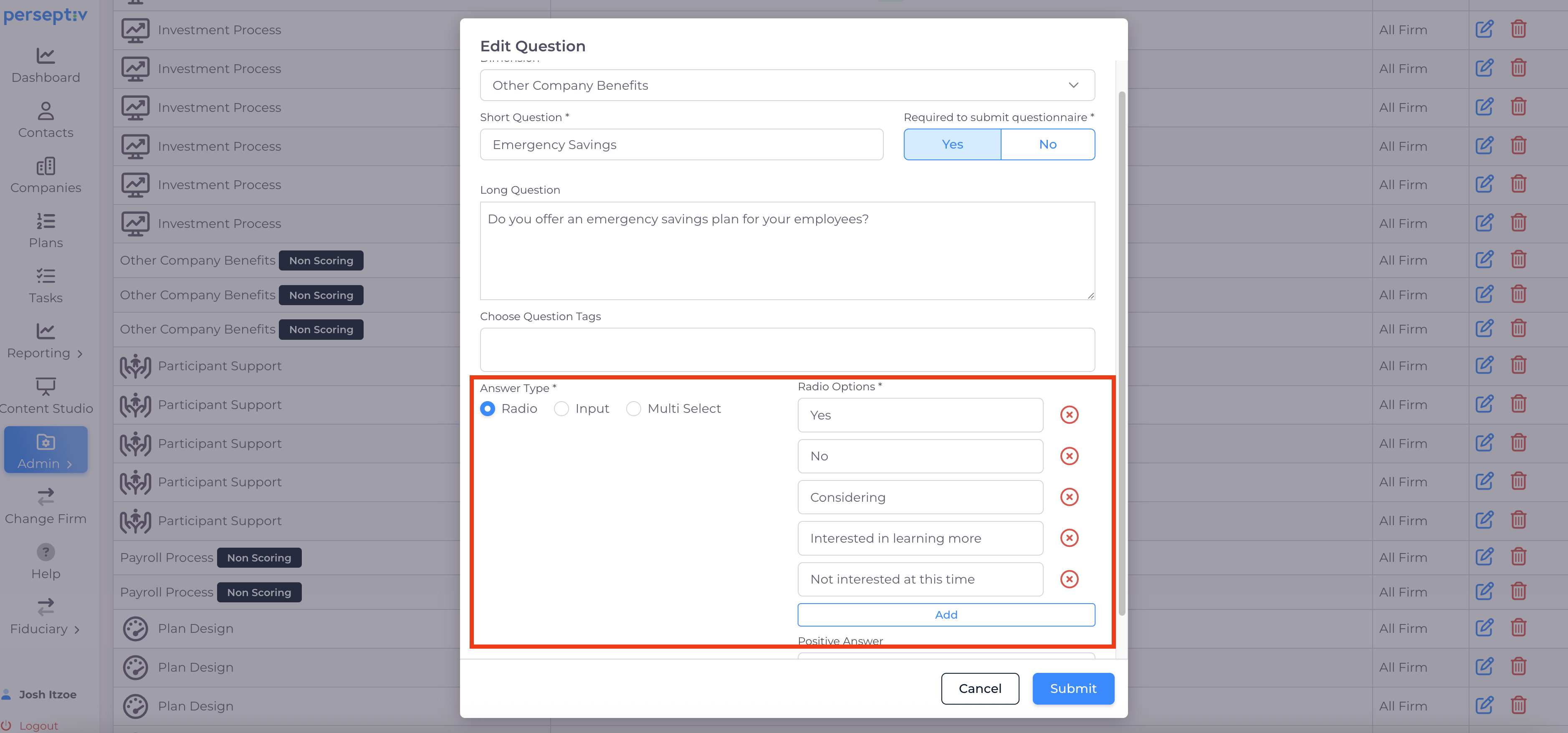
6. Adding Non-Scoring Questions 4:55
-
Non-scoring questions do not have evaluation statements or recommendations.
-
Examples include questions about benefits offered or payroll providers.
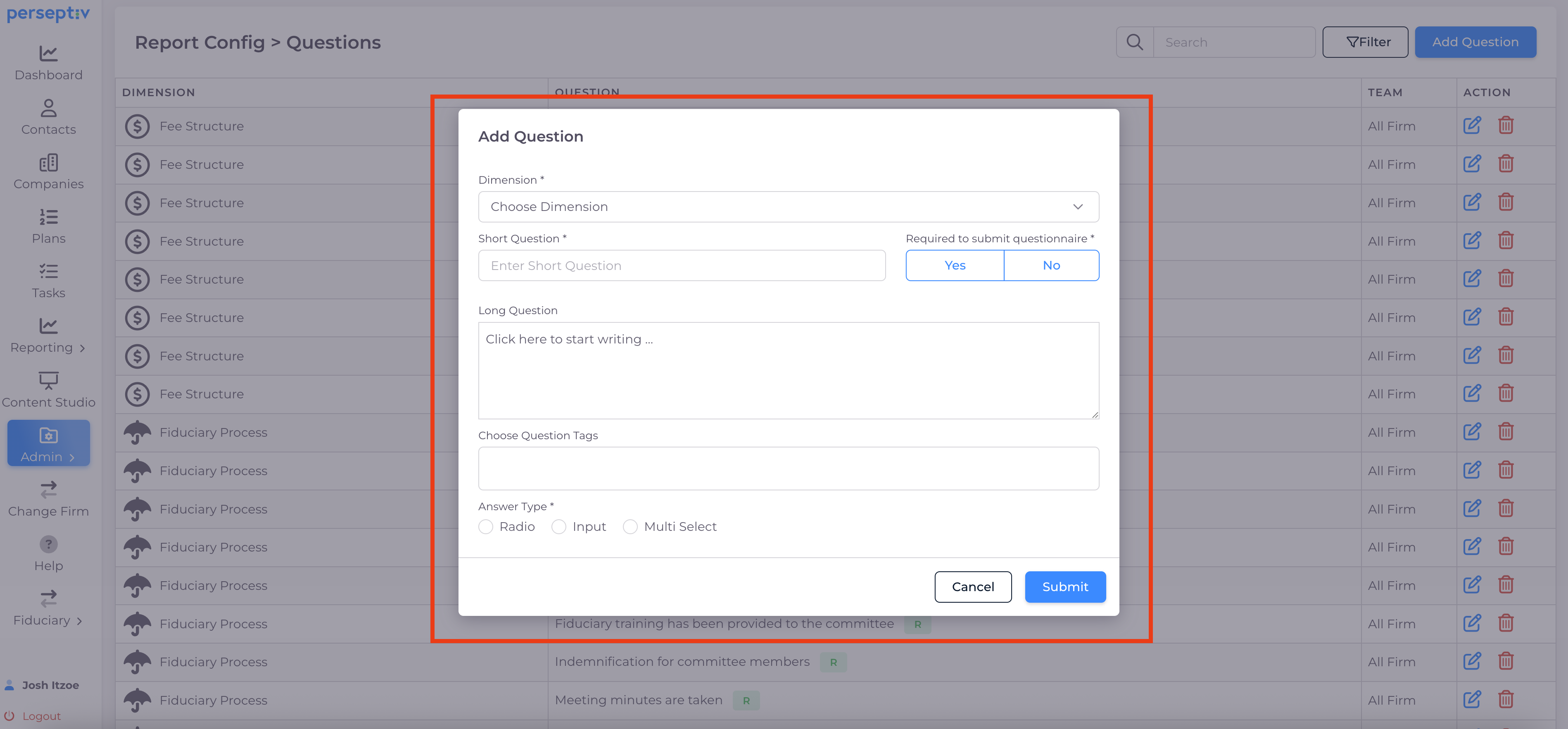
7. Creating Custom Questions 6:14
-
To add a new question:
-
Select the dimension.
-
If the dimension is 'Non-Scoring', the system will automatically recognize this.
-
Provide a short internal descriptor.
-
Choose the question type (e.g., input box, multi-select).
-
-
Review the question bank for existing questions.