
To watch the video, click here: https://loom.com/share/d6ffecf2f47f44379ff544b22b18a015
Step-by-Step Instructions
1. Understanding Dimensions 0:00
-
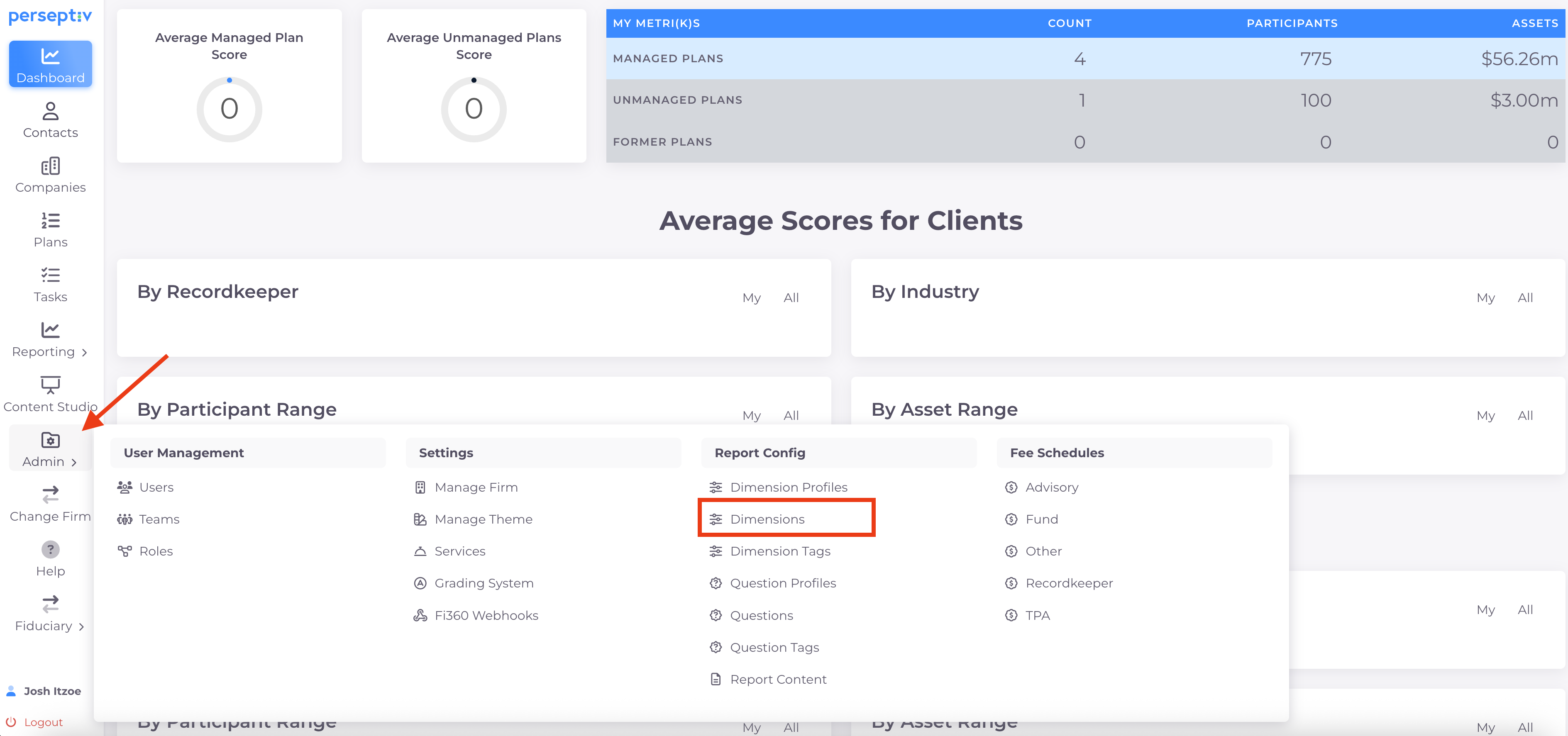
Dimensions categorize questions and scoring areas in a scoring report.
-
Access dimensions through the 'Admin" settings.
2. Default Dimensions Overview 0:11
-
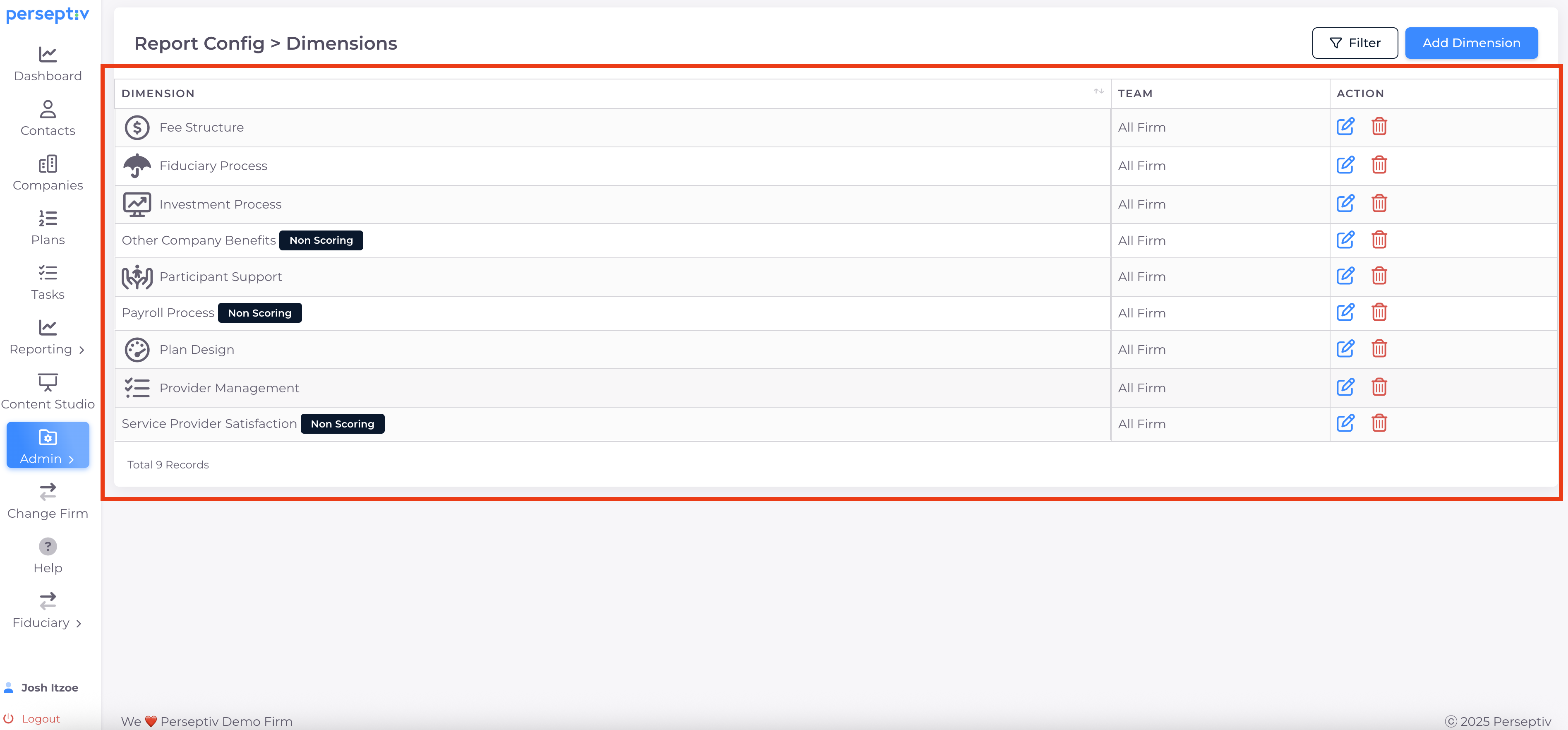
Out-of-the-box 'Scoring' dimensions include:
-
Fee Structure
-
Fiduciary Governance
-
Investment Process
-
Participant Support
-
Plan Design
-
Provider Management
-
-
Additional 'Non-Scoring' categories:
-
Other Company Benefits
-
Payroll Process
-
Service Provider Satisfaction
-
3. Customizing Dimension Names 0:43
-
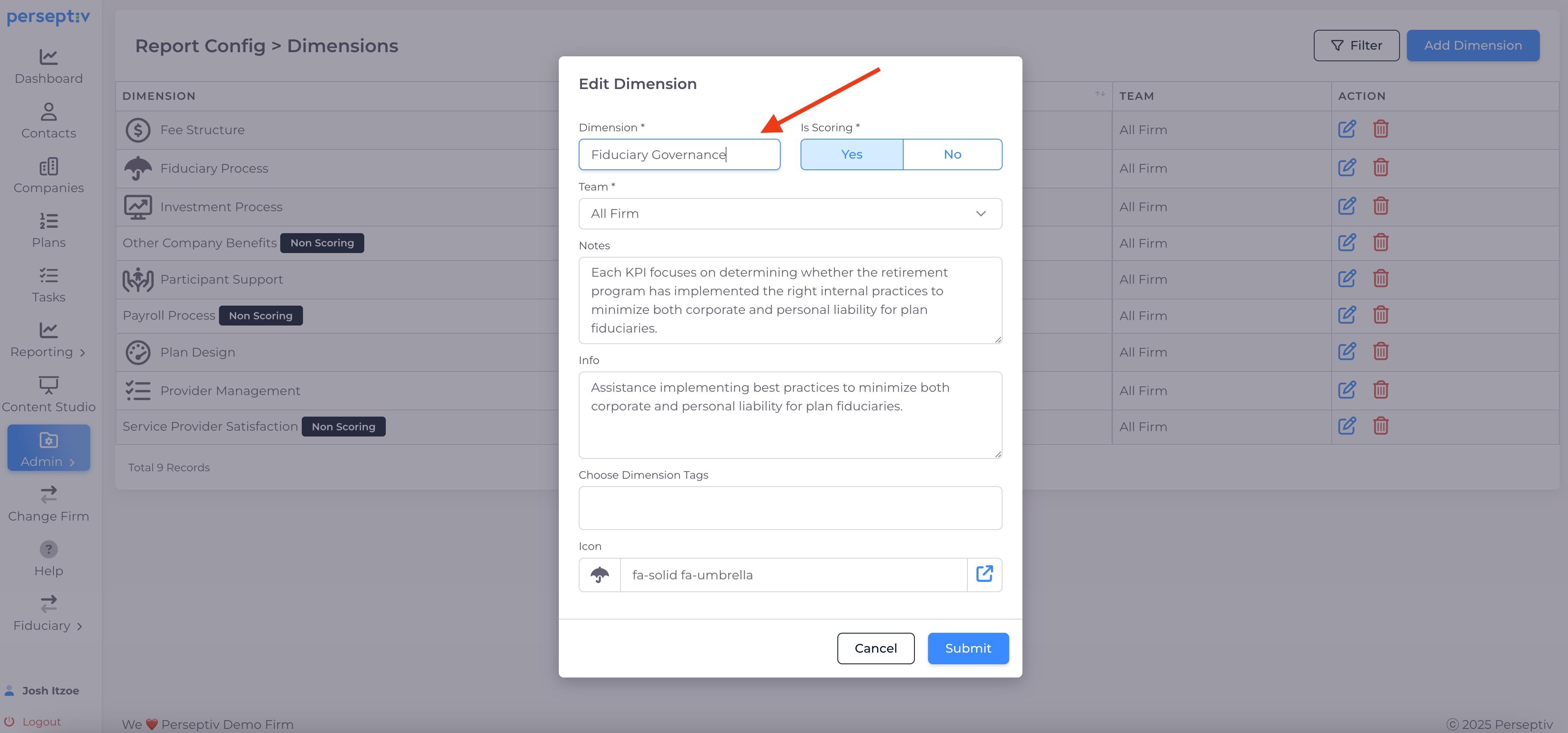
Dimensions can be renamed to fit your organization’s terminology.
-
Example: Change 'Fiduciary Governance' to 'Fiduciary Process'.
4. Adding Descriptions and Icons 1:14
-
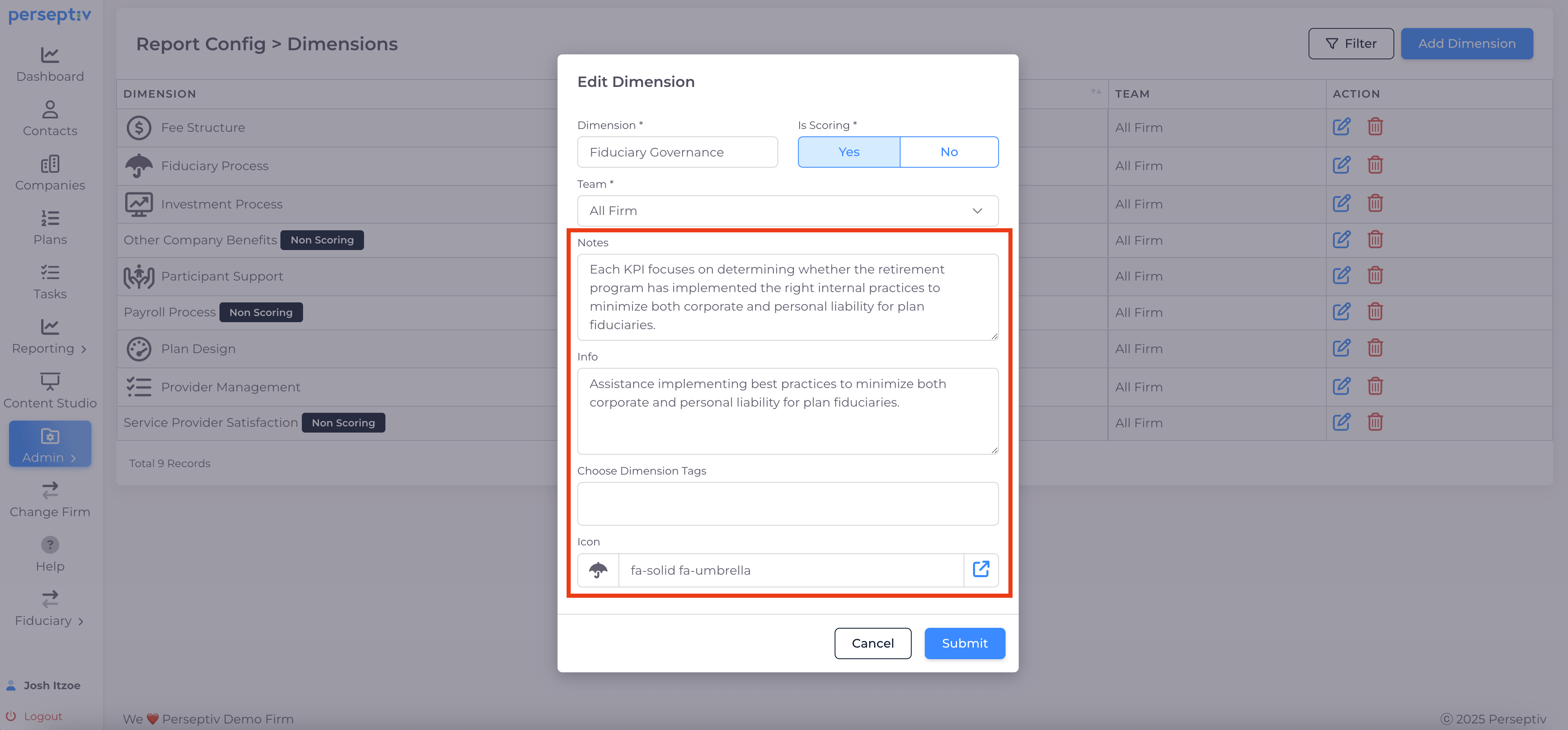
Each dimension can have a description explaining its importance.
-
Icons for dimensions can be customized.
5. Scoring vs. Non-Scoring Dimensions 1:24
-
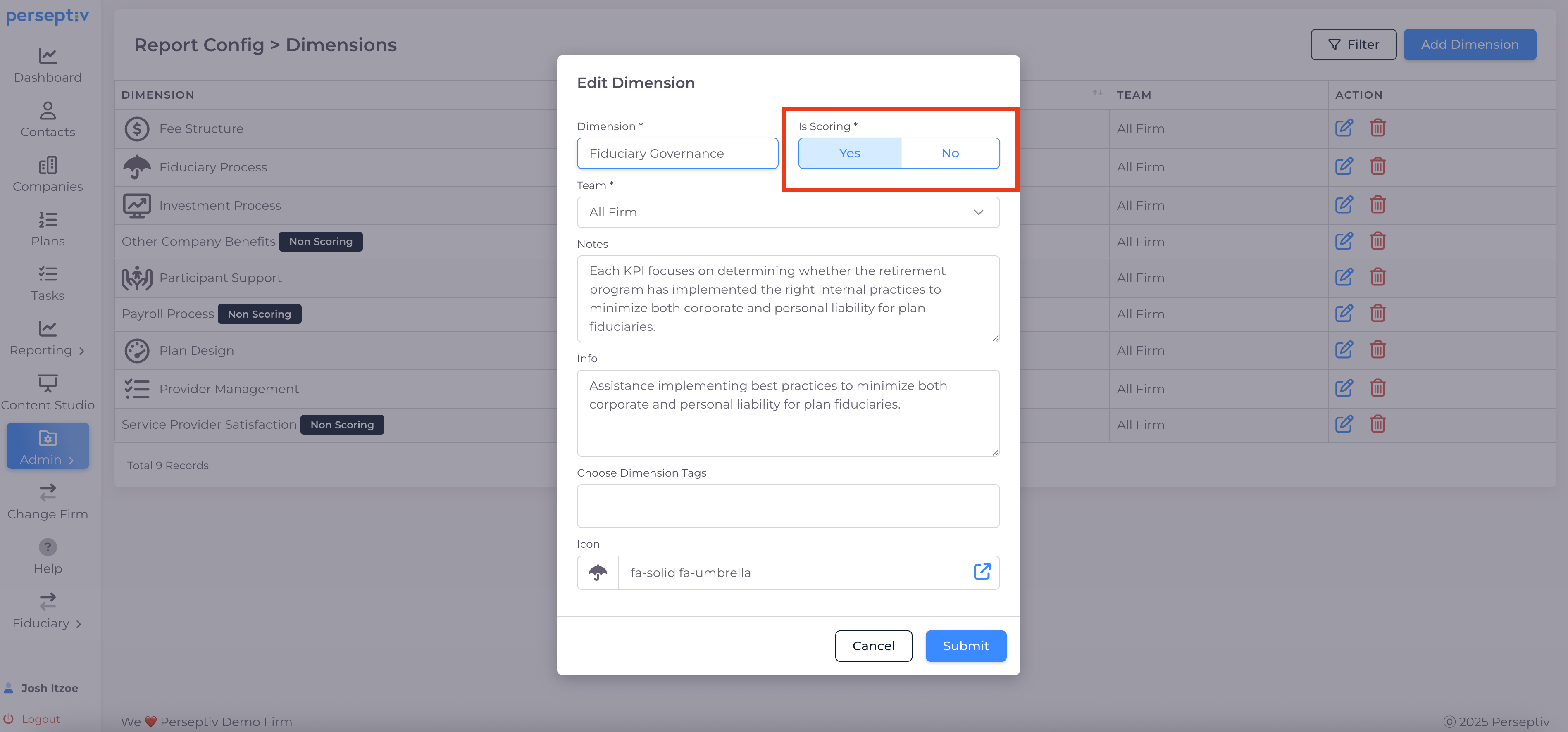
Scoring dimensions are tied to best practices and scoring systems.
-
Non-scoring dimensions are for discovery and do not have scores attached.
6. Changing Icons 1:57
-
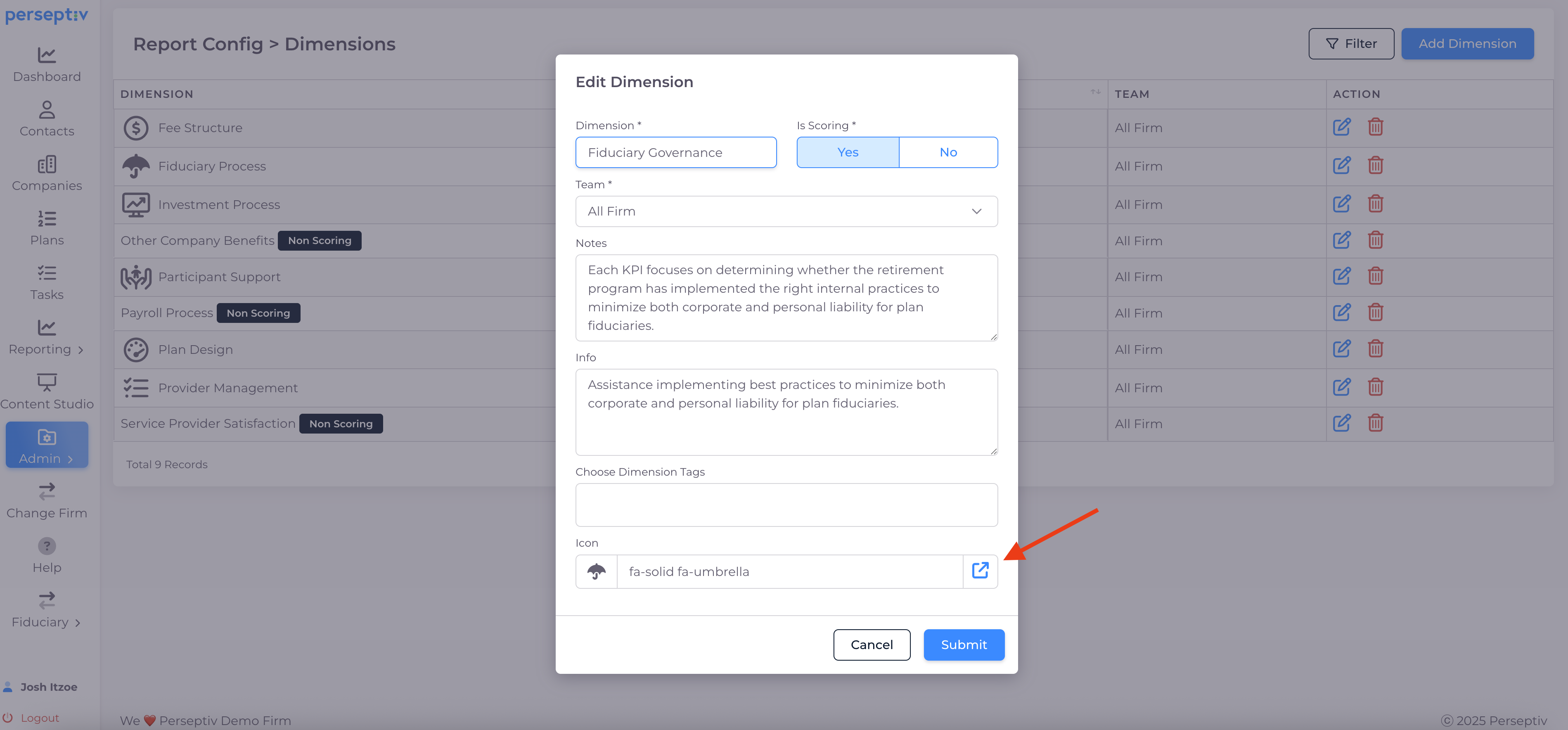
To change an icon:
-
Click the icon button.
-
Copy the desired icon code.
-
Paste it in the appropriate field.
- Watch the video to see how this is done.
-
7. Creating New Dimensions 2:45
-
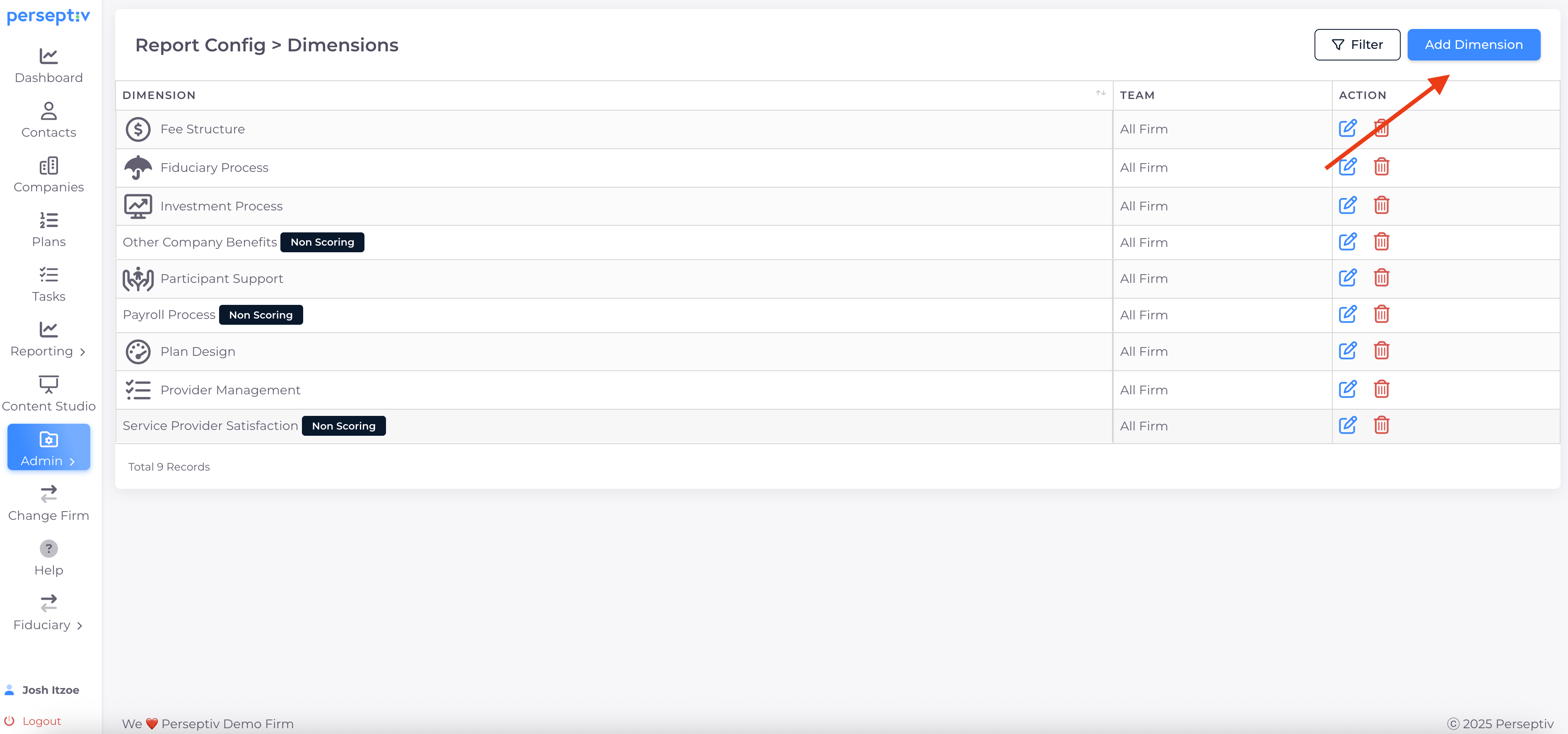
You can create custom dimensions:
-
Assign a name.
-
Add notes and information.
-
Choose an icon.
-
Decide if it will be scoring or non-scoring.
-
8. Full Customization Flexibility 3:06
-
Dimensions are fully customizable to align with your team’s philosophy.
-
You can delete existing dimensions if needed.