
To watch the video, click here: https://loom.com/share/79493c0b797f4eb0b14cc4bb8b13b383
Step-by-Step Instructions
Step 1: Navigate to the Login Page 0:00

-
Go to the website: perseptiv.io
-
Ensure the spelling is correct: P-E-R-S-E-P-T-I-V dot I-O.
Step 2: Click the Login Button 0:14

-
Click on the Log In button.
-
You will be redirected to https://app.perseptiv.io/login.
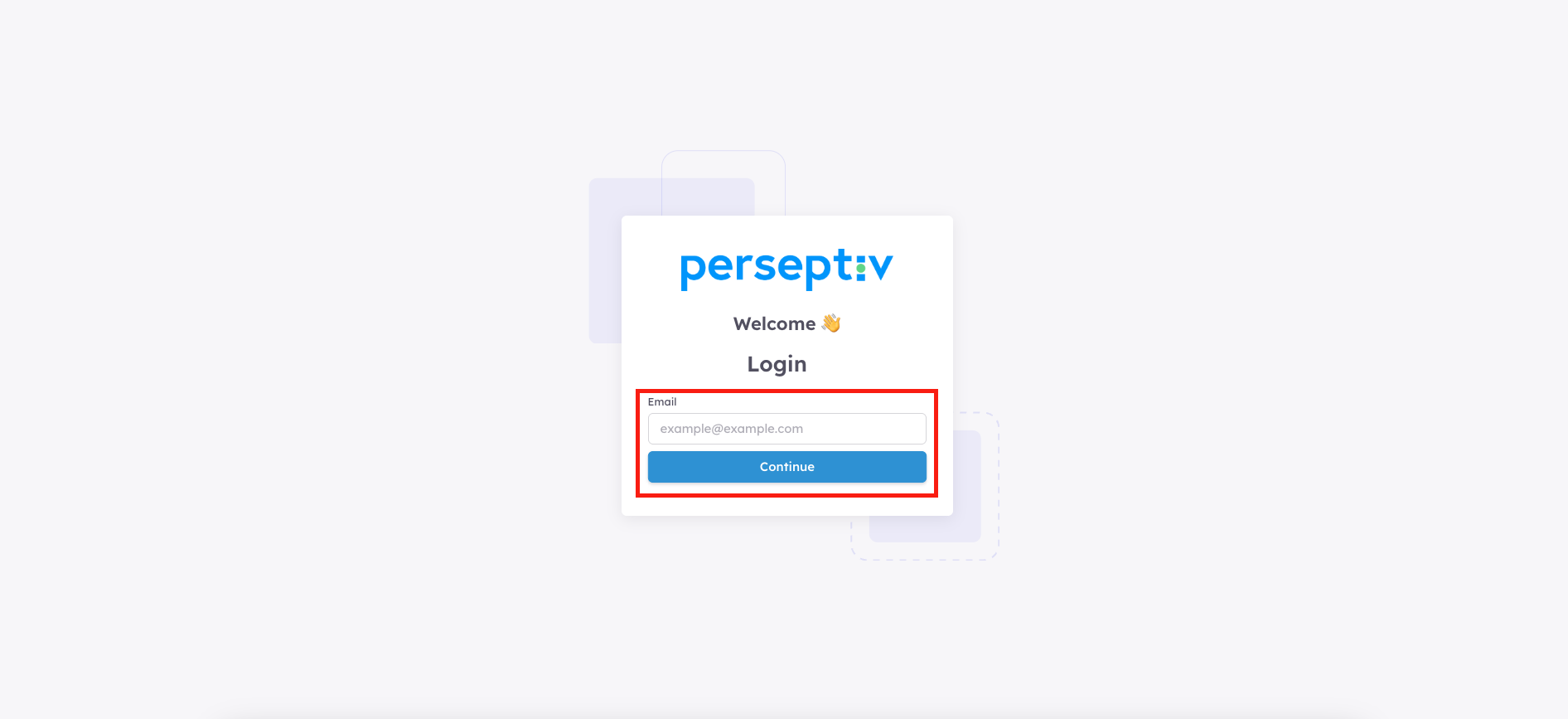
Step 3: Enter Your Email 0:28
-
Input your email address associated with your account.
-
Click Continue.
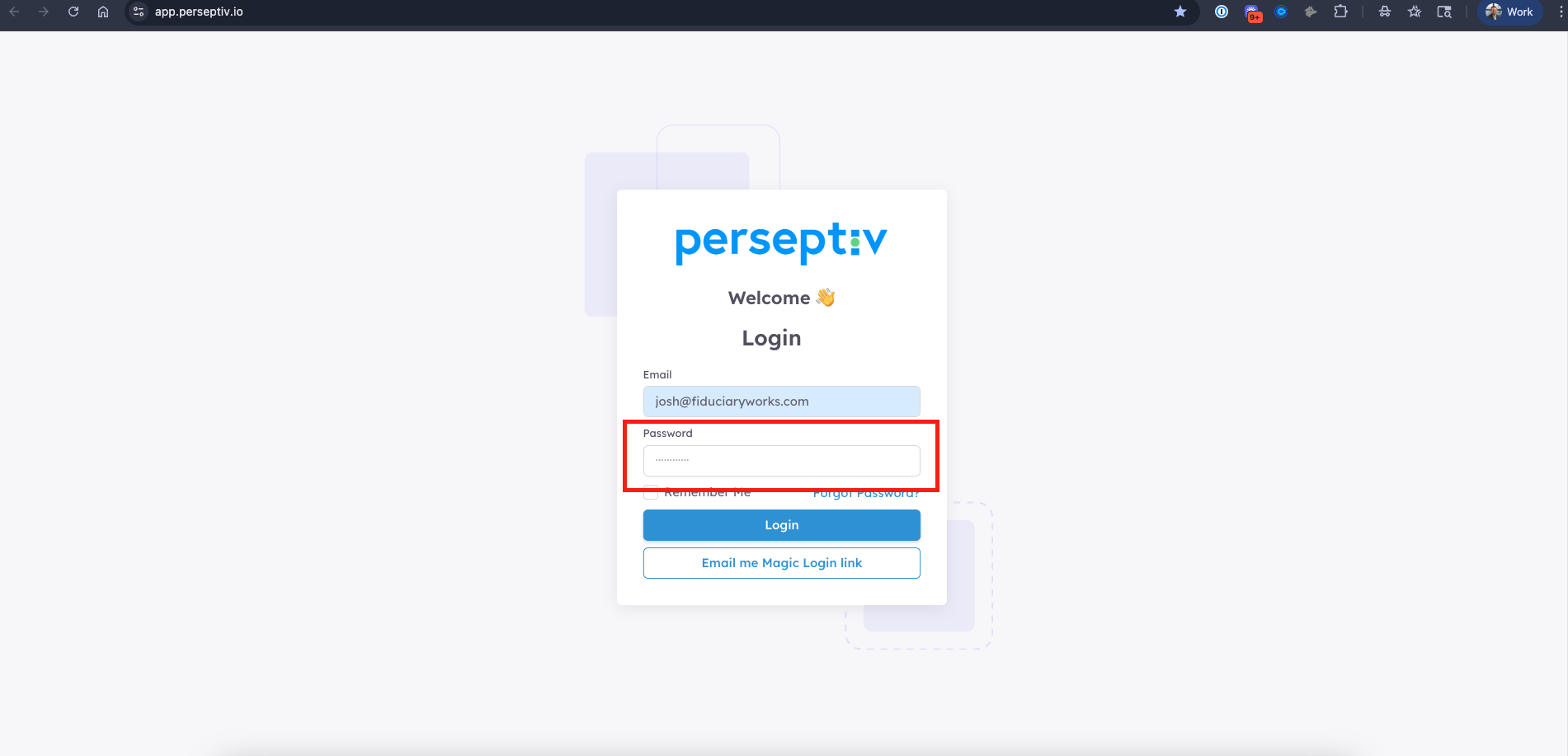
Step 4: Enter Your Password 0:40
-
Type in your password.
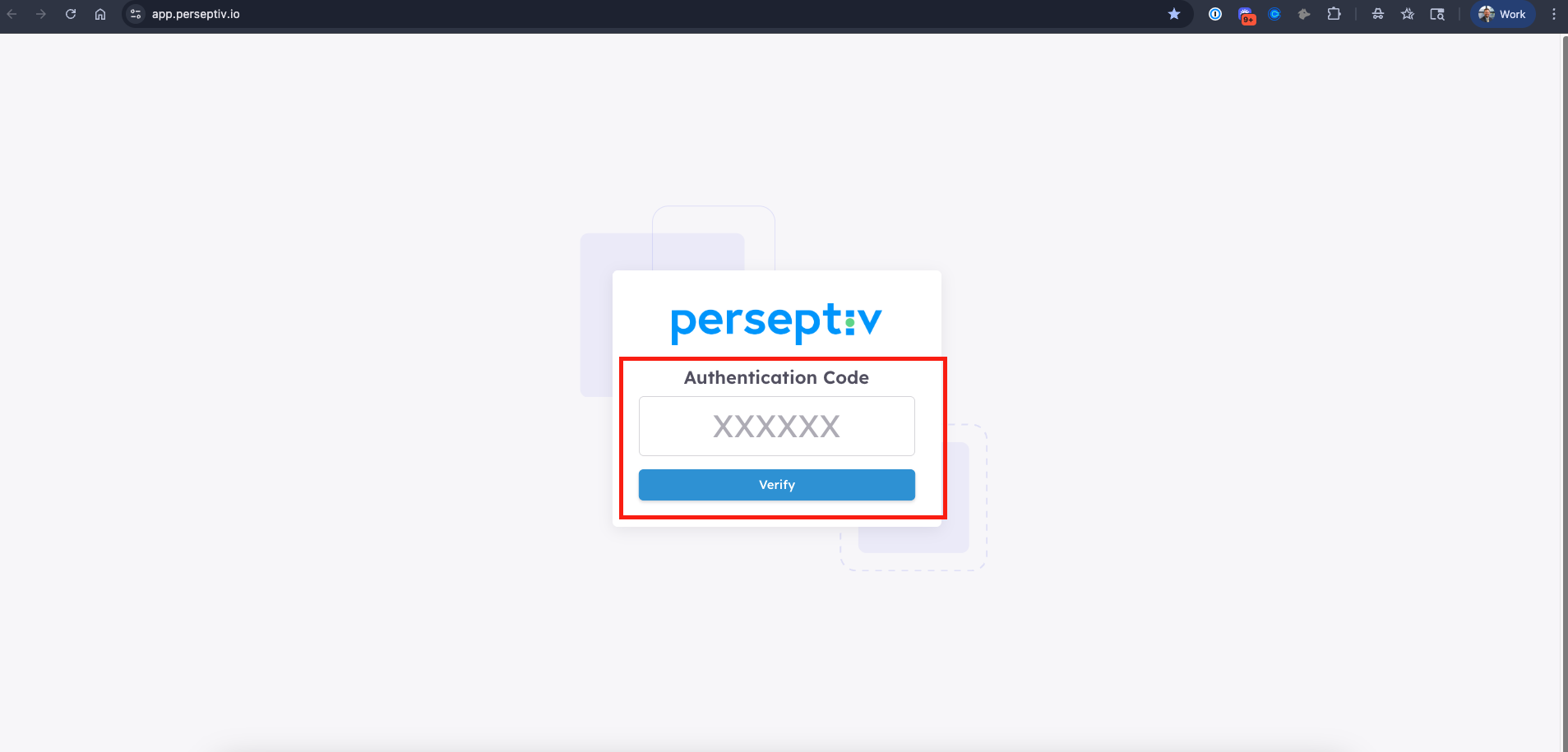
Step 5: Authentication Code Prompt 0:40
-
You will be prompted to enter an authentication code.
- This is generated by the authenticator app (e.g. Google, Microsoft, Duo, etc.) you setup when you created your account. Codes ARE NOT sent via text to your phone.
- Use the authentication app you set up when creating your account to get the code.
Step 7:Alternative Login Method - Use the Magic Login Link 1:25
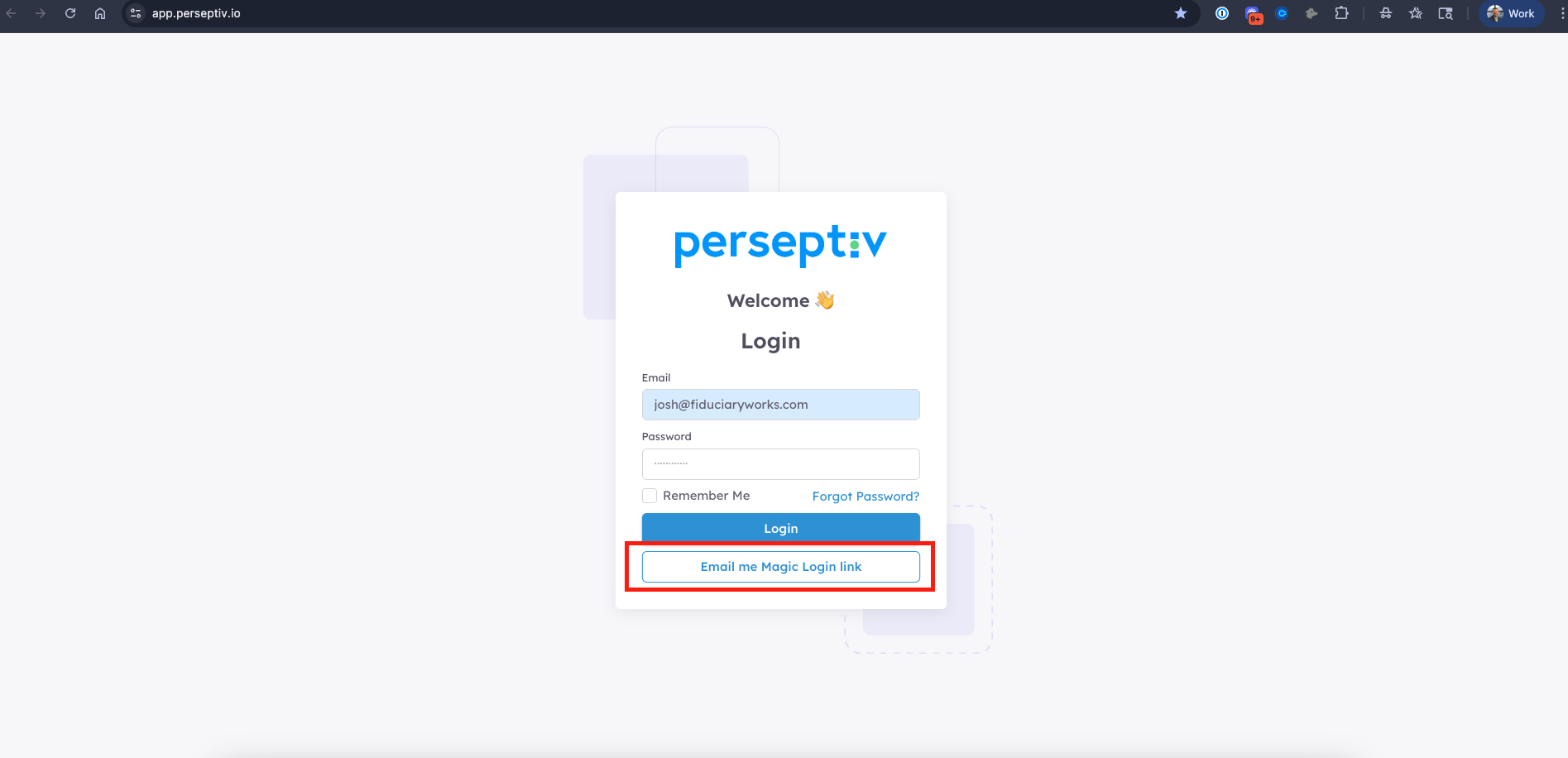
- If you don't have the authentication code and if your firm has enabled it, you can request a Magic Login link.
- Enter your email again.
- Check your email for the Magic Login link
- The email will come from support@perseptiv.io
-
Click the button in the email to log in automatically.
- NOTE - sometimes corporate email servers will block the link in the button in the email for security purposes. This is out of our control. Speak to your IT department and/or whitelist the email address support@perseptiv.io.