
To watch the video click here: https://loom.com/share/67b8dbcda501477db76889cb776bcb19
Step-by-Step Instructions
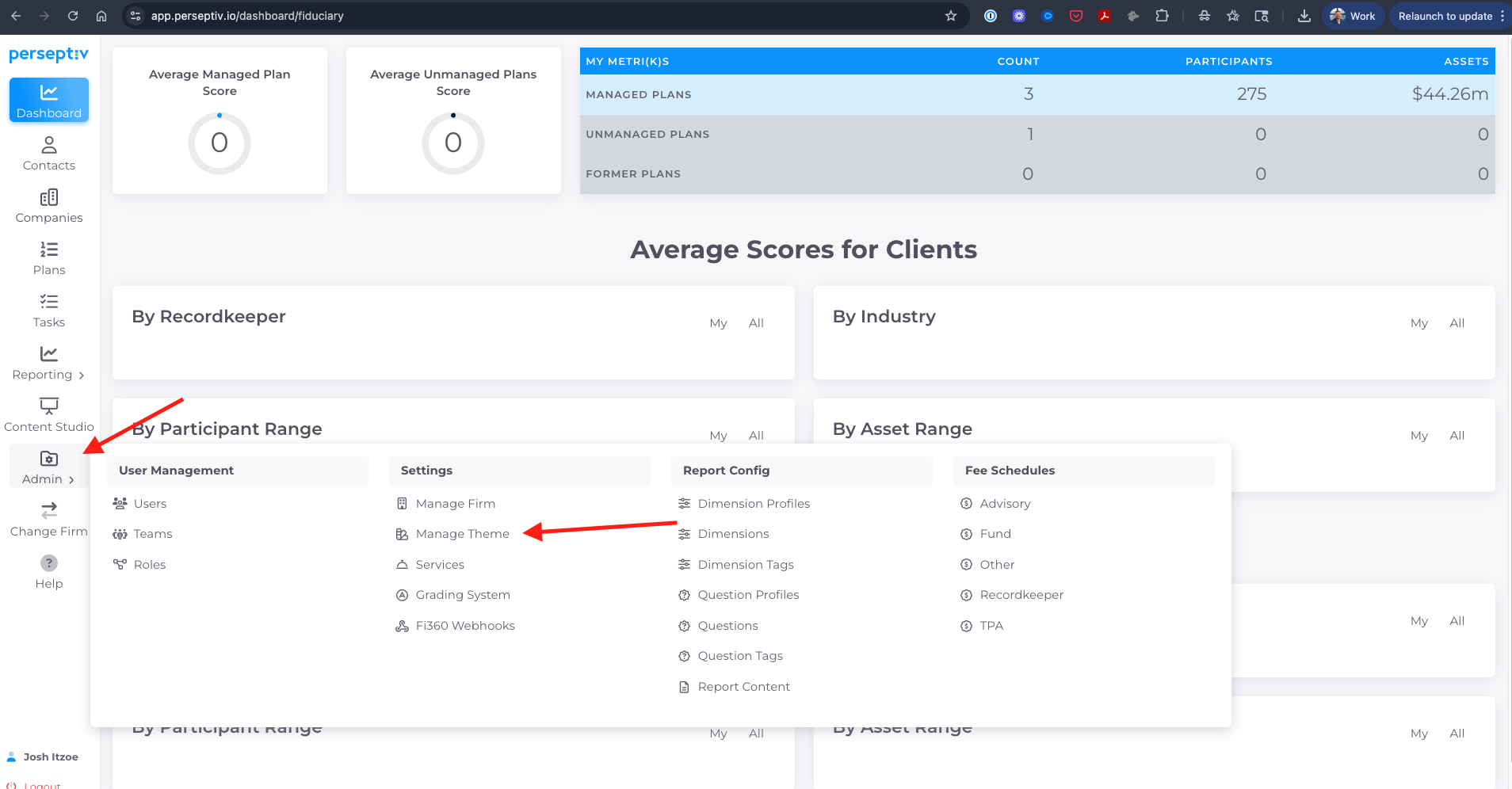
1. Access the Admin Panel 0:00
-
Navigate to the Admin section of the system.
-
Select 'Manage Theme' from the options.
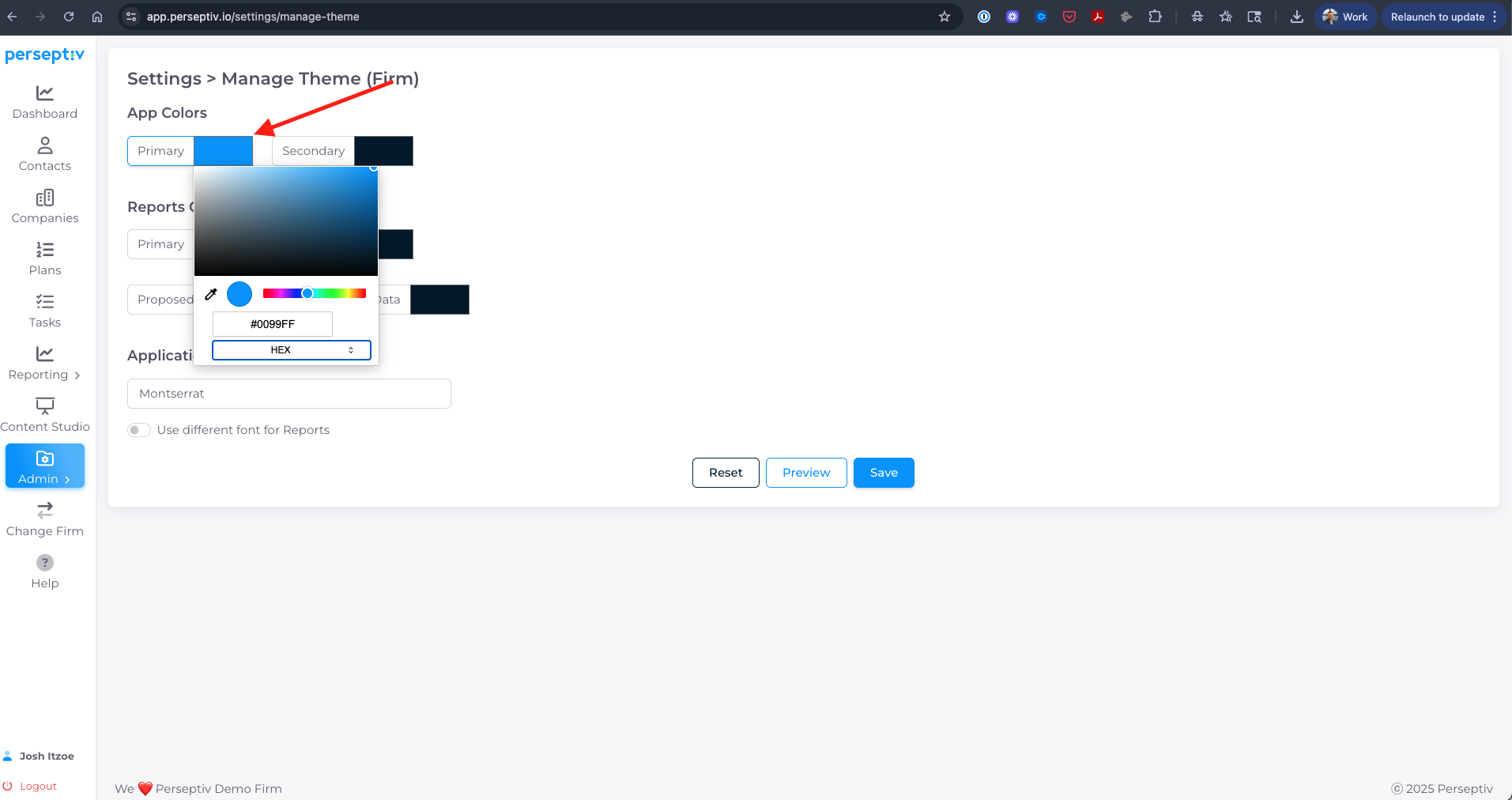
2. Input Your Colors 0:13
-
You will see options to input color codes.
-
The top section is for your app colors (visible in the app).
-
The bottom section is for report colors (visible in reports).
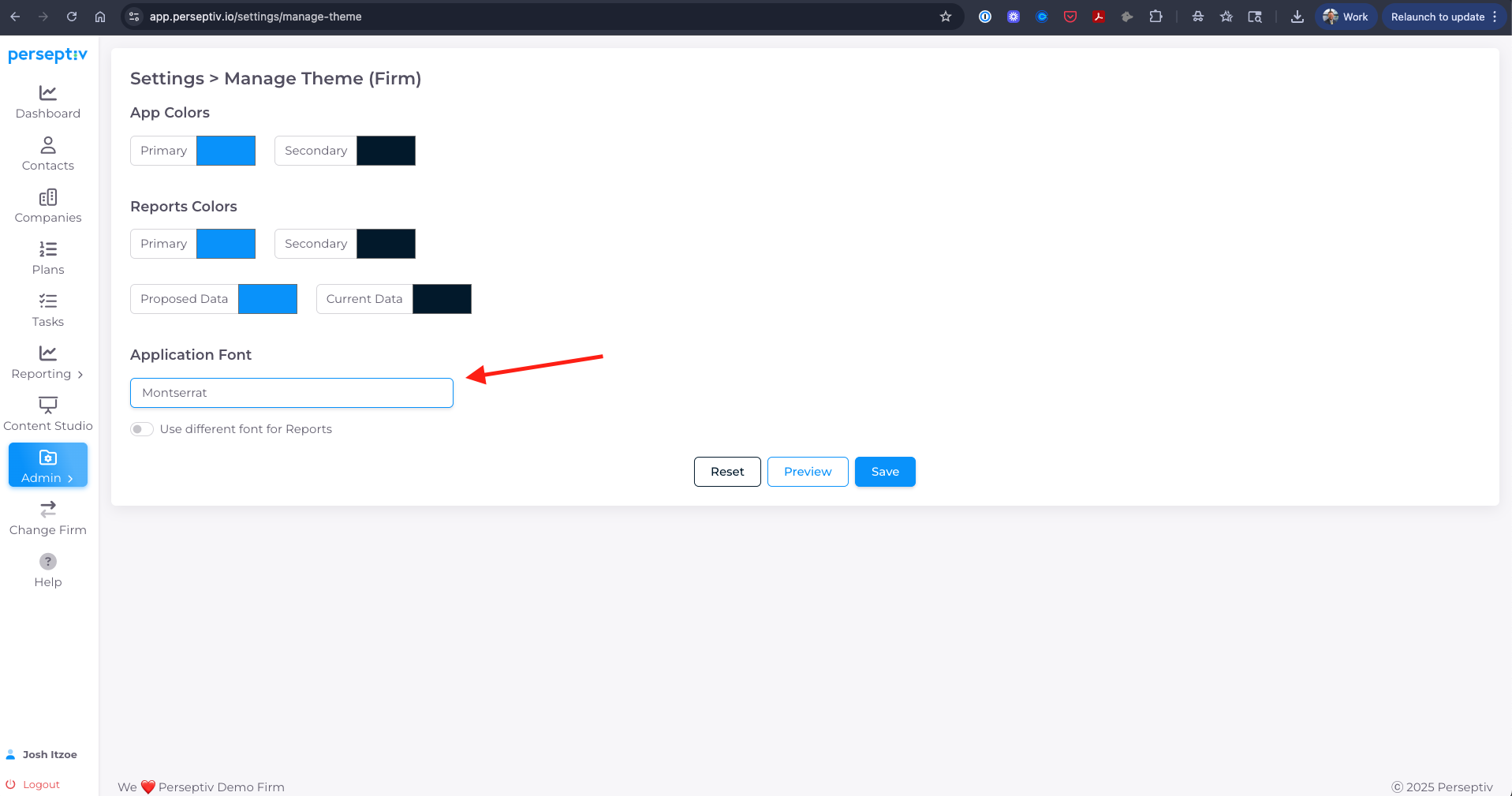
3. Font Customization (Optional) 0:21
-
You have the option to use different fonts for the app and reports.
-
It is recommended to leave this option turned off for simplicity.
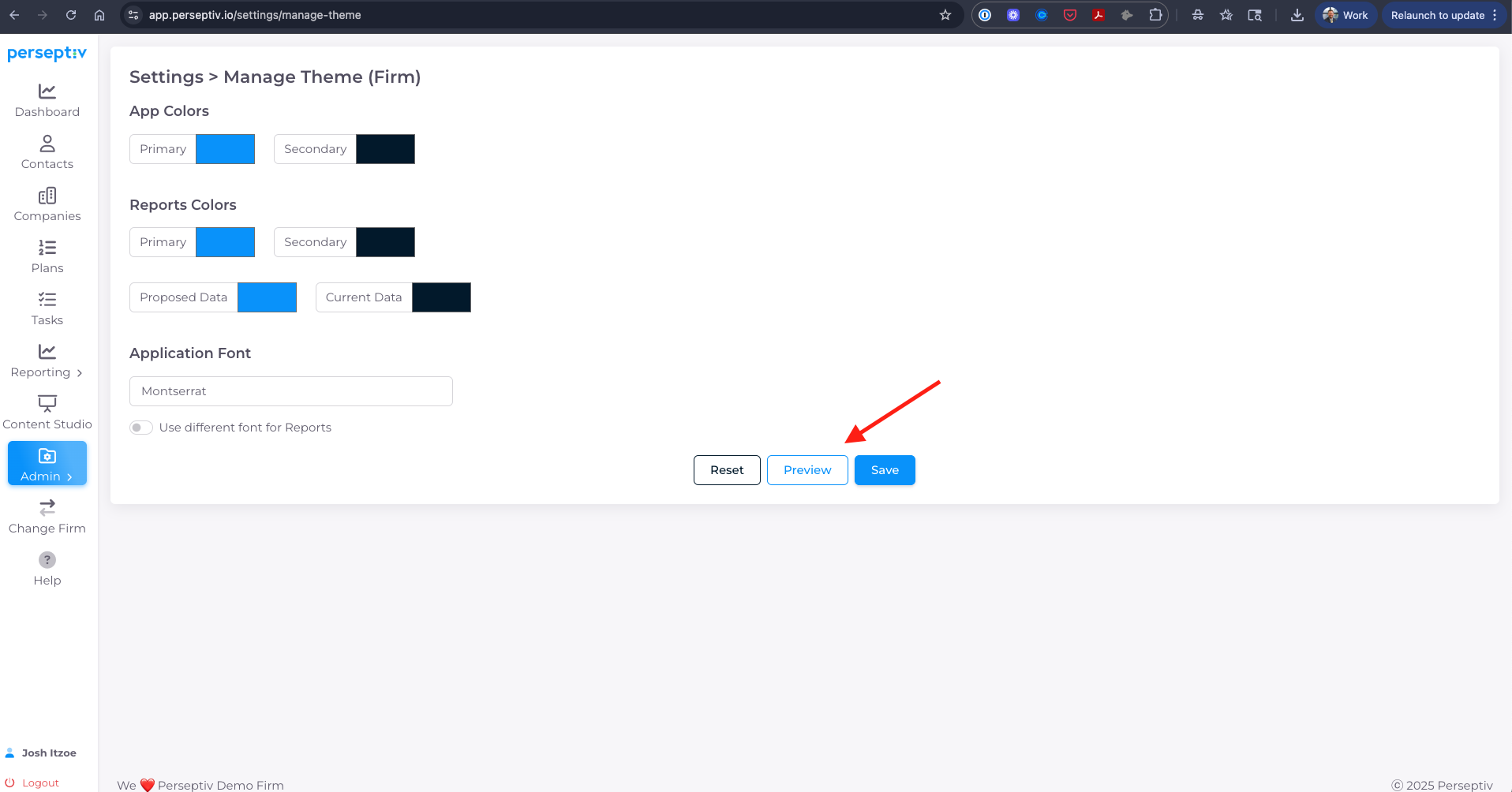
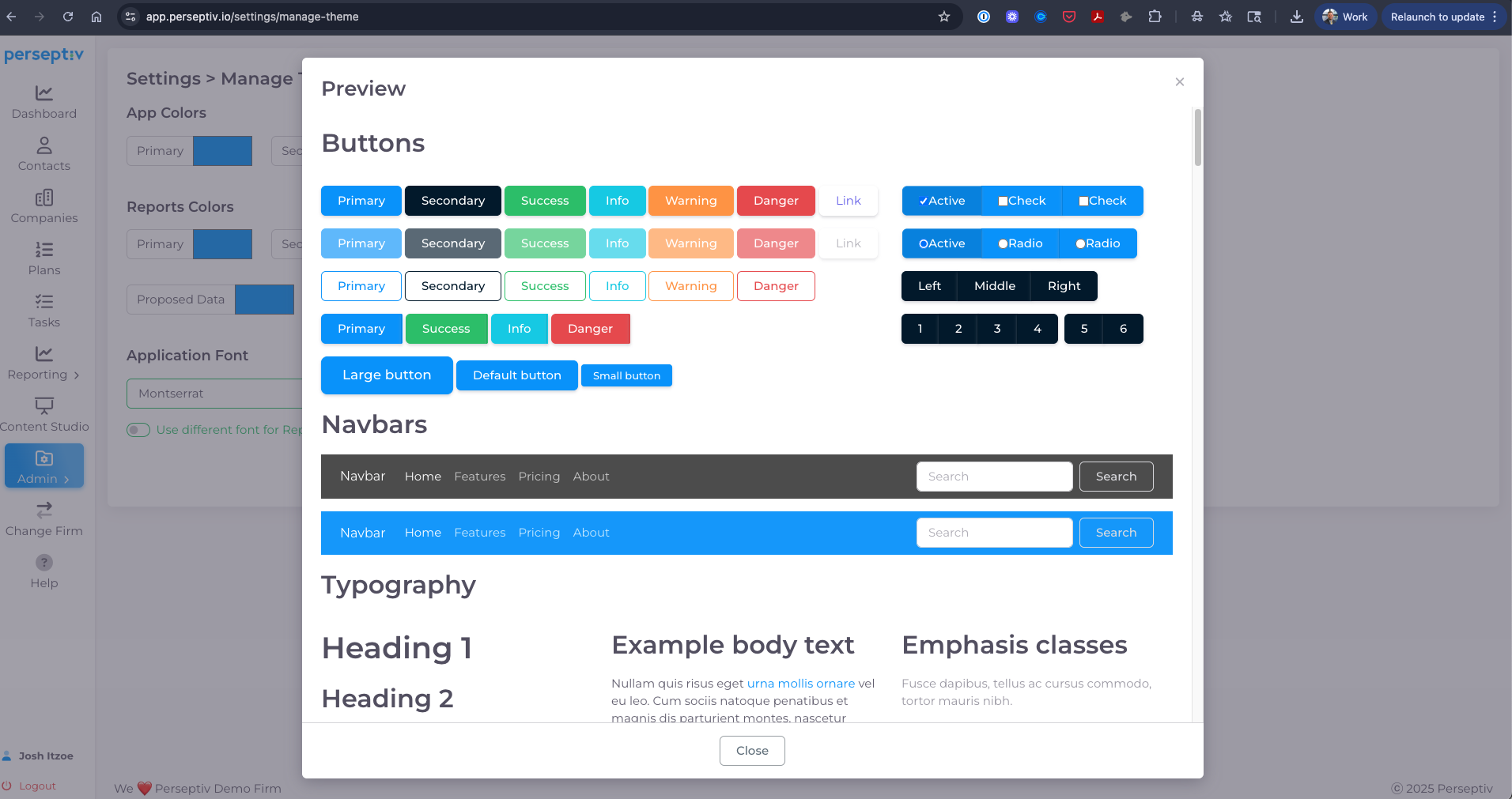
4. Preview Your Changes 0:38
-
Click on the 'Preview' button to see how your selected colors will look.
5. Save Your Settings 0:45
-
After previewing, click 'Save' to apply your changes.
-
Your app and report colors will now be set.