
To watch the video click here: https://loom.com/share/15bcfcfa6e1e48c8938d177589046f44
Step-by-Step Instructions
1. Navigate to Admin Settings 0:00
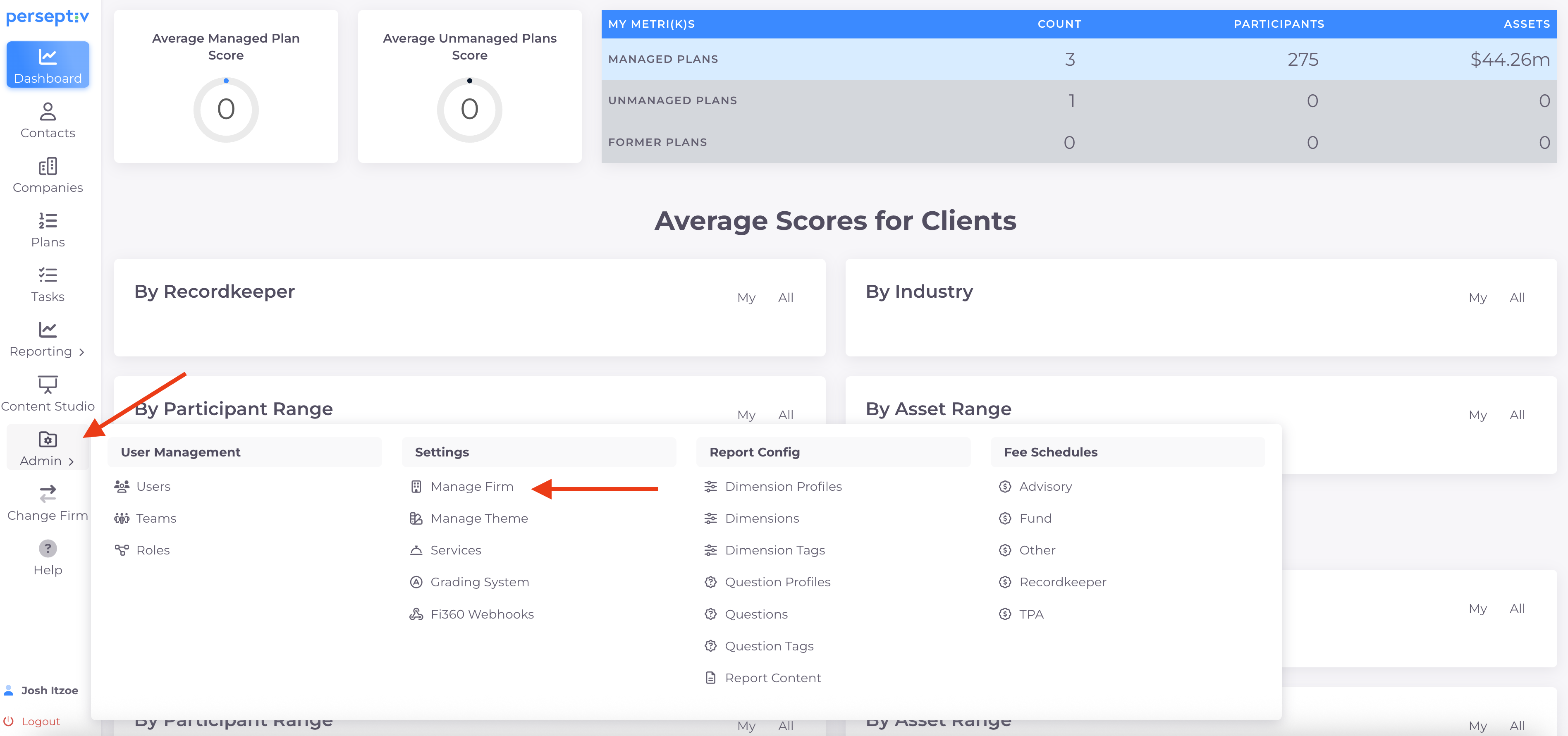
- Go to the Admin section.
-
Select Manage Firm.
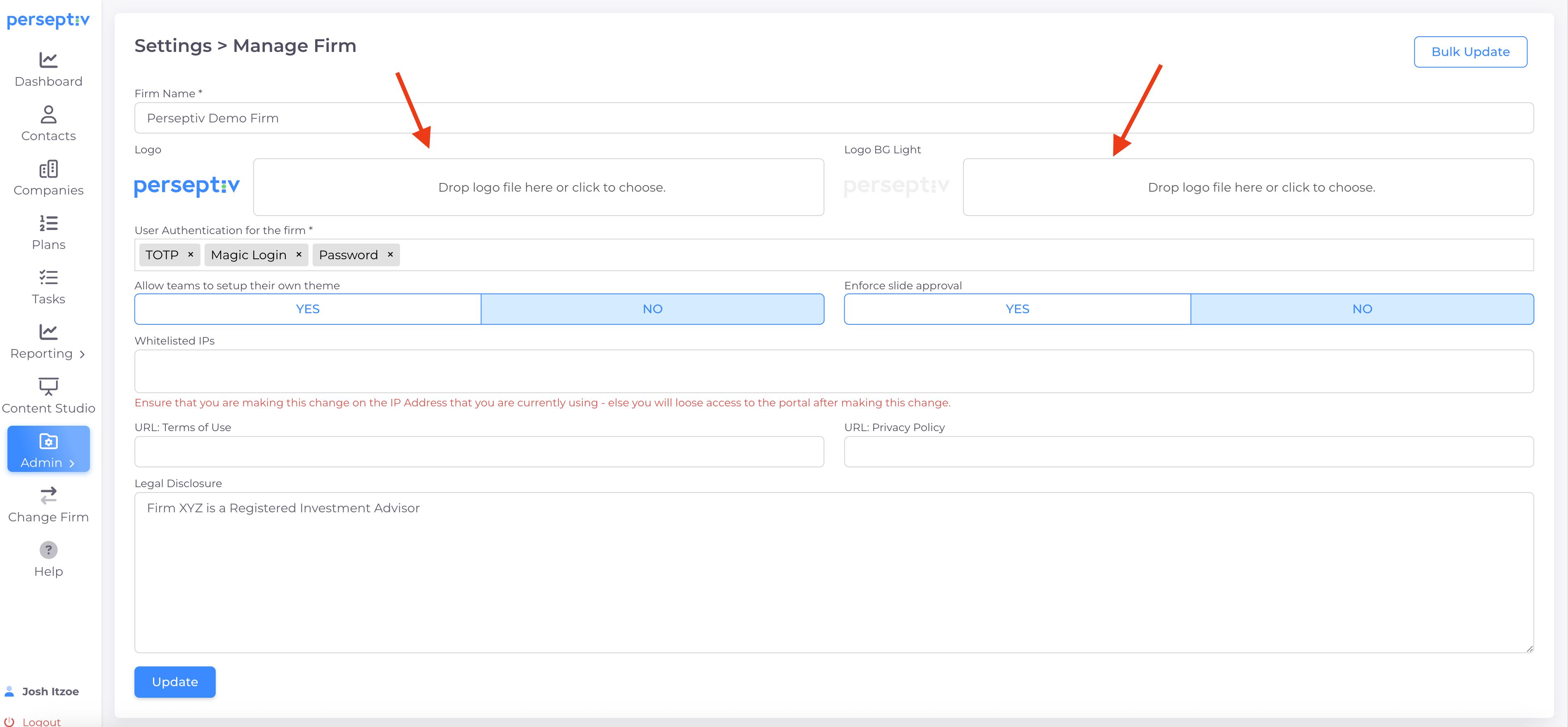
2. Upload Your Logos 0:16
-
On the left side, upload your color logo.
-
Upload a white or transparent logo for use on white backgrounds.
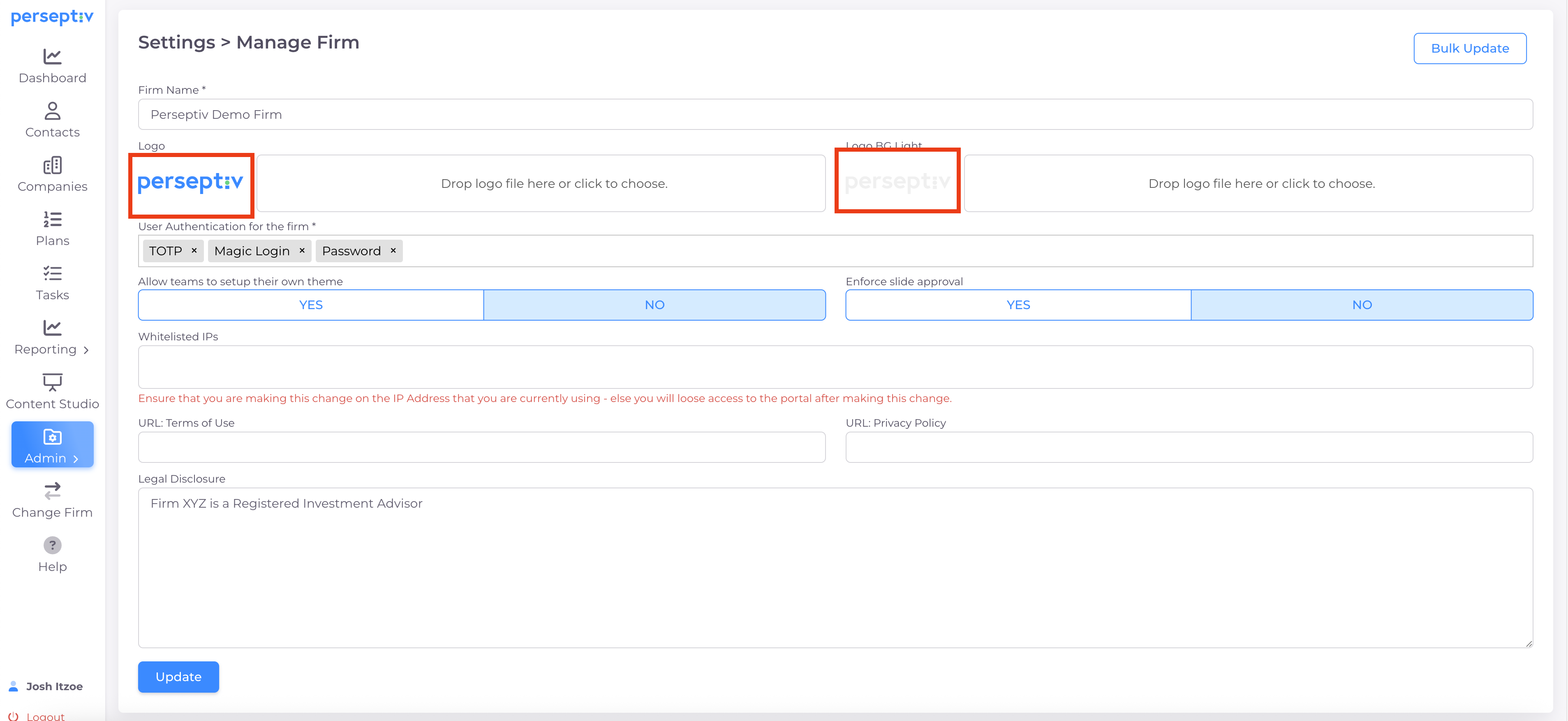
3. Understand Logo Usage 0:28
-
The color logo will be used on colored backgrounds.
-
The white logo will be used on white backgrounds.
-
These logos will be visible across the firm for all teams and users.
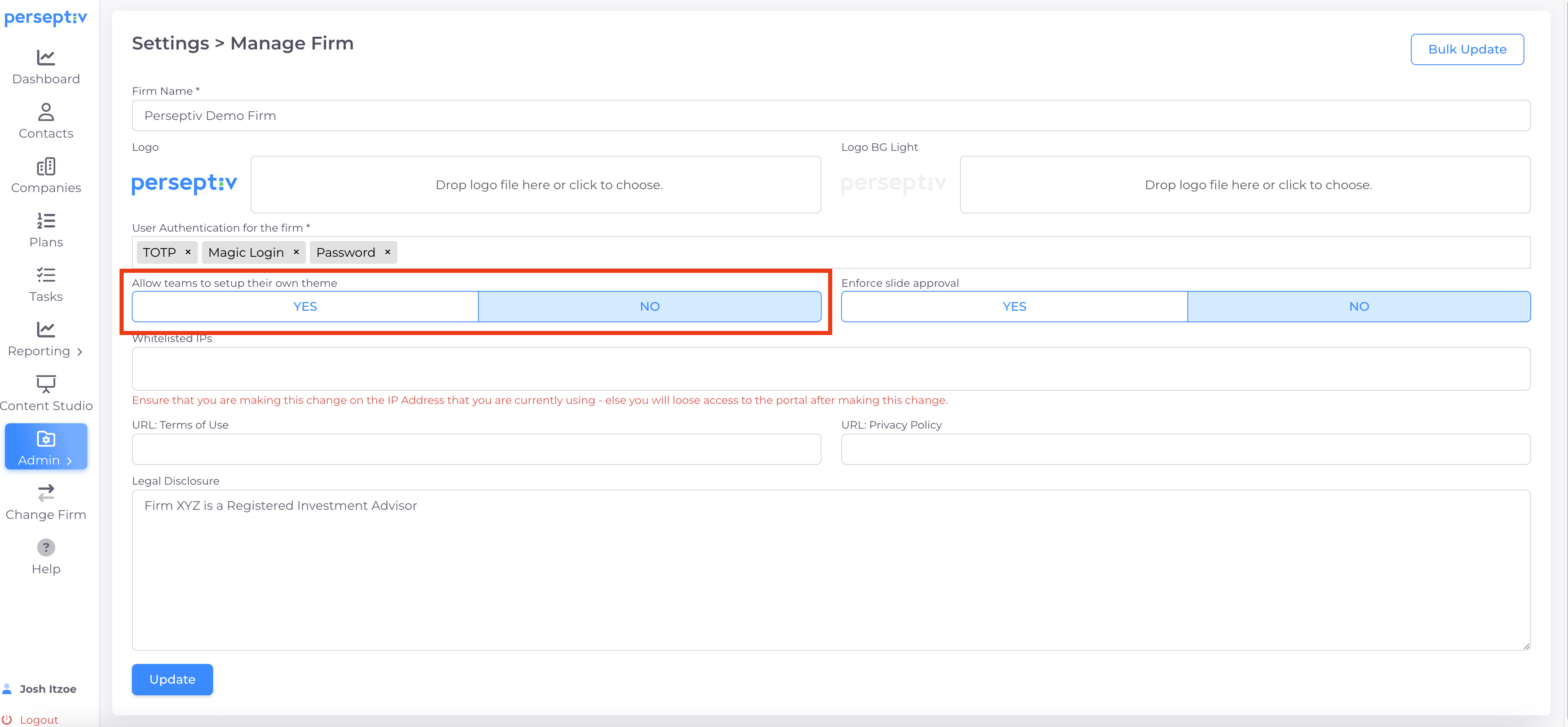
4. Set Up Team-Specific Branding (if applicable) 0:38
-
If your firm has teams with their own branding (e.g., acquired firms), you can allow them to set up their own themes.
-
Enable this option by clicking yes in the settings.
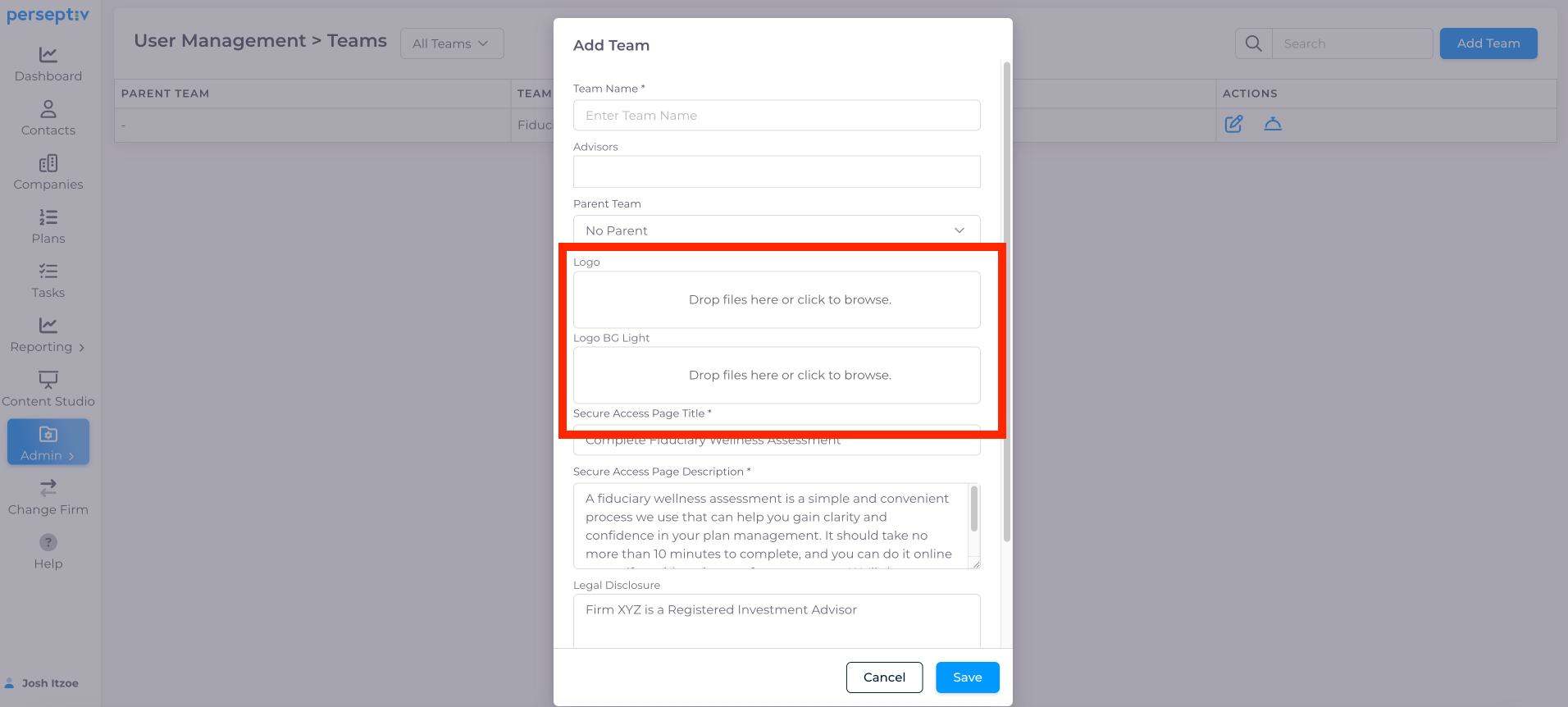
5. Create a New Team with Custom Branding 1:20
-
When adding a new team, you can upload their specific logos and legal disclosures.
-
If you leave the legal disclosure blank, the system will use the default legal disclosure.
6. Add Legal Disclosures 1:48
-
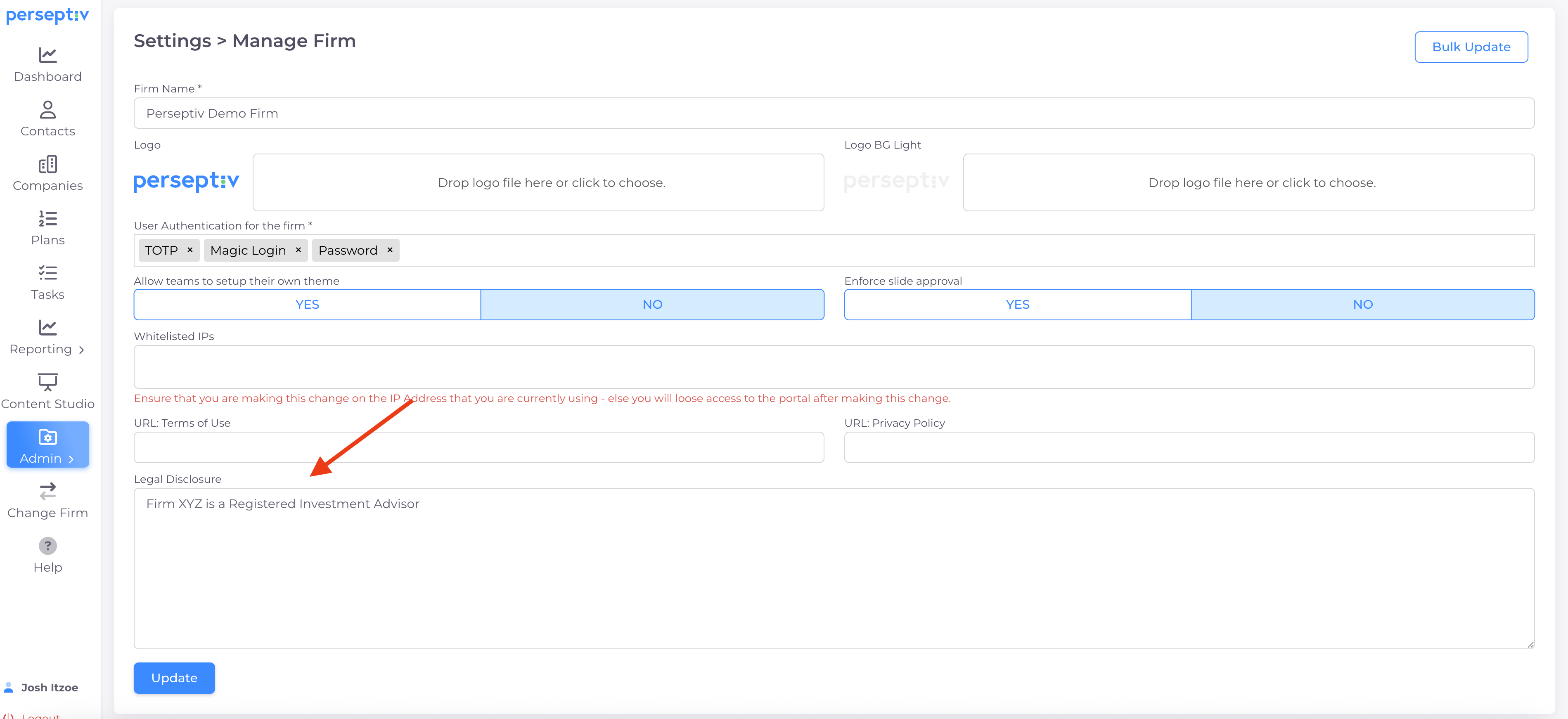
Disclosures under Firm Admin apply to all teams and users
-
Ensure to copy the legal disclosure relevant to the team specific team if team specific branding is selected (e.g., 'Firm X is a SEC registered investment advisor').
7. Save Your Changes 2:10
-
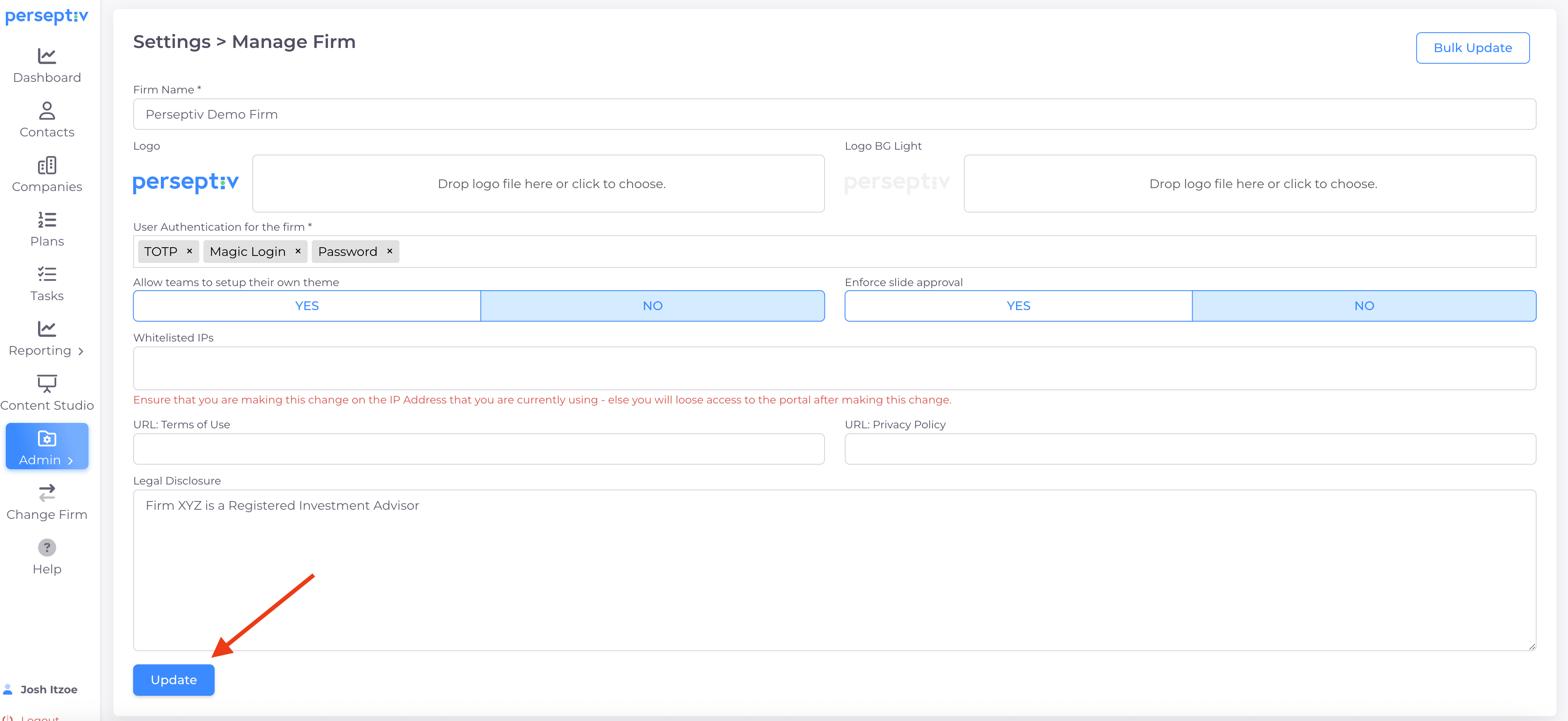
After uploading logos and entering legal disclosures, make sure to click update to save your changes.