
To watch the video, click here: https://loom.com/share/e01d4cc04977414cb7116356a668483f
Step-by-Step Instructions
1. Introduction to Content Studio 0:00
-
You can use AI to create slides from images or screenshots.
2. Selecting an Image 0:08
-
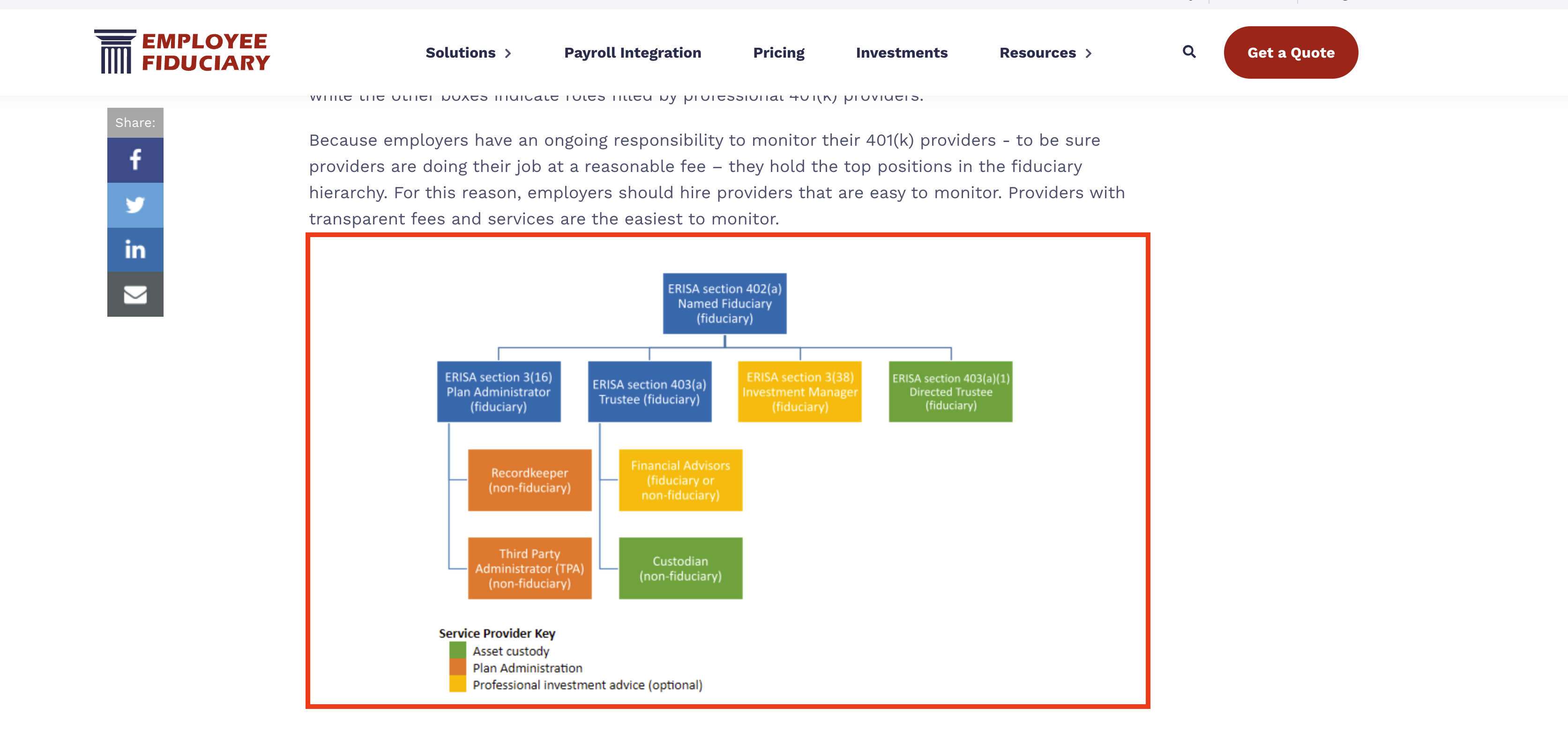
Find and save an image or screenshot that you want to use for the slide.
-
Example image: hierarchy of fiduciary roles and responsibilities.
3. Accessing Content Studio 0:28
-
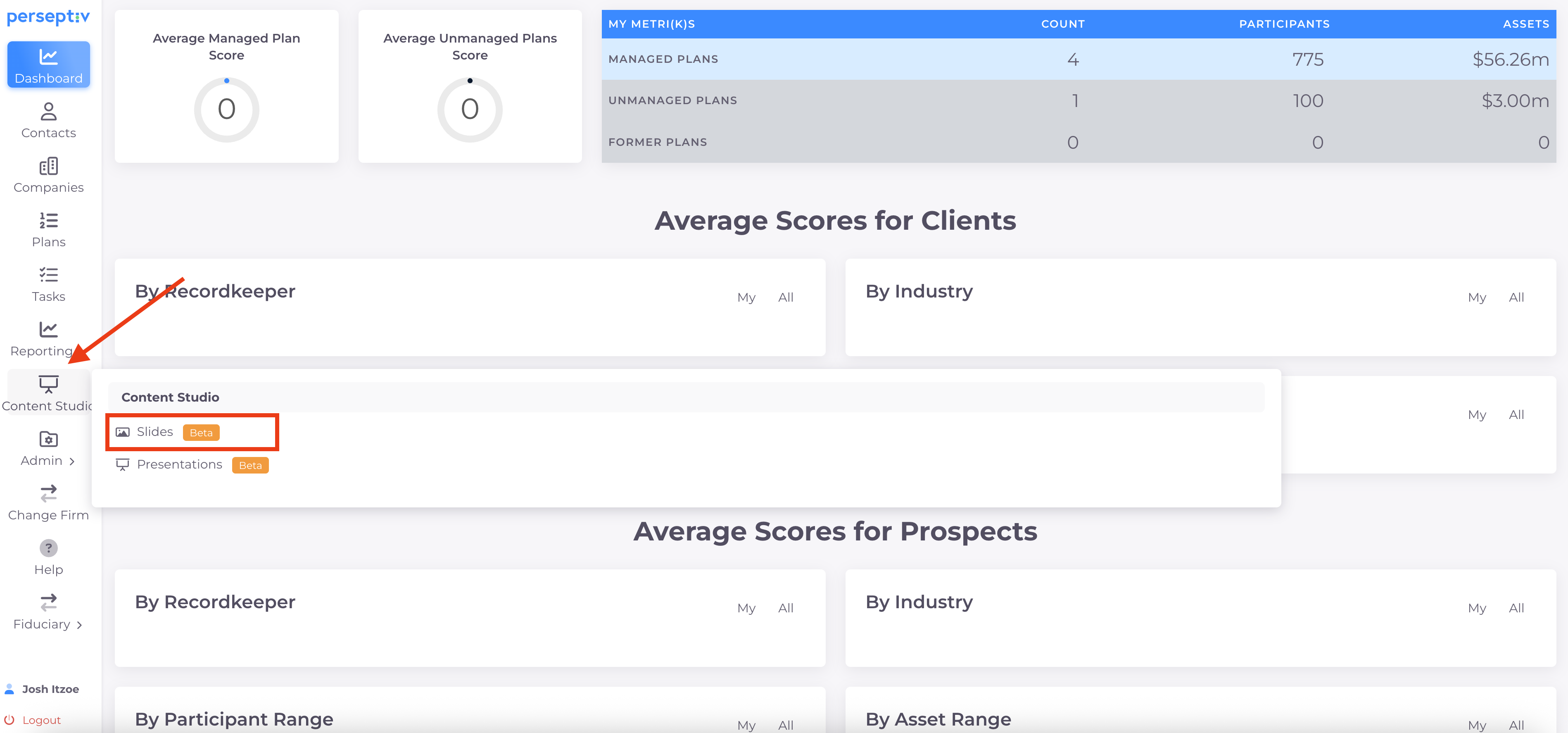
Navigate to the Content Studio.
-
Select the 'Slides' option.
4. Creating a New Slide 0:36
-
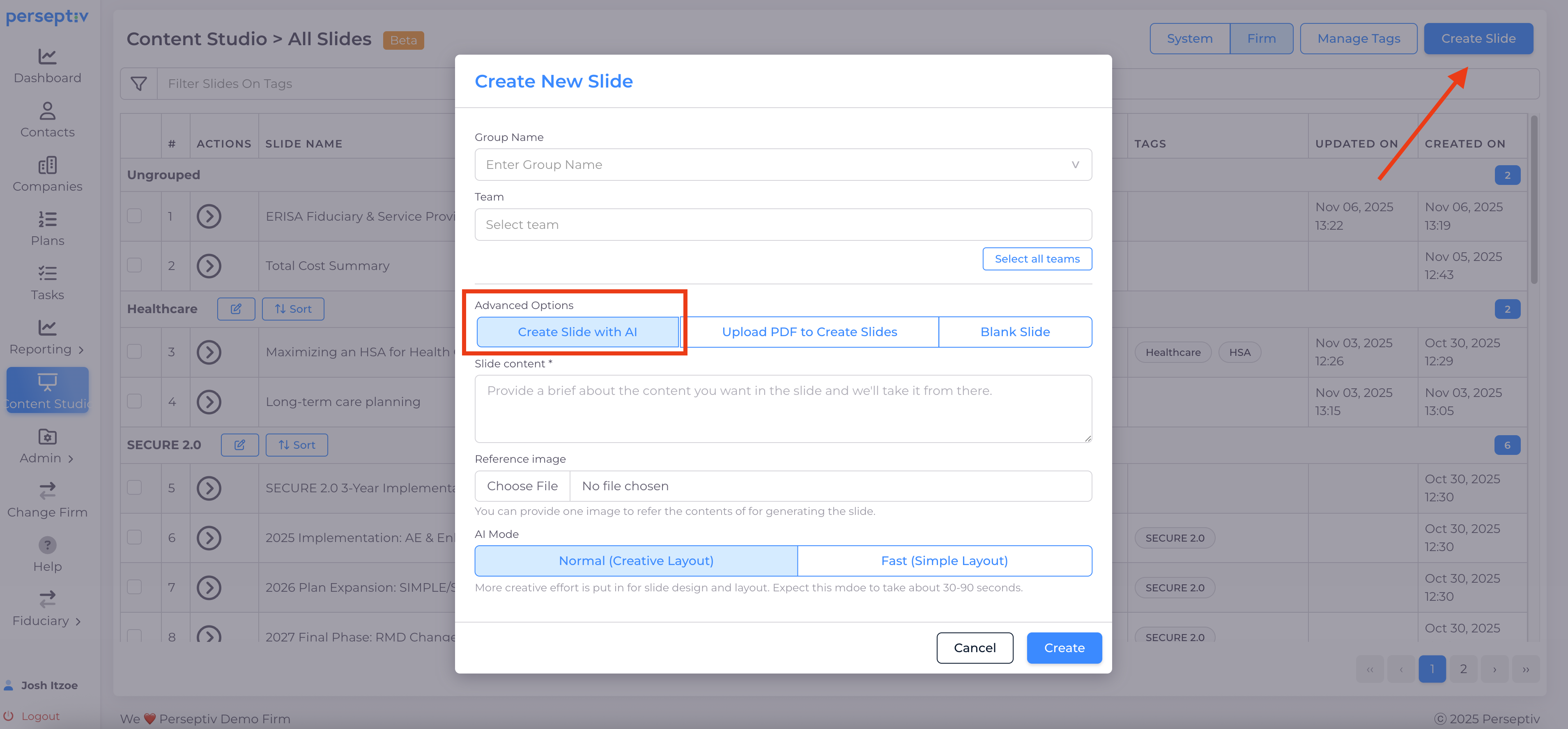
Click on 'Create Slide'.
-
Choose the 'Create Slide with AI' option.
5. Uploading the Image 0:44
-
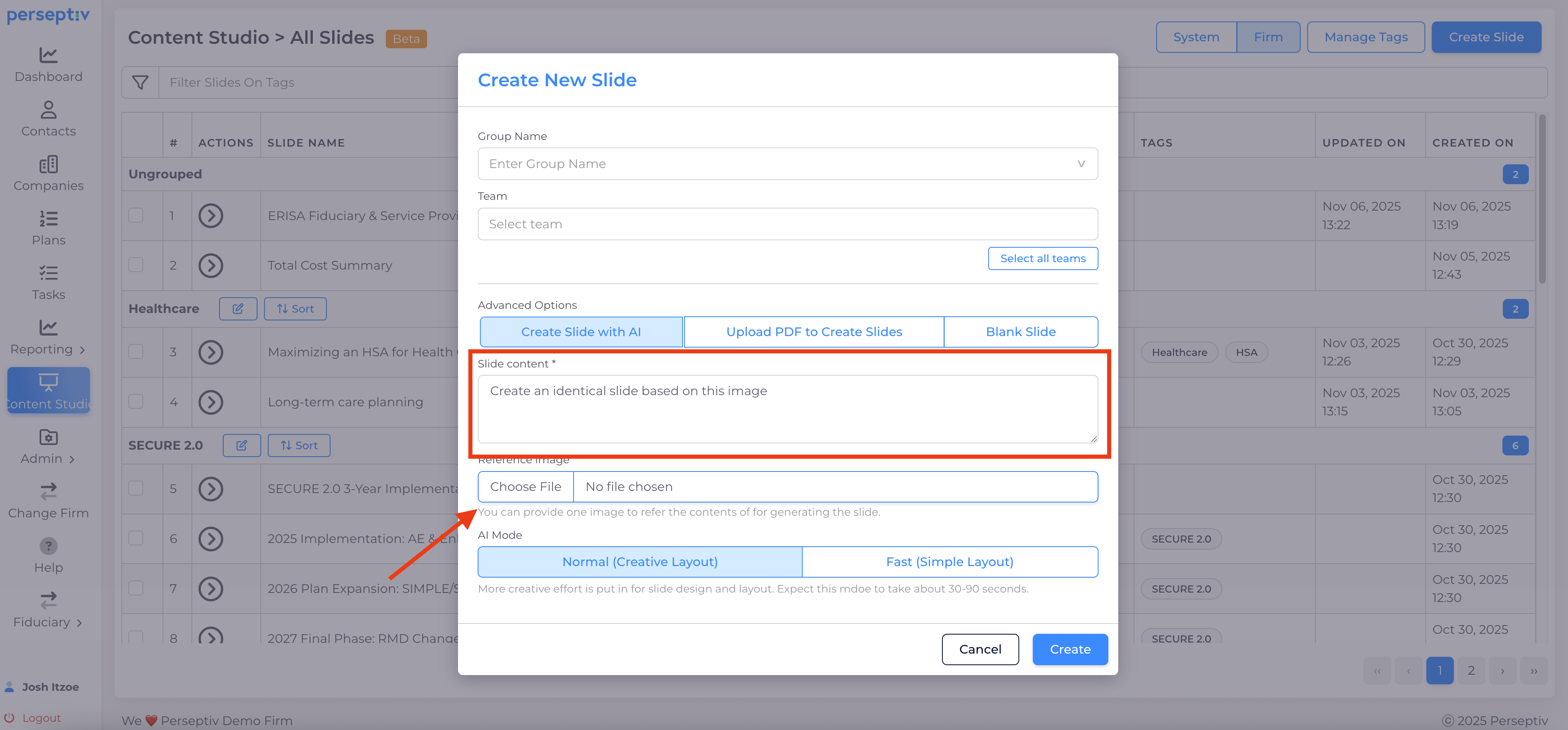
Prompt the AI by stating: 'Create an identical slide based on this image'.
-
Select the downloaded image file.
6. Processing the Image 0:59
-
Click 'Create' and wait for the AI to process the image (approximately 60 to 90 seconds).
-
AI analyzes the uploaded image to recreate it.
7. Reviewing the Created Slide 1:31
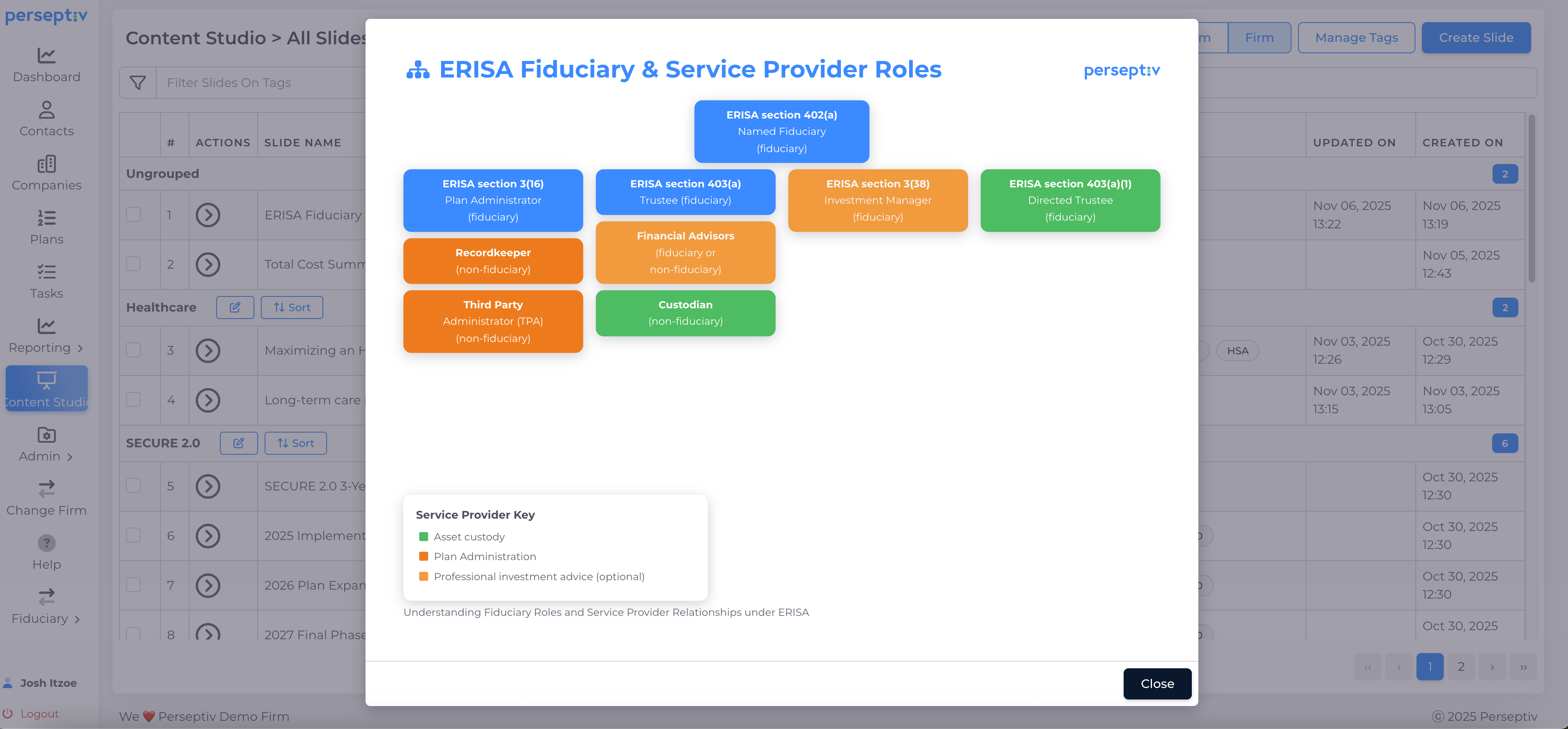
-
Once processing is complete, a new slide is created (e.g., 'Marissa Fruscieri provider roles').
-
Click on the slide to preview it.
8. Editing the Slide 1:59
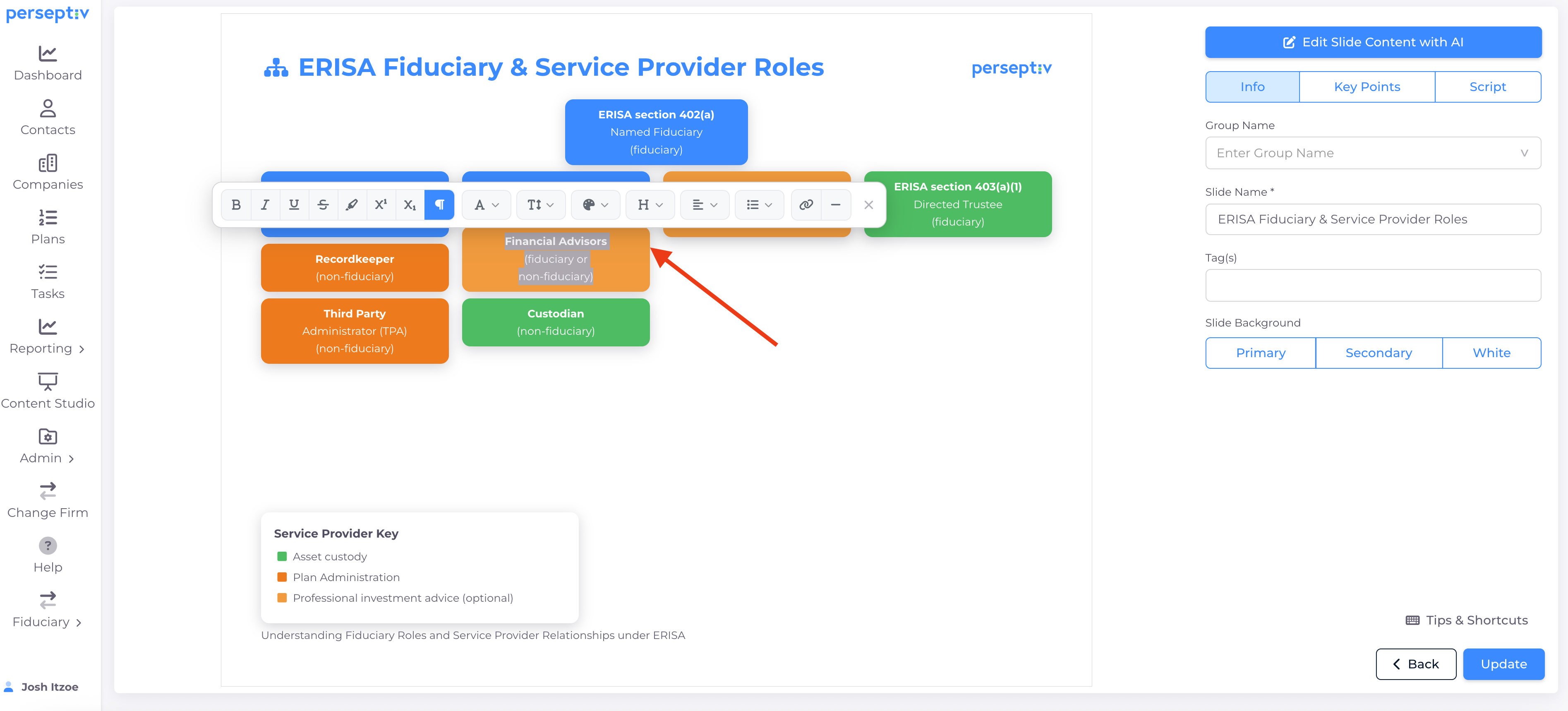
-
Review the slide for accuracy and design.
-
Optionally edit elements like colors to match other slides.
9. Review Key Points and Script 2:25
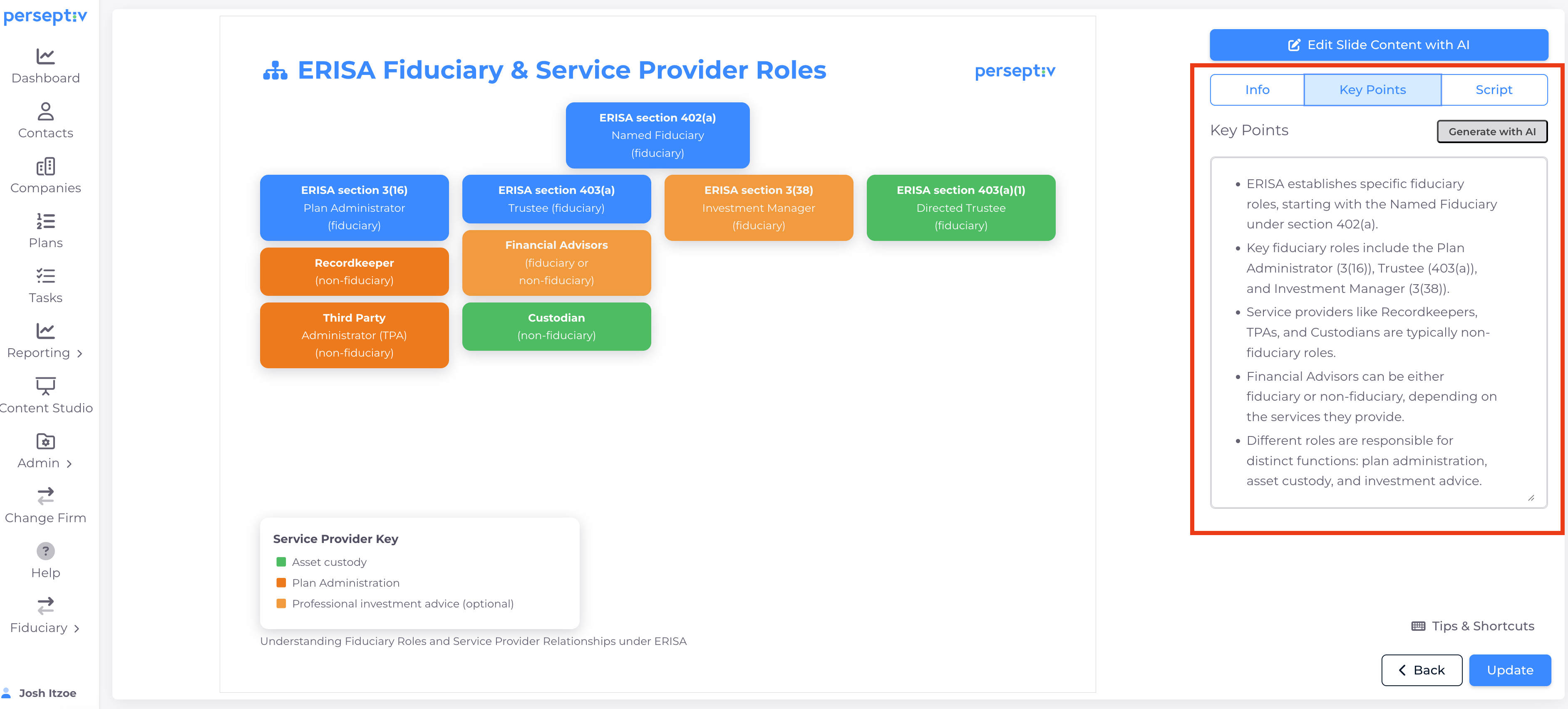
-
The AI generates key talking points and a script related to the roles depicted in the slide.