
To watch the video, click here: https://loom.com/share/daff02f73321444cad4095f8dad89b41
Step-by-Step Instructions
1. Create a Blank Slide 0:00
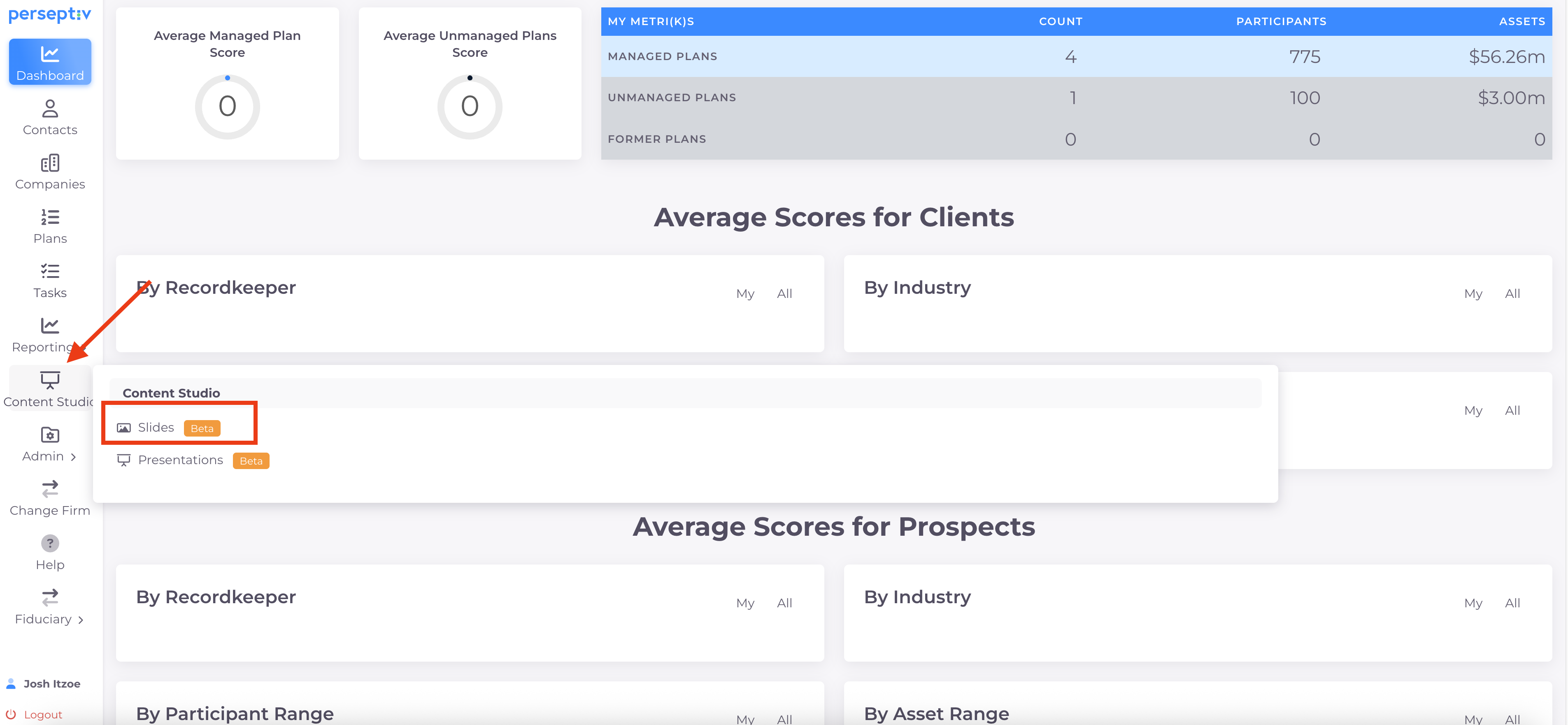
-
Navigate to Content Studio --> Slides.
2. Title Your Slide 0:16
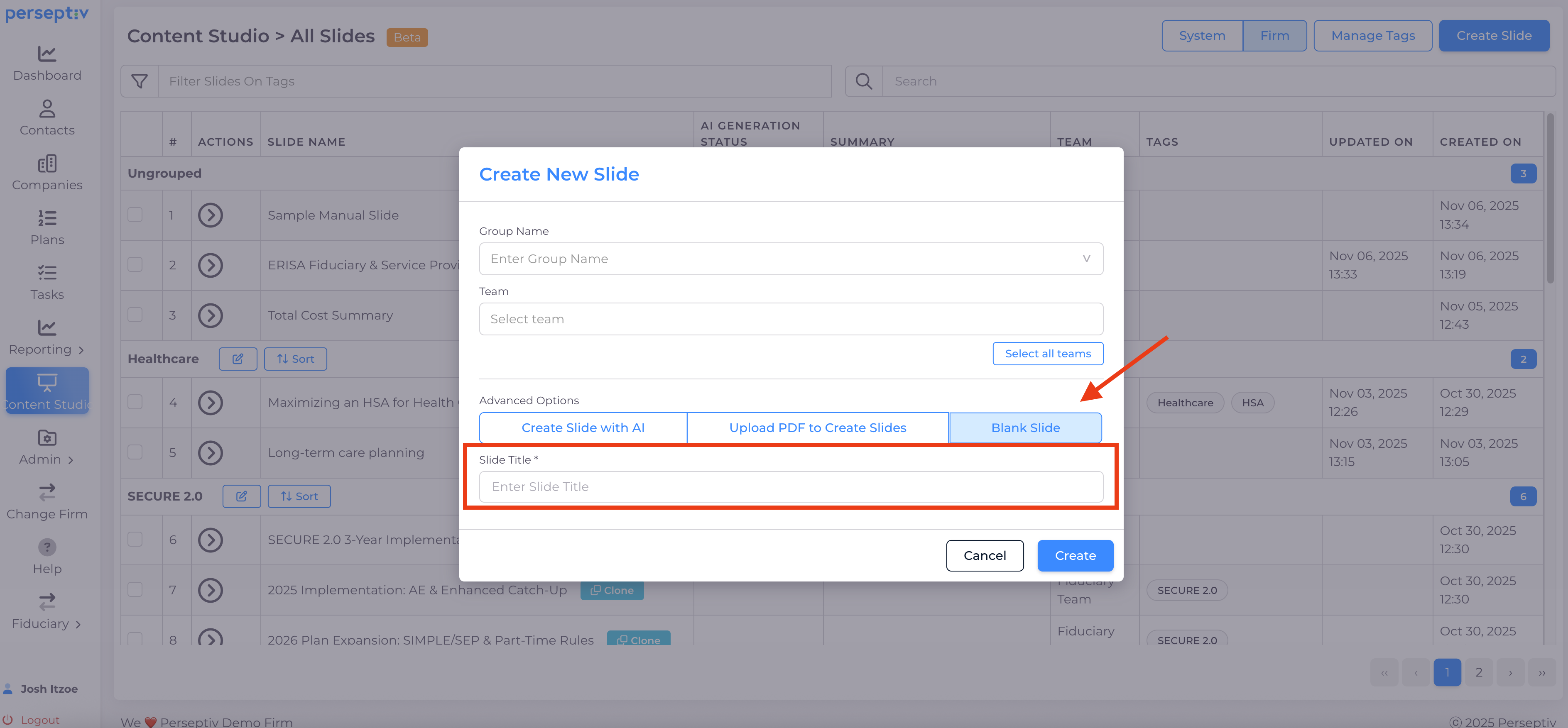
- Click on 'Create Slide'.
- Select the 'Blank Slide' option.
- Enter a title for your slide.
- Click 'Create' to generate the slide.
3. Manage Your Slide Content 0:29
-
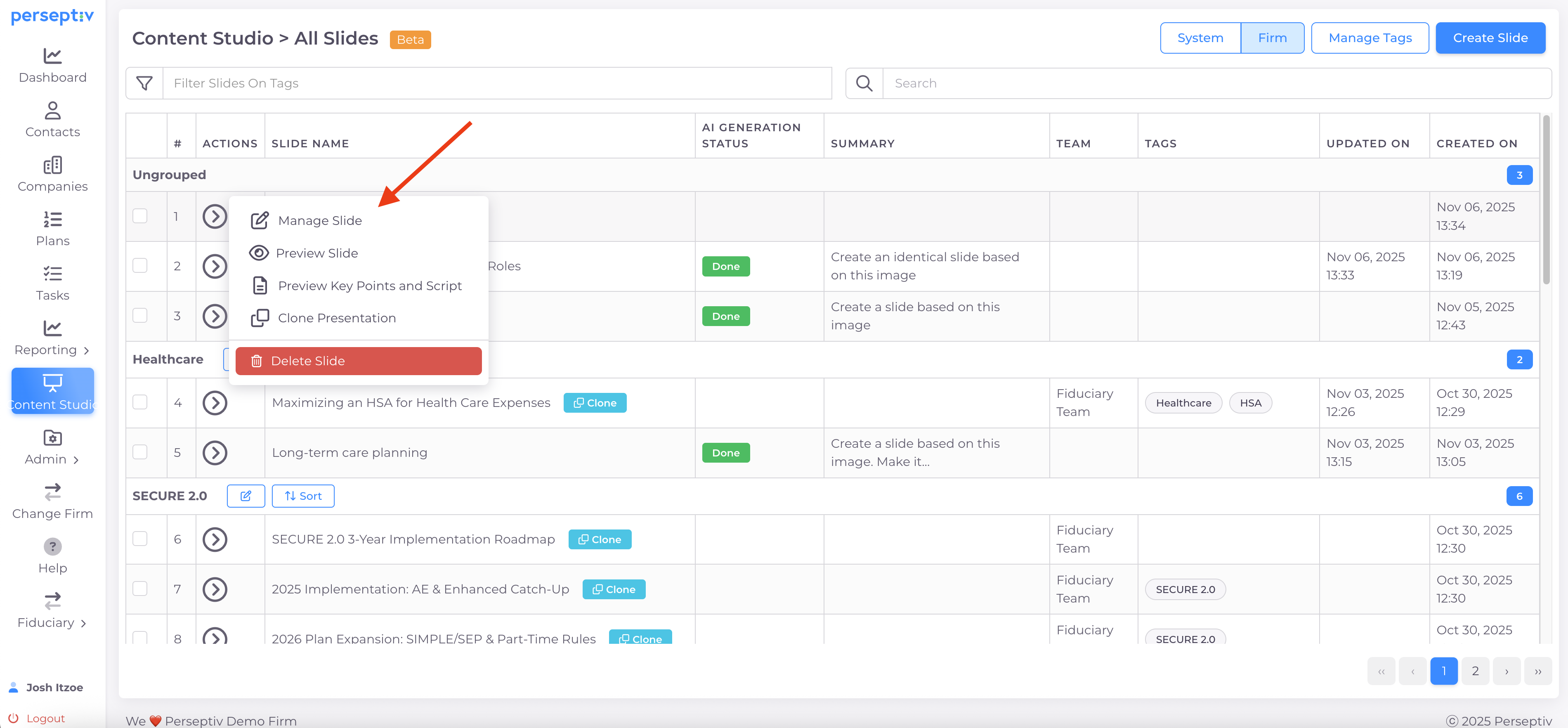
A new slide will be created with your title.
-
Click on 'Manage' to access the slide template.
-
Click into the card and make changes to the text and layout as needed.
4. Use Shortcuts for Icons 0:56
-
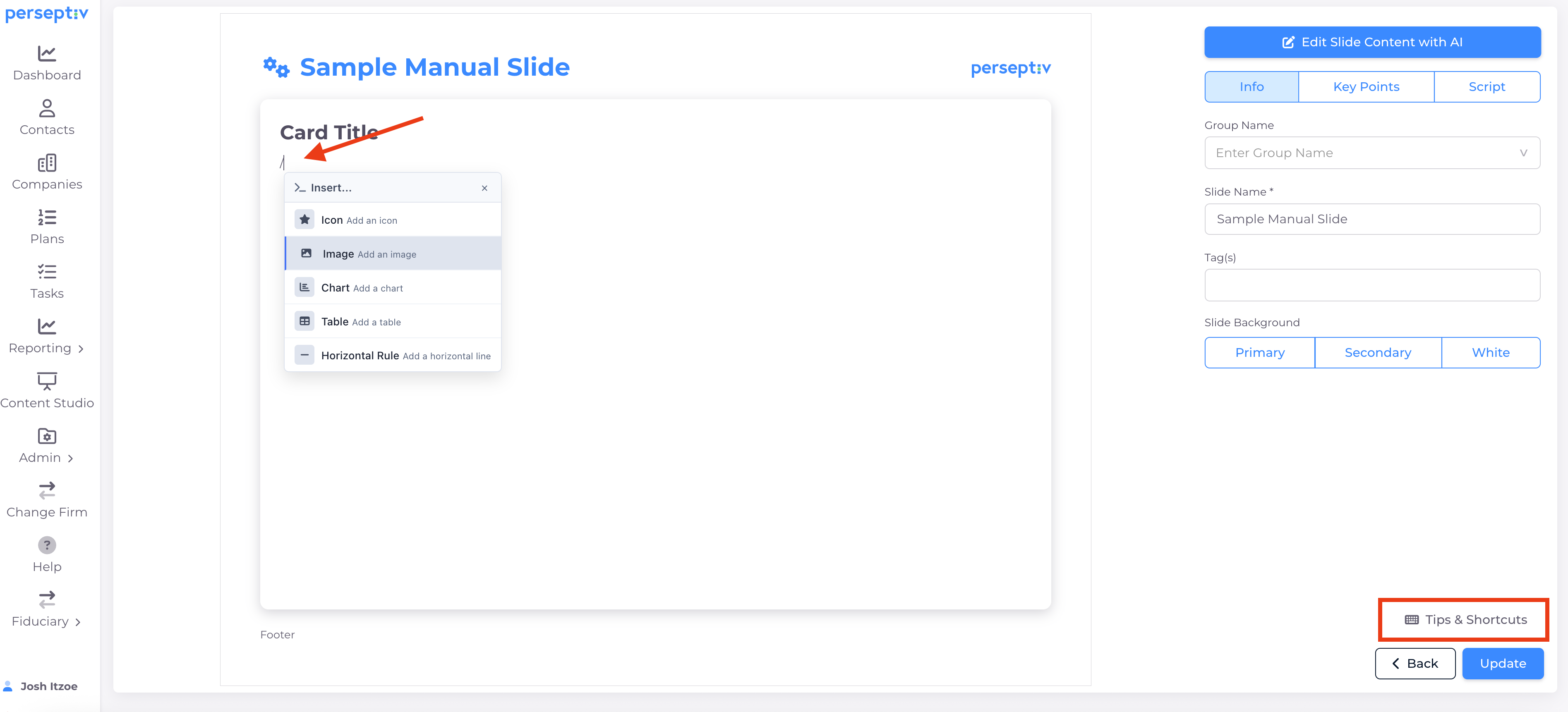
Use the backspace key to add an icon.
-
Search for different icons in the system and customize their color.
5. Add Additional Columns and Cards 1:33
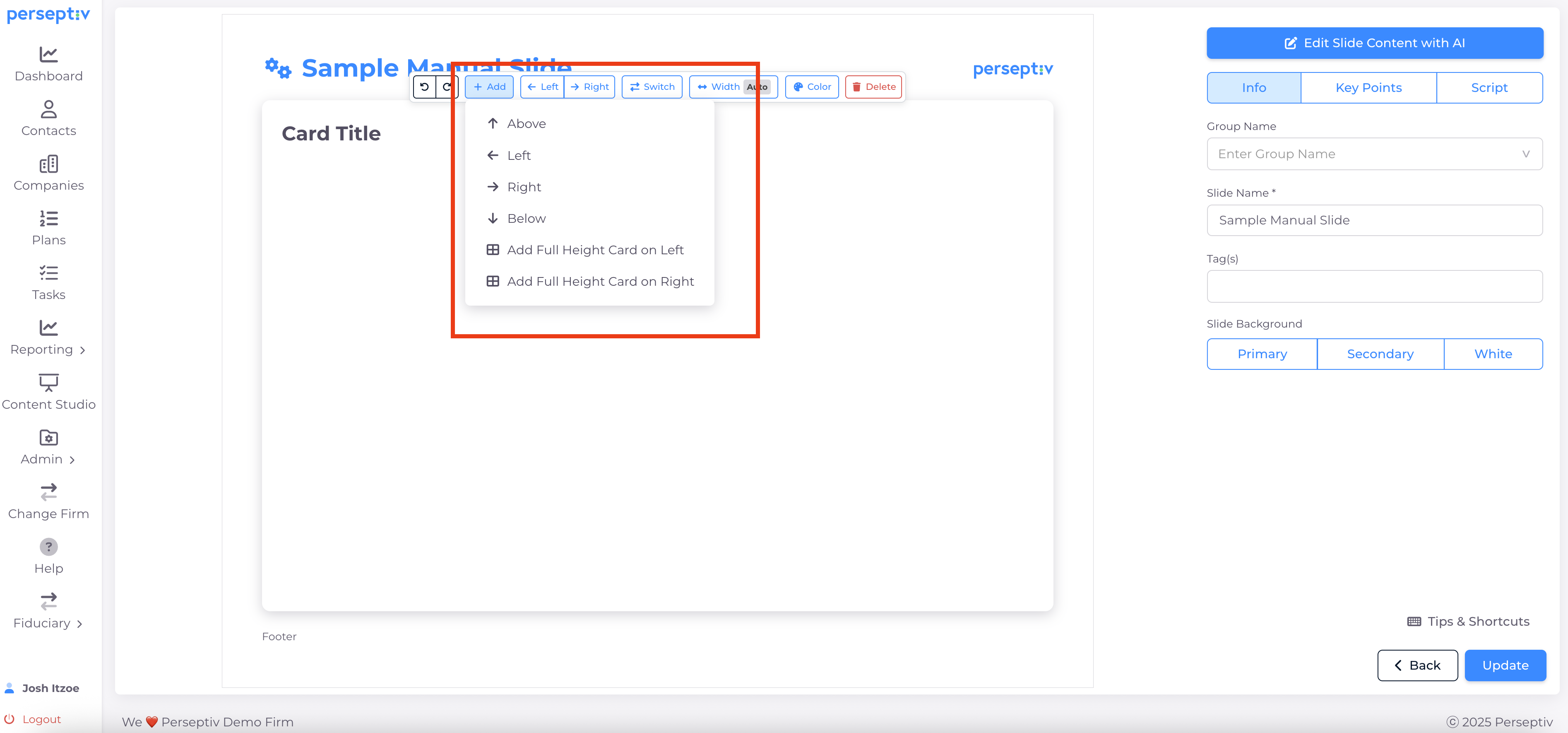
-
Add more columns or cards to your slide layout.
-
Resize columns as needed (e.g., one-third, double card format).
6. Change Background Color 2:04
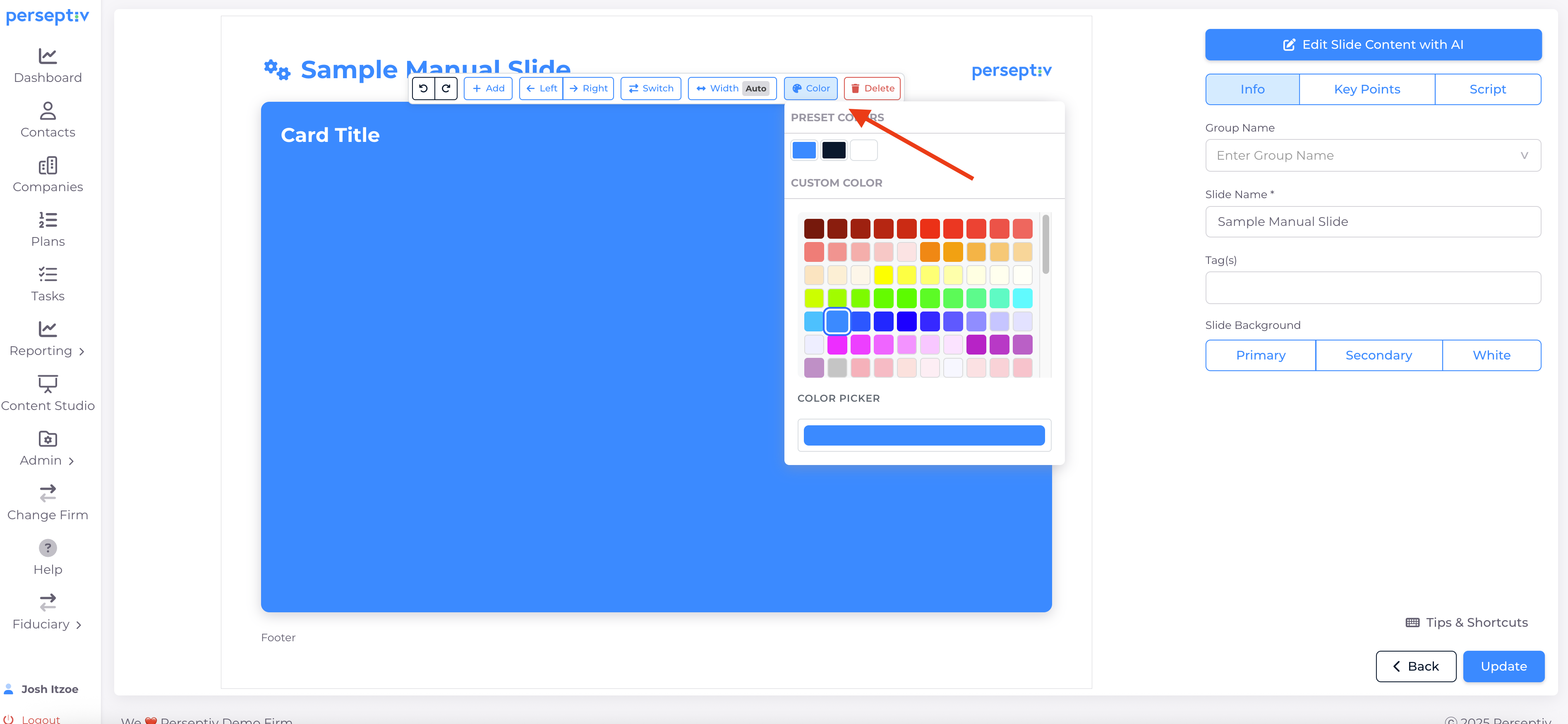
-
Click on the slide to change the background color of any card.
7. Add Charts, Tables and Images to Cards 2:22
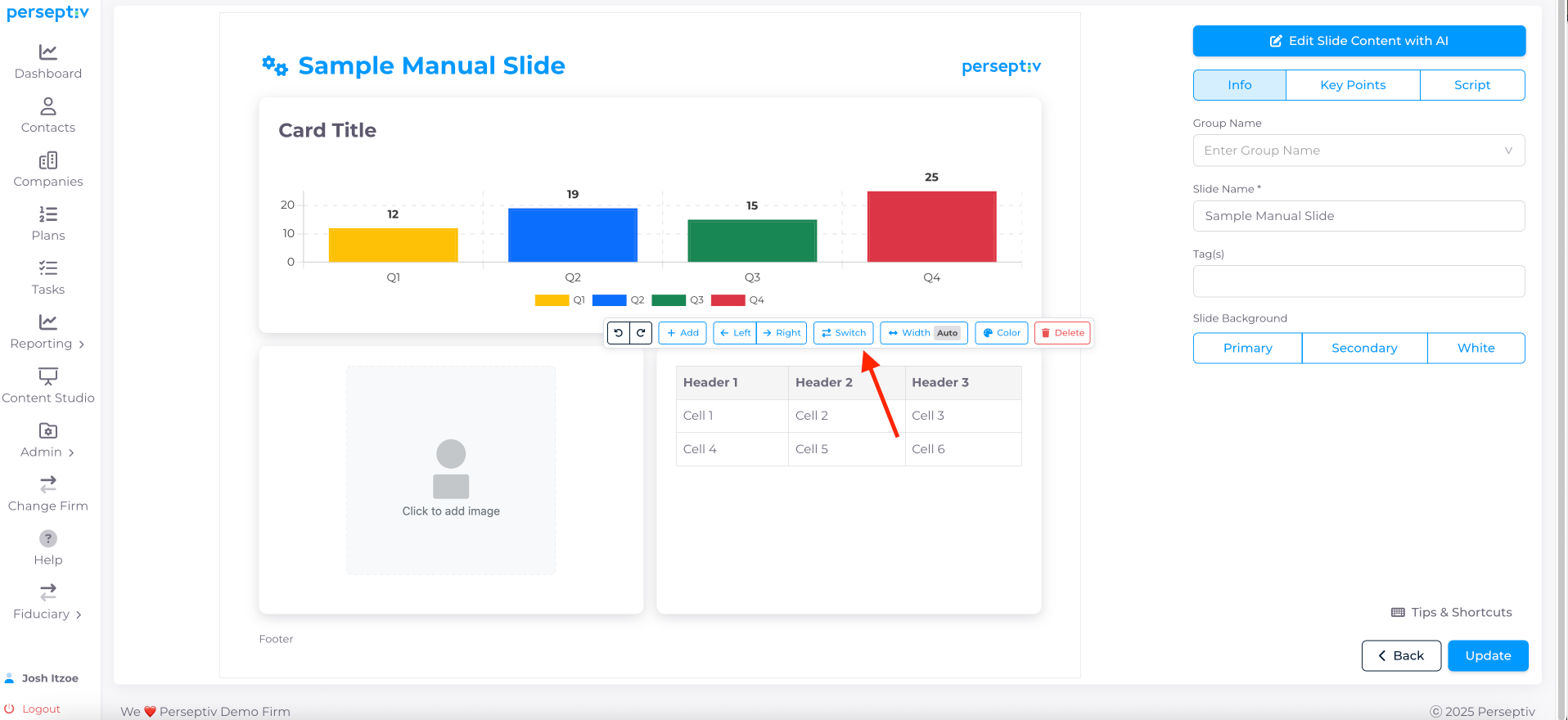
-
Choose from different types of charts, table and images to add to your slide.
- Add any of these to an existing card by using the '/'
8. Rename and Organize Your Slide 4:01
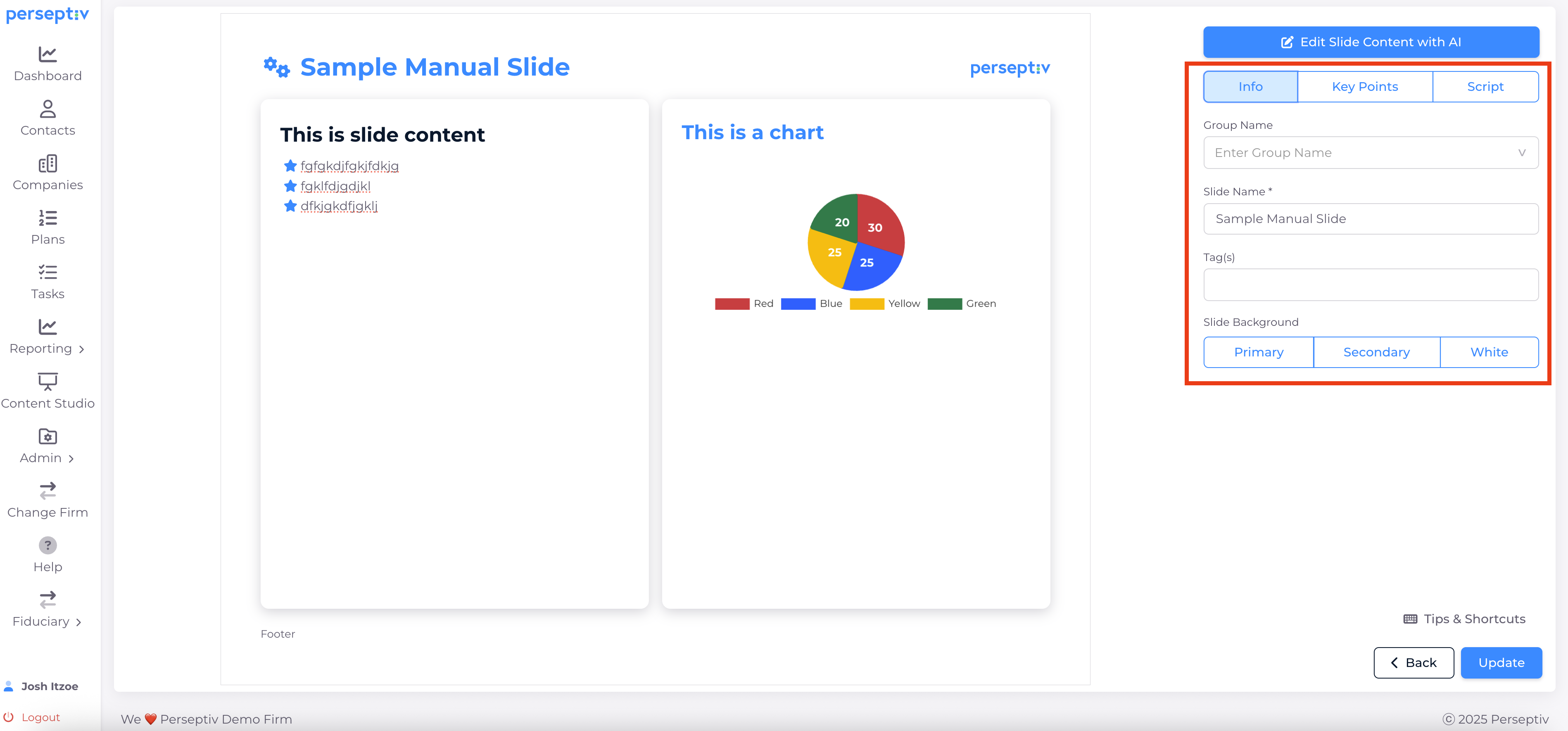
-
Rename your slide as necessary.
-
Organize the content for clarity and effectiveness.
9. Generate Key Points and Scripts 4:17
-
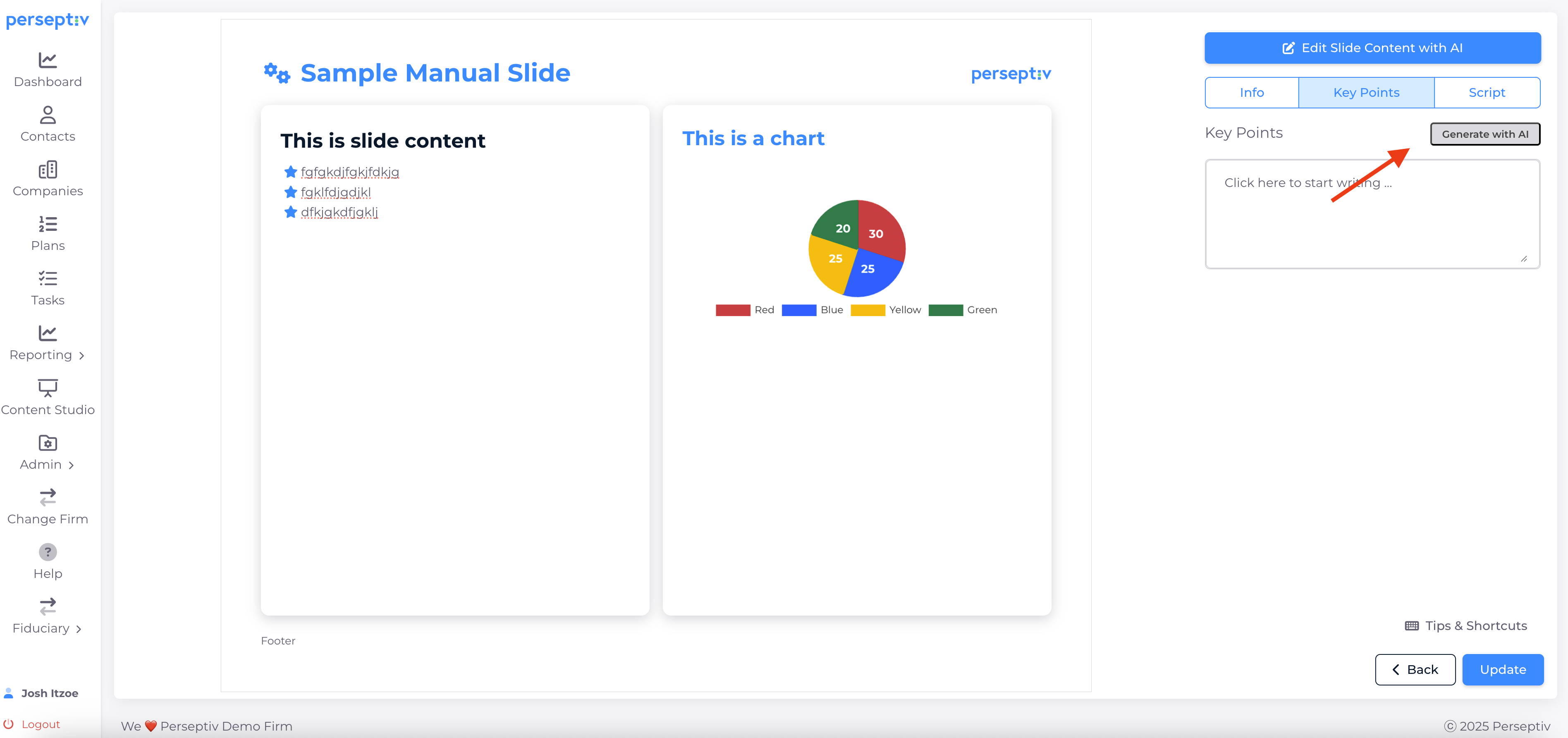
After creating the slide, generate key points and scripts using AI if needed.