
To catch the video click here: https://loom.com/share/a96bad0471e049599ab802b9885493ed
Step-by Step Instructions
Step 1: Add a New Company 0:00
-
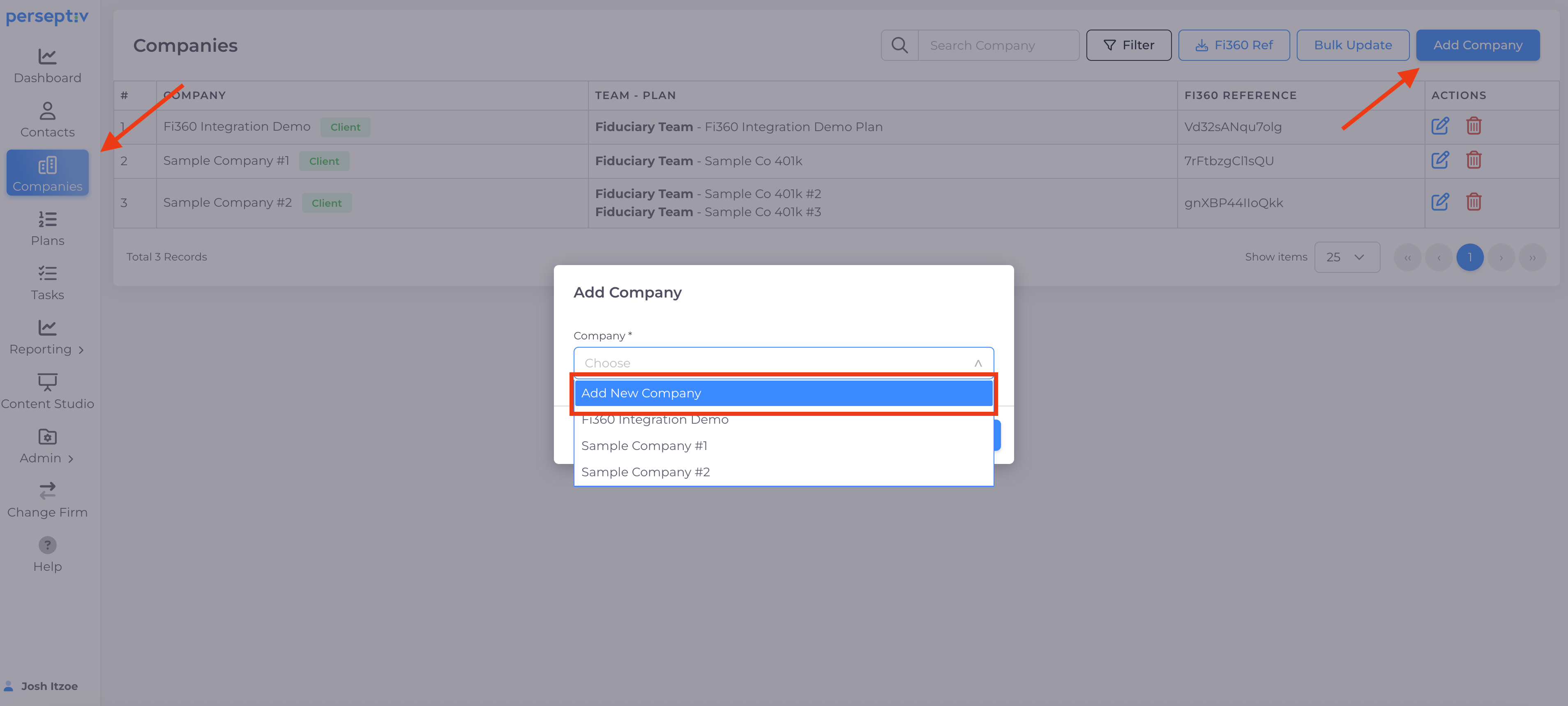
Navigate to the companies icon on the left-hand menu.
-
Click 'Add Company'.
-
In the dropdown, select 'Add a New Company' which is the first option in the dropdown.
-
Enter the name of the appropriate team.
-
Choose the company type: Client, Product, Prospect, or Former Client.
-
Optionally, add a logo.
-
Confirm that the company is now in the system.
Step 2: Verify Company Addition 1:02
-
Check the table to see the newly added company.
-
Note that no plans are assigned yet.
Step 3: Add a Plan 1:21
-
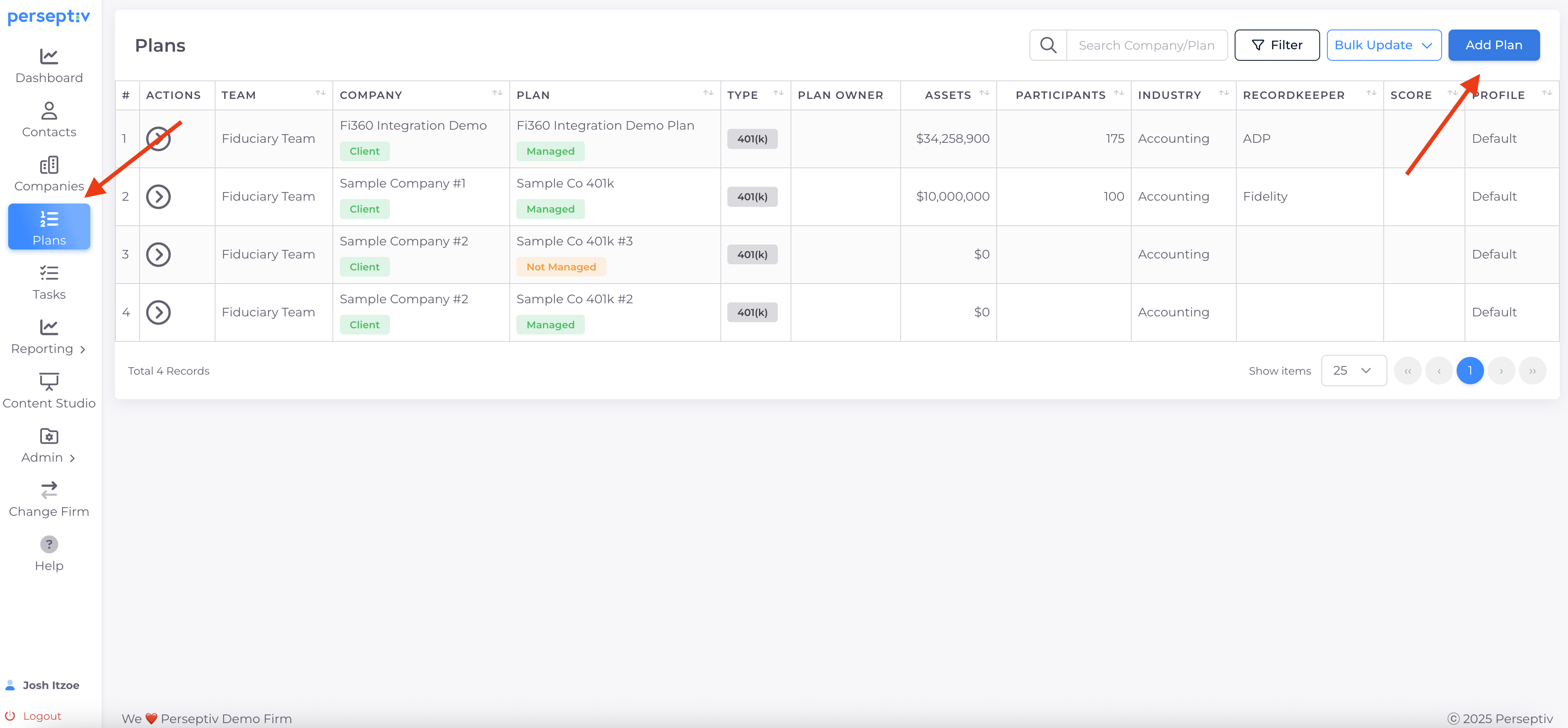
Go to the plans section on the left-hand menu.
-
Click 'Add a Plan'.
-
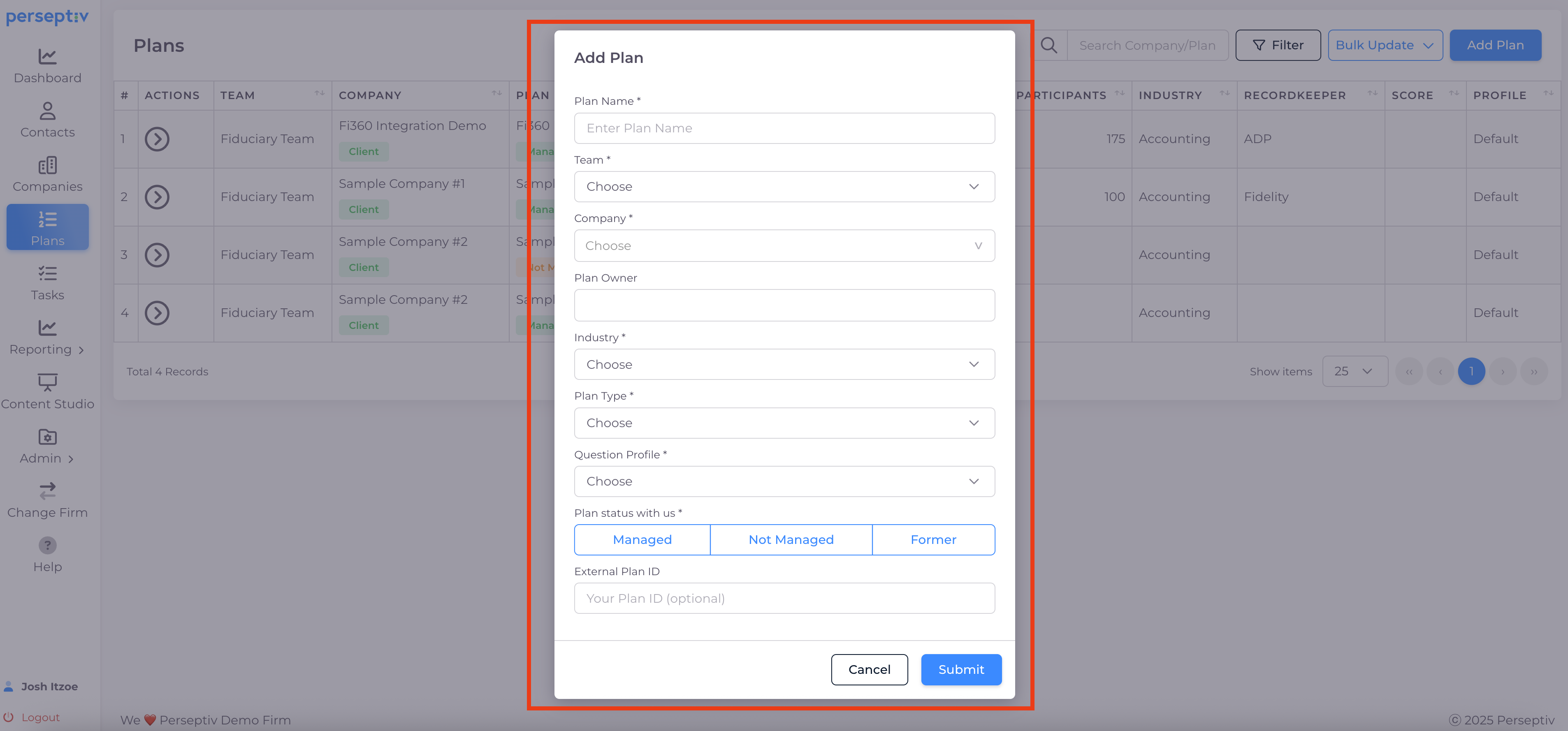
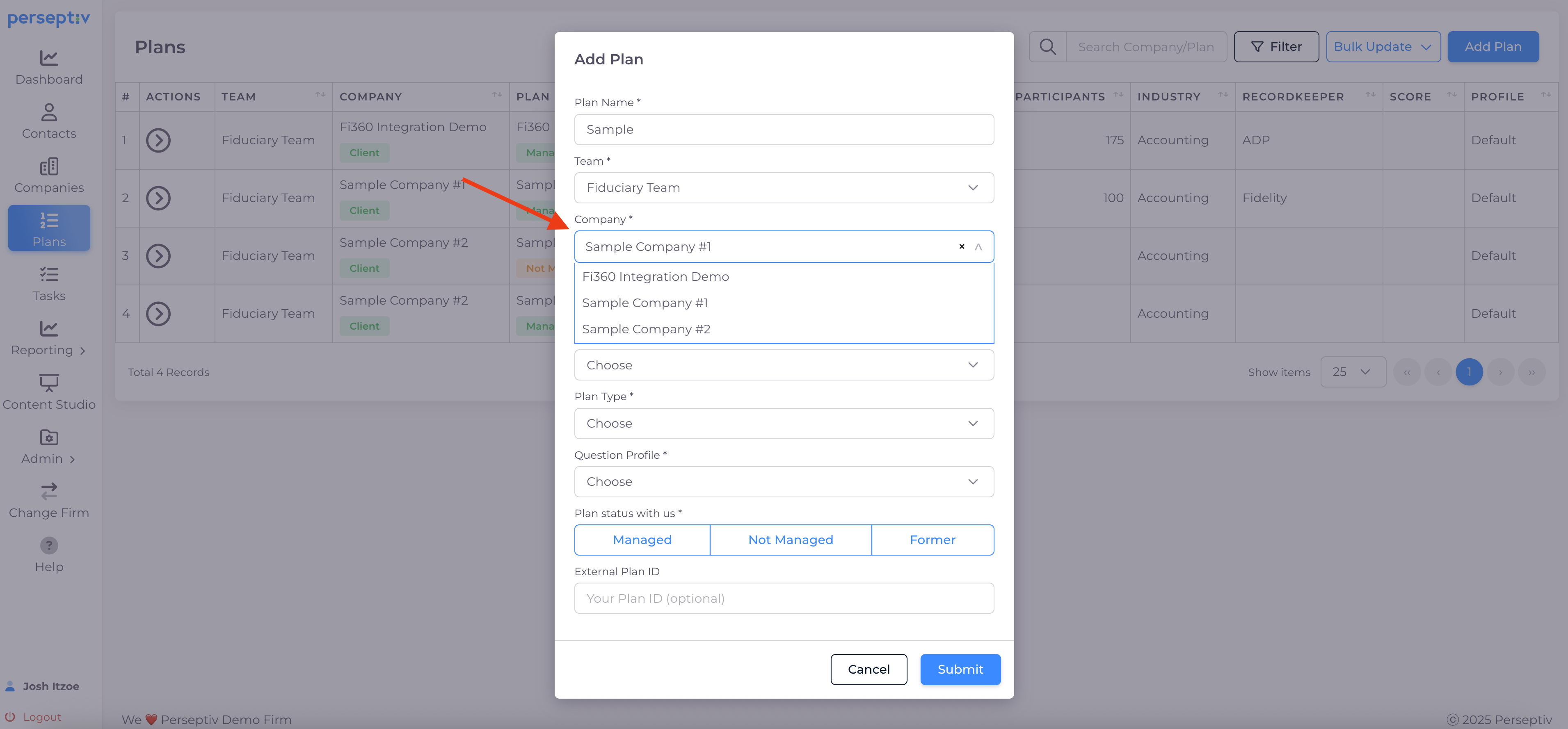
Enter a name for the plan and select the team.
-
In the company dropdown, assign the plan to the company you just added.
Step 4: Define Plan Details 1:40
-
Select the plan owner and their industry.
-
Choose the plan type and question profile.
-
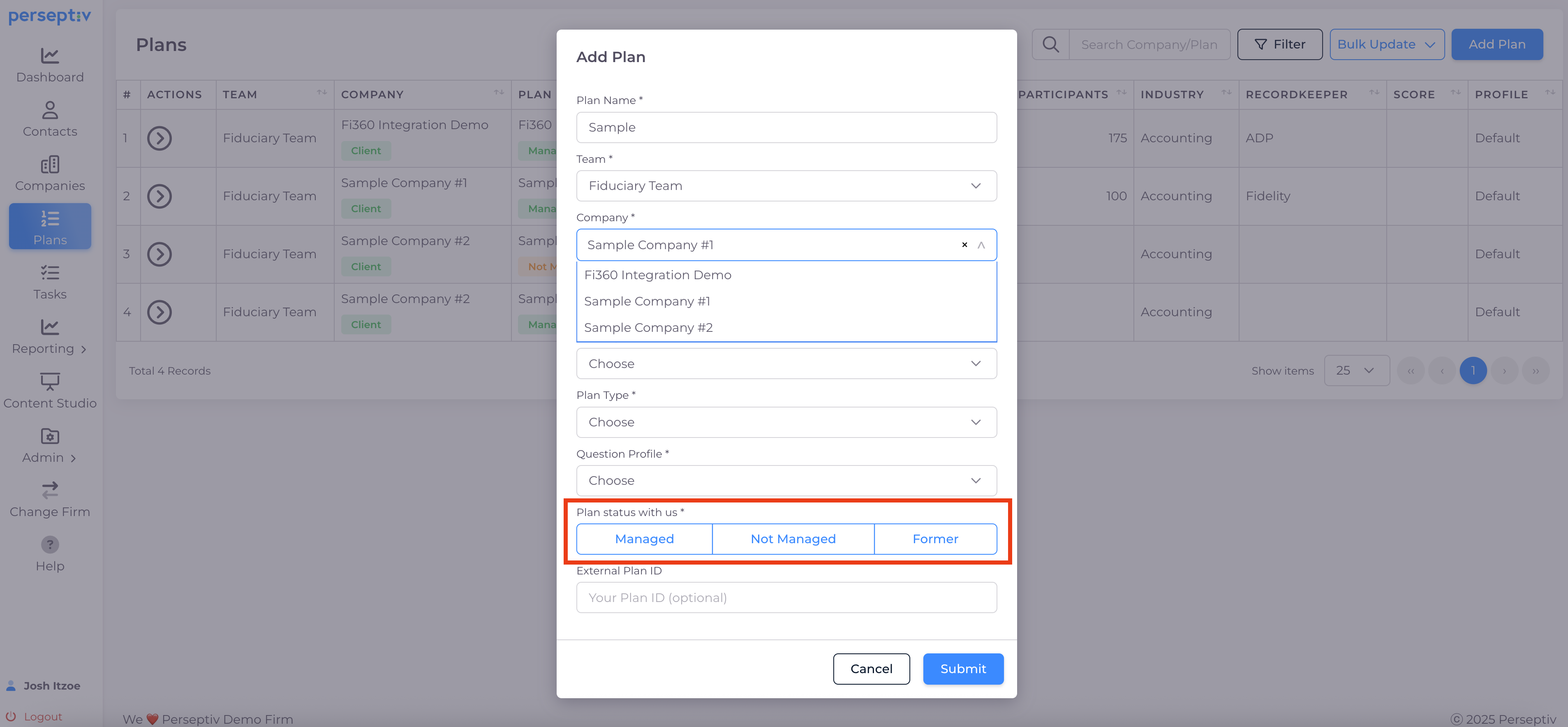
Specify if the plan is managed, not managed, or formerly managed.
Step 5: Understand Plan Management Status 1:57
-
Managed plans are for clients.
-
Not managed plans are for prospects or situations where you are not the advisor.
Step 6: Add Additional Plans 2:40
-
You can add more plans to the same company.
-
For example, add 'Sample Plan Number Three' and assign it to the same company as 'Not Managed'.
Step 7: Review Plans Associated with a Company 3:39
-
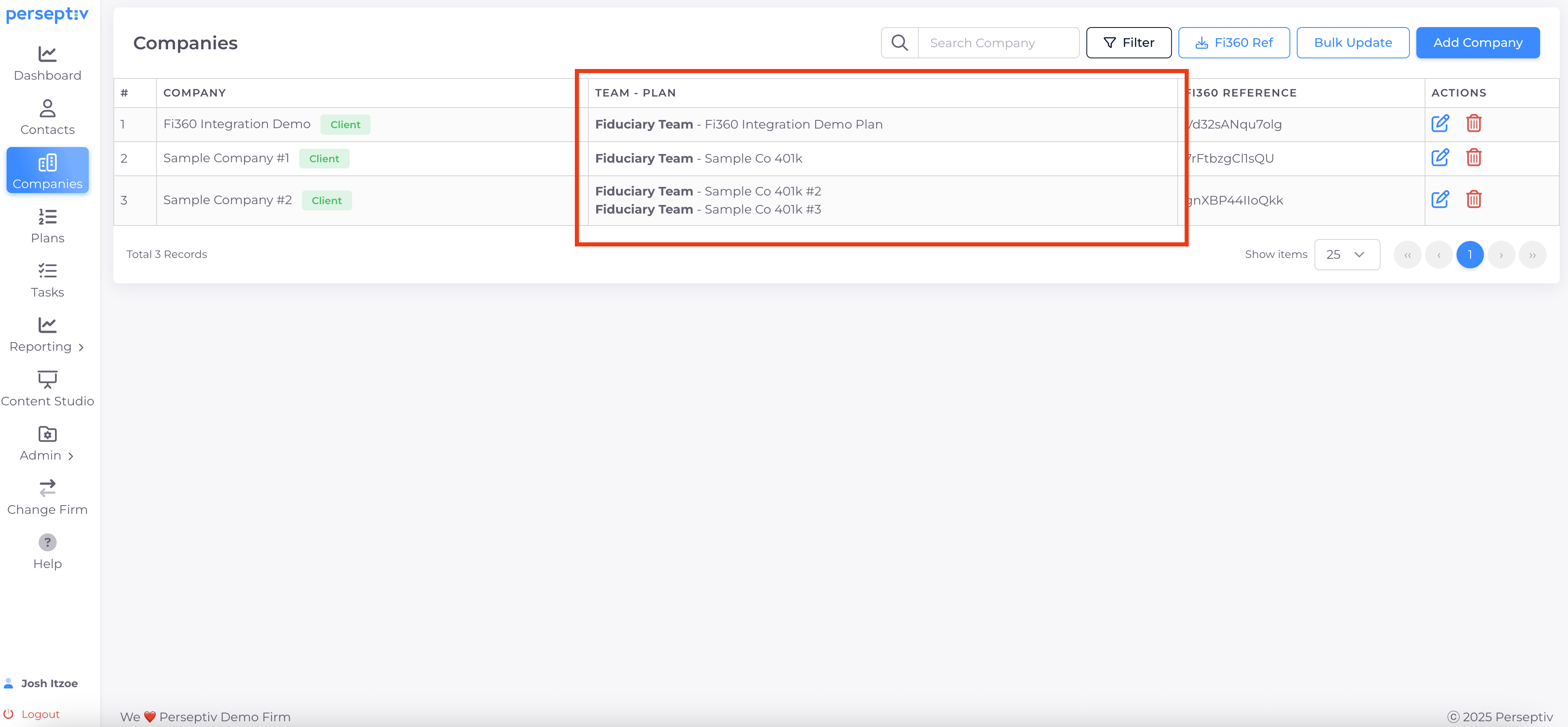
Go back to the companies section.
-
Select the company to see all associated plans.
-
Confirm that multiple plans can be tracked for the same company.