
To watch the video, click here: https://loom.com/share/017a1ca7cabe412e8bc859d0abe97d6d
Step-by-Step Instructions
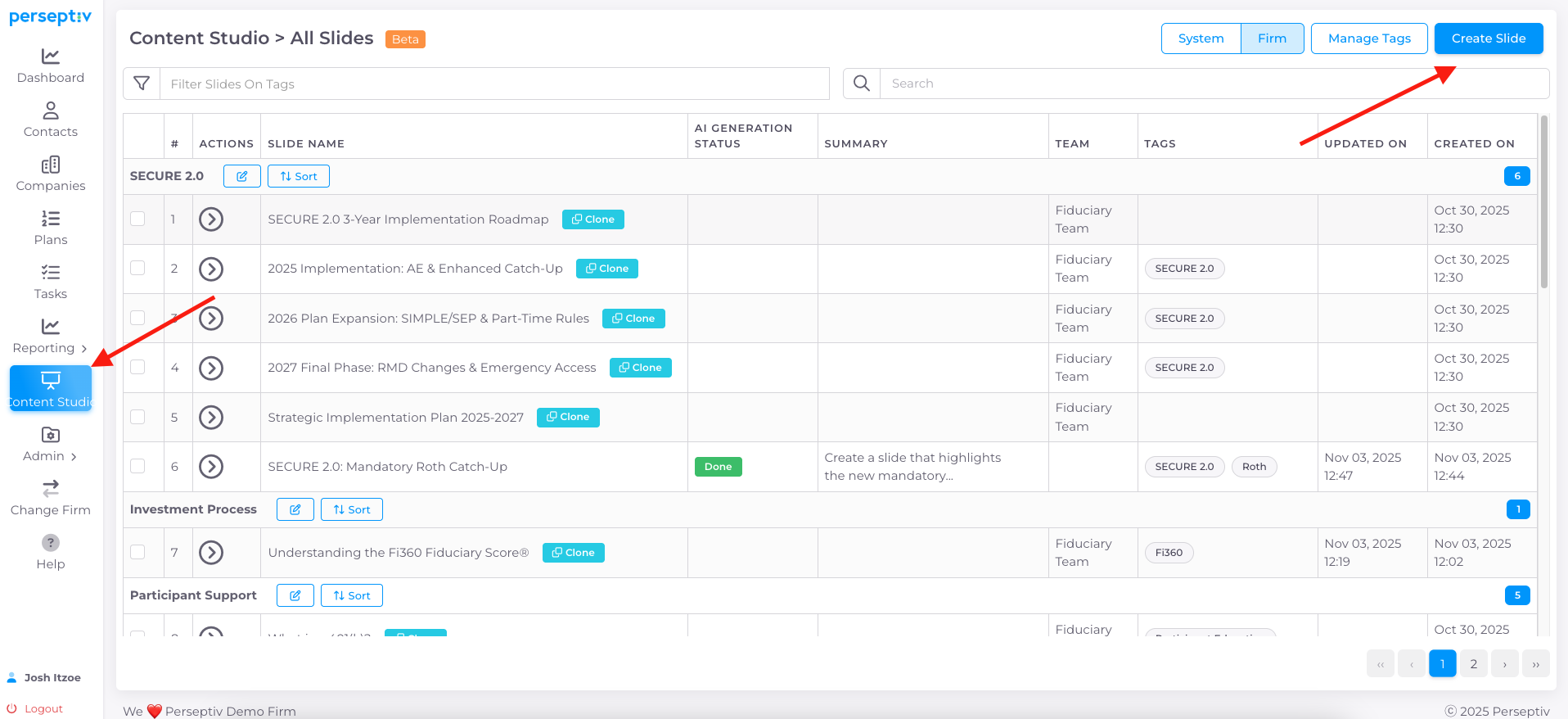
Step 1: Access Content Studio 0:00
-
Open the system and navigate to the Content Studio.
-
Choose the option to create a slide.
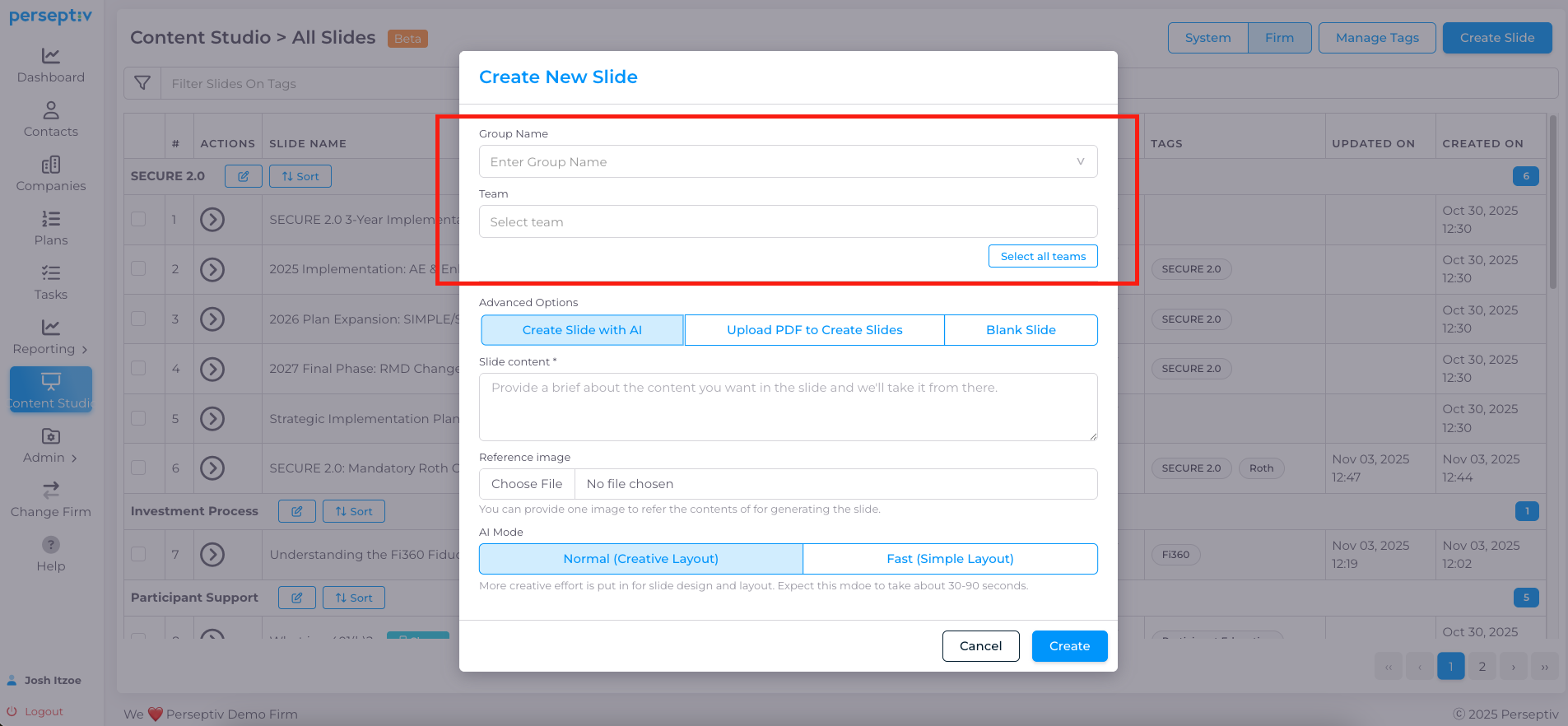
Step 2: Select or Create a Group Name 0:12
-
Select an existing group name from the system or create a new one.
- If no group is selected, it will be classified as 'Ungrouped'.
-
Apply the group to a team if necessary.
Step 3: Initiate Slide Creation with AI 0:30
-
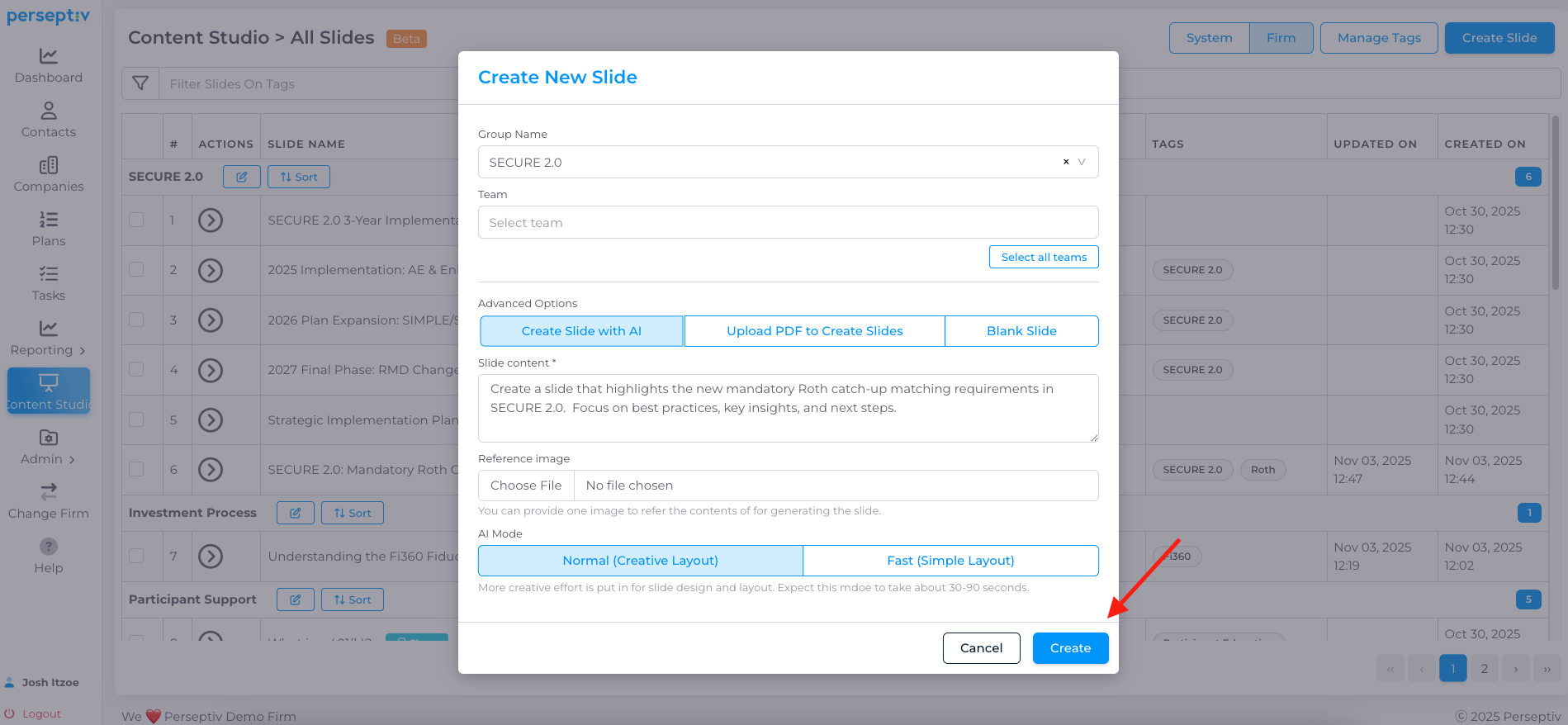
Click on 'Create Slide with AI'.
-
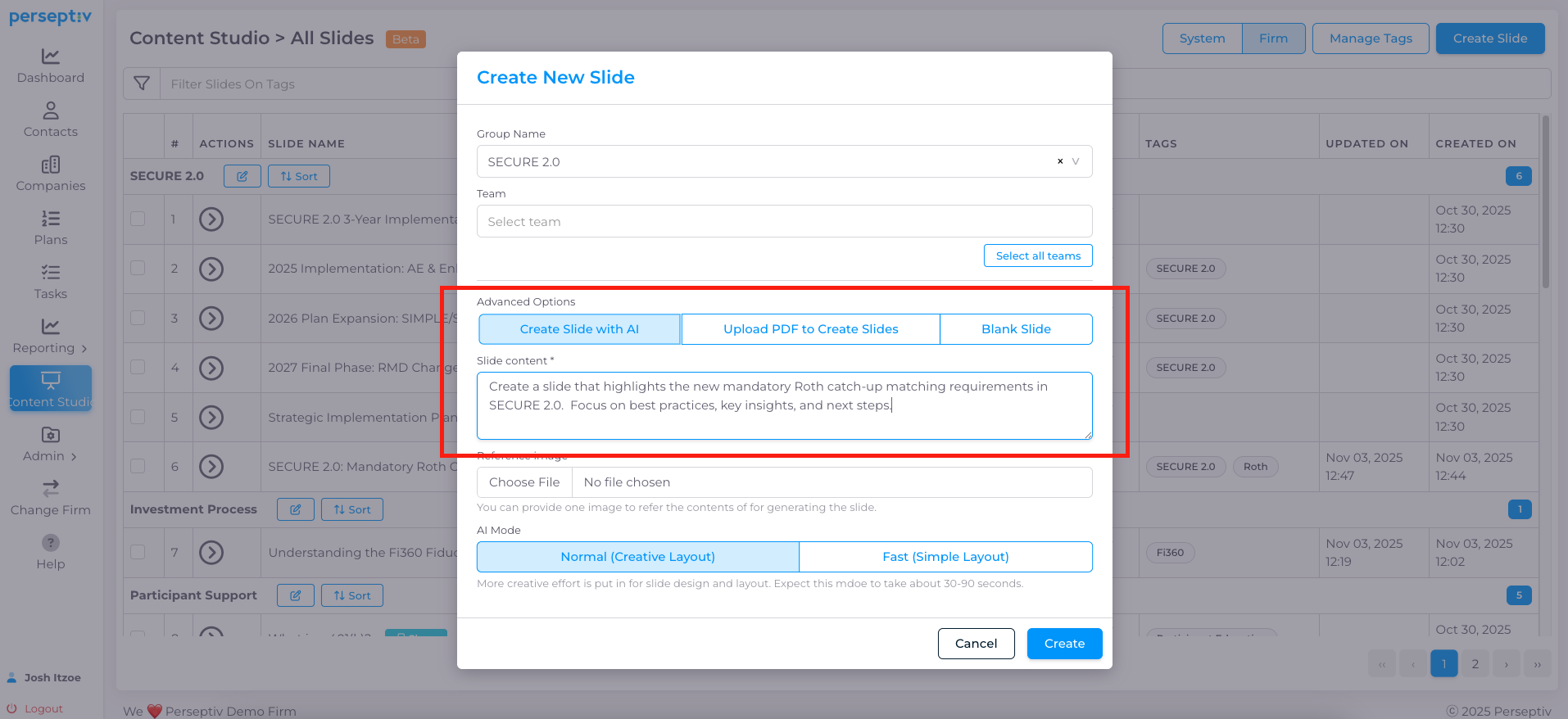
Type in your prompt for the slide content.
Step 4: Define Your Content Prompt 1:02
-
Provide a clear prompt for the content you want, e.g., "Create a slide that highlights the new mandatory Roth catch-up matching requirements in Secure 2.0, focused on best practices, key insights, and next steps."
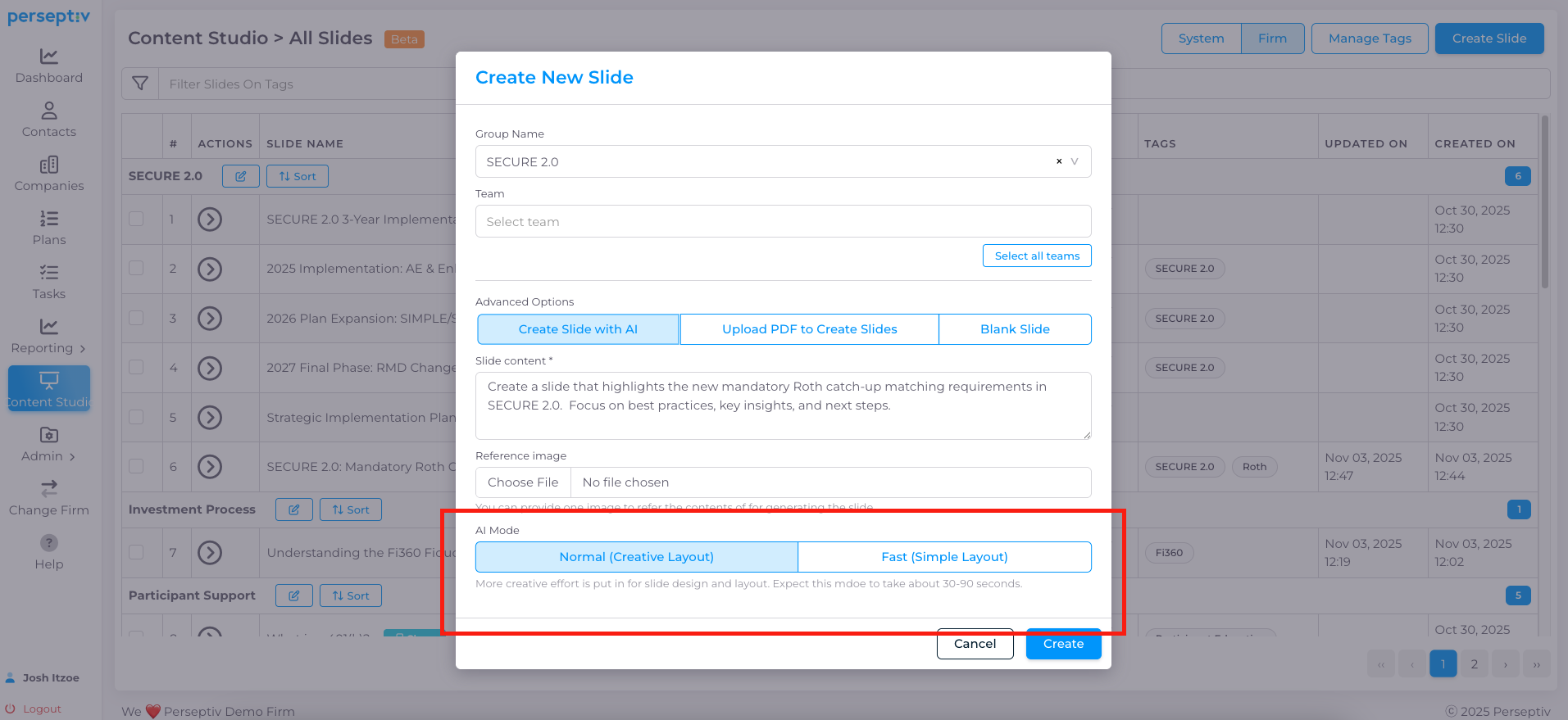
Step 5: Choose AI Mode 1:20
-
Select between two AI modes:
-
Normal (Creative Layout): Recommended for best balance of content and design (30-90 seconds).
-
Fast (Simple Layout): Quicker but less visually appealing.
-
Step 6: Understand the AI Processing 1:44
-
The system uses a comprehensive prompt and set of instructions tailored to the industry.
-
This ensures the AI-generated content meets specific standards.
Step 7: Generate the Slide 2:20
-
Click 'Create' to start generating the slide.
-
Wait for the processing to complete (approximately 30-90 seconds).
Step 8: Review the Generated Slide 2:59
-
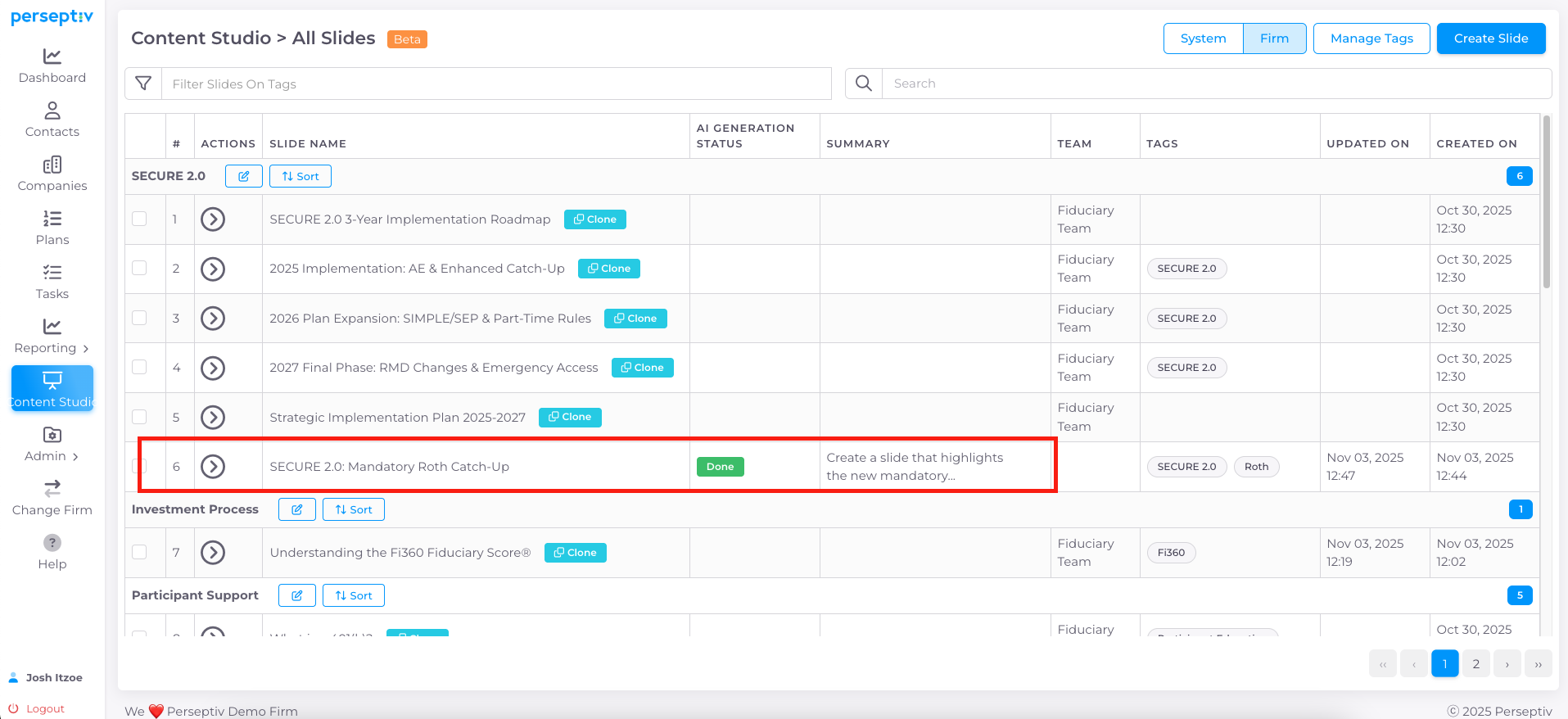
Once processing is done, review the created slide.
-
Check the title and content layout.
Step 9: Make Edits if Necessary 3:52
-
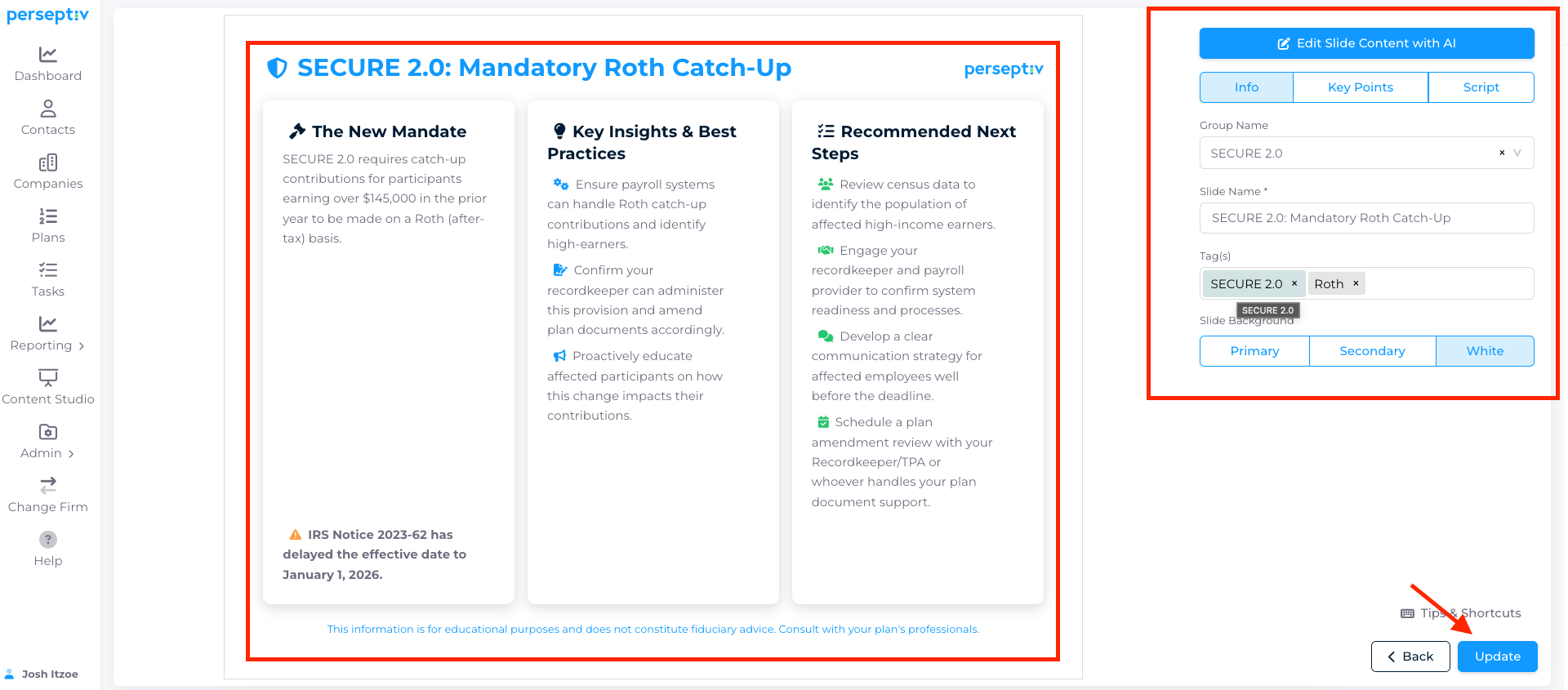
If needed, make changes to the content or layout.
-
You can update text, add tags, or modify key talking points and script.
Step 10: Search and Tag Content 5:09
-
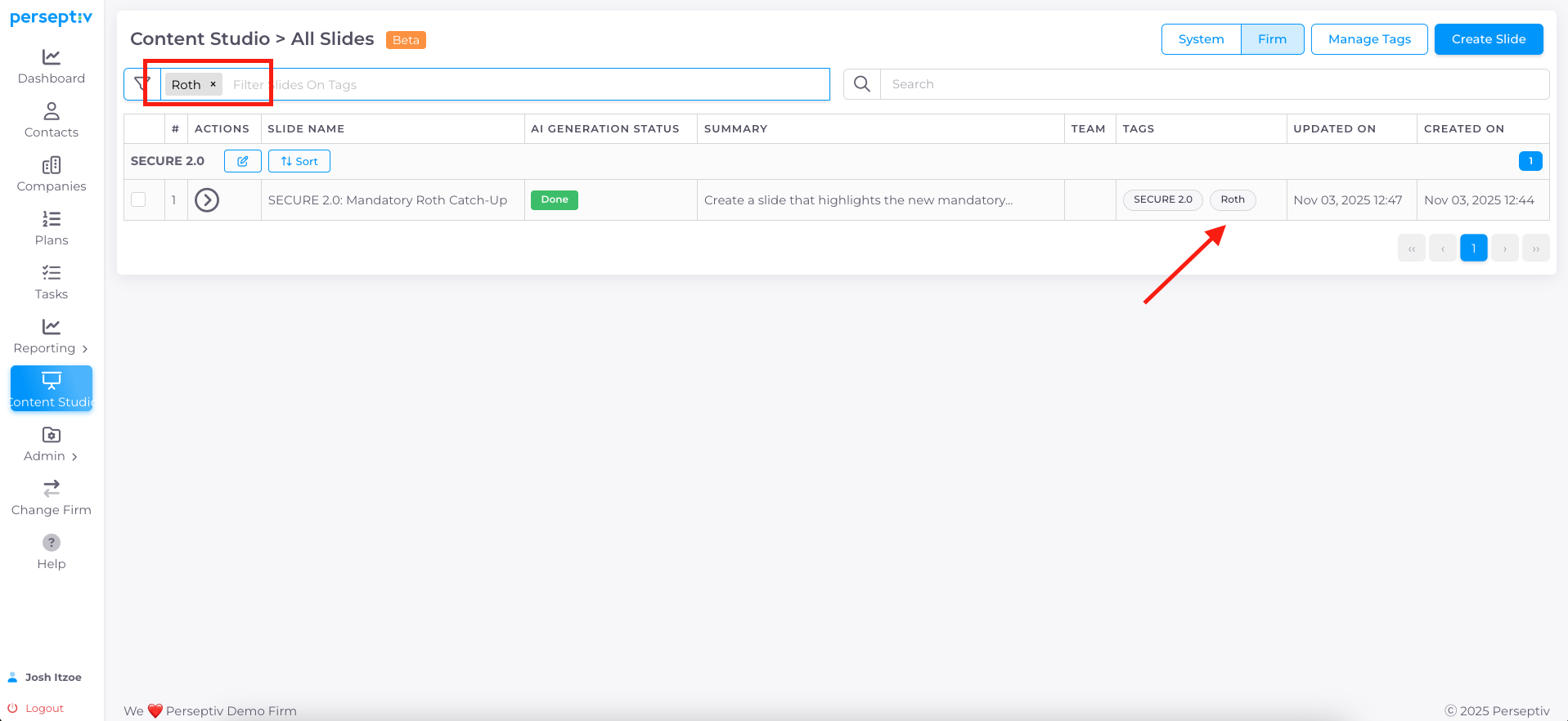
Use the search function to find specific content by keywords or tags.
-
Ensure your content is easily accessible for future reference.