
To watch the video, click here: https://loom.com/share/8df6ace9ea1443a88ef95d64bea19fb0
Step-by-Step Instructions
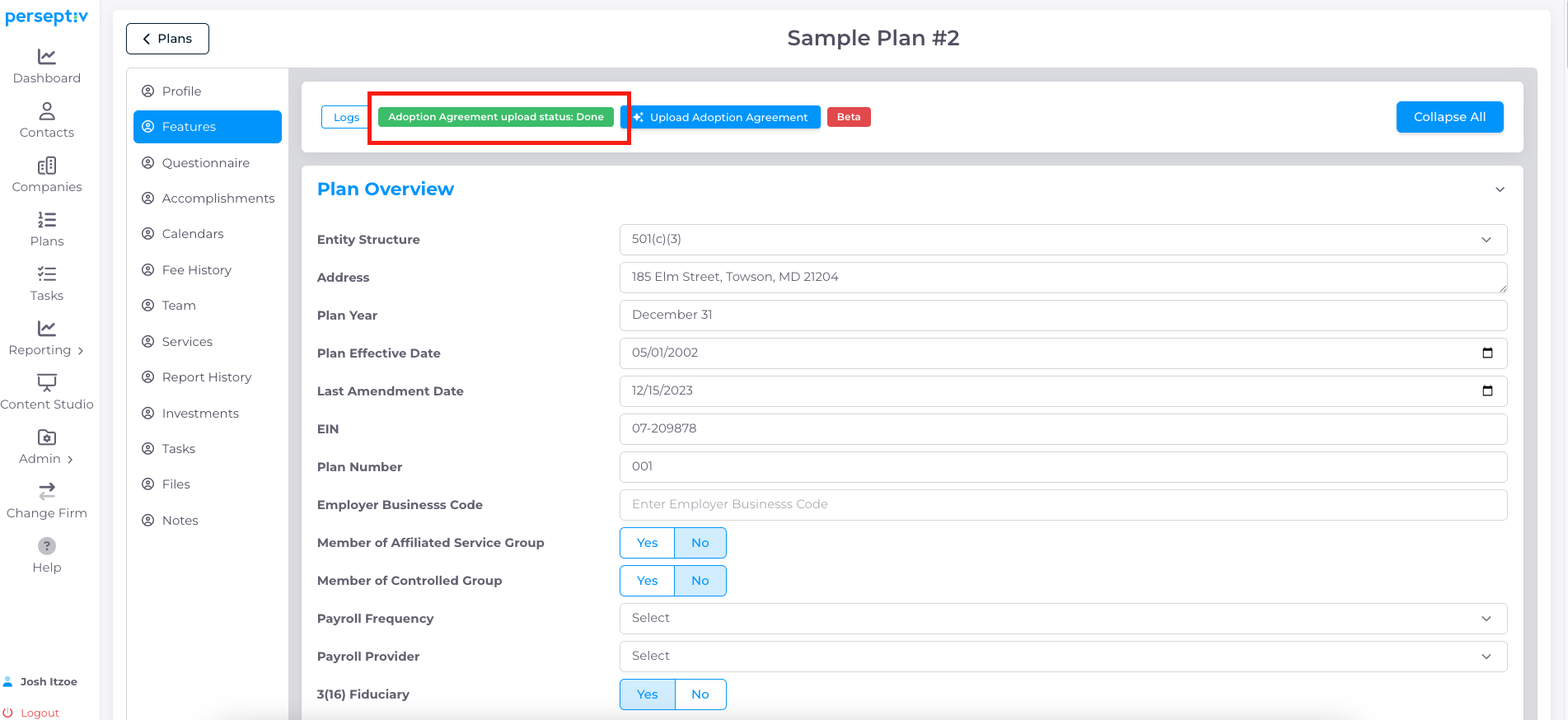
Step 1: Upload and Update Features 0:00
-
Use AI to upload and update plan features within the system.
-
Ensure all necessary features are included before proceeding.
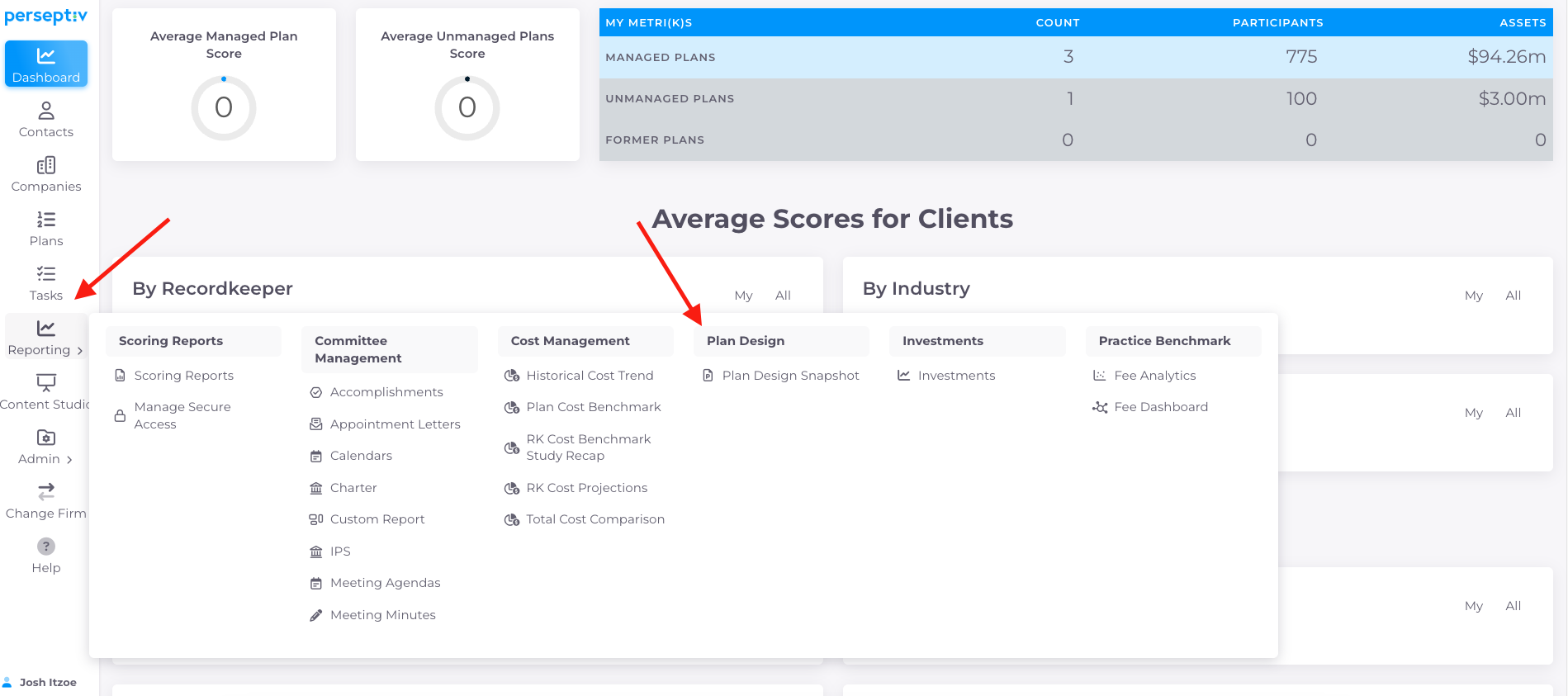
Step 2: Navigate to Reporting Section 0:12
-
Go to the reporting section of the system.
-
Select 'Plan Design' from the options.
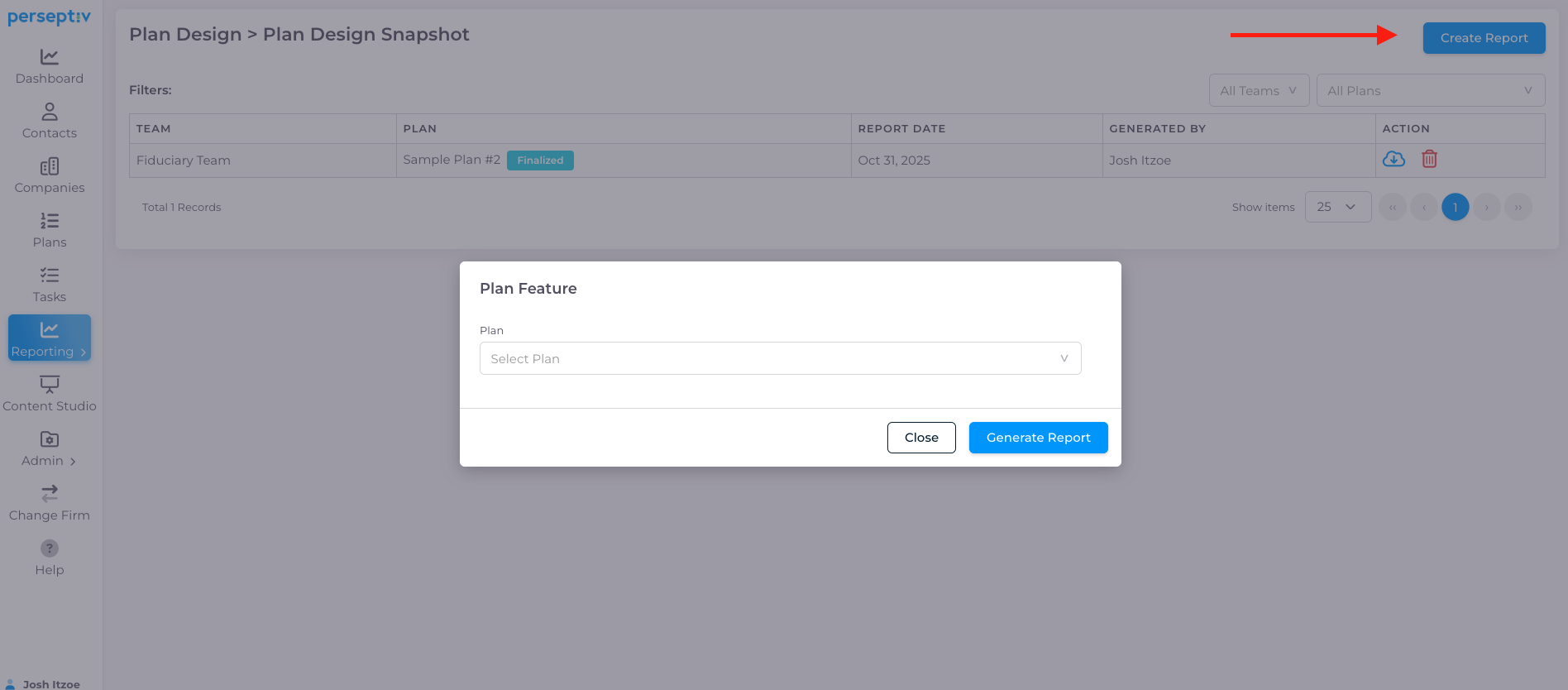
Step 3: Create a Plan Design Snapshot 0:12
-
Click on 'Plan Design Snapshot'.
-
Hit 'Create Report' to start the process.
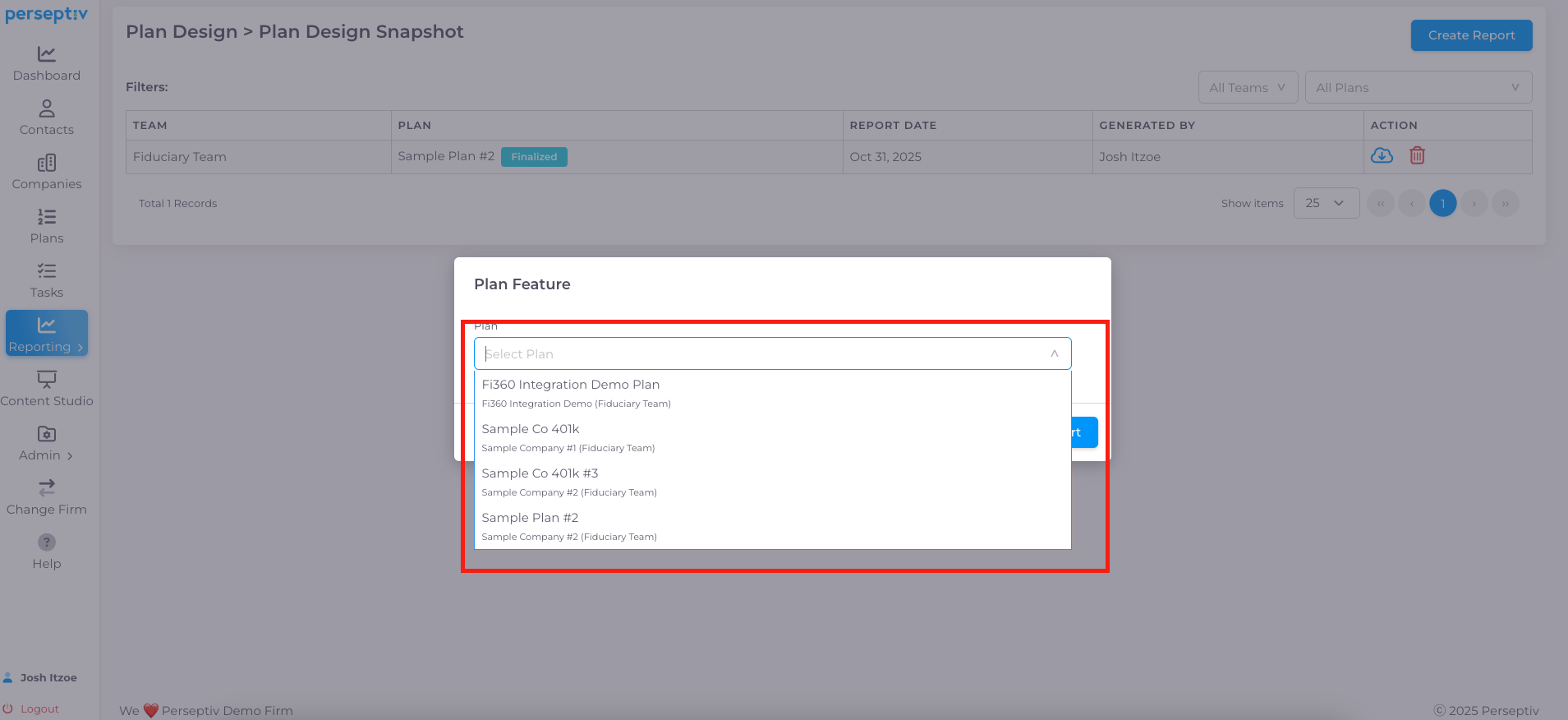
Step 4: Select Plan 0:12
-
Choose the specific plan you want to create a snapshot for.
-
Provide a title for your report.
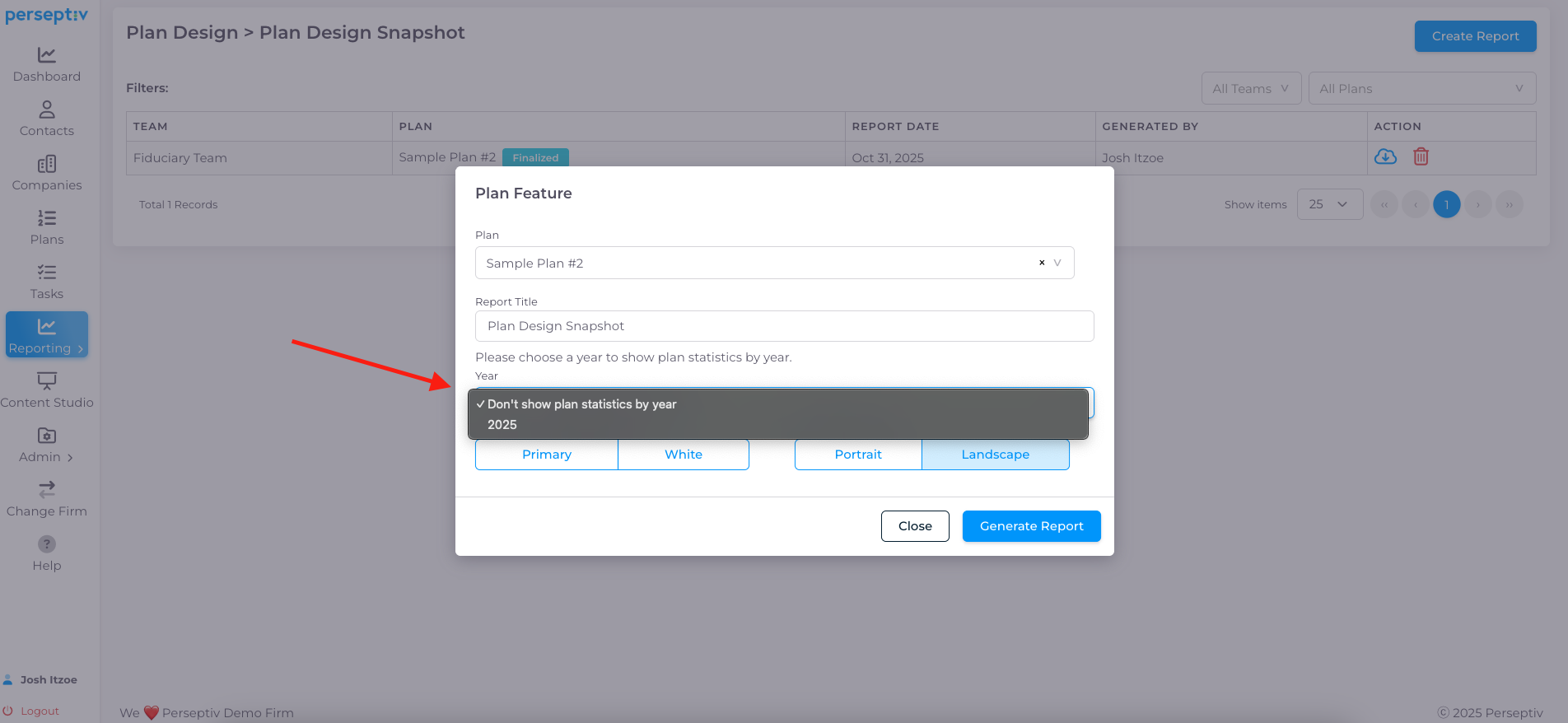
Step 5: Choose Whether to Plan Design Statistics 0:32
-
Decide whether to show plan design statistics from the bottom of the plan features page.
-
You can choose to hide these statistics if preferred.
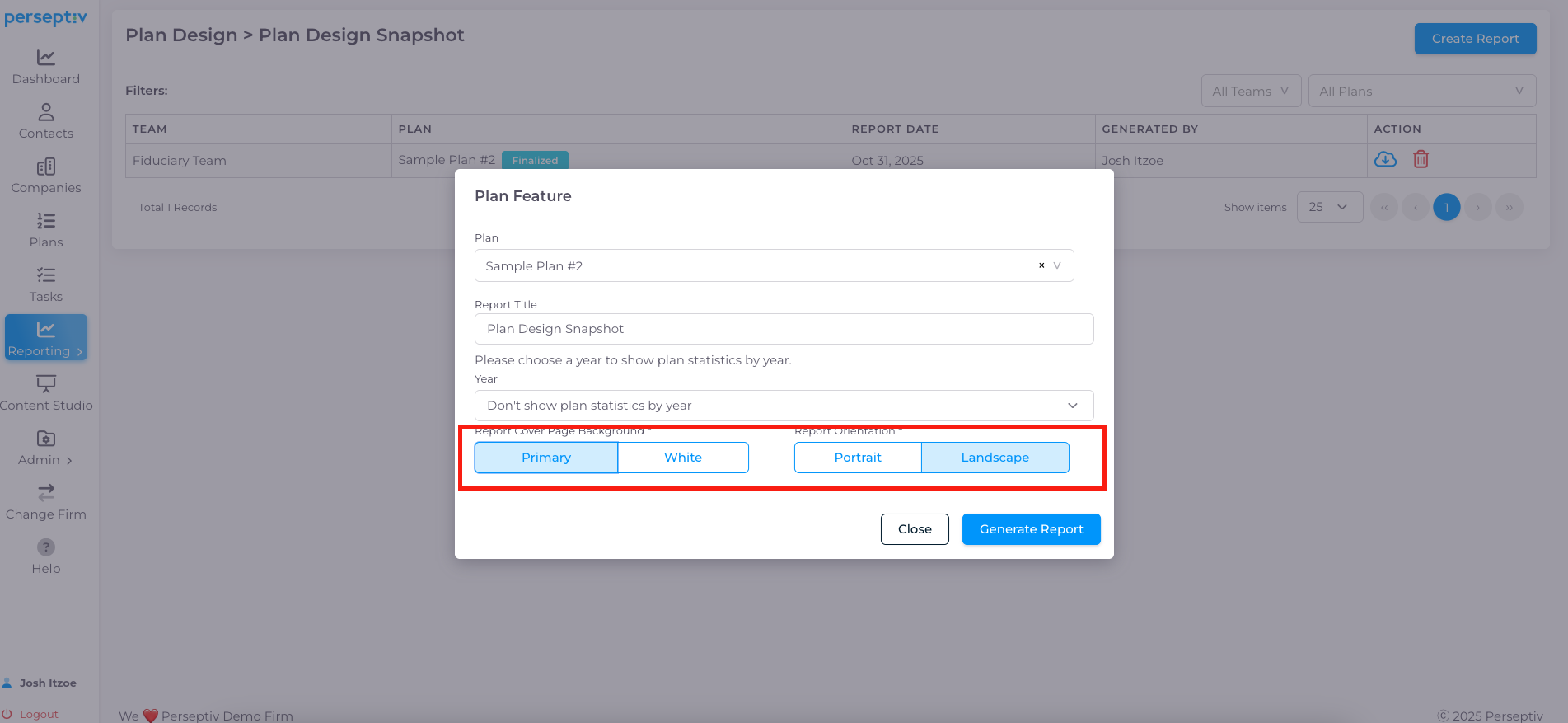
Step 6: Customize Report Appearance 0:40
-
Select your report cover and background.
-
Choose the report orientation (portrait or landscape).
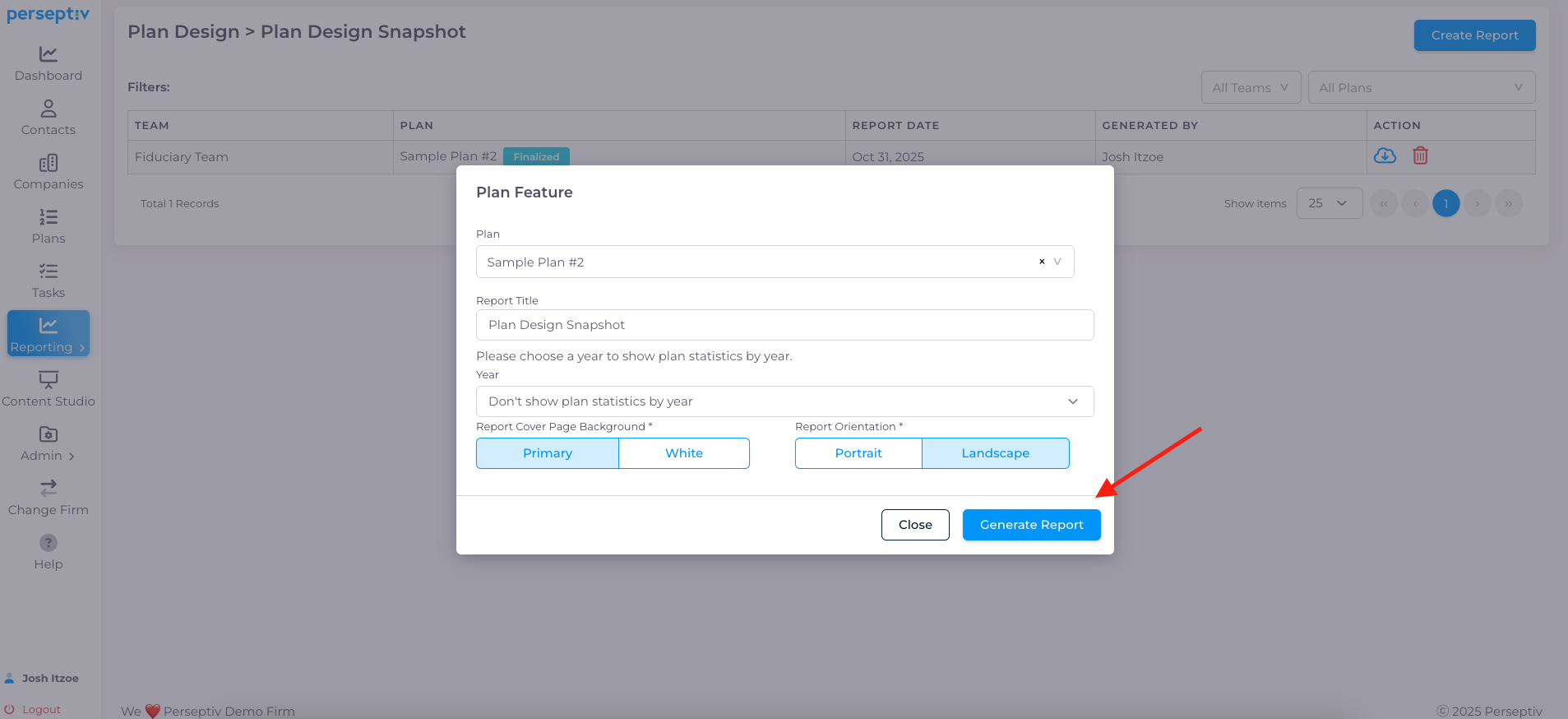
Step 7: Generate the Report 0:40
-
Hit 'Generate Report'.
-
Wait a moment for the system to compile the data.
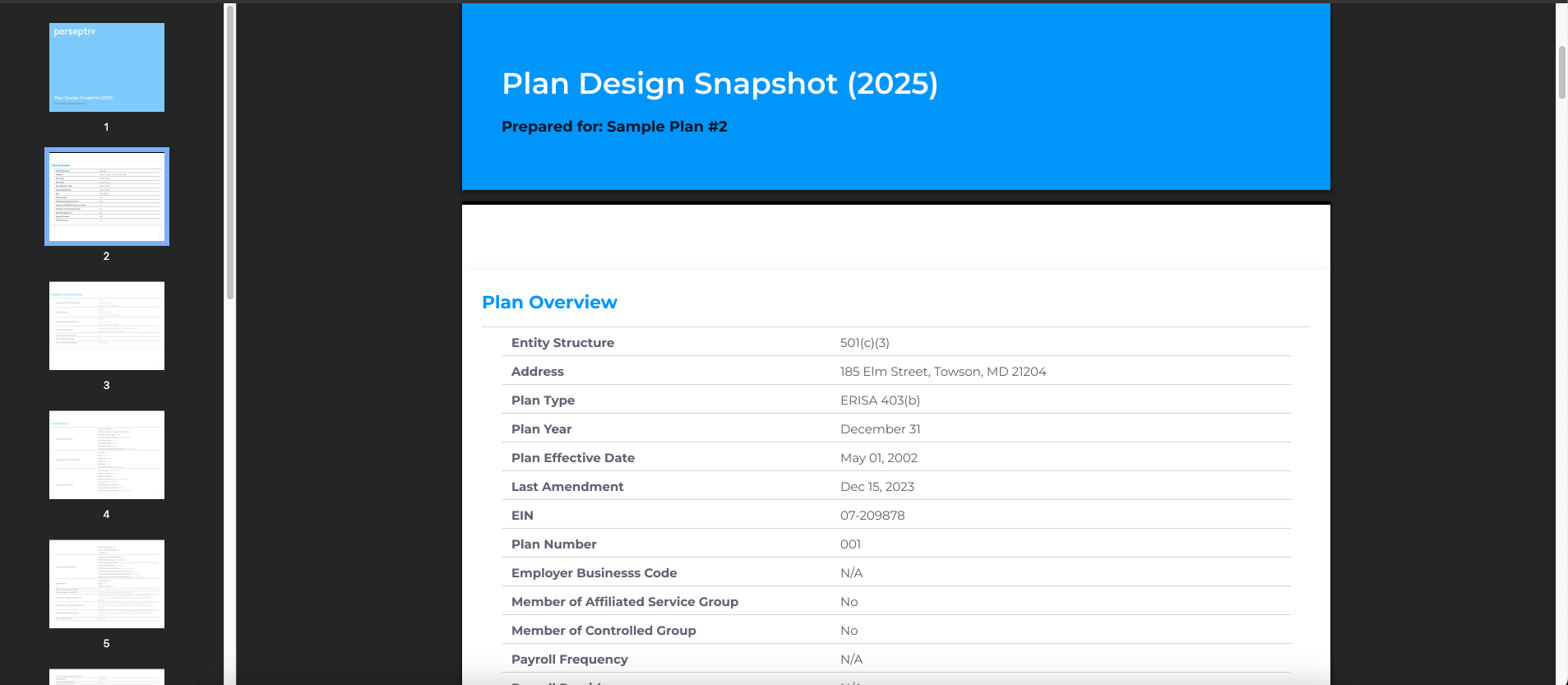
Step 8: Review the Plan Design Snapshot 0:54
-
The generated snapshot provides a high-level overview of the plan.
-
Use this snapshot as a handy and concise reference for HR team members.
-
It eliminates the need to read through lengthy adoption agreements (60-80 pages).