
To watch the video, click here: https://loom.com/share/3f407ce725ce4896a8fca500698d3833
Step-by-Step Instructions
1. Accessing Plans 0:01
-
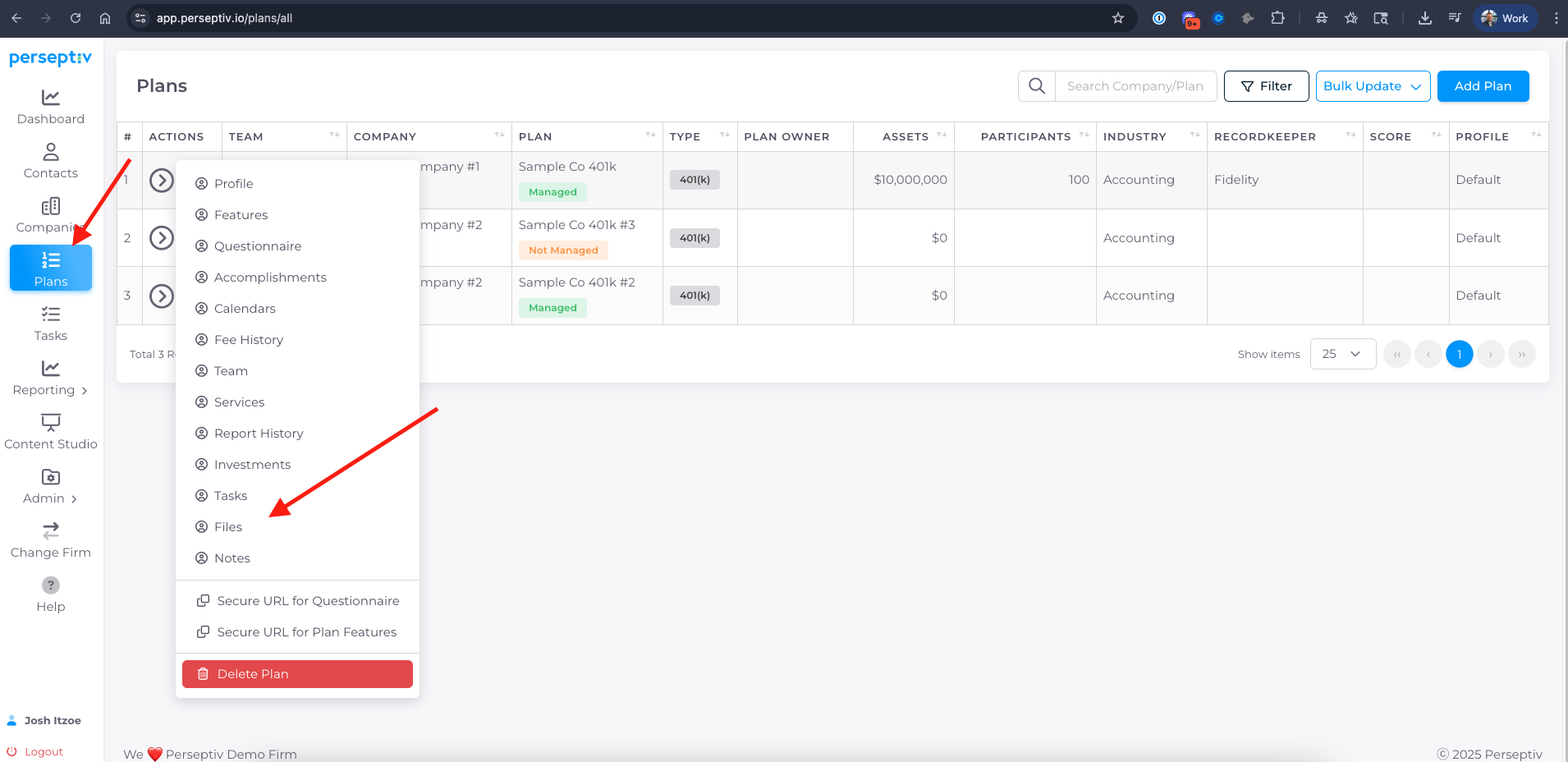
Navigate to the 'Plans' section.
-
Select the respective plan you want to manage.
-
Click on the actions arrow and choose 'Files'.
2. Viewing Historical Reports 0:20
-
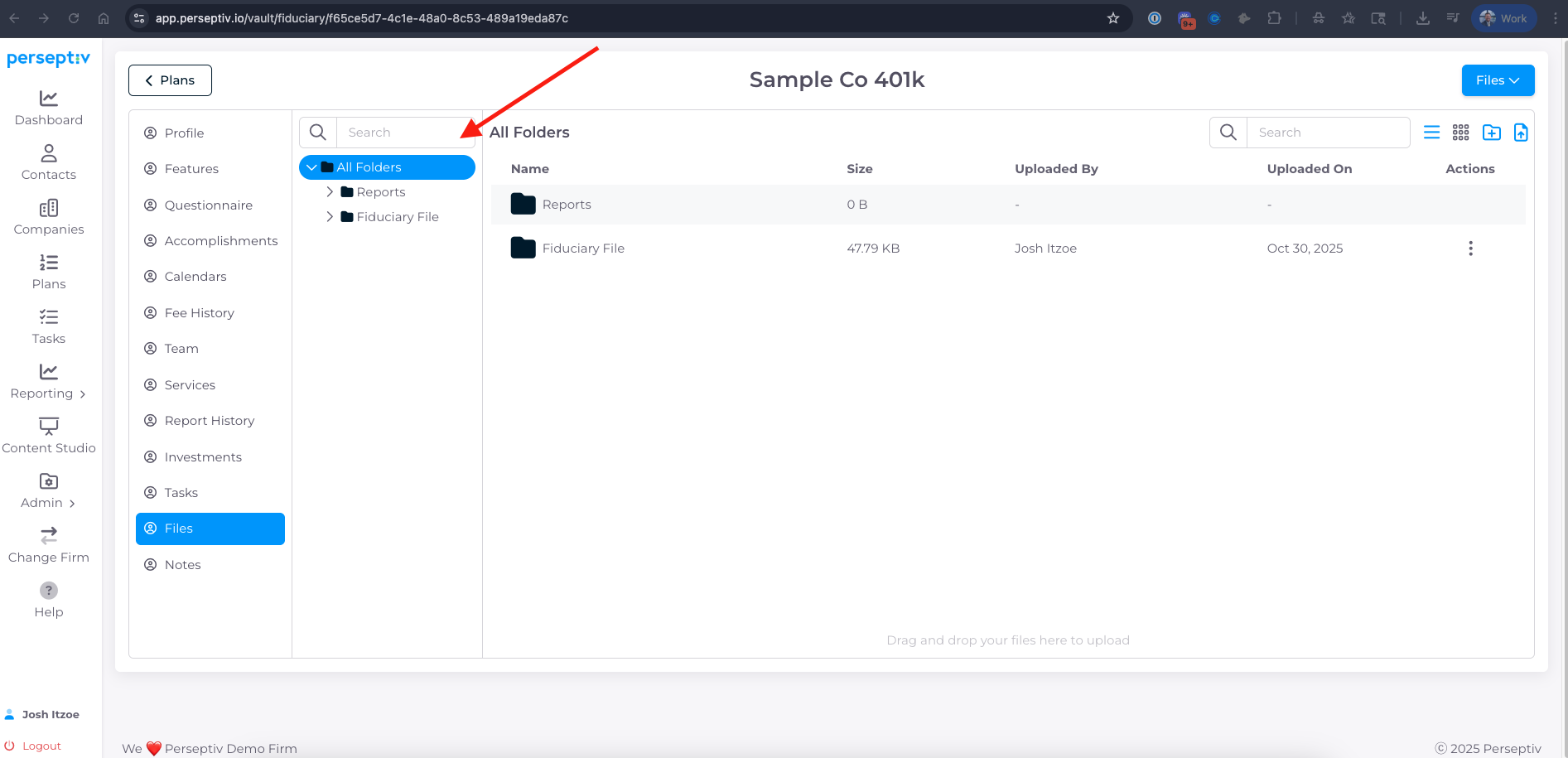
In the files section, locate the 'Reports' folder.
-
Click on it to view historical reports generated in the system.
-
Expand the report types to access specific reports.
3. Understanding the Fiduciary File Structure 0:47
-
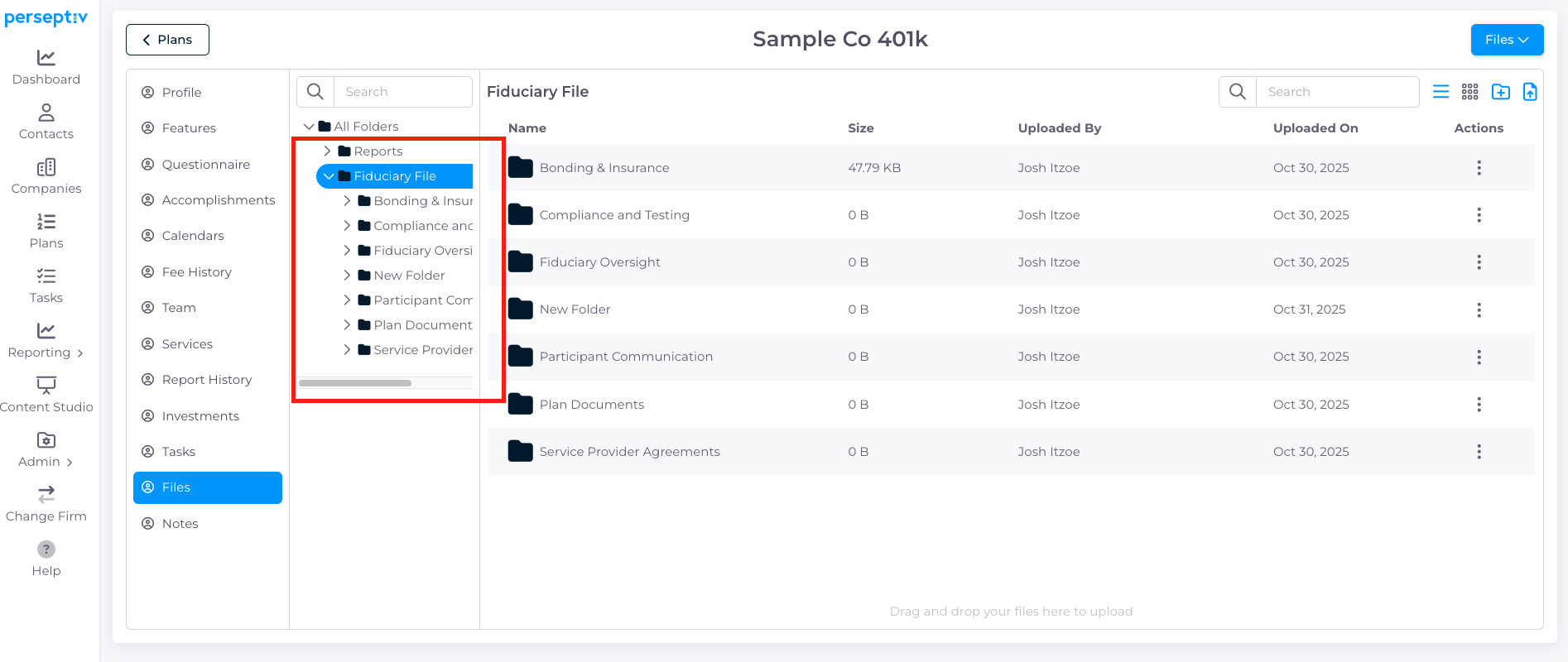
Find the 'Fiduciary File' tab in the files section.
-
Review the standard file structure provided out of the box.
-
You can expand this structure to see its contents.
4. Modifying the File Structure 1:09
-
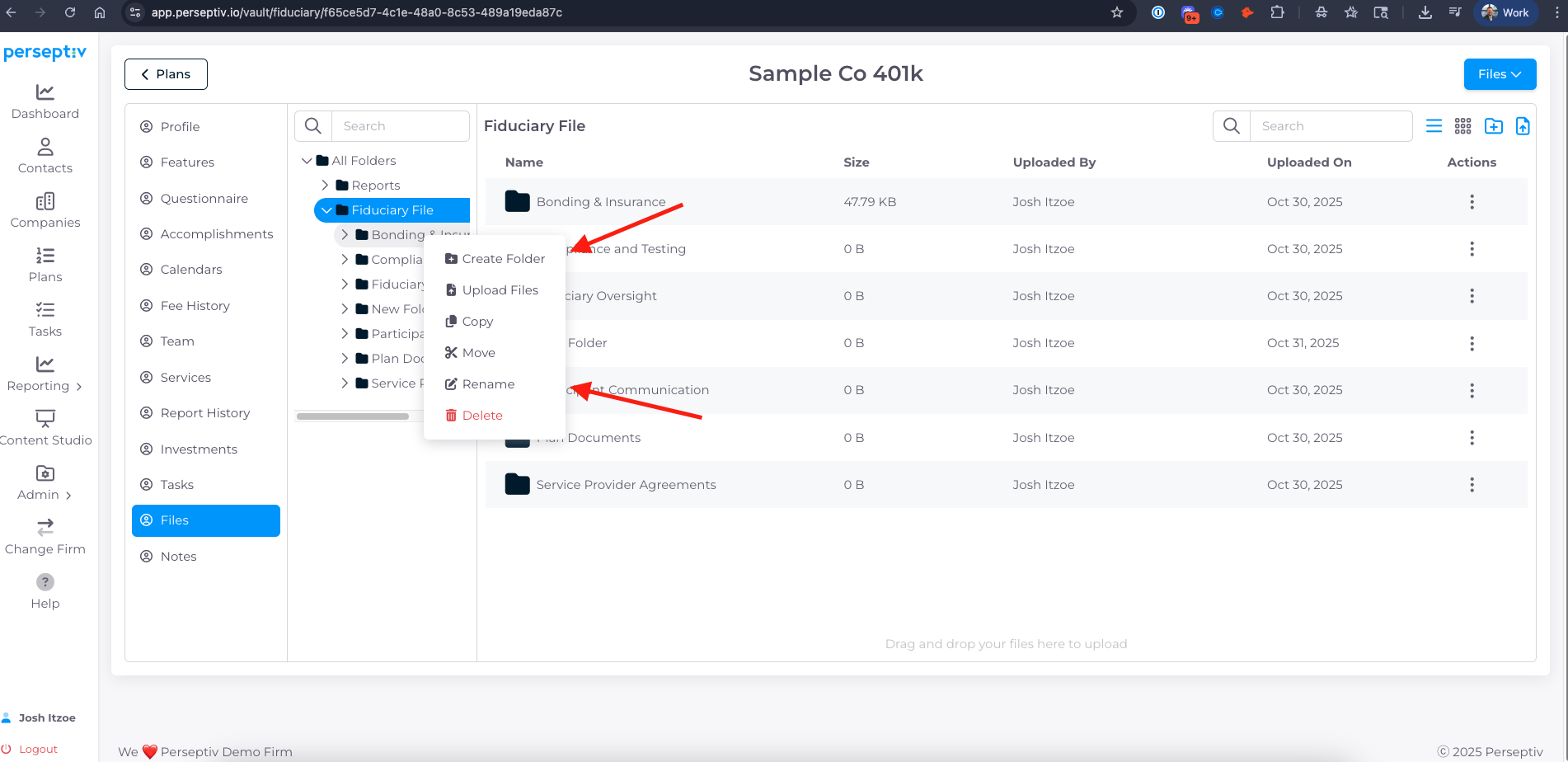
To add a new folder, type the desired name in the 'New Folder' field and create it.
-
Right-click on the new folder to create subfolders as needed.
5. Uploading and Managing Files 1:51
-
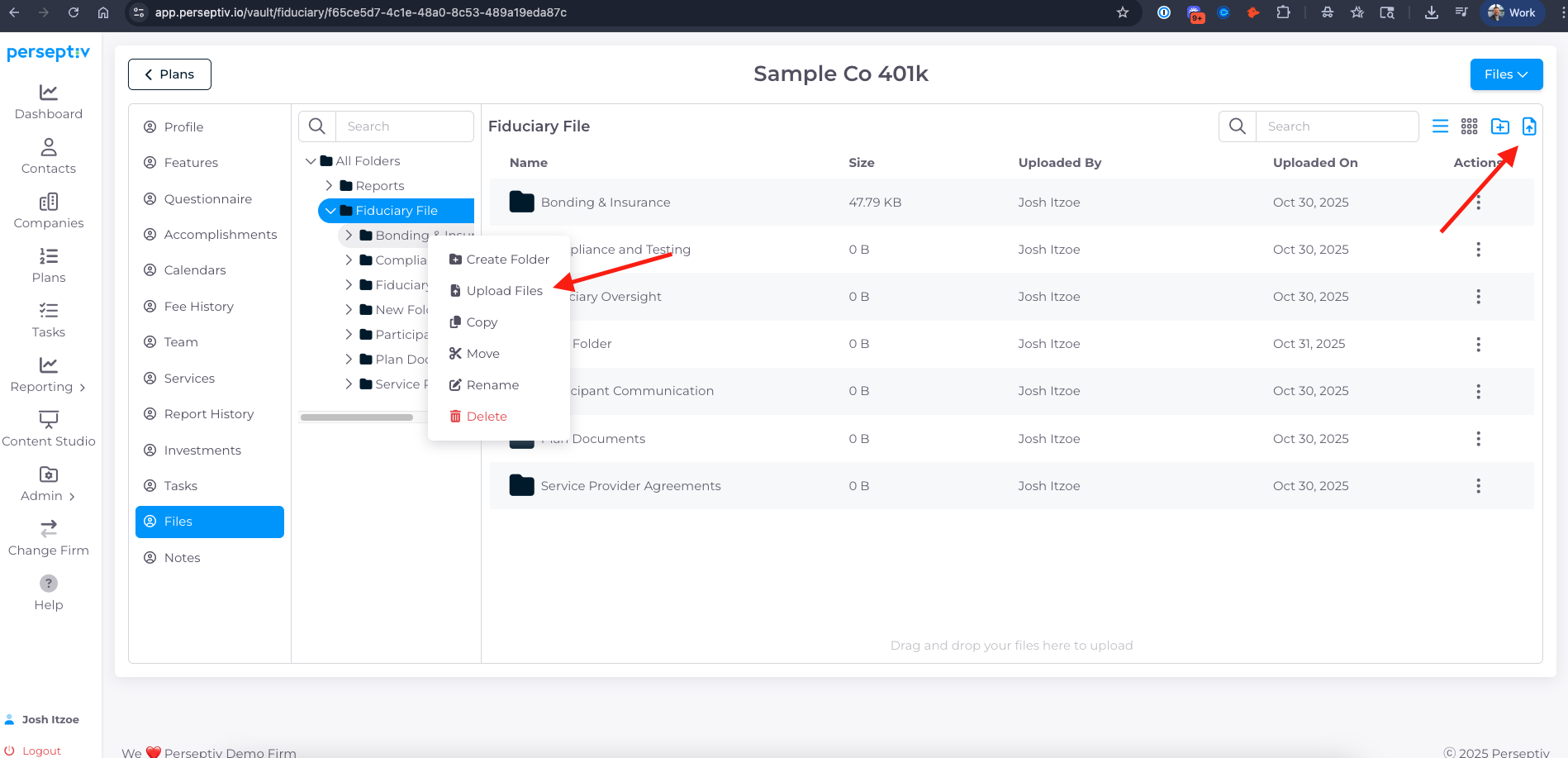
Right-click within a folder to upload files.
-
You can also move folders around as necessary.
6. Renaming and Moving Files 2:28
-
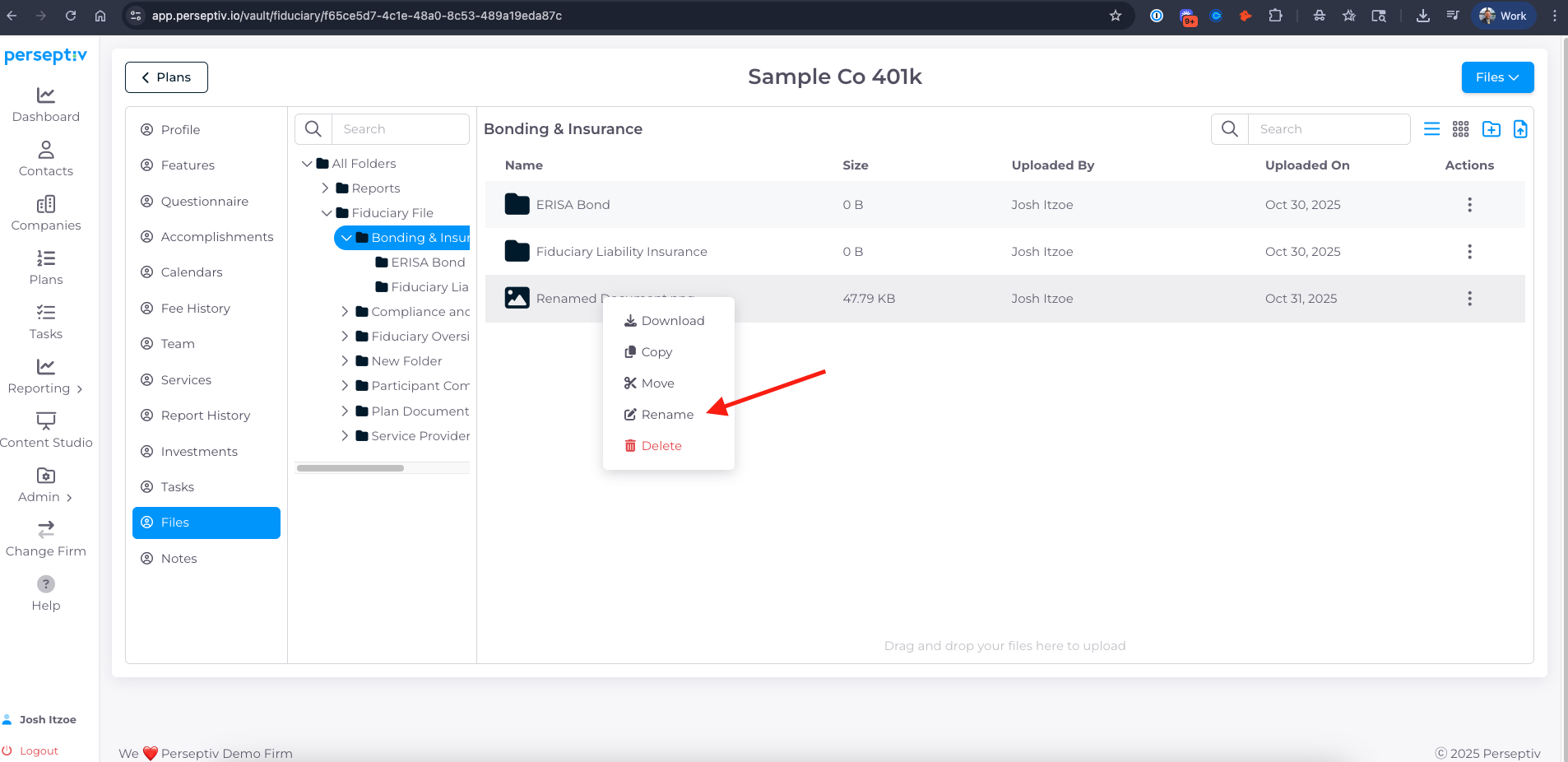
To rename a file, select it and choose the rename option.
-
To move a file, select it and choose the destination folder.
7. Searching and Updating Files 2:43
-
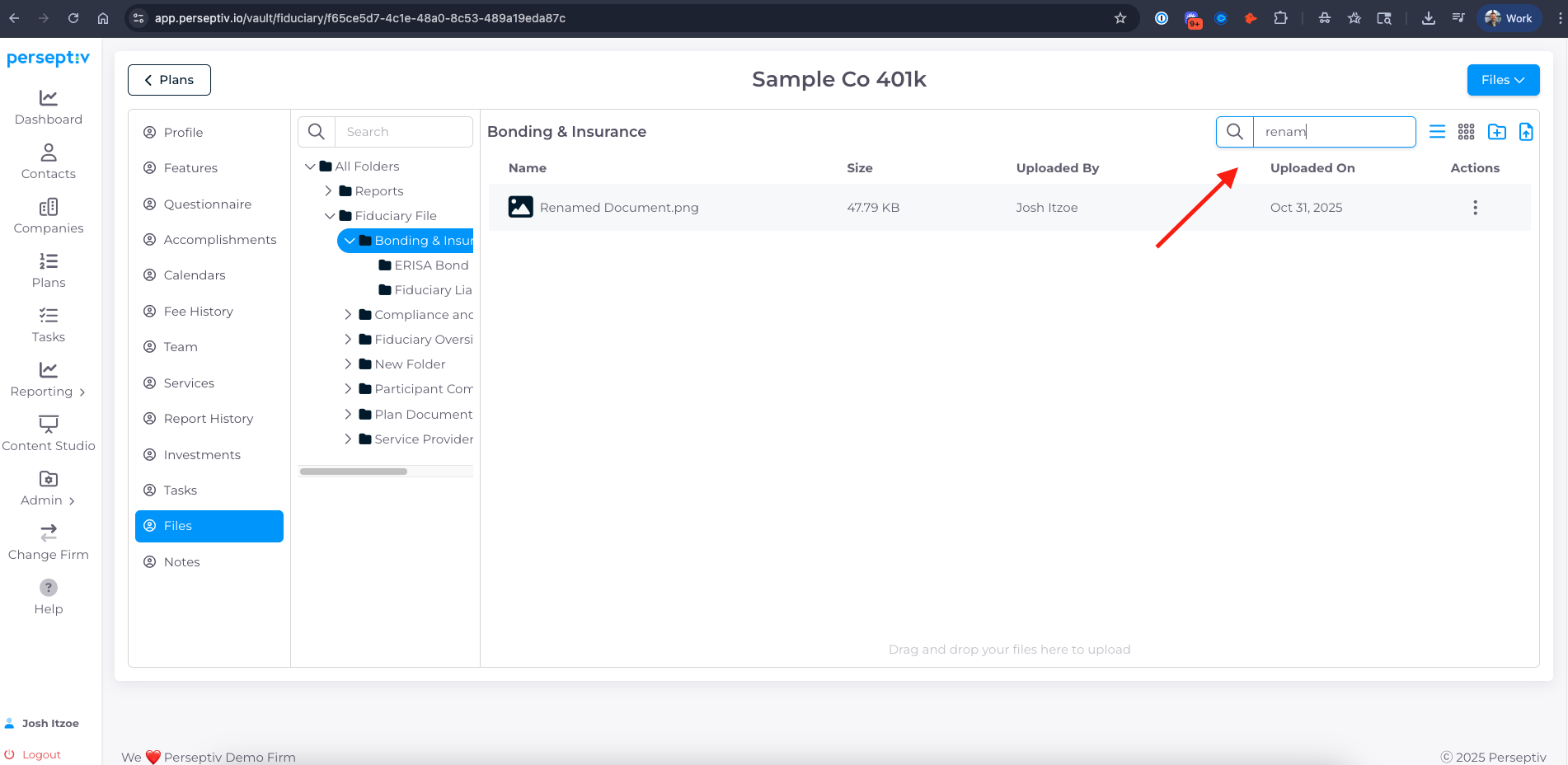
Use the search function to find specific documents.
-
Update your file structure as needed to keep it organized.
8. Organizing Your Fiduciary File 3:00
-
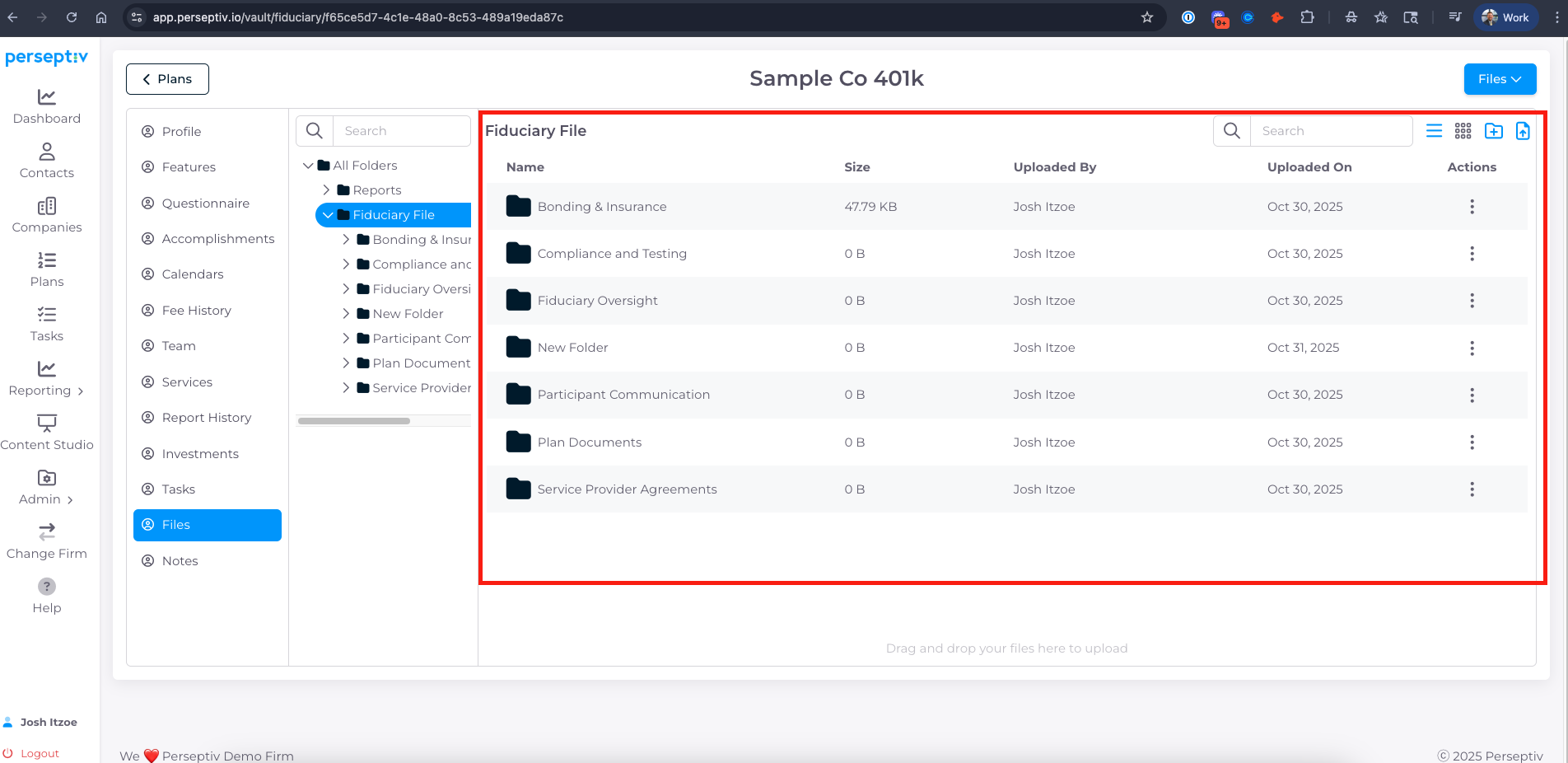
Utilize the file section under each plan to effectively organize your fiduciary files.